
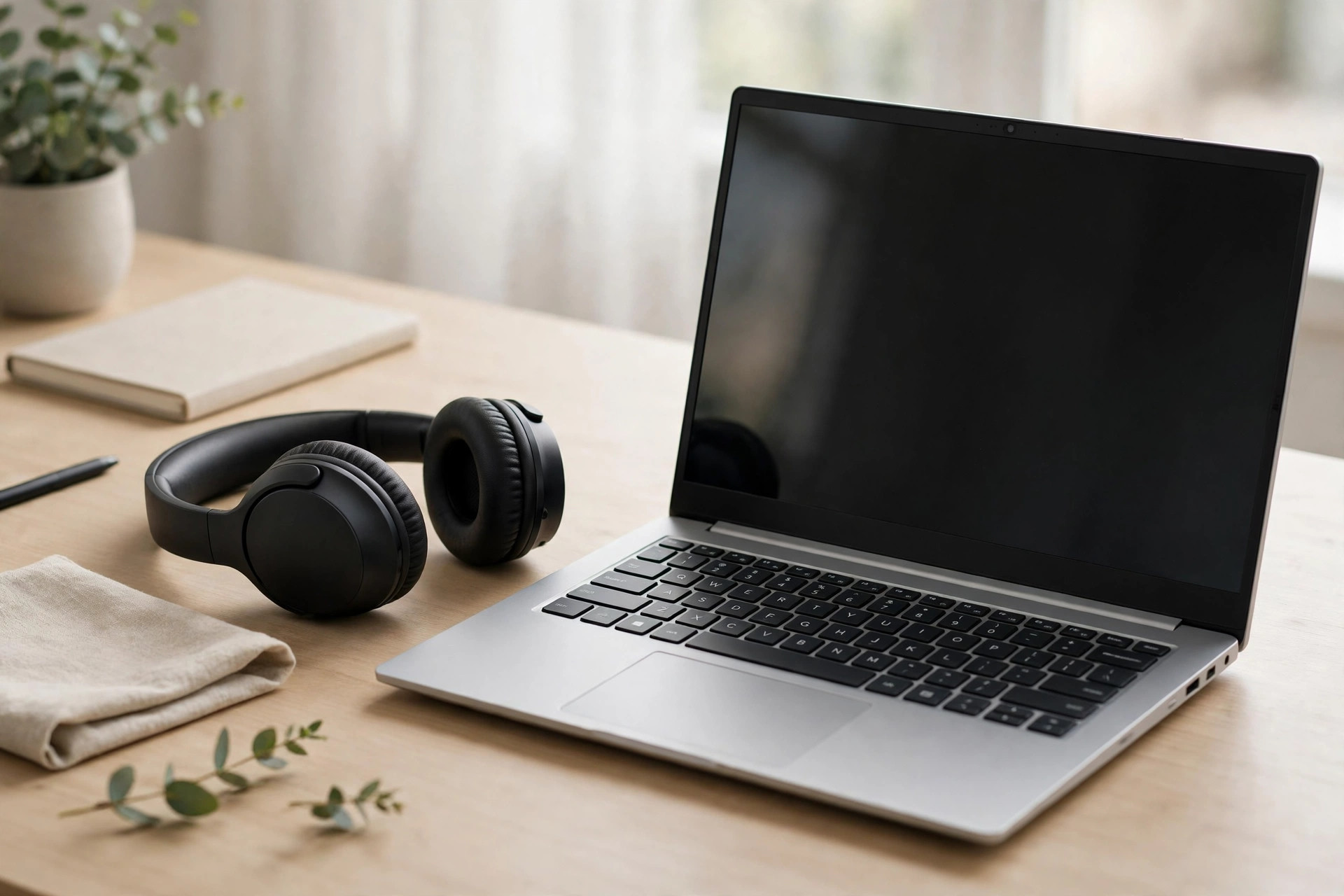
There is a small moment of frustration almost every laptop owner knows. You open your new Bluetooth headphones, put them on, press play on a video or a playlist, and the sound still comes out of the laptop speakers. Nothing is broken. Windows is simply waiting for you to introduce the two devices to each other properly, and once that first pairing is done, reconnecting usually takes only a few seconds.
Connecting Bluetooth headphones to a Windows laptop is straightforward on both Windows 11 and Windows 10, as long as you follow the order that matters: turn Bluetooth on, put the headphones into pairing mode, then select them in Settings. This guide walks through the full process, the sound settings worth checking afterwards, and the fixes for the problems that stop a connection from working.
Before You Start: Check That Your Laptop Has Bluetooth
Most laptops sold in the last decade include Bluetooth as standard, but older machines, budget models, and some desktop PCs do not. Checking first saves a lot of wasted troubleshooting later.
How to Check for Bluetooth in Windows
Right-click the Start button and select Device Manager. Look for a section called Bluetooth in the list. If it is there, your laptop has a Bluetooth adapter and you are ready to pair. If you cannot see it, open Settings > Bluetooth & devices in Windows 11, or Settings > Devices > Bluetooth & other devices in Windows 10. If there is no Bluetooth toggle at all on that page, the hardware is either missing or its driver is not installed.
If your computer genuinely has no Bluetooth, a small USB Bluetooth adapter is an inexpensive fix. Plug it in, let Windows install the driver automatically, and the same steps below will work. Charge your headphones before you begin, too. Many models will enter pairing mode with a low battery and then disconnect minutes later, which looks like a Windows problem when it is really just a flat battery.
Step-by-Step: Connect Bluetooth Headphones in Windows 11
Windows 11 places everything you need in one Settings page, and the whole process normally takes under a minute.
Step 1: Put Your Headphones in Pairing Mode
This is the step people miss most often. With most headphones, you press and hold the power button or a dedicated Bluetooth button for five to seven seconds until the indicator light flashes blue and red, or blue and white. That flashing pattern means the headphones are discoverable. Some earbuds pair automatically when you open the charging case lid, while others need you to hold a button on the case. Check the quick-start guide for your model if the light does not flash, because pairing mode is never activated the same way on every brand.
Step 2: Turn On Bluetooth in Settings
Open Settings > Bluetooth & devices and make sure the Bluetooth toggle at the top is switched on. You can also click the network, sound, or battery icon in the bottom-right corner of the taskbar to open Quick Settings and turn on the Bluetooth tile there. If the Bluetooth tile is greyed out or missing, restart the laptop once before continuing, as the adapter sometimes fails to start cleanly after sleep.
Step 3: Add the Headphones as a New Device
On the same Settings > Bluetooth & devices page, click Add device, then choose Bluetooth from the three options. Windows starts scanning immediately. Wait a few seconds and your headphones should appear by name. Click the name, and Windows will show Connecting followed by Connected. Microsoft describes this same pairing flow in its official guide to pairing a Bluetooth device in Windows, which is worth bookmarking if you add accessories often.
Step 4: Confirm the Headphones Are the Sound Output
Pairing and playing sound are two separate things in Windows. Click the speaker icon in the taskbar, then click the sound output selector next to the volume slider and choose your headphones from the list. Play a song or a video and confirm the audio has moved. If you make this check a habit, you will avoid the classic mistake of a laptop blasting sound into a quiet room while the headphones sit silently on your head.
Connecting Bluetooth Headphones in Windows 10
The Windows 10 route is almost identical, with slightly different menu names. Open Settings > Devices > Bluetooth & other devices, switch Bluetooth to On, and click Add Bluetooth or other device. Choose Bluetooth, wait for your headphones to appear, click the name, and then click Done. Afterwards, go to Settings > System > Sound and set your headphones as the output device under Choose your output device.
How to Reconnect and Manage Paired Headphones
After the first pairing, Windows remembers your headphones. In most cases you simply turn them on, and they reconnect automatically within a few seconds, provided Bluetooth is enabled and the headphones are not still connected to your phone. That last point causes more confusion than any Windows setting. Most headphones can only hold one active connection at a time unless they support multipoint, so turn off Bluetooth on your phone temporarily if the laptop cannot grab them.
To remove a device that is behaving badly, go to Settings > Bluetooth & devices, click the three-dot menu beside the headphones, and select Remove device. Then pair them again from scratch. A fresh pairing clears corrupted connection records and fixes a surprising number of dropouts, stutters, and one-earbud-only problems. For more practical guides in the same style, our Windows tips and tutorials collection at NetworkUstad covers the everyday settings that make a laptop easier to live with.
Fixing Common Connection Problems
Headphones Do Not Appear in the List
Confirm the headphones are still in pairing mode, because many models exit it after about a minute. Move them within a metre of the laptop, away from USB hubs and routers that can interfere with the signal. Turn Bluetooth off and on again in Settings, then click Add device for a fresh scan.
Connected but No Sound
Open Settings > System > Sound and check that the headphones are selected under Output. Scroll down and run the built-in troubleshooter if the option appears for your device. Also check the volume inside the app you are using, since browsers and media players keep their own volume controls and per-app levels under Settings > System > Sound > Volume mixer.
Sound Is Quiet, Tinny, or Delayed
If voices sound like a phone call, Windows may be using the hands-free profile instead of the stereo profile. In the sound output list, choose the entry labelled Stereo rather than Hands-Free AG Audio when you only want to listen. The hands-free profile is designed for calls and sacrifices quality for the microphone. A small delay on video is normal for basic Bluetooth codecs, but persistent stutter usually means distance, interference, or an outdated Bluetooth driver. Update the driver through Device Manager > Bluetooth by right-clicking your adapter and choosing Update driver.
Common Mistakes to Avoid
The biggest mistake is skipping pairing mode and then blaming Windows. The second is leaving the headphones connected to a phone, tablet, or television while trying to pair them with the laptop. Third, many people pair successfully but never change the output device, so they conclude the connection failed. Fourth, do not install random Bluetooth driver tools from the internet. Get drivers from Windows Update under Settings > Windows Update > Advanced options > Optional updates, or from your laptop manufacturer’s support page. Finally, avoid pairing in a crowded list of unknown devices. If several similar names appear, turn your headphones off, note which entry disappears, and pair that one when it returns.
Conclusion
Connecting Bluetooth headphones to a Windows laptop comes down to three actions in the right order: enable Bluetooth in Settings > Bluetooth & devices, put the headphones into pairing mode, and use Add device to complete the link. After that, a quick check of the output setting in Settings > System > Sound makes sure your music, calls, and videos play where you expect. Once paired, reconnection is normally automatic, and removing and re-pairing the device solves most of the problems that appear later. Follow the steps once, carefully, and your headphones should simply work every time you open the laptop.
Frequently Asked Questions
Why won’t my Bluetooth headphones show up on my laptop?
They are usually not in pairing mode, are already connected to another device such as your phone, or are too far away. Put them in pairing mode again, move them close to the laptop, and scan again from Settings > Bluetooth & devices > Add device.
Can I connect two Bluetooth headphones to one Windows laptop?
Windows does not natively play the same audio to two standard Bluetooth headphones at once. Some headphone brands offer sharing through their own apps, and certain Bluetooth 5 adapters and transmitters support dual audio, but a single built-in Windows connection is the default behaviour.
How do I make my headphones the default audio device?
Open Settings > System > Sound and select your headphones under Output. For calls, also select them under Input if you want to use the built-in microphone. Windows usually remembers this choice for the next connection.
Why is there a delay between video and sound?
Bluetooth audio always has some latency, and basic codecs can add a noticeable delay during video playback. Keeping the headphones close to the laptop, closing other Bluetooth activity, and updating the adapter driver reduce it, while newer low-latency codecs reduce it further when both devices support them.
Do I need to pair my headphones again every time?
No. Pairing is a one-time setup. After that, turning the headphones on with Bluetooth enabled should reconnect them automatically, unless you remove the device in Settings or connect the headphones to something else that takes priority.



Leave a Reply