
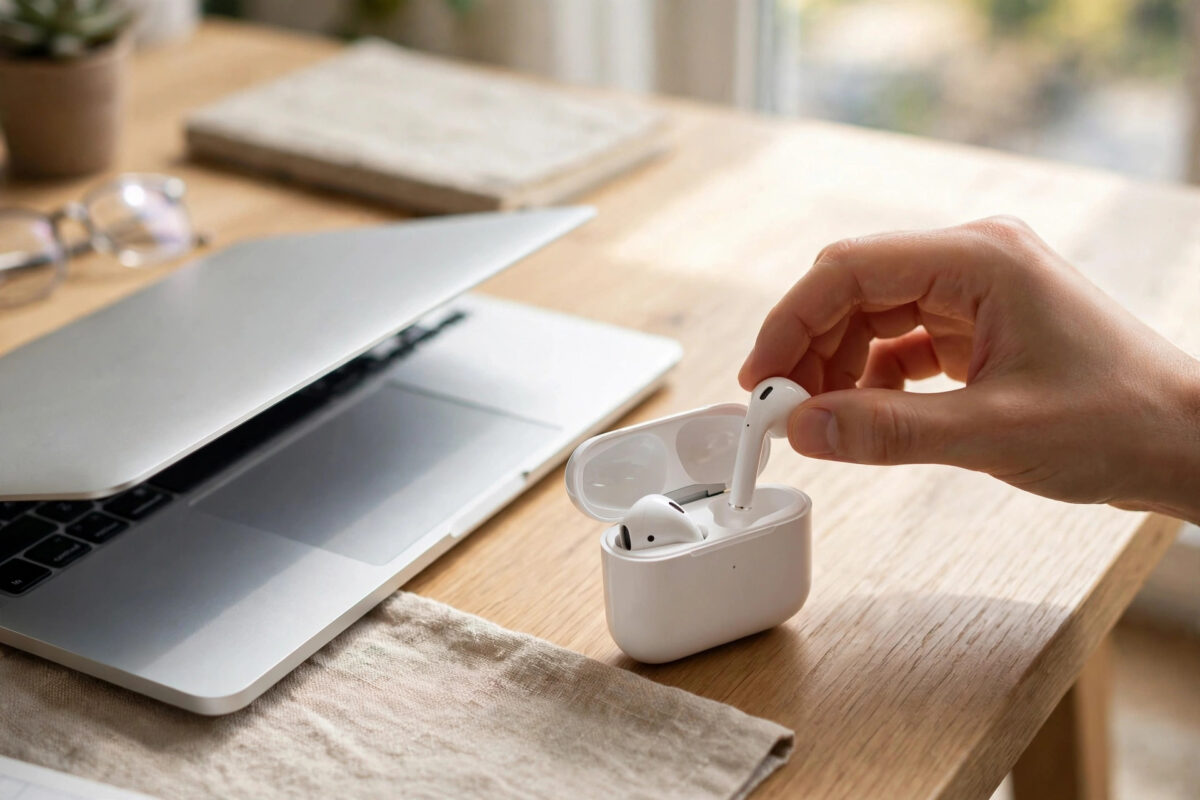
AirPods are famous for pairing instantly with an iPhone, but they work just as well with a Mac once you know where the settings live. Whether you want them for video calls, music while you work, or late-night videos without waking the house, the connection takes less than a minute. And if your AirPods are already set up with your iPhone, they may be linked to your Mac automatically through your Apple Account. This guide covers first-time pairing, everyday connecting, quick switching between devices, and fixes for the most common connection problems.
Quick Answer
To connect AirPods to a Mac, put both earbuds in the charging case, open the lid, and press and hold the setup button on the back of the case until the light flashes white. On your Mac, open System Settings, click Bluetooth, find your AirPods in the list, and click Connect. If the AirPods are already paired with your iPhone using the same Apple Account, simply click the volume or Bluetooth icon in the Mac menu bar and select them — no pairing needed.
What You Need Before You Start
Make sure your Mac is running a recent version of macOS and that Bluetooth is turned on. AirPods (1st generation) need macOS Sierra or later, AirPods (2nd generation) need macOS Mojave 10.14.4 or later, and AirPods Pro and AirPods Max need Catalina 10.15.1 or later. Charge the case to at least 20 percent so the earbuds do not disconnect halfway through pairing. If the AirPods are brand new, keep them in the case with the lid open near your Mac and follow the on-screen animation if one appears.
How to Pair AirPods With a Mac for the First Time
- Place both AirPods in the charging case and open the lid. For AirPods Max, take them out of the Smart Case instead.
- Press and hold the setup button on the back of the case until the status light flashes white. On AirPods Max, press and hold the noise control button until the light flashes white.
- On your Mac, open the Apple menu and choose System Settings.
- Click Bluetooth in the sidebar and make sure Bluetooth is on.
- Your AirPods appear under “Nearby Devices.” Click Connect next to their name.
- Click Done once the status changes to Connected.
From now on, the AirPods usually connect on their own whenever you open the case near your Mac and put them in your ears, as long as no other device grabs them first.
How to Connect AirPods That Are Paired With Your iPhone
AirPods set up with an iPhone signed into the same Apple Account are automatically available on your Mac. You do not pair them again. To use them:
- Put the AirPods in your ears.
- Click the Sound icon or Control Centre icon in the Mac menu bar.
- Under Output or Sound, choose your AirPods from the list.
You can also pick them as the microphone for calls. In System Settings under Sound, choose the AirPods on both the Output and Input tabs. More detail on this automatic behaviour is in Apple’s guide to connecting AirPods to your Mac automatically.
How to Switch Between Your Mac and Other Devices
With automatic switching turned on, AirPods move between your iPhone, iPad, and Mac based on what you are using. When you start a video on the Mac, audio shifts to the Mac; when a call comes in on your iPhone, it shifts back. If you find this annoying — for example, your Mac keeps stealing audio from your phone — you can control it. On the Mac, go to System Settings, then Bluetooth, click the info button next to your AirPods, and set “Connect to This Mac” to “When Last Connected to This Mac” instead of “Automatically.” Our related guide on copying on iPhone and pasting on Mac shows how the same Apple Account linking powers other cross-device features.
Useful AirPods Settings on a Mac
- Noise control: On AirPods Pro and Max, click the AirPods icon in Control Centre to switch between Noise Cancellation, Transparency, and Off.
- Press-and-hold action: In Bluetooth settings, choose what a long press does — switch noise modes or call up Siri.
- Double-tap or squeeze: Set play/pause, next track, or Siri for each earbud separately.
- Optimised charging: Limits charging to reduce battery ageing when the AirPods stay in the case for long periods.
- Find My: If you lose an earbud, open the Find My app on your Mac to play a sound or see its last location.
Fixes When AirPods Will Not Connect
If the AirPods refuse to connect, work through these steps in order. First, toggle Bluetooth off and on in System Settings. Second, put the AirPods back in the case, close the lid for 30 seconds, then try again. Third, “forget” the AirPods: in Bluetooth settings, click the info button beside them, choose Forget This Device, then pair them again from scratch. Fourth, restart your Mac — this clears stuck Bluetooth processes more often than people expect. Finally, reset the AirPods themselves by holding the case setup button for about 15 seconds until the light flashes amber and then white, and pair again. If sound plays but the microphone sounds bad on calls, check that the AirPods are selected as the input device in Sound settings and in your meeting app.
Common Mistakes to Avoid
- Pairing while the AirPods are connected elsewhere. Turn off Bluetooth on your phone briefly if it keeps grabbing them during setup.
- Skipping system updates. Old macOS versions cause many pairing bugs that an update quietly fixes.
- Expecting both earbuds to work with a dead case. A flat case cannot hand the connection to the Mac at all.
- Choosing the wrong output. If you hear nothing, the Mac may still be using its speakers — check the Sound output first.
Using AirPods for Work Calls on a Mac
For meetings, two small habits make AirPods behave like a proper headset. First, set them as both the output and the input in System Settings under Sound before you join — apps like Zoom and Teams follow the system choice or let you pick AirPods in their own audio settings, and mismatched settings are why colleagues sometimes hear you through a tinny laptop microphone across the room. Second, know the quality trade-off: while the AirPods microphone is active, music playback switches to a lower-quality mode, because Bluetooth shares its bandwidth between your ears and your voice. It is normal and returns to full quality when the call ends. If you present often, the microphone in a modern iPhone or even the MacBook’s own mic can sound better while the AirPods handle listening — mixing devices is allowed, and one minute of setup before an important call is worth it.
Conclusion
Pairing AirPods with a Mac is a one-time job of under a minute: case open, button held, click Connect in Bluetooth settings. After that, your Apple Account keeps them ready on every device, and the menu bar gives you one-click switching whenever you need them. If problems appear, forgetting and re-pairing solves nearly every case.
Frequently Asked Questions
Can I use AirPods with a Mac that is not signed into my Apple Account?
Yes. Pair them manually with the case button like any Bluetooth headphones. You just lose automatic switching and instant availability.
Why do my AirPods keep switching back to my iPhone?
Automatic switching is moving them because the iPhone is playing audio or handling a call. Set “Connect to This Mac” to “When Last Connected” in Bluetooth options to calm it down.
Can two people share one pair of AirPods on a Mac?
One person can wear both earbuds, or two people can each take one earbud. For two separate pairs at once, use Audio Sharing from an iPhone or iPad instead.
Do AirPods work with older Macs?
Any Mac with Bluetooth 4.0 or later can use basic AirPods audio. Very old macOS versions may miss features like automatic switching and Spatial Audio.
How do I check my AirPods battery on a Mac?
Click the Bluetooth or AirPods icon in the menu bar or Control Centre. The battery levels for each earbud and the case appear next to their name.



Leave a Reply