
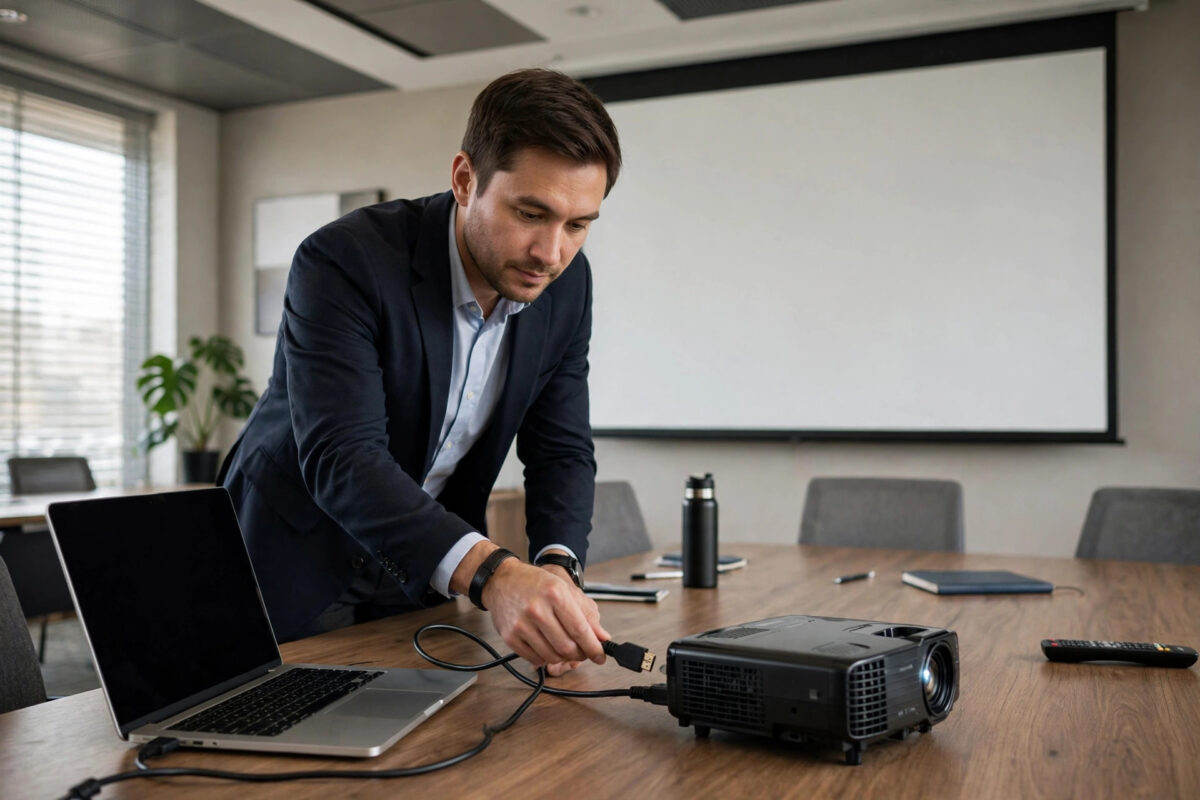
Nothing kills the start of a meeting or a lesson like a projector showing “No Signal” while a room full of people watches you swap cables. The good news is that connecting a laptop to a projector is a solved problem with just two real variables: the cable (or wireless method) between them, and telling the laptop what to do with the second screen. This guide covers Windows and Mac, wired and wireless, plus the fixes for the four failures everyone meets — no signal, wrong resolution, no sound, and a picture that does not fill the screen.
Quick Answer
Connect the laptop to the projector with an HDMI cable (or USB-C-to-HDMI adapter), turn the projector on and select that input, then on Windows press Windows key + P and choose Duplicate or Extend; on a Mac the screen mirrors automatically and you can adjust it in System Settings > Displays. If there is no HDMI port on the laptop, use a USB-C adapter or cast wirelessly to a stick plugged into the projector.
Choosing Your Connection
- HDMI to HDMI: The standard. Carries picture and sound in one cable. Check both ends — older projectors may be VGA-only.
- USB-C (most modern laptops): A USB-C-to-HDMI adapter or cable, provided the port supports DisplayPort Alt Mode (nearly all do on business and premium laptops; the port often carries a small “D” or Thunderbolt symbol).
- VGA: Only on ageing projectors. Picture only, no sound, and you will need an adapter from HDMI or USB-C. If the room offers VGA, carry your own adapter — the venue’s drawer never has the right one.
- Wireless: A Chromecast, Fire TV Stick, or Apple TV plugged into the projector’s HDMI port, the venue’s built-in system (many offices use Barco ClickShare or Mersive Solstice with a USB button/dongle), or Miracast on Windows (Windows key + K). Wireless frees you from the podium but adds a little delay and depends on the venue’s network rules.
- Carry a kit: A 2-metre HDMI cable, a USB-C-to-HDMI adapter, and your charger. Presenters who carry these three items are never the ones sweating at the front of the room.
Step-by-Step: Windows Laptop
- Connect the cable between the laptop and projector, then switch the projector on and use its Source/Search button to select the right HDMI input. (Turning the projector on first, before waking the laptop, helps the laptop detect it properly.)
- Wake the laptop. In most cases the picture appears within seconds.
- Press Windows + P and choose:
- Duplicate — the same image on both screens. The safe default for presenting slides.
- Extend — the projector becomes extra desktop space. Best with presenter view in PowerPoint, so your notes stay on the laptop.
- Second screen only — blanks the laptop. Rarely what you want live.
- Fix the sharpness if text looks soft: Settings > System > Display, select the projector display, and set it to the projector’s native resolution (commonly 1920×1080 or 1280×800 — the projector shows its native spec on its info/menu screen).
- Set sound: Click the speaker icon > output device list, and choose the projector or HDMI output if you need audio through the projector’s speakers — or leave it on the laptop/room speakers if they are better.
- In PowerPoint, use Slideshow settings to confirm the show appears on the projector, and test an embedded video before the audience arrives.
Step-by-Step: Mac Laptop
- Connect via USB-C-to-HDMI adapter or cable, projector on, input selected.
- The Mac mirrors by default. Open System Settings > Displays to see both screens.
- To extend instead: in the Displays panel, for the projector choose “Use as: Extended display” (on older macOS, untick “Mirror Displays” in the Arrangement tab).
- Set the projector’s resolution to its native value in the same panel (“Default” is usually correct), and drag the white menu-bar strip in Arrangement if you prefer menus on the projector.
- For Keynote, use Play > Customise Slide Show / presenter display options to keep notes on the laptop while the audience sees slides.
- Sound: System Settings > Sound > Output — select the projector/HDMI device if you need its speakers.
Wireless Presenting
If the projector has a streaming stick or the room has a casting system, the flow mirrors what you would do with a TV at home — our guide on mirroring screens to non-smart TVs explains the casting standards; with a laptop:
- Windows to Chromecast: Chrome browser > three-dot menu > Cast > choose the device > Sources lets you cast a tab, a window, or the whole desktop.
- Windows Miracast: Press Windows + K and pick the projector/receiver — no network login needed, it is a direct link.
- Mac AirPlay: Control Centre > Screen Mirroring > choose the Apple TV or AirPlay-enabled receiver.
- Wireless is fine for slides and documents; for video with sound or anything interactive, a cable still wins on smoothness and reliability.
Troubleshooting the Four Classics
“No signal” on the projector
Check the projector is on the correct input (cycle Source), reseat both cable ends, and wake the laptop (a sleeping laptop sends nothing). Try the laptop’s display shortcut (Windows + P > Duplicate, or the F-key with a screen icon, often Fn+F4/F5/F8 depending on brand). Swap the cable before blaming ports — cables fail silently and often.
Picture is blurry or the wrong shape
The laptop is sending a resolution the projector scales badly. Set the output to the projector’s native resolution, and set the projector’s aspect ratio to match (16:9 or Auto). Turn off any “overscan” on the projector.
No sound
The laptop is playing sound to its own speakers (or to a Bluetooth device). Select the HDMI/projector output in sound settings. Remember VGA carries no audio at all — use a separate 3.5mm cable or the laptop speakers.
Projector shows only the desktop background, no icons
You are in Extend mode and your windows are on the laptop screen. Either drag the presentation window onto the projector side, or switch to Duplicate (Windows + P). This catches everyone once — including, statistically, you, mid-meeting, so learn the shortcut now.
For the deeper technology background, the HDMI article on Wikipedia explains cable versions and why a very long cheap cable can cause sparkles or dropouts at high resolutions.
Common Mistakes to Avoid
- Arriving with 4% battery and no charger: Projector rooms hide their sockets. The charger is part of the kit.
- Testing with the projector off: Connect and power in the right order — projector on first, then wake the laptop — and detection problems halve.
- Presenting in Extend mode by accident and reading slides off the laptop while the room sees your wallpaper and, worse, your notifications. Turn on Do Not Disturb / Focus mode before you start.
- Assuming the venue’s cable works: Bring your own HDMI cable and adapter; venue cables are the most abused technology on Earth.
- Skipping the video test: Embedded videos need the sound output and the display mode both right — discover that in the rehearsal, not in front of the audience.
Conclusion
Cable in, projector on, input selected, Windows + P or the Displays panel — that rhythm handles ninety percent of rooms you will ever present in. Carry your own cable, adapter, and charger, set the projector’s native resolution, and test sound once before people arrive. The “No Signal” panic becomes a story about other people.
Frequently Asked Questions
My laptop has only USB-C ports. What do I need?
A USB-C-to-HDMI adapter (or a small USB-C hub with HDMI). Buy one that supports 4K at 60Hz so it stays useful with newer projectors and monitors, and confirm your port supports video output — almost all USB-C ports on laptops from the last several years do.
Can I present wirelessly without the venue’s Wi-Fi password?
Often yes: Miracast (Windows + K) and AirPlay peer-to-peer connect directly to the receiver without joining a network, and venue systems like ClickShare use their own button. Browser-based casting to Chromecast, by contrast, needs both devices on the same network.
Why does the projector image flicker or drop out?
Usually a long or damaged HDMI cable struggling with the signal, or the laptop outputting a resolution/refresh the projector dislikes. Shorten the cable run, use a better cable, and lock the output to the native resolution at 60Hz.
How do I show presenter notes while the audience sees the slides?
Use Extend mode (not Duplicate). PowerPoint’s Presenter View (Slideshow > Use Presenter View) then puts notes and a timer on your laptop and clean slides on the projector. Keynote has the equivalent under Play > Customise Slide Show.
The projector is ceiling-mounted and its remote is missing. Can I still select the input?
Most projectors have a small control panel on the unit itself with Source and Menu buttons — a chair or the venue staff can reach it. Many also auto-detect the active input if you switch “auto source” on once you reach the panel.



Leave a Reply