
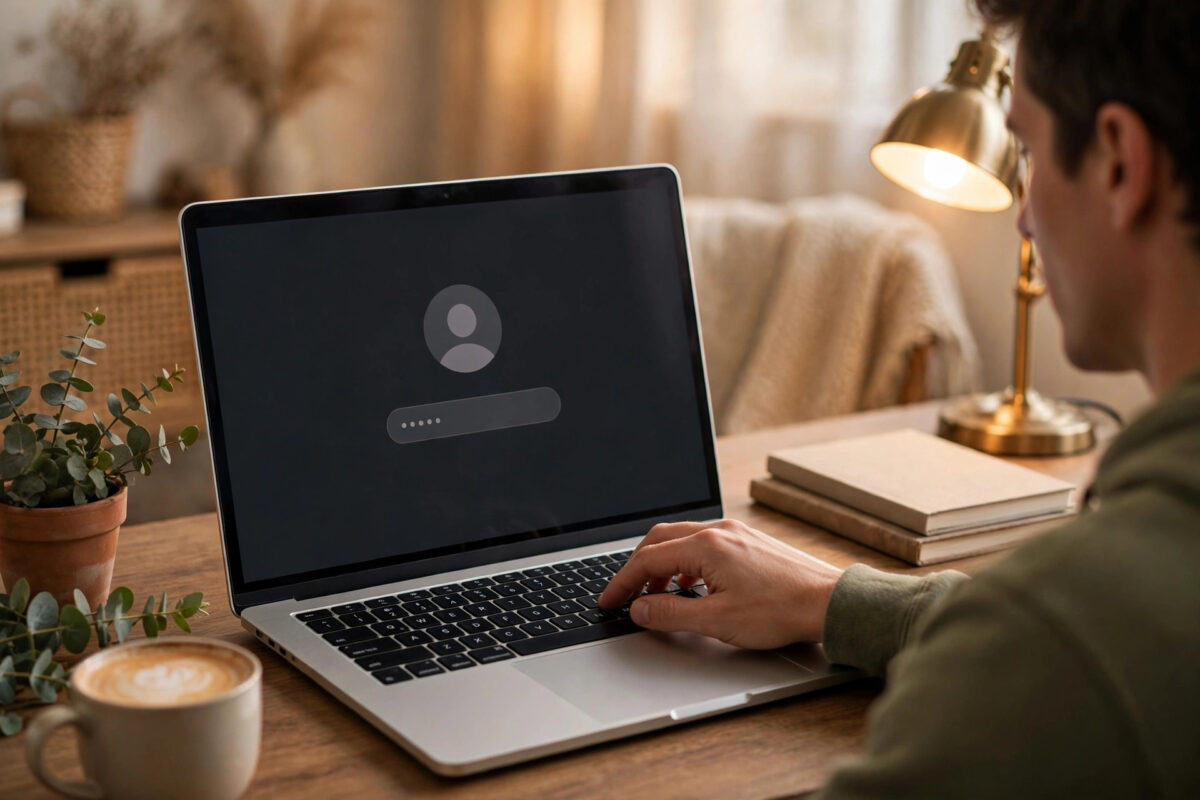
Your Mac login password guards everything: your files, your saved website logins, your email. Changing it now and then — or immediately if you suspect someone has seen it — is basic hygiene. On macOS the process takes under a minute when you know the current password, and there are a few details worth understanding, like what happens to your keychain and why your old password sometimes still works at the first login screen. This guide walks through the change and the follow-up checks.
Quick Answer
Open System Settings, go to Users & Groups, click the info (i) button beside your account, and choose Change Password. Enter your old password once, then your new password twice, add a hint if you like, and click Change Password. From then on, log in with the new password. Your keychain updates automatically when you change the password this way.
Before You Change It: Pick a Password Worth Having
A Mac login password should be:
- Long rather than complicated: a phrase of four or five random words (like “purple-lamp-river-desk” style phrases) is both strong and typeable.
- Unique: not the same as your email, Apple account, or any website password.
- Memorable without being guessable: avoid birthdays, pet names, and anything visible on your social media.
- Recorded safely: if you might forget it, store it in a password manager or a sealed note somewhere private — not on a sticky note attached to the Mac.
Remember that this password is also typically the admin password that authorises software installs and settings changes, so it deserves real strength.
Step by Step: Change Your Password in Settings
- Open System Settings from the Apple menu.
- Click Users & Groups in the sidebar.
- Click the info (i) button next to your account name. (On older macOS: System Preferences, Users & Groups, select your account, click Change Password.)
- Click Change Password.
- Type your current (old) password.
- Type the new password, then type it again in the Verify field.
- Optionally add a password hint — something that jogs your memory but reveals nothing to a stranger.
- Click Change Password.
The change takes effect immediately. The next time the Mac locks, restarts, or asks for admin approval, the new password is the one that works. Apple’s account password guide on Apple Support describes the same flow for each macOS version.
What Happens to Your Keychain?
Your login keychain — the vault holding saved Wi-Fi passwords, website logins, and certificates — is encrypted with your login password. When you change the password through Users & Groups while logged in, macOS updates the keychain’s password to match, so everything keeps working silently.
The mismatch problem only appears when the password is changed by a different route (for example, reset by an admin or through recovery). Then the Mac may nag that it “cannot unlock the login keychain” after you sign in. If you ever see that after changing your password, choose Update Keychain Password and enter your previous password once — the two are resynced. If you have forgotten the old password entirely, the fix is a fresh keychain, which loses the saved items inside the old one.
Change Another User’s Password (Admins)
If you are the Mac’s administrator, you can set a new password for a family member who forgot theirs — from your own account:
- Open System Settings, then Users & Groups, and unlock settings if prompted.
- Click the info button beside their account and choose Reset Password (wording varies by version).
- Enter the new password twice and save.
Warn them about the keychain catch: their saved passwords stay locked under their old password, so they will either enter the old password once to update the keychain, or start a new one. If you are the one locked out of your own account, that is a different process — see our guide on resetting a forgotten Mac login password.
Related Settings Worth Reviewing While You Are Here
- Touch ID and fingerprint login: changing the password does not remove your fingerprints (System Settings, Touch ID & Password), but macOS still demands the typed password after every restart and periodically for security — so you cannot avoid memorising it.
- Automatic login: if it is on, consider turning it off (Users & Groups, “Automatically log in as”). A changed password protects nothing if the Mac signs itself in for anyone who presses the power button.
- Password hint visibility: hints appear on the login screen after failed attempts. Keep yours cryptic.
- Apple account password is separate: changing your Mac login password does not change your Apple ID password, and vice versa. Keep both strong and different.
What If You Share the Mac with Family?
Every user account on a Mac has its own login password, changed from inside that account (or reset by an admin, as described above). If children use the Mac, give them their own standard (non-admin) accounts with passwords they choose and you quietly record — they get independence, and they cannot approve software installs or change security settings without an admin password. Resist the temptation to run the whole household on one shared account with one shared password: when that password leaks — and shared passwords always eventually leak — there is no way to know whose habits caused it, and changing it means retraining everyone at once.
Common Mistakes and Helpful Tips
- Forgetting Caps Lock exists. If the new password “does not work” at the next login, check Caps Lock and keyboard layout first — the login window shows the layout in the corner.
- Making the hint the password. A hint like “my dog Rex” is a gift to anyone standing at your Mac. Hint at the memory, never the answer.
- Changing it, then immediately travelling. Change passwords when you will use the Mac several times in the following days; repetition is what fixes the new one in memory.
- Confusing the login password with the Apple ID password. The Mac asks for the login password to unlock, install software, and change settings. iCloud prompts are the ones that mention your Apple account.
- Leaving the old password in shared notes. If your household shares a notes app with the “Mac password” in it, update that entry — or better, delete it and use a password manager.
Conclusion
Changing your Mac login password is a two-minute job: Users & Groups, Change Password, old once, new twice. Do it whenever the old one may have been seen, choose a long unique phrase, keep the hint vague, and check that automatic login is off. Your keychain follows along automatically, and your Mac’s front door stays as strong as the data behind it deserves.
Frequently Asked Questions
How often should I change my Mac password?
There is no fixed schedule for a strong, unique password that nobody else knows. Change it immediately if you suspect it was seen, shared, or typed into a suspicious prompt — otherwise, a good password can serve for years.
Will changing my password log me out of websites?
No. Because the keychain updates with the new password when you change it in Users & Groups, your saved logins keep working exactly as before.
Can I remove the password entirely and log in with no password?
macOS strongly discourages blank passwords and blocks the option for admin accounts in modern versions. Use Touch ID for convenience instead — it still falls back to the password when required.
Does changing the login password change my Apple ID password?
No, they are separate systems. Your Apple ID password is changed at Apple’s account site or in System Settings under your name; the login password only unlocks this Mac.
What if the Change Password button is greyed out?
Your account may be managed (a work or school Mac) or you may not be an administrator. On a managed Mac, contact IT; on a family Mac, an admin user must make the change from their account.



[…] Only when these fail is a reset needed. If you actually remember the password and just want a fresh one, that is a different, simpler job — see our guide on changing your Mac login password when you know the old one. […]