
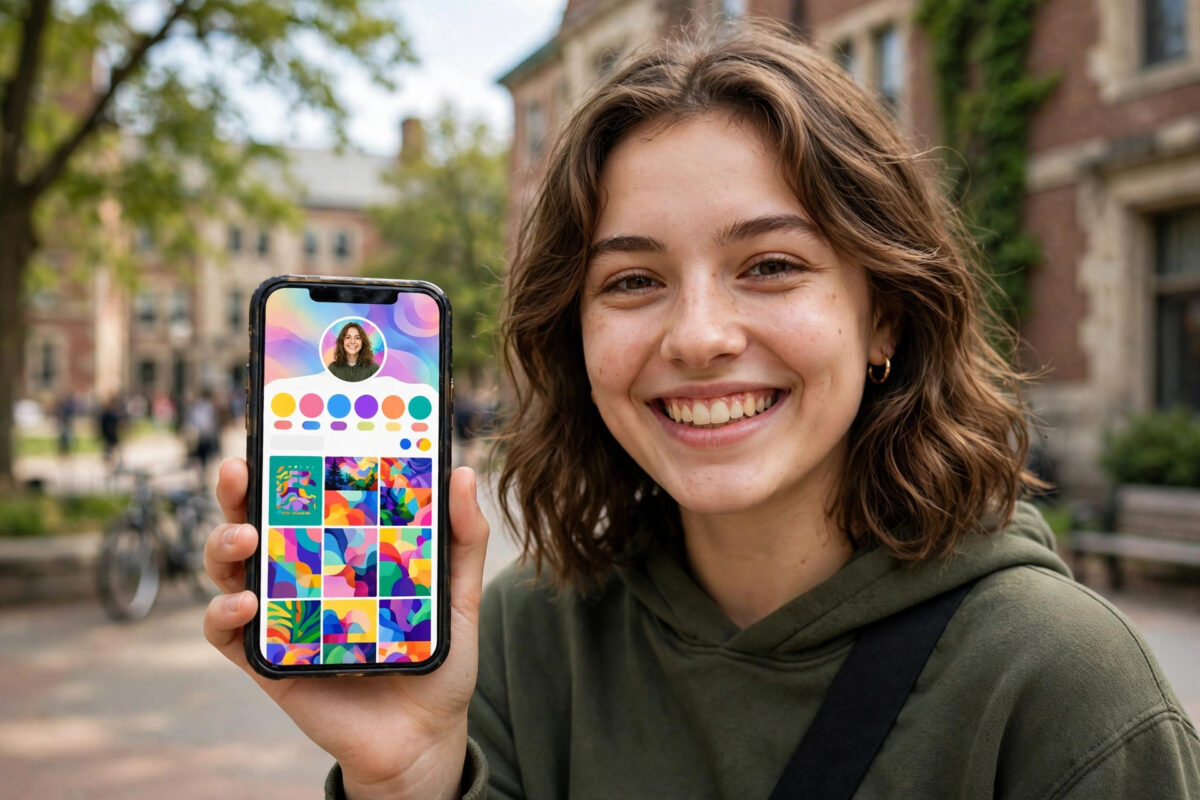
Your Threads bio used to be plain text and nothing more. Now Threads lets you add stickers to your bio, turning that small profile space into something with personality: a little graphic that shows your mood, your fandom, your profession, or the joke you are currently running into the ground.
This guide shows you how to add stickers to your Threads bio, how to change or remove them, and how to use them well without turning your profile into a cluttered mess.
Quick Answer
Open Threads, go to your profile, and tap Edit profile. In the bio section, tap the sticker option, browse or search the sticker library, and pick the one you want. Position it as offered, save your changes, and the sticker appears in your bio on your profile for everyone to see. You can swap or remove it at any time from the same screen.
What Bio Stickers Are
Bio stickers are small decorative graphics that sit inside or alongside your Threads bio text. They come from a library provided in the app, similar in spirit to the stickers you add to posts and stories, but designed for the profile space: compact, readable at small size, and meant to stay in place longer than a story sticker would.
People use them in predictable but effective ways. A coffee cup for the self-described coffee-powered developer. A football for the fan whose posts are ninety percent match commentary. A location pin, a flag, a tiny rocket for the startup founder, a book for the reader. At a glance, a visitor understands something about you before reading a word.
Because the bio is prime profile real estate, the sticker works like a visual first sentence. That is also why restraint matters, as we will cover below. If you are exploring the recent Threads updates generally, our guide on what Threads Gems are and how posts earn them explains the other feature everyone is asking about this month.
How to Add a Sticker to Your Bio Step by Step
- Open the Threads app and tap your profile icon.
- Tap Edit profile.
- Find your bio field and the sticker option attached to it, shown as a sticker or smiley icon.
- Tap it to open the sticker library.
- Browse the categories or use search to find a sticker that fits you.
- Tap the sticker to select it.
- Adjust anything the editor offers, such as placement alongside your bio text.
- Tap Done or Save to update your profile.
- View your public profile to check how it looks to visitors.
The whole process takes under a minute, and nothing about it is permanent. The Instagram Help Center, which also covers Threads, describes profile editing if your app version shows slightly different wording. Because Threads and Instagram accounts are linked, remember that your Threads profile changes are about your Threads presence; your Instagram bio is edited separately on Instagram.
Choosing a Sticker That Works
Pick something that stays true for a while. A sticker tied to a one-day mood will feel stale within the week, and profiles littered with outdated jokes look abandoned. Interest-based stickers age best: hobbies, professions, cities, and teams rarely change overnight.
Think about your audience. A sticker that your followers instantly recognise, such as a fandom symbol, creates a small moment of connection. A random cute sticker with no relation to your posts creates a small moment of confusion instead. Neither is fatal, but profiles work better when every element points the same way.
Also consider readability. Your bio is read quickly, often on small screens, and the sticker should decorate the text rather than compete with it. After adding one, look at your profile as a stranger would: name, photo, sticker, bio. If the eye lands on the sticker before your name, the balance may be off, though for many creators that playful punch is exactly the point.
How to Change or Remove a Bio Sticker
Return to Edit profile and open the same sticker control in the bio section. Choose a different sticker to swap instantly, or use the remove option, which may appear as an X on the current sticker or a “none” choice in the library. Save, and your profile updates immediately.
There is no history or archive of previous bio stickers, so if you remove one you loved, you will need to find it in the library again. Seasonal swaps are popular: a small pumpkin in October, something festive in December, then back to your standard sticker in January. That rhythm gives returning visitors a tiny sense that the profile is alive and attended to.
Using Bio Stickers for Events and Promotions
Creators and small businesses can treat the bio sticker as a billboard slot. Launching something? A sticker related to the launch, paired with a bio line pointing to your latest post, quietly advertises every time someone visits your profile or sees your comments around the app.
The same trick works for events, book clubs, sports seasons, and charity drives. The key is coordination: sticker, bio text, and pinned post telling the same story. A sticker alone carries very little information, so let the words around it do the explaining while the sticker supplies the colour and the click of recognition.
Sticker Ideas for Different Kinds of Accounts
If you are stuck at the library screen, match the sticker to the promise of your account. Coaches and teachers do well with books, pencils, and lightbulbs — symbols of ideas. Food accounts reach for the obvious and it works: a bowl, a chilli, a cupcake tells a hungry scroller exactly where they have landed. Musicians and podcasters lean on headphones and microphones. Local tradespeople often choose tools or a house, quietly advertising competence before a single post is read.
Fan accounts have the easiest job: the team’s colours, the show’s icon, the game’s symbol. Community is built on recognition, and a bio sticker is recognition at first glance. Personal accounts have the freest hand of all — your city’s landmark, your dog’s breed, the hobby that fills your weekends. The only real rule is honesty: the sticker should still make sense to someone who reads your last ten posts.
Common Mistakes to Avoid
- Choosing a sticker unrelated to your content. It confuses new visitors about what your account is.
- Never updating it. A holiday sticker in March makes the profile look forgotten.
- Expecting the sticker to explain everything. It is decoration. Your bio text still needs to say who you are.
- Copying a big account exactly. The sticker should express you, not impersonate someone else’s brand.
- Forgetting to check the public view. Always view your profile as a visitor after editing to catch layout surprises.
Conclusion
Bio stickers are a small feature with an outsized effect on how a Threads profile feels. Add one that genuinely represents you through Edit profile, keep it current, and let it work alongside clear bio text. A minute of setup gives every profile visit a little more personality.
Frequently Asked Questions
Can I add more than one sticker to my bio?
The bio sticker feature is designed around a featured sticker choice. Pick the single one that represents you best; your posts and stories remain the place for sticker-heavy expression.
Do bio stickers show on my Instagram profile too?
No. The sticker belongs to your Threads profile. Your Instagram bio is separate and is edited inside Instagram.
Why can I not find the sticker option?
The feature is rolling out during 2026. Update Threads, restart the app, and check Edit profile again. Some accounts receive new profile features a little later than others.
Can I upload my own image as a bio sticker?
The library is provided by the app. If custom uploads are not offered in your version, choose the closest library sticker; do not rely on workarounds that may break the profile layout.
Will a bio sticker affect my reach?
Not directly. It affects how visitors perceive your profile, which can influence follows, but the sticker itself is not a ranking boost. Clear content still does the heavy lifting.



[…] The gesture will feel familiar to anyone who has used modern messaging apps, several of which use a swipe to reply to a specific message. Bringing the same muscle memory to Threads means your fingers already know what to do. It is one of several quality-of-life touches Threads has been adding to profiles and replies lately, sitting alongside things like how to add stickers to your Threads bio with the new update. […]