
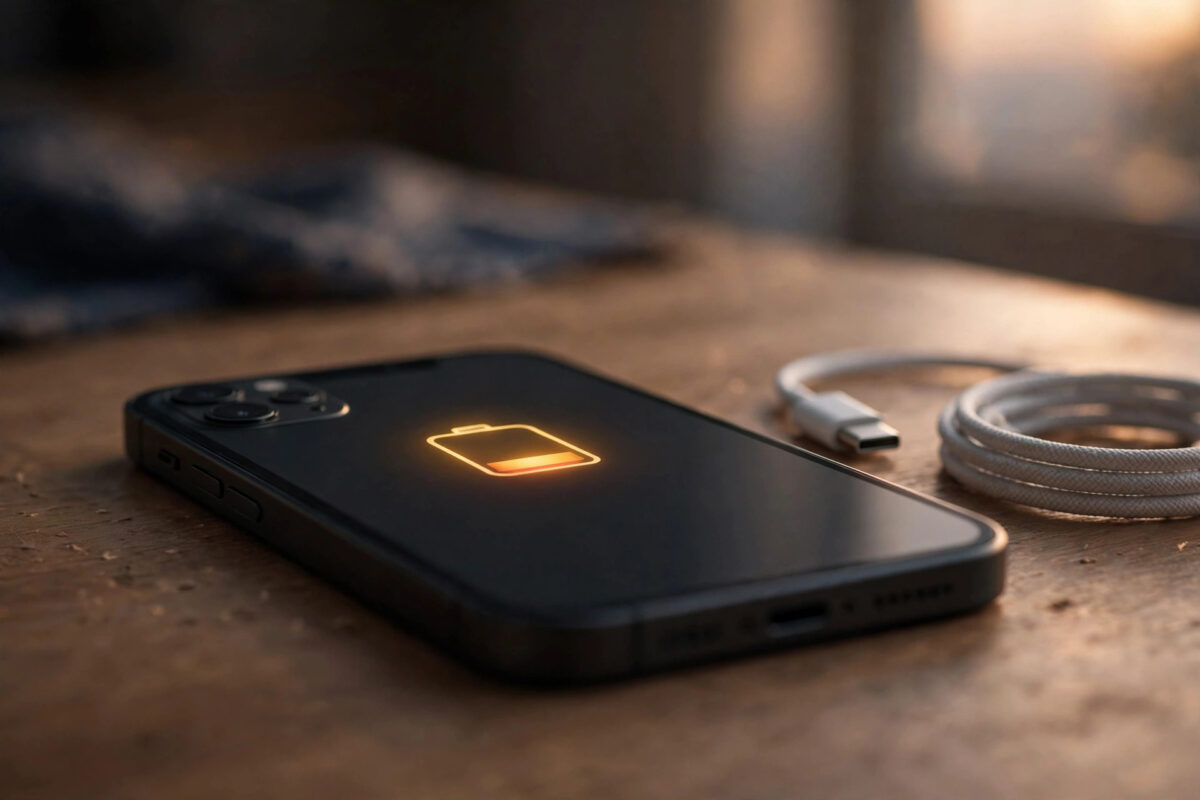
Updating your iPhone to iOS 27 or iOS 27.0.1 should bring new features and security fixes, not a battery that suddenly drops 20 percent before lunch. Yet in the days after a major update, faster drain is one of the most common complaints in support forums and social media. Your phone may feel warmer, apps may seem slower, and a battery that used to last all day might need a midday charge.
The good news is that this type of drain is usually temporary and has a clear technical explanation. It does not mean your battery is damaged or that you need to replace your iPhone. In most cases, what you are seeing is your phone doing a lot of hidden work in the background to finish the update properly. Understanding how long that work lasts, and what you can do while it settles, makes the difference between worrying unnecessarily and fixing a real problem quickly.
This guide explains the normal timeline for post-update drain on iOS 27, how to tell normal indexing from an actual bug, which settings to check first, and the safe steps that genuinely help without erasing your data.
Quick Answer
iOS 27 battery drain after updating typically lasts 24 to 72 hours and can sometimes take up to a week to fully settle. During that time your iPhone is re-indexing files, analysing photos, and re-learning usage patterns in the background. If heavy drain continues beyond a week, check Battery settings for a rogue app and follow the troubleshooting steps below.
Why Battery Drain Happens After the iOS 27 Update
A major iOS update changes far more than the home screen. The system rebuilds search indexes, re-scans your photo library for faces, places and objects, syncs data with iCloud again, and updates app indexes for Spotlight and Siri suggestions. Apple Intelligence features also need time to re-learn routines and prepare on-device models. All of that work happens in the background so you can keep using your phone, but it uses extra processor power, storage access and network activity.
What Your iPhone Is Doing in the Background
Three tasks cause most of the temporary drain. First, background indexing rebuilds the database Spotlight uses to find apps, messages, emails and files. Second, photo analysis scans new and existing images for Memories, Live Text and visual search. Third, feature re-learning means the system observes when you charge, which apps you use and how bright you like the screen, so features like Optimised Charging and automatic brightness can work accurately again. None of these require you to do anything, but they do need time, power and a stable connection.
How Long Does iOS 27 Battery Drain Normally Last?
For most people, the worst drain is over within 24 to 72 hours. Light users who keep their phone on Wi-Fi and charge overnight often notice normal battery life returning by the second day. Heavy users, or people with very large photo libraries and hundreds of apps, may need closer to five days. In some cases, especially after jumping several iOS versions at once, full settling can take up to a week.
A Simple Timeline to Judge Your Phone
- First 24 hours: Expect noticeably faster drain, warmth during charging, and slower search results. Keep the phone plugged in overnight on Wi-Fi if you can.
- Days 2 to 3: Drain should ease. Battery percentage should stop falling rapidly when the screen is off.
- Days 4 to 7: Battery life should be close to what you had before the update, or better once optimisation finishes.
- After 7 days: Treat continued heavy drain as a problem to troubleshoot, not as normal settling.
How to Check What Is Using Your Battery
Before changing settings at random, look at the evidence your iPhone already collects. This tells you whether the drain is system activity or a single app.
- Open Settings > Battery.
- Scroll down to see battery use by app for the last 24 hours and the last 10 days.
- Tap an app to see whether its use was on screen or in the background.
- Check the battery graph for steep drops when you were not using the phone.
- Scroll to Battery Health & Charging and note your Maximum Capacity. A healthy battery is generally above 80 percent.
If iOS System, Photos or iCloud services dominate in the first two days, that supports the normal settling explanation. If one social, navigation or streaming app shows hours of background activity you did not expect, that app is the first thing to fix. For official guidance on reading these screens, see Apple’s guide to understanding iPhone battery usage.
Safe Steps That Help Battery Settle Faster
1. Charge Overnight on Wi-Fi
- Connect to a trusted Wi-Fi network before bed.
- Plug your iPhone into its charger and leave it locked overnight.
- Leave Low Power Mode off during that night if you can, so background tasks are not paused.
2. Restart Your iPhone Once
- Press and hold the Side button and either Volume button until the power-off slider appears.
- Drag the slider, wait 30 seconds, then hold the Side button to turn the phone back on.
- For a force restart on Face ID models, quickly press Volume Up, quickly press Volume Down, then hold the Side button until the Apple logo appears.
3. Update Your Apps
- Open the App Store and tap your profile icon.
- Pull down to refresh, then tap Update All.
- Reopen the app that showed high background use and check its own settings for downloads or location access.
4. Reduce Unnecessary Background Activity
- Go to Settings > General > Background App Refresh and turn it off for apps that do not need live updates.
- Go to Settings > Privacy & Security > Location Services and set non-essential apps to While Using or Never.
- Go to Settings > Battery and turn on Low Power Mode temporarily if you need to get through the day.
These changes do not fix a bug, but they cut waste while the system finishes settling. You can find more practical guides like this in our iPhone troubleshooting guides at Network Ustad.
When Drain Is Not Normal and What to Try Next
- Go to Settings > General > Transfer or Reset iPhone > Reset > Reset All Settings only as a later step. This does not delete photos or apps, but it does reset Wi-Fi passwords, Apple Pay cards and preferences, so use it carefully.
- Make a full backup to iCloud or a computer before any erase option.
- If drain continues after a clean setup, contact Apple Support, as a hardware battery fault becomes more likely.
Common Mistakes and Tips
The most common mistake is restoring or erasing the phone on day one. That restarts indexing from scratch and makes the problem last longer. Another mistake is closing every app from the App Switcher all day. iOS is designed to manage suspended apps, and constantly relaunching them can use more power. Installing so-called battery saver apps also does not help, because they cannot control system indexing and often add their own background activity.
Useful tips are simpler. Keep your phone out of direct heat while it settles, because heat slows charging and stresses the battery. Avoid downloading huge game updates or offline video libraries on mobile data during the first two days. Change one thing at a time so you know what helped, and judge battery life by a full day of your normal routine.
Conclusion
Post-update battery drain on iOS 27 is frustrating, but for most iPhone owners it is a short settling period, not a permanent loss. Expect 24 to 72 hours of heavier use, allow up to a week for large libraries and major jumps, and watch for a steady improvement each day. Check Battery settings to separate normal system work from a single problem app, charge overnight on Wi-Fi, update your apps, and restart once. If heavy drain, heat or overnight loss continue beyond a week, move to targeted troubleshooting and support. Patience in the first few days, backed by the checks in this guide, solves the issue for the vast majority of users.
Frequently Asked Questions
Is it normal for my iPhone to feel warm after updating to iOS 27?
Yes, mild warmth in the first one to two days is normal while indexing and photo analysis run in the background. If the phone becomes very hot when idle or shows a temperature warning, stop using it, let it cool, and check Battery settings for a stuck app.
Should I update to iOS 27.0.1 if iOS 27 already drains my battery?
Usually yes, because a point update often includes bug fixes that can help stability. Expect a shorter settling period after iOS 27.0.1, and give it at least 48 hours on Wi-Fi and overnight charging before judging it.
Does Low Power Mode stop the settling process?
Low Power Mode reduces background activity, so some tasks may take longer to finish. It is fine to use it to get through the day, but leave it off for at least one overnight charge so the system can complete its heaviest work.
How can I tell if my battery itself is failing?
Check Settings > Battery > Battery Health & Charging. If Maximum Capacity is well below 80 percent, or you see a service message, the battery may need replacement regardless of the update, and drain will not fully settle.



Leave a Reply