
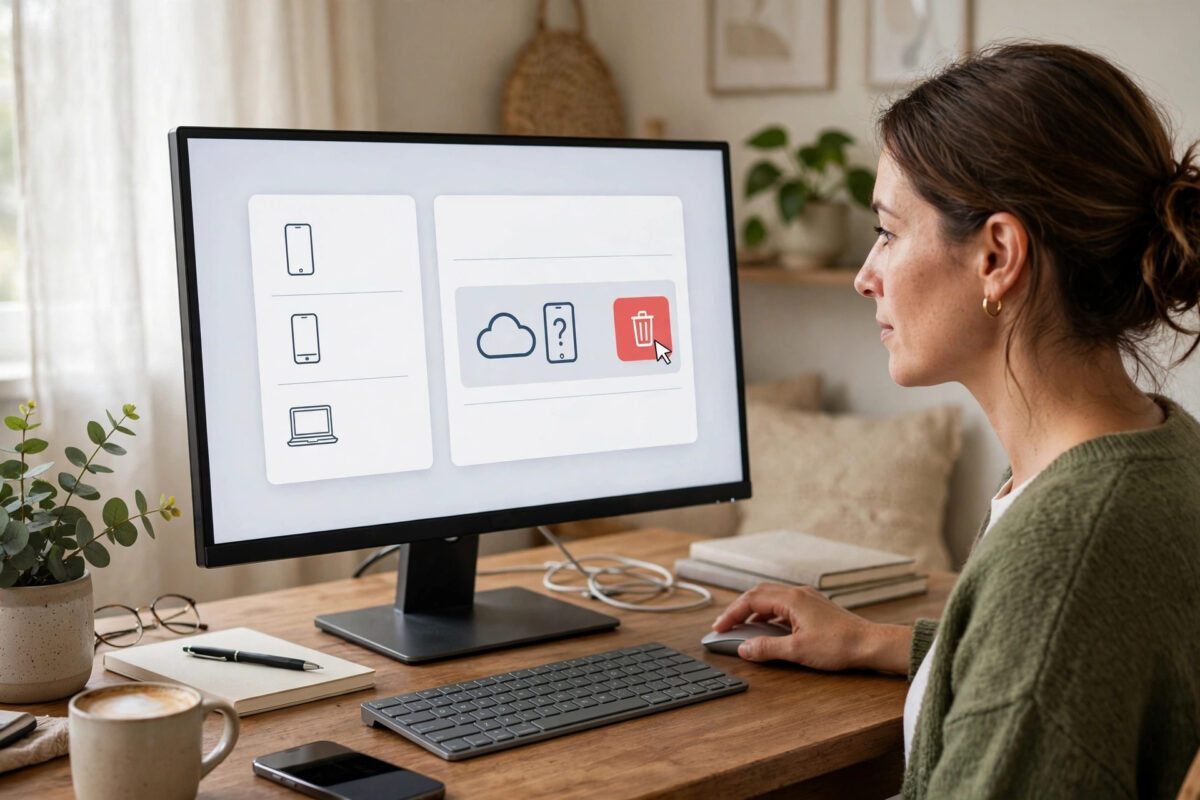
Phones get lost, laptops get sold, and old tablets stay signed in long after you stop using them. Each signed-in device is a door into your photos, documents, and backups. If you do not know which devices have access, you cannot control who can open your files.
This guide shows you how to check the device list in Google, Microsoft, Apple, and Dropbox accounts, how to spot a device you do not recognise, and how to remove it safely. The steps take only a few minutes, and doing this check every few months is one of the simplest habits for keeping a cloud account safe.
Quick Answer
Open your account security page, go to the devices or sessions section, and review every phone, computer, and browser listed there. Sign out or remove any device you do not recognise, then change your password and turn on two-factor authentication. Removing a device stops its access, but changing the password protects you if someone copied it.
Why the Device List Matters
When you sign in to a cloud account, the service remembers that device so you do not need to enter your password every time. That convenience is useful, but it also means access can last for months. A phone you traded in, a work laptop you returned, or a browser on a shared computer may still be able to open your files.
The device list is also an early warning system. If you see a login from a city you have never visited, or a phone model you have never owned, someone else may know your password. Acting quickly at that point can stop a small problem from becoming a full account takeover.
Make this check part of your routine. Do it after you lose a device, after you travel, after you use a public computer, and whenever you get a security alert you were not expecting.
How to Check Devices on a Google Account
Google Drive, Google Photos, and Gmail all use the same Google Account, so one check covers them all.
- Open your Google Account page and sign in.
- Select the Security section from the left menu.
- Scroll to the panel called Your devices.
- Select Manage all devices to see the full list.
- Review each entry, including the device name, location, and last active date.
- Select any device you do not recognise, then choose Sign out.
Google explains each entry in detail in its official guide on managing devices that use your Google Account. After you sign out an unknown device, change your password straight away. Signing out ends that session, but if the other person knows the password, they can simply sign in again.
How to Check Devices on a Microsoft Account
OneDrive and Outlook use your Microsoft account. Microsoft shows signed-in computers and phones in two places: the devices page and the recent activity page.
- Sign in to your Microsoft account dashboard.
- Open the Devices page to see computers and consoles linked to the account.
- Select a device you no longer use and choose Remove.
- Open the Security section and check Recent activity for sign-ins you do not know.
- If you see an unknown sign-in, change your password and review your security info.
The recent activity page is especially useful because it shows failed sign-in attempts as well. Many attempts from another country usually mean your email address is being tested by attackers, which is a strong reason to use a long, unique password and an authenticator app. You can also follow our guide on how to secure your cloud storage account for a complete checklist that covers passwords, sharing settings, and alerts.
How to Check Devices on an Apple ID and Dropbox
Apple ID and iCloud
On an iPhone or iPad, open Settings, tap your name at the top, and scroll down. Every device signed in with your Apple ID appears there. Tap a device to see its details, and tap Remove from Account if it is lost, sold, or unknown. On a Mac, open System Settings and select your name to see the same list.
Dropbox
In Dropbox on the web, open your avatar menu, choose Settings, then open the Security tab. Scroll to the Devices section to see computers and phones linked to your account. Select the X or Unlink option next to any device you want to remove. Dropbox also shows web browser sessions on the same page, so sign out of old browsers there too.
Microsoft gives similar step-by-step help in its official advice on managing devices used with your Microsoft account, which is worth reading if you share a family computer.
How to Tell if a Device Is Not Yours
Not every unfamiliar entry is an attack. Before you panic, check these common explanations:
- A new phone or browser: Signing in after an update can create a fresh entry that looks new.
- Location differences: Your internet provider or a VPN can make your city appear different from where you really are.
- Old names: A device may show a model name instead of the friendly name you gave it.
- Work and school devices: A laptop you used once for email may still be listed.
Compare the last active time with your own habits. A sign-in at 3 a.m. from another country, on a device type you have never owned, is a serious warning. In that case, remove the device, change the password from a clean device, and check your files for changes you did not make.
What to Do After Removing a Device
Removing a device is only the first step. Finish the job with this short checklist:
- Change your account password to a long phrase you use nowhere else.
- Turn on two-factor authentication if it is not already on.
- Check your recovery email and phone number are still yours.
- Review shared folders and remove people who no longer need access.
- Look in your trash or deleted files folder for files you did not delete.
- Check payment methods and subscriptions if the service stores them.
If the device was yours but is lost, use the find-my-device feature to lock or erase it as well. Removing the account stops cloud access, but the device may still hold downloaded files, photos, and messages on its own storage.
Common Mistakes to Avoid
- Removing devices but keeping the same password: The person can sign straight back in.
- Ignoring the list for years: Old sessions stay active and quietly keep access open.
- Removing your current phone by accident: Check names and dates carefully before you confirm.
- Forgetting browser sessions: A signed-in browser on a shared computer is just as risky as a phone.
- Skipping the activity check: The device list shows current access, but activity history shows attempts and past sign-ins.
A calm, careful review is better than a rushed one. Take a screenshot or write down anything suspicious before you remove it, in case you need those details later for a support request.
Conclusion
Your cloud account is only as safe as the devices signed in to it. Review the device list in Google, Microsoft, Apple, and Dropbox every few months, remove anything old or unknown, and pair that cleanup with a fresh password and two-factor authentication. Ten minutes of checking can close doors you forgot were open and warn you early if someone else has your password.
Frequently Asked Questions
Will removing a device delete my files?
No. Removing a device only ends its access to your account. Your files stay in the cloud. Files already downloaded onto that device may remain there, so erase a lost device if you can.
How often should I check my signed-in devices?
Check every two or three months, and always after losing a device, travelling, or receiving a security alert. A quick regular check makes unfamiliar entries much easier to spot.
Why does a device show a different city?
Location is guessed from the internet connection, so a VPN, mobile network, or internet provider can show a nearby or even distant city. Check the device type and time as well before deciding it is suspicious.
What if I remove my own phone by mistake?
Nothing is lost. Simply sign in again on that phone with your password and, if asked, your two-factor code. The device will appear on the list again.
Should I sign out of all devices at once?
If you suspect someone else has access, yes. Sign out everywhere, change your password, and sign back in only on devices you own. It is the fastest way to lock everyone else out.



Leave a Reply