
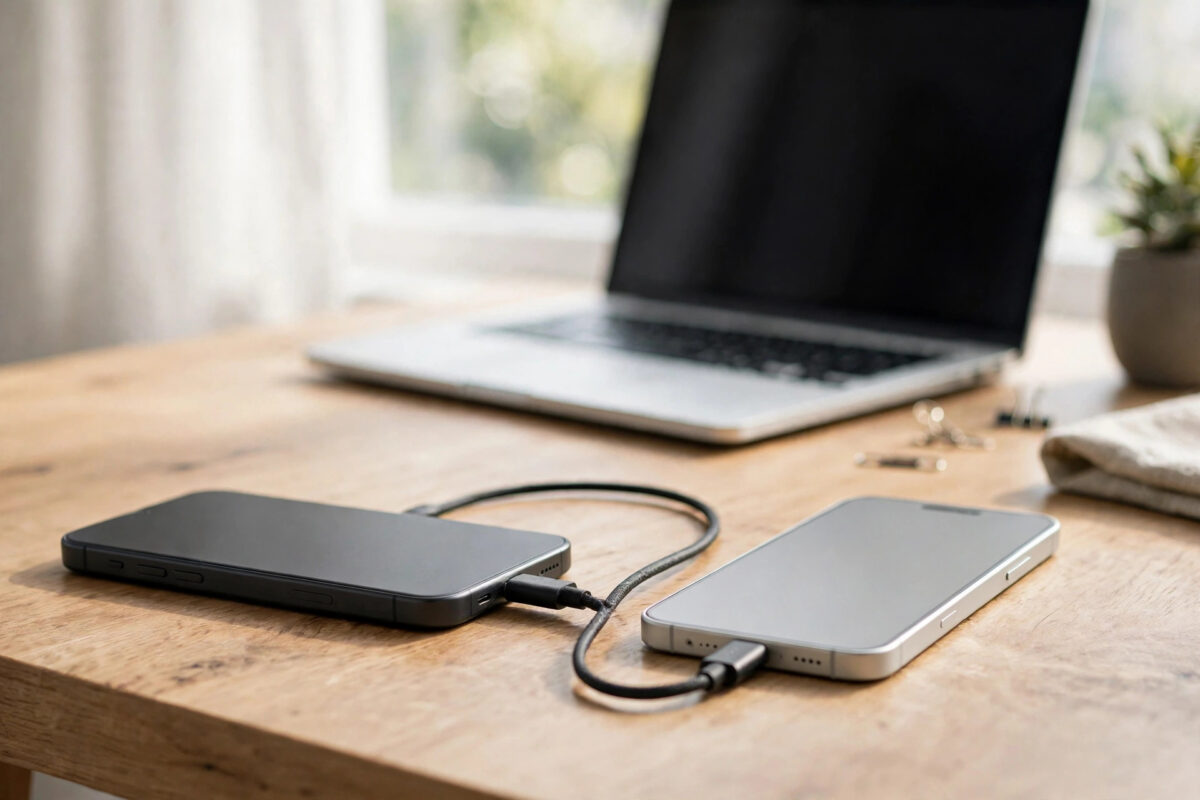
Switching phone brands used to mean starting again from zero. Today the good news is that most of your important data can travel with you, even if you move from Samsung to Google Pixel, from Xiaomi to iPhone, or the other way around. The catch is that a single full backup made for one brand rarely restores perfectly onto another brand, so you need to move your data in parts.
This guide explains what transfers cleanly, what needs a manual workaround, and the exact order to follow so you do not lose photos, contacts, chats, or files when you change brands.
Quick Answer
You cannot restore a complete brand-specific backup directly onto a different brand in most cases, but you can move almost everything by using cloud accounts and cross-platform tools. Sync contacts, photos, and calendar to Google or iCloud, use the new phone maker’s transfer app during setup, back up chats inside each messaging app, and copy remaining files manually by cloud storage or computer.
Why Brand-to-Brand Restores Work Differently
Every phone maker stores settings and app data in slightly different ways, so a backup from one maker is designed first for its own phones. Transfer works best when you split data into universal types like contacts, photos, and documents, and expect to set up system settings again by hand.
The operating system matters even more than the brand. Moving between two Android brands is usually straightforward. Moving between Android and iPhone is possible for most personal data, but app purchases, some app data, and message history need special handling and extra patience.
What Transfers Easily and What Does Not
- Usually easy: Contacts, photos, videos, calendar, notes synced to the cloud, documents, music files, and email.
- Possible with the right app: Text messages, call history, WhatsApp chats, and files stored in Downloads.
- Often manual: App data and game progress that is not tied to an online account.
- Usually does not transfer: Paid apps from the other platform’s store, home screen layouts, system settings, and in-app purchases tied to Google Play or the App Store.
Step 1: Prepare the Old Phone Before Setup
Do all of your preparation on the old phone while you still have it working and signed in. Do not reset it until the new phone is fully checked.
- Connect the old phone to Wi-Fi and plug it into a charger.
- Update the operating system and your key apps to the latest versions.
- Sync contacts and calendar to your Google account on Android or iCloud on iPhone.
- Turn on cloud photo backup and wait until the newest photos appear in the cloud.
- Run backups inside WhatsApp and any other chat apps you use.
- Note your important account passwords and make sure two-factor login works.
Our detailed guide to transferring data to a new phone without losing anything is a helpful companion checklist for this preparation stage.
Step 2: Choose the Right Transfer Method for Your Switch
Android Brand to a Different Android Brand
During setup, most Android phones offer to copy data from an old device by cable or Wi-Fi, even from another brand. You can also restore from a Google backup. Samsung Smart Switch, Google’s data transfer flow, and similar tools from other makers handle contacts, photos, messages, and many apps well.
- Start the new phone and follow the setup screens until you reach the copy data option.
- Connect both phones with a USB-C cable for the fastest and most reliable transfer, or use Wi-Fi if no cable fits.
- Sign in with the same Google account used on the old phone.
- Choose what to copy, review the summary, and keep both phones close and charging until it finishes.
Android to iPhone
Apple provides a transfer app for Android that moves contacts, message history, photos, videos, bookmarks, and mail accounts during iPhone setup. The transfer must happen during the initial setup. If you already finished setting up the iPhone without it, you would need to reset the iPhone to use that flow, so decide before you begin.
The official Apple guide to moving from Android to iPhone lists the requirements, including keeping both devices on the same Wi-Fi and plugged in throughout.
iPhone to Android
Newer Android phones guide you through copying from an iPhone during setup, often with a cable. Photos stored in iCloud may need to be transferred through a separate photo transfer service or downloaded first. Turn off iMessage before you switch SIMs, otherwise text messages from other iPhone users may keep going to your old Apple account instead of your new phone.
Google’s official guidance on switching to Android explains how to request a copy of your iCloud photos and move them to Google Photos.
Step 3: Move Contacts, Photos, and Calendar Through the Cloud
Even if you use a cable transfer, cloud sync is your safety net. It also helps when a cable transfer misses something.
- On the old phone, confirm contacts are stored in Google or iCloud, not only on the device or SIM.
- On the new phone, sign in to that same account and turn on contacts and calendar sync.
- For photos, open Google Photos or iCloud Photos on the new phone and wait for the library to appear.
- Check a recent photo, a recent contact, and a future calendar event on the new phone to prove sync works.
Step 4: Restore Chats and Messages Carefully
Chats deserve special attention because each app handles brand and platform changes differently.
- WhatsApp: Use the in-app chat backup and, when changing platforms, the transfer option offered during setup. Keep the same phone number for the smoothest restore.
- Text messages: Android-to-Android transfer tools usually include SMS. Between platforms, results vary, so keep the old phone if old texts are important evidence or memories.
- Other apps: Apps tied to an online account, such as Telegram, usually restore simply by signing in, because the history lives on their servers.
Never uninstall or reset the old phone until you have opened each important chat on the new phone and scrolled back to confirm older messages are really there.
Step 5: Move Files, Documents, and Media Manually
Some files are easiest to move yourself. Downloads, PDFs, recorded audio, and documents created by niche apps may not be included in automatic transfers.
- Upload important folders from the old phone to Google Drive, iCloud Drive, or another cloud service you use on both phones.
- Or connect the old phone to a computer, copy the folders, then connect the new phone and copy them across.
- On the new phone, download the files or check they open correctly in the right apps.
- Move offline music, ebooks, and podcast files the same way, and re-download streaming content inside its own app.
Step 6: Reinstall Apps and Sign In
Download apps fresh from the new phone’s store so you get the correct version. Work through your old app list one by one. For banking and authentication apps, follow their own device-change process. Games restore best when progress is linked to an account, so check that link before you switch.
Common Mistakes and Useful Tips
- Resetting the old phone too early: Keep it untouched for at least a few days after the switch.
- Skipping the setup transfer screen: Many transfer tools only appear during first setup. Missing it means more manual work later.
- Forgetting to turn off iMessage when leaving iPhone: This is a classic cause of missing text messages after switching to Android.
- Using a different cloud account: Contacts and photos will not appear if you sign in with a different Google or Apple account.
- Not checking storage on the new phone: Make sure the new device has enough free space for your photos and backups before you start.
- Tip: Take screenshots of your old home screens so you can rebuild your layout quickly.
Final Checks After the Transfer
Test the new phone for fifteen minutes: make a call, send a text, open photos, check chats, open your banking app, and confirm calendar reminders work. Only then sign out of the old phone and reset it.
Conclusion
Restoring onto a different brand is not a single-button job, but it is very doable when you move data by type instead of expecting one backup to do everything. Prepare the old phone, use the setup transfer tool, rely on cloud sync for contacts and photos, handle chats inside their own apps, and copy leftover files manually. Keep the old phone safe until the new one proves itself, and your brand switch will feel smooth rather than stressful.
Frequently Asked Questions
Can I restore a Samsung backup directly on a Pixel or iPhone?
Not as a complete system backup. Samsung-specific backups are built for Samsung devices. You can still move contacts, photos, messages, and files using Google backup, Smart Switch to supported devices, cable transfer during setup, and cloud services.
Will my paid apps move to a different brand or platform?
Within Android, apps linked to your Google account can usually be downloaded again on the new brand. Between Android and iPhone, purchases do not carry over because the stores are separate, so you may need to buy an app again.
How long does a brand-to-brand transfer take?
A small transfer over cable may take twenty minutes. Large photo libraries or Wi-Fi transfers can take several hours. Keep both phones charging and close together until the process reports it is finished.
What should I do if contacts or photos are missing after transfer?
Check that you signed in with the same Google or Apple account and that sync is turned on. Then open the cloud service on a computer to see whether the data is in the account at all. If it is, the issue is sync on the new phone, not lost data.
Should I keep my old phone after switching brands?
Yes, for at least a few days. It is your backup if a chat, file, or two-factor app was missed. Reset or sell it only after you have tested everything important on the new phone.



Leave a Reply