
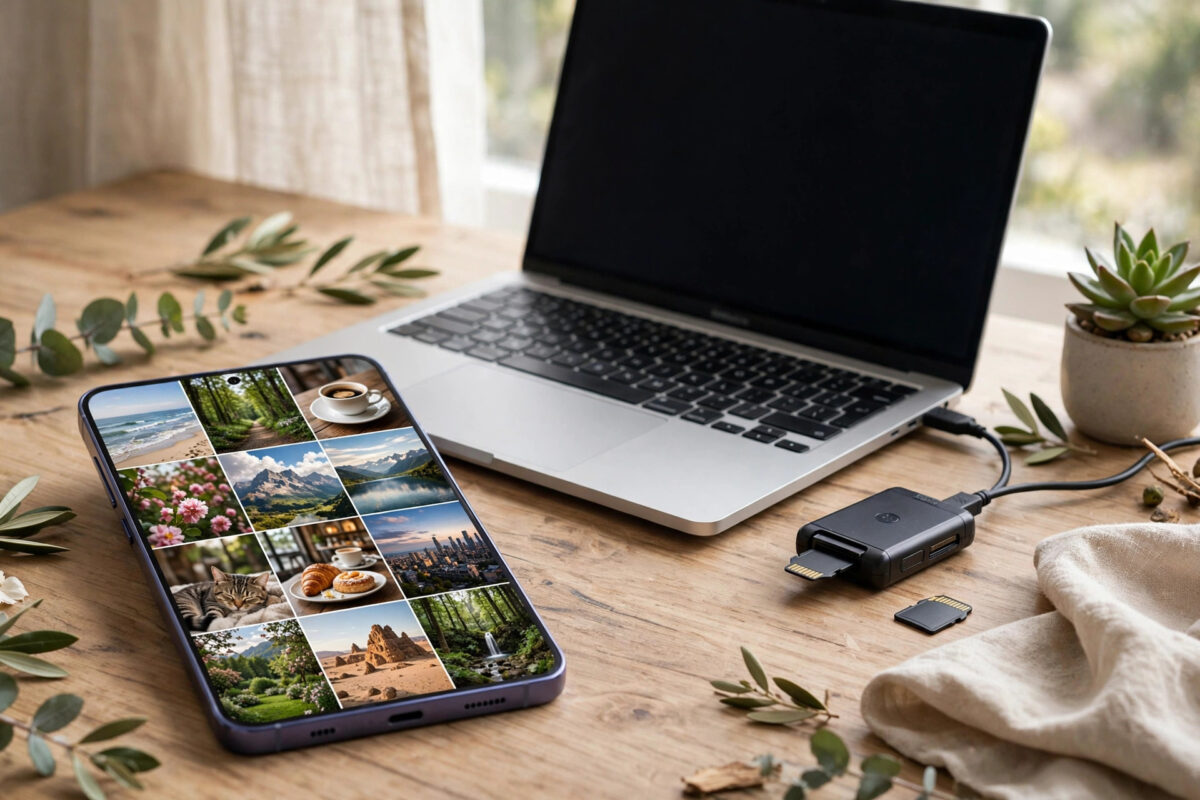
You open Samsung Gallery to find a photo, remember you deleted it weeks ago, and discover the Trash has already emptied itself. Samsung keeps deleted photos in the Gallery Trash for 30 days, and after that limit it removes them automatically. It feels final, and sometimes it is, but before you give up it is worth checking every other place a copy of that photo might quietly live. This guide walks through those places in the best order and is honest about when recovery is no longer possible.
Quick Answer
After 30 days, photos are permanently removed from the Samsung Gallery Trash and cannot be restored from the Trash itself. Your real chances are copies elsewhere: check Samsung Cloud and OneDrive recycle bins, Google Photos trash and archive, any Smart Switch or PC backup, and the DCIM folders on an SD card if you used one. If none of those hold the photo and no backup exists, recovery apps cannot reliably bring it back from a modern Galaxy’s encrypted storage.
How the Samsung Gallery Trash Works
When you delete a photo in Samsung Gallery, it moves to the Trash, sometimes labelled Recycle Bin depending on your region and software version. A counter shows how many days remain before each item is deleted forever. After 30 days, Gallery removes the item automatically, even if you never open the Trash. Manually choosing Empty in the Trash removes everything at once with the same permanent effect.
The Trash is not a backup. It protects you against a mistaken tap for one month. Also note that Gallery Trash, the My Files recycle bin, and Google Photos trash are three separate systems. A photo can be gone from one and still exist in another.
Check Every Other Trash and Bin First
- Google Photos: Open Google Photos, go to Library, then Trash or Bin. Google keeps trashed items for 30 days for backed-up photos and up to 60 days in some cases for backed-up items, counted from when they were trashed in Google Photos, which may be later than in Gallery. Also search the main library and the Archive, because the photo may have been archived instead of deleted.
- OneDrive: Many Galaxy phones sync Gallery to OneDrive. Open OneDrive, check the Photos view, then open the Recycle Bin in the Me or Files section. OneDrive keeps deleted files in its recycle bin for 30 days for personal accounts, starting from deletion in OneDrive, so its clock can differ from Gallery’s.
- Samsung Cloud: On older devices and accounts, Gallery synced to Samsung Cloud. Check your Samsung account online and on the phone under Accounts and backup to see whether any Gallery data or a device backup remains there.
- My Files Recycle Bin: Open My Files, open the menu, and check its Recycle Bin. Files deleted through My Files rather than Gallery go there, with their own 30-day timer.
- Messaging apps: If you ever sent the photo, check WhatsApp, Messenger, or email sent folders. The copy you sent is a separate file that your Gallery deletion never touched. In WhatsApp, also look in the WhatsApp Images and Sent folders using My Files.
Samsung’s own instructions for the Gallery Trash and its time limit are set out in the Samsung support guide to restoring deleted photos from the Gallery Trash, which also confirms that items removed after the limit cannot be restored from the Trash.
Check Backups You May Have Forgotten
Smart Switch and PC Copies
If you ever connected your phone to a computer with Samsung Smart Switch and ran a backup, that backup may contain the photo exactly as it was on the backup date. Open Smart Switch on the PC and look at your backup history before restoring anything. Restoring a full backup can overwrite newer data on the phone, so if the tool allows you to restore only images, choose that option, and back up your current phone first either way.
Also search the PC itself. Search your Pictures folder and any phone-backup folders by the approximate date, and check external drives you used for manual copies.
Cloud Backups of the Whole Phone
Under Settings, Accounts and backup, you can see whether Samsung Cloud or Google One backups ran while the photo still existed. Restoring a device backup usually means resetting the phone and returning to the backup date, so treat this as a last resort and back up everything current first.
SD Card, If Your Galaxy Has One
If your photos were stored on a microSD card, your odds improve a little. Remove the card, connect it to a PC with a card reader, and scan it with reputable recovery software, saving anything found to the PC, never back to the card. Cards do not run TRIM the way internal phone storage does, so recently deleted files sometimes survive if the card has not been heavily reused. Stop using the card as soon as you realise, because new photos overwrite old ones.
For habits that prevent this situation entirely, our guide on how to back up Samsung Galaxy photos to PC and cloud sets up automatic copies in both places, so a Trash expiry never means a lost photo again.
What About Recovery Apps That Promise Deleted Photo Recovery?
App stores are full of tools claiming to recover deleted photos from internal phone storage. On a modern Galaxy, that claim deserves strong doubt. Internal storage is encrypted, the file system trims deleted data much like an SSD, and Android does not give normal apps raw access to deleted blocks. Without root access, which itself can overwrite data and voids protections, these apps mostly find thumbnails, cached previews, and photos that were never truly deleted.
A small, low-resolution thumbnail may still be better than nothing for a sentimental photo, and it costs little to check the caches these apps surface. Just go in with the right expectation: you might recover a blurry preview, not the full-quality original. Never pay for a guaranteed full recovery from internal storage after the Trash limit, because no app can honestly promise that.
Be careful with PC programs that ask you to install drivers from unknown sites. Stick to well-known tools from official sites, and stop if a program asks for your Samsung password or payment before showing a real preview.
If your Gallery synced to OneDrive, the Microsoft guide to restoring deleted files in OneDrive explains its recycle bin timing and restore steps.
Mistakes and Myths to Avoid
- Waiting longer while still using the phone heavily: Every new photo, app install, and update writes data. If there is any hope on an SD card or cache, heavy use buries it. Check your copies and bins the same day you realise.
- Confusing the three trashes: Gallery Trash, My Files Recycle Bin, and Google Photos Trash run on separate timers. Check all three before deciding the photo is gone.
- Restoring a full backup without a current backup: People regularly lose newer photos while chasing an older one. Always back up the phone as it is now before any restore.
- Trusting star ratings on recovery apps: Reviews often describe finding cached thumbnails. That is not the same as recovering a deleted original at full quality.
- Rooting the phone as a first step: Rooting is risky, can wipe data, and rarely changes the outcome on encrypted, trimmed storage. Leave it out of a photo recovery attempt.
- Assuming Samsung can restore it for you: Samsung support cannot bring back photos removed from the Trash after 30 days if no cloud copy exists. Support can only point you to the same bins and backups in this guide.
How to Never Lose a Photo This Way Again
Turn on one automatic cloud backup, either Google Photos or OneDrive sync in Gallery settings, and confirm it is up to date. Add a second copy with a monthly Smart Switch or manual DCIM copy to a PC. Two copies mean no single timer can take a memory from you.
Conclusion
Once the Samsung Gallery Trash passes its 30-day limit, the Trash copy is permanently removed and cannot be restored. Your genuine hope lies in separate copies: Google Photos and OneDrive bins, Samsung Cloud, My Files, messaging app copies, Smart Switch or PC backups, and, for SD card photos, a careful scan from a computer. Check each one in order, protect your current data before any restore, and treat recovery-app promises with caution. Then set up automatic backup in two places, so the next deletion is a small problem instead of a lost memory.
Frequently Asked Questions
Can Samsung restore photos after the 30-day Trash limit?
No. After 30 days, or after you empty the Trash, Gallery permanently removes those copies and Samsung has no separate hidden copy to restore from. Only your own backups or other app and cloud copies can help after that point.
Is the Google Photos trash the same as the Samsung Gallery Trash?
No. They are separate systems with separate timers. A photo deleted in Gallery may still be present in Google Photos or in its trash, especially if backup was on. Always check both apps, plus OneDrive if you used Gallery sync.
Can a recovery app get back full-quality photos from internal storage?
On a modern Galaxy it is very unlikely. Internal storage is encrypted and trimmed, and apps cannot access truly deleted blocks without root. Most such apps surface thumbnails or cached copies, which are lower quality than the original photo.
My photos were on an SD card. Is recovery more likely?
Yes, slightly. SD cards do not trim deleted data like internal storage, so recovery software on a PC may find photos if the card was not heavily reused. Remove the card, stop using it, and scan it from a PC, saving results to the PC.
How do I stop the Trash from deleting photos automatically?
You cannot extend the 30-day Gallery Trash limit. Instead, restore anything you might need before it expires, and rely on automatic cloud and PC backups for long-term safety rather than on the Trash itself.



Leave a Reply