
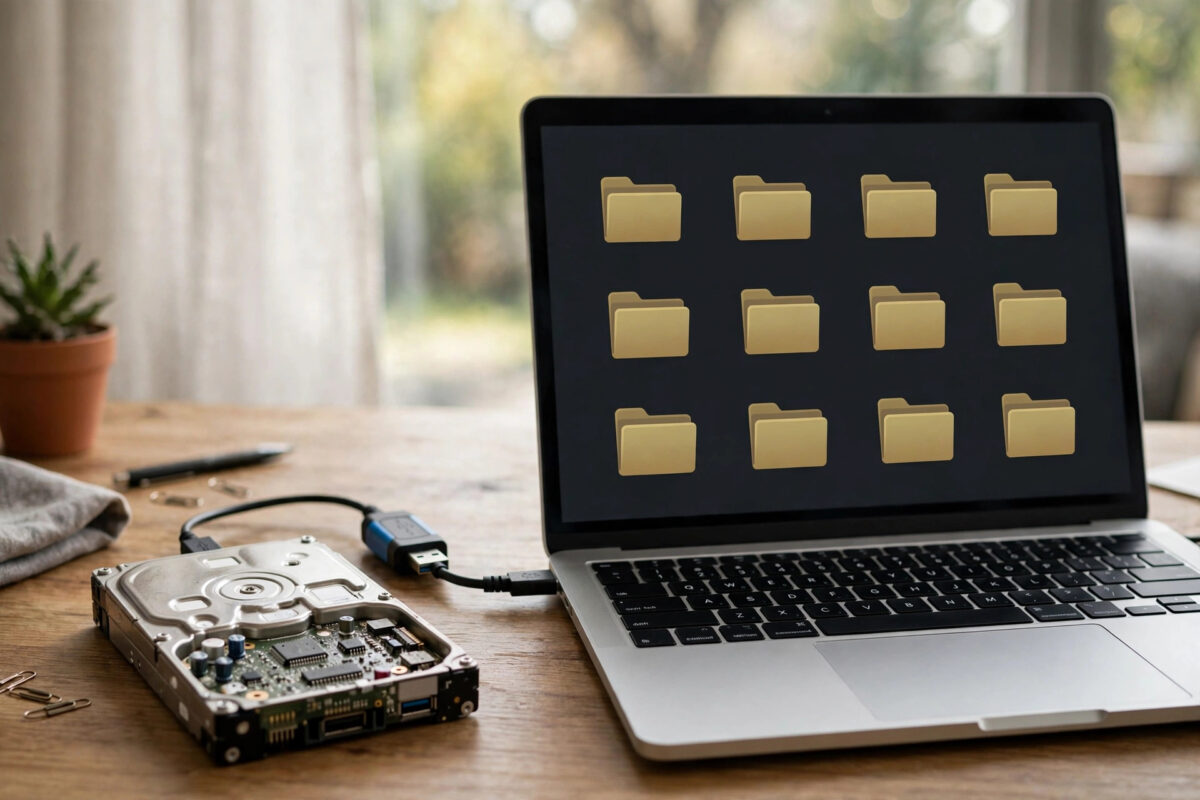
You plug in an old Windows drive hoping to find photos, documents, or work files from years ago. The main folders look empty, but you remember you deleted some files to the Recycle Bin and never emptied it on that drive. Those files may still be there, hidden inside a special folder called $Recycle.Bin. With careful steps, you can often open that folder and recover what is inside without harming the drive.
Quick Answer
Connect the old drive as a secondary drive, show hidden files in File Explorer, and open the $Recycle.Bin folder at the root of that drive. Inside each user subfolder, look for pairs of files starting with $I and $R: the $R file is your deleted content and the $I file tells you its original name and path. Copy the $R files to a safe folder on a different drive, rename them using the $I information, and open them to check they work.
How the Recycle Bin Works on Each Drive
Windows creates a $Recycle.Bin folder on every fixed drive. When you delete a file from drive D:, it does not travel to the Recycle Bin on drive C:. It moves into the $Recycle.Bin folder on the same drive it came from. That is why an old drive can hold its own separate bin full of files, even if your current Recycle Bin on the desktop looks empty.
Inside $Recycle.Bin there is one subfolder for each user account that used that PC. The subfolder name is a long security identifier, often called a SID, starting with S-1-5-21. If the old PC had two user accounts, you may see two SID folders. You need to check all of them, because each person had their own bin.
When a file is binned, Windows renames it. A photo called Holiday.jpg might become $R3K7P2Q.jpg. At the same time, Windows creates a small companion file with the same random code but starting with $I, like $I3K7P2Q.jpg. The $I file stores the original name, original location, file size, and deletion date. The $R file holds the actual content. Understanding that pair is the key to a clean recovery.
What You Need Before You Start
- A working PC to connect the old drive to, using a SATA cable, USB adapter, or drive dock.
- Enough free space on a different drive to copy recovered files onto. Never recover onto the same old drive.
- Administrator access on the working PC, because Windows may ask for permission to open another user’s SID folder.
- Patience to work read-only at first. Browse and copy; do not delete or rename anything on the old drive yet.
If the old drive makes clicking noises, stops appearing, or gets very hot, stop and consider professional help. The steps below assume the drive mounts normally and shows a drive letter.
Step-by-Step: Recover Files From $Recycle.Bin
- Connect the old drive and note its drive letter, for example E:. Open File Explorer and confirm you can see its folders.
- Select View, then Show, then Hidden items, so protected and hidden folders become visible. On older Windows versions, use Folder Options to show hidden files and untick the option to hide protected operating system files, accepting the warning.
- Open the root of the old drive and double-click the $Recycle.Bin folder.
- If Windows says you do not have permission, select Continue to gain administrator access. This is normal when opening a bin that belonged to another PC or user.
- Open the first SID subfolder. Sort by Date Modified or by Size to spot real content quickly. Large files are usually photos, videos, or documents; tiny files are often $I records.
- Look for matching pairs. For each $R file you want, note the code after $R and find the $I file with the same code.
- Copy the $R files you need to a new folder on your working PC’s own drive, such as Desktop\Recovered-Old-Drive. Copy, do not move, so the originals stay untouched until you verify the copies.
- Open each $I file’s information. The simplest way is to drag the original bin view into a tool or open the $I file in a hex or text viewer to read the original path stored inside. On many systems, right-clicking the corresponding item through the Recycle Bin interface, if the drive is recognised, also shows the original location.
- Rename each copied $R file back to its original name from the $I record, keeping the correct extension, such as .docx, .jpg, .pdf, or .xlsx.
- Open each renamed file to test it. Check photos display fully, documents open without errors, and videos play beyond the first few seconds.
- Repeat the same process for every other SID subfolder in $Recycle.Bin before you disconnect the drive.
Microsoft explains the basic bin behaviour in its support guide to deleting and recovering files in the Recycle Bin, which is useful background if you have never changed the hidden-files settings before.
An Easier Alternative: Use the Recycle Bin Interface
Sometimes Windows recognises the old drive’s bin and merges its contents into your desktop Recycle Bin view. After connecting the drive and showing hidden items, open the Recycle Bin on your desktop and look for files whose Original Location points to the old drive letter. If they appear, you can right-click and choose Restore, but be careful: Restore sends them back to their original path on the old drive if that path exists. A safer choice for an old drive is to copy manually using the $R and $I method above, so you control exactly where files land.
If the desktop bin does not show the old files, do not worry. That is common with a different Windows version or user accounts. The manual folder method still works.
For a broader overview of safe recovery order, see our guide on how to recover deleted files from the Recycle Bin in Windows, which covers the desktop method step by step.
Handling Common Problems
The $R File Has No Extension or the Wrong One
The extension is part of the original name stored in the $I file. If you rename a photo without .jpg, Windows will not know how to open it. Always copy the full original name, including its extension. If you cannot read the $I file, look at the $R file size and try the most likely extension based on what you remember deleting, then test a copy, never the original.
Files Open but Look Corrupt
A binned file can be damaged if part of it was overwritten or the drive has bad sectors. Try opening it in a second app. Recover the healthy files first and keep damaged copies aside; partial repair is sometimes possible later.
Permission Errors That Will Not Clear
If Continue does not grant access, right-click the SID folder, open Properties, then Security, then Advanced, and take ownership with your current administrator account, applying it to subfolders. Only do this on a drive you own. Taking ownership changes metadata on the old drive, so manual copying without ownership changes is preferable when it works.
Mistakes to Avoid
- Emptying the bin first: Never right-click and empty anything on the old drive. That deletes the $I records you need to identify files.
- Recovering onto the same drive: Copying files back onto the old drive can overwrite other binned files you have not recovered yet.
- Renaming files on the old drive: Rename only the copies on your safe drive. Keep the originals untouched until every file is verified.
- Checking only one SID folder: Families and shared PCs often have several accounts. The files you want may be under a different user.
- Assuming deleted means binned: Files deleted with Shift+Delete, from a command line, or that were too large for the bin bypass $Recycle.Bin entirely and will not be found here.
- Formatting or running repair tools first: Avoid CHKDSK with fix options or formatting prompts. Windows may offer to repair a drive on connection; cancel that until your files are copied off.
Conclusion
An old drive’s $Recycle.Bin folder is a small time capsule. Inside each SID subfolder, $R files hold your content and $I files hold their true names and locations. Show hidden files, copy carefully to a different drive, rename using the $I information, and test every file before you trust it. Work slowly, change nothing on the old drive, and check every user folder. Done this way, files you thought were gone years ago often come back in minutes.
Frequently Asked Questions
Why can I see $Recycle.Bin but it looks empty?
The content sits inside SID subfolders, not directly in $Recycle.Bin. Open each subfolder in turn. Also make sure hidden items and protected operating system files are set to show, or the subfolders may stay invisible.
What is the difference between $I and $R files?
The $I file is a small record with the original name, path, size, and deletion date. The $R file is the actual deleted file content under a random name. You need the $I file to know what each $R file really is.
Can I recover files if the Recycle Bin was emptied on the old PC?
Emptying the bin removes the $I and $R entries from that folder, so this method will not find them. At that point you would need data recovery software scanning for deleted data, with no guarantee, especially if the drive was used a lot afterwards.
Do I need recovery software for this method?
No. If the files are still present as $R files in $Recycle.Bin, File Explorer and manual copying are enough. Software is only needed when the bin was emptied or the files never went to the bin.
Is it safe to connect a very old drive to my current PC?
Generally yes, using a USB adapter or dock. Scan recovered files with your antivirus after copying, especially programs and documents from an old system, and do not run old executables until they have been checked.



Leave a Reply