
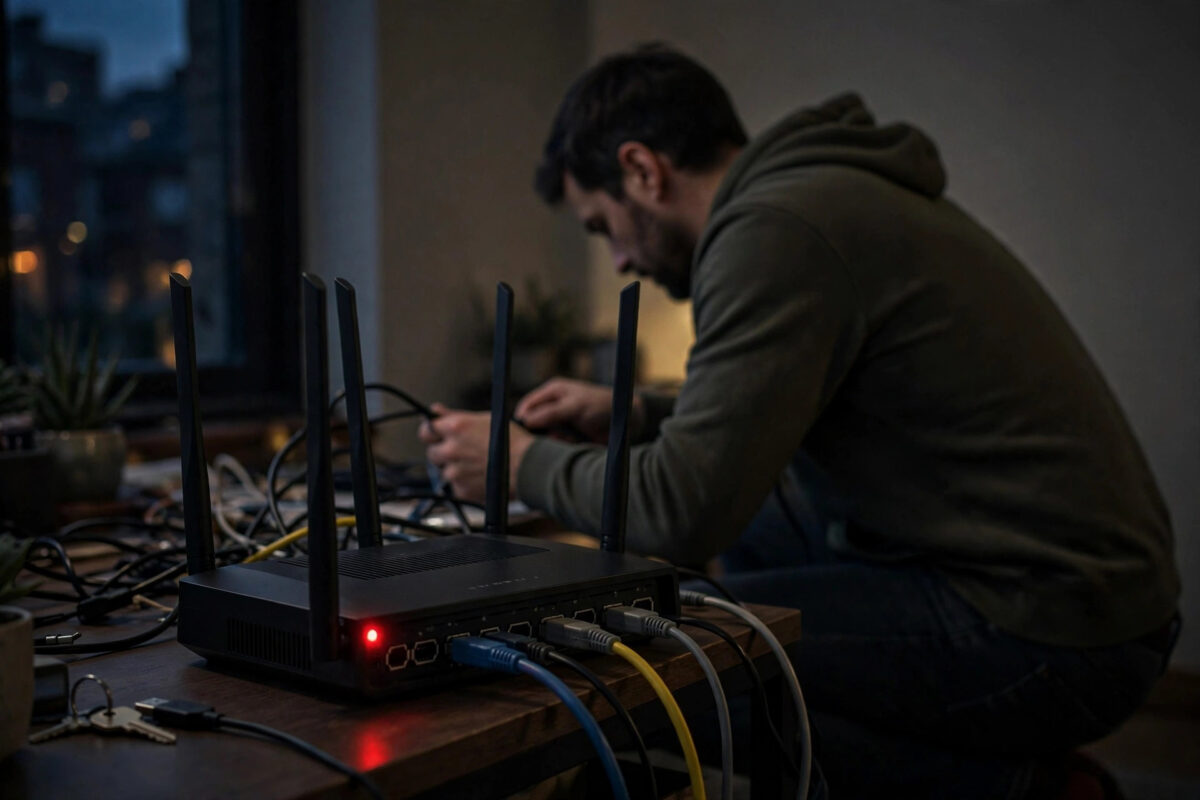
A solid or flashing red light on your broadband modem usually means no internet connection, and it tends to appear at the worst possible moment. Work, streaming, and smart home devices all stop at once.
Do not panic and do not rush to buy a new modem. In most homes the cause is a loose cable, a temporary line fault, overheating, or an outage your provider already knows about.
Quick Answer
Turn the modem off, unplug it for 60 seconds, check all cables are firmly seated, then turn it back on and wait 5 minutes. If the light stays red, check for a provider outage, try a different socket and cable, and only then consider a factory reset or contacting your provider.
What the Red Light Actually Means
Modem lights are not all the same, so start by identifying which light is red. A red power light, a red internet or WAN light, and a red LOS light on fibre mean different things.
A red internet or broadband light normally means the modem is powered but cannot connect to your provider. A red LOS light on a fibre terminal means loss of signal — the fibre line itself is not reaching the box.
A flashing red light often means the modem is trying to connect or updating firmware. A solid red light after 10 minutes usually means the attempt has failed and needs your help.
Check Your Modem Manual Meaning First
Colours vary by brand. On some models amber means connecting and red means a fault, while on others red during start-up is completely normal for the first two minutes.
Look for a sticker or a lights guide in the manual before assuming a fault. Note exactly which labelled light is red, because your provider will ask you this on the phone.
Provider help pages also explain their own light patterns. The BT help and support pages on broadband faults are a useful example of how providers describe what each light colour means.
Step 1: Do a Proper Power Cycle
A quick on-and-off flick is not enough. Modems and routers need a full discharge to clear temporary errors and force a fresh connection to the street cabinet or fibre network.
- Turn the modem off with its power button if it has one, then unplug the power cable from the wall.
- If you have a separate router or fibre terminal (ONT), unplug that as well.
- Wait a full 60 seconds. This drains residual power and clears the session with your provider.
- Check that the power adapter is the original one supplied with the modem, not a similar-looking substitute.
- Plug the modem or ONT back in first and wait until its lights stabilise, usually 2 to 3 minutes.
- Then plug in the separate router if you have one, and wait another 3 to 5 minutes.
- Test the connection on one device before reconnecting everything else in the house.
Do not press the reset pinhole during a power cycle. That button erases your settings, which is a last resort, not a first step.
Step 2: Check Every Cable and Socket
Loose cables cause a surprising number of red-light faults. A DSL plug half out of the filter, a bent Ethernet pin, or a loose fibre connector can all drop the line.
For DSL and Cable Broadband
- Follow the line cable from the modem to the wall socket and push each end in until it clicks.
- If you use a microfilter, make sure the modem is plugged into the DSL socket on the filter, not the phone socket.
- Remove splitters, extension leads, and second filters for a test, and plug directly into the main socket.
- If your main socket has a removable faceplate, try the hidden test socket behind it to rule out home wiring.
- Swap the DSL or coax cable for a spare if you have one, keeping the run as short as possible.
If the light turns green or white in the test socket, the fault is inside your home wiring or an extension socket. If it stays red, the fault is more likely outside.
For Full Fibre Broadband
- Check the green fibre connector on the ONT is fully pushed in and the thin fibre cable is not sharply bent or trapped.
- Never look directly into a fibre connector or port, and never unplug and replug fibre repeatedly.
- Confirm the Ethernet cable between the ONT and your router goes into the router’s WAN or internet port, not a LAN port.
- If the ONT shows a red LOS light, note the time and contact your provider — this usually needs an engineer.
Step 3: Rule Out an Outage or Line Fault
Sometimes the red light is honest: there is genuinely no service to connect to. A local outage, roadworks damaging a cable, or a fault at the cabinet will affect neighbours too.
- Use mobile data on your phone to check your provider’s service status page for your postcode.
- Check whether neighbours on the same provider have also lost service.
- Look at your provider app for planned maintenance, which often happens overnight.
- Wait at least 30 to 60 minutes if an outage is confirmed, then power cycle once more.
If no outage is reported and only your home is affected, the fault is probably your line, socket, or modem. That distinction helps your provider send the right fix first time.
You can also compare notes on the Virgin Media support and service status guidance, which shows the kind of outage and hub-light checks most providers ask you to run.
Step 4: Check for Overheating and Placement Problems
Modems generate heat all day, every day. A modem stuffed in a cupboard, stacked under a router, or sitting on a carpet can overheat and drop its connection, sometimes showing red.
Feel the top of the unit. If it is uncomfortably hot to touch, move it to an open shelf with air space on all sides, away from radiators and direct sunlight.
Clear dust from vents with a soft brush while the unit is unplugged. Then power cycle again once it has cooled for 15 minutes and see if the light behaves.
Step 5: Log In and Check the Connection Status
If the lights improve but devices still cannot get online, log in to the modem or router admin page. The status page will show whether you have a broadband connection and an IP address.
Look for words like Connected, a WAN IP address that is not 0.0.0.0, and line statistics. A connected line with no internet on devices points to a Wi-Fi or device problem, not a line fault.
After a reset or a new modem, you may also need to rejoin devices. Knowing how to change your Wi-Fi password on your home router helps you secure the network again and reconnect everything cleanly.
When to Try a Factory Reset — And When Not To
A factory reset wipes your Wi-Fi name, password, and any custom settings, and restores the defaults printed on the modem sticker. It can clear a corrupted configuration, but it creates work afterwards.
Only reset if the provider advises it, or if you have tried the power cycle, cables, test socket, and outage checks with no change. Write down your current Wi-Fi details before you start.
- With the modem on, press the reset pinhole with a paperclip for 10 to 15 seconds until the lights change.
- Wait 5 to 10 minutes for the modem to restart and reconnect using its default settings.
- Reconnect using the default Wi-Fi name and password on the sticker, then set up your own name and password again.
- Do not reset a fibre ONT unless your provider tells you to — most have no user reset procedure.
Common Mistakes to Avoid
- Unplugging for only five seconds: A brief flick does not clear the session. Wait the full 60 seconds.
- Resetting before checking cables: A factory reset will not fix a loose cable, but it will erase all your settings.
- Using the wrong power adapter: A similar voltage adapter with too little current can cause random red lights and restarts.
- Testing through extensions first: Always test at the main socket to separate home wiring faults from line faults.
- Calling the provider with no details: Note which light is red, solid or flashing, and what you have tried. It shortens the call considerably.
Conclusion
Most red-light faults clear with a proper 60-second power cycle and a careful cable check at the main socket. If the light stays red, rule out a local outage before you reset anything.
If a red LOS light remains on fibre, or the test socket test still fails on DSL, contact your provider with your notes. At that point an engineer or a replacement modem is the sensible next step.
Frequently Asked Questions
How long should I wait after turning my modem back on?
Give it at least 5 minutes, and up to 10 minutes after a reset or outage. Lights may flash and change colour several times during a normal start-up sequence.
What does a red LOS light mean on fibre?
LOS means loss of signal. The fibre light signal is not reaching your terminal, often due to a damaged fibre cable or a network fault. This normally needs your provider to fix.
Will a factory reset fix a red light?
Sometimes, if the configuration is corrupted, but it will not fix a line fault, outage, or loose cable. Try it only after the simpler checks and after noting your Wi-Fi details.
Why does the red light come back every evening?
Repeated evening faults can point to overheating, electrical interference, or congestion and line errors at peak times. Note the times, try better ventilation, and report the pattern to your provider.
Can a faulty microfilter cause a red light?
Yes. A failed microfilter on a DSL line can block the broadband signal. Testing in the main test socket bypasses filters and internal wiring, which is why providers ask for that test.


Leave a Reply