
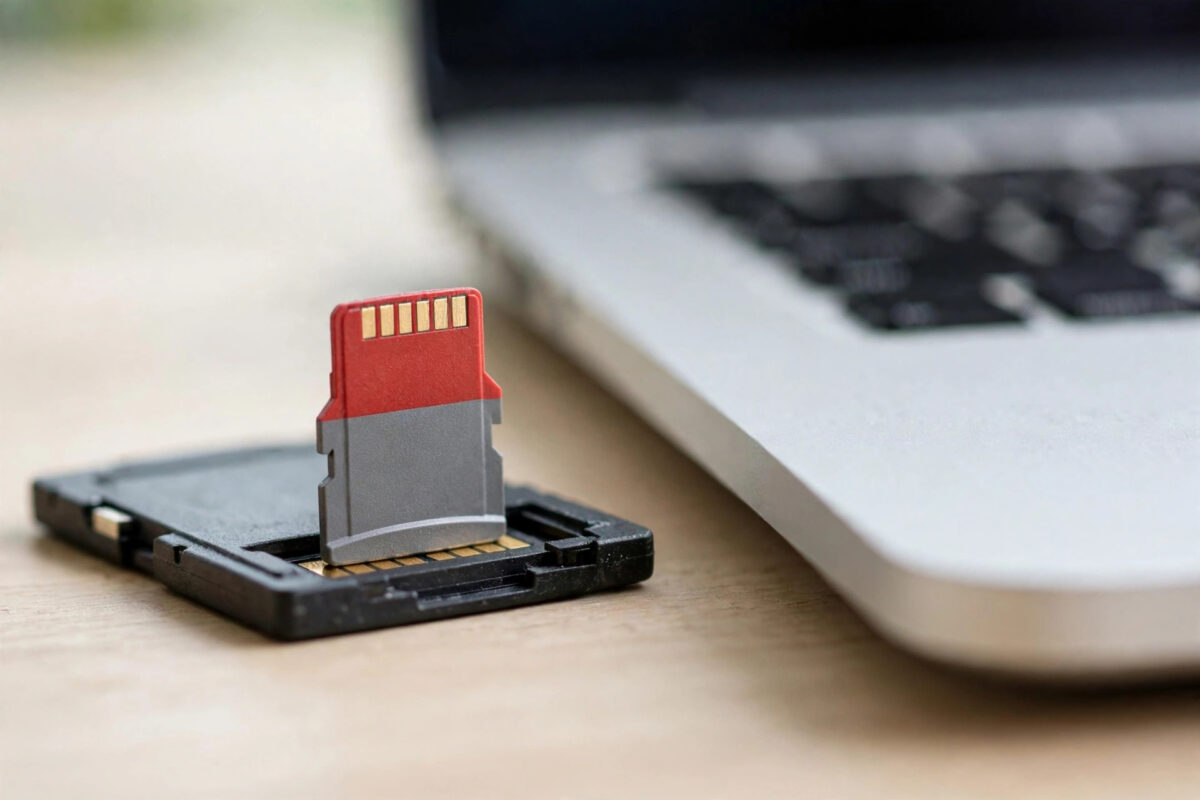
You try to delete a file from your SanDisk Ultra microSD card and nothing happens. You try to format it and the format fails. Every device tells you the card is write-protected or read-only, even though a microSD card has no lock switch to blame. It feels like the card has locked itself forever, and in a sense, it may have done exactly that.
A permanently read-only microSD card is usually a card protecting itself because its internal memory is failing. That sounds like bad news, and for the card it is, but your data is often still readable. This guide explains why the lock happens, how to confirm it, how to copy your files off safely, and the few software checks worth trying before you accept that the card must be replaced.
Quick Answer
A SanDisk Ultra microSD that has become permanently read-only has usually triggered its built-in fail-safe because the memory cells are worn or damaged, and this state cannot be reversed with software. Copy all your files off the card while it is still readable, try a different reader and adapter to rule out a false lock, and then replace the card. Check the warranty, because this failure is often covered.
Why a microSD Card Locks Itself as Read-Only
Inside every microSD card is a tiny controller that manages the flash memory. Flash memory wears out: each cell can only be written a limited number of times, and the controller constantly moves data around to spread that wear. When the controller detects too many failing cells, bad blocks it cannot fix, or internal errors during writing, many cards switch into a permanent read-only mode.
This is a deliberate safety feature, not a bug. By refusing all writes, the card preserves what is already stored so you can still read and copy your files. The alternative would be silent corruption, where new writes damage old data without warning. A card in this state is telling you, clearly and honestly, that it can no longer be trusted to store anything new.
SanDisk describes write-protection behaviour and card failure symptoms in the official SanDisk support knowledge base for write-protected cards, and its guidance for a card locked at the controller level is the same: back up the data and replace the card, because the lock is set in hardware firmware, not by your computer.
First: Copy Everything Off While You Still Can
A read-only card can still be read, but a failing card may not stay readable forever. Data first, diagnosis second.
- Insert the card into a good computer card reader.
- Copy the entire contents to a folder on your computer. Do not skip files that look unimportant; copy now, sort later.
- If the copy stops with errors, copy folder by folder, and file by file if needed, to rescue as much as possible.
- Open a sample of photos, videos, and documents from the copy to confirm they are intact.
- Make a second backup of anything irreplaceable before experimenting with the card.
Do not attempt any fix, format, or attribute change until this copy exists. Some attempted fixes on a dying card can be the last thing it ever tolerates.
Step 1: Rule Out a False Read-Only Lock
Before concluding the card itself is locked, eliminate the impostors, because several look identical.
- Try another reader and port: Faulty readers can report write protection that does not exist.
- Check the adapter lock: If you use a full-size SD adapter, its side switch may be in the lock position. Slide it fully toward the contacts and try again. This is the one true lock switch in the setup, and it is on the adapter, not the microSD card.
- Test in a second device: Put the card in a phone, camera, or another computer. A lock that follows the card everywhere is a card-level lock.
- Try copying a small test file: If every device refuses writes with a write-protection error, the lock is real.
Step 2: Check for a Software Write-Protect Flag on Windows
Occasionally Windows marks a volume read-only at the software level, which is fixable, unlike a controller lock.
- Open Command Prompt as administrator.
- Type diskpart and press Enter, then type list disk to find the card’s disk number by its size.
- Type select disk X, replacing X with the card’s number. Double-check the number, because selecting the wrong disk risks your main drive.
- Type attributes disk to see whether the read-only attribute is set, then attributes disk clear readonly to clear it.
- Exit diskpart, safely eject the card, reinsert it, and test a small write.
If writes still fail after this, the lock is not a Windows flag. The Microsoft DiskPart command reference documents these attribute commands in full if you want to understand exactly what each step does.
Step 3: Confirm the Diagnosis
A genuinely controller-locked SanDisk Ultra shows a consistent pattern:
- Files can be opened and copied, but nothing can be deleted, renamed, moved, or added.
- Formatting fails in every device, often quickly, with a write-protection message.
- The lock persists across computers, phones, cameras, readers, and operating systems.
- Clearing software attributes and using a different adapter changes nothing.
- The card may also show a reduced or incorrect capacity, or copy speeds that have become very slow.
If all of these match, further fix attempts are unlikely to help. Tools that claim to force-format or low-level repair a locked card cannot override a safety state set inside the card’s own controller, and aggressive tools risk making the card unreadable, which would end your chance to copy anything you missed.
What About Formatting Tools and Registry Tricks?
Search results are full of suggested fixes, so it helps to sort them honestly.
- DiskPart attribute clear: Legitimate, and works when the lock is a software flag. Harmless to try after backup.
- Registry or policy edits: These only affect how Windows treats removable storage. They cannot unlock a card whose controller refuses writes.
- Third-party force-format tools: They succeed on software locks and file system damage, but a controller-locked card will reject the format at hardware level no matter which tool asks.
- Low-level format utilities: True low-level control of flash memory is not available through a normal reader. Claims otherwise should be treated with suspicion, and unknown tools are a malware risk.
Our guide on removing write protection from an SD card walks through the software-level causes in order, which is useful if your tests suggest the lock is not in the card itself.
Replacing the Card and Using the Warranty
SanDisk Ultra cards carry a long warranty, commonly ten years or more depending on region and model. A card that locks itself during normal use is a classic warranty case.
- Finish your backup and verify it before anything leaves your hands.
- Note the card’s capacity and model, and keep proof of purchase if you have it.
- Contact SanDisk support or the retailer and describe the permanent read-only behaviour and the tests you have already done.
- Be aware that warranty replacement normally requires returning the card, and returned cards are not data-recovered for you. Your backup is your only copy.
- If the card held sensitive data you cannot risk returning, weigh the replacement value against that risk and consider destroying the card instead.
For the replacement, buy from an authorised seller. Counterfeit SanDisk cards are extremely common and often fail early with exactly these symptoms, because they contain low-grade memory with far less real capacity than printed on the label.
Mistakes to Avoid With a Read-Only Card
- Delaying the backup: A failing card’s readable window can close without warning. Copy first, troubleshoot second.
- Forcing repeated format attempts: They will not unlock a controller lock, and each power cycle stresses a dying card.
- Trusting unknown repair downloads: Many fake card tools bundle malware. Use built-in operating system tools and official support routes.
- Assuming the adapter switch fixes a microSD: The switch exists only on full-size adapters; a lock that persists without any adapter is inside the card.
- Continuing to use the card for new data: It cannot accept writes anyway, and relying on a failing card for reading important files risks total loss.
- Sending the card for warranty before backing up: You will receive a replacement card, not your data.
Conclusion
A SanDisk Ultra microSD that has become permanently read-only has almost always protected itself because its memory is failing, and that hardware lock cannot be undone by formatting tools, registry edits, or commands. Rule out a faulty reader, a locked adapter, and a Windows software flag, then accept the diagnosis: copy everything off while the card still reads, verify your backup, and replace the card, using the warranty where possible. The lock is frustrating, but it is also the card giving you a final chance to save your data. Take it promptly.
Frequently Asked Questions
Can a permanently read-only microSD card be repaired?
If the lock is set by the card’s controller because of memory failure, no. Software fixes only work for software-level flags and adapter switches. A controller-locked card should be backed up and replaced.
Why did my SanDisk Ultra become read-only with no warning?
Flash memory wears with use, and the controller locks the card when it detects more damage than it can manage. Heavy use, such as dashcam or security camera recording, wears cards much faster than occasional photo storage.
Will formatting remove the read-only lock?
No. On a controller-locked card the format itself is a write, and the card refuses all writes. Format attempts simply fail. Formatting only helps cards whose problem is file system damage, not hardware failure.
Can I still get my files off a read-only card?
Yes, in most cases. Read-only means writes are blocked, not reads. Copy everything to a computer as your first step, working folder by folder if the full copy reports errors.
Is this covered by the SanDisk warranty?
Usually, yes. SanDisk Ultra cards carry long warranties and a permanent read-only state during normal use is a recognised failure. Back up first, because the faulty card must normally be returned and your data does not come back with the replacement.



Leave a Reply