
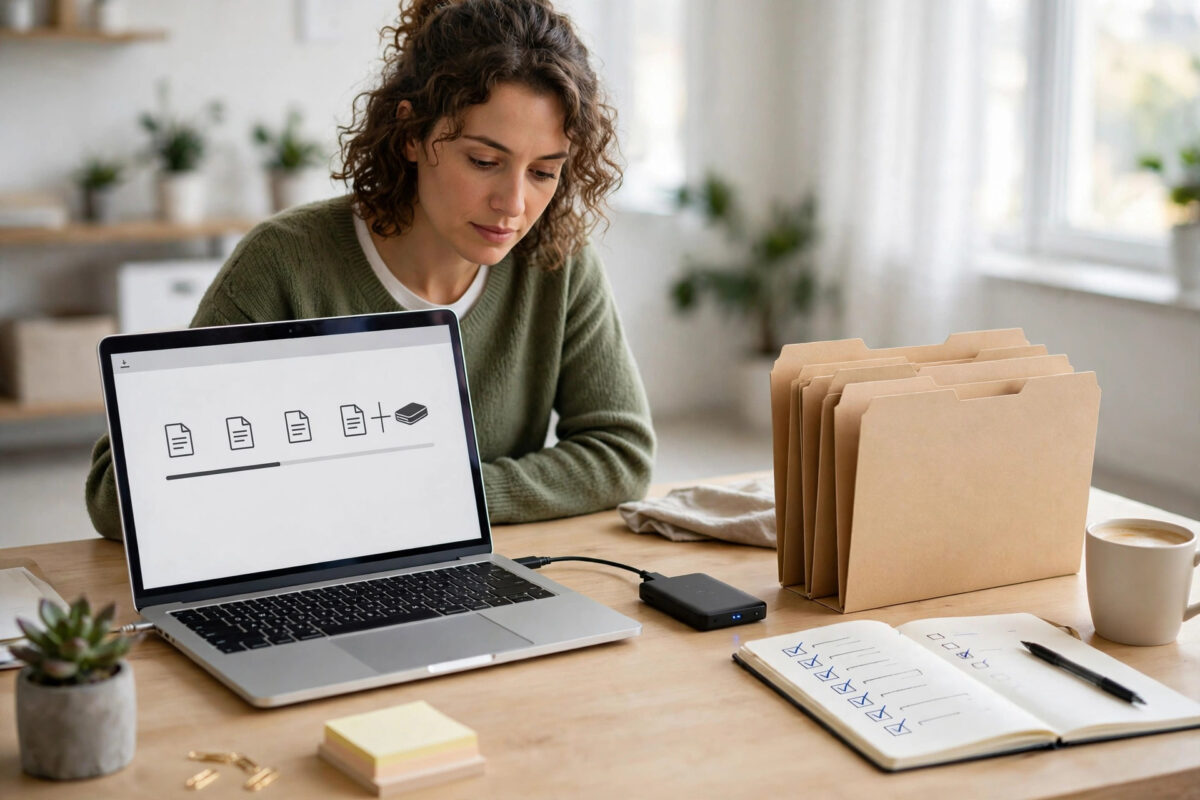
When you leave a job or finish school, your work or school account usually does not stay open for long. Many employers and schools close accounts within days or weeks, and everything inside goes with them: documents you wrote, projects you are proud of, certificates, payslips, references, and files you may need for your next role. Downloading your important documents before access ends is simple if you start early and work in an organised way. This guide shows you what to save, what to leave, and how to do it properly.
Quick Answer
Sign in to your work or school account and download the documents you personally need and are allowed to keep, starting with contracts, payslips, certificates, and your own work samples. Save them to a personal drive or your own cloud storage, organised in clear folders. Do this well before your last day, and never take confidential company or school data you have no right to keep.
Start Early and Check the Rules First
The biggest mistake people make is waiting until their final day. Account closures can happen suddenly, access can be removed during a last meeting, and large downloads take longer than expected. As soon as you know you are leaving, begin. Ideally, give yourself at least a week.
Before downloading anything, check what you are allowed to take. Your contract, staff handbook, or school policy may spell this out. In general, your own employment records, training certificates, and personal documents are yours to keep. Company client lists, internal plans, other people’s data, and confidential projects belong to the organisation and taking them can cause serious legal trouble. If you are unsure about a document, ask your manager, HR, or a teacher. A short conversation now is far better than a dispute later. Our guide to preparing a work laptop and accounts before you hand them back covers the wider checklist.
- Find your actual last access date, which may be earlier than your last working day.
- Read the acceptable use and data policies that apply to your account.
- List the folders, email, and apps where your documents live, such as Drive, OneDrive, Teams, or shared drives.
- Prepare a personal destination with enough free space, such as your own cloud account or an external drive.
Decide What to Download
Not everything in the account matters, and downloading thousands of random files wastes time and buries the important ones. Focus on documents that prove your history, support your career, or would be hard to replace.
- Employment and study records: contracts, offer letters, job descriptions, enrolment letters, and completion certificates.
- Pay and benefits paperwork: payslips, tax forms, pension letters, and expense records you may need for tax or loans.
- Training and achievements: course certificates, qualifications, appraisals, awards, and thank-you messages that evidence your skills.
- Your own work samples: reports, designs, presentations, or writing you created and are permitted to keep for a portfolio, with confidential details removed if required.
- Personal files: anything of yours that ended up in the account, such as a CV stored in the wrong place or personal scans.
- Contacts you are entitled to keep: your own professional contacts, where policy allows, rather than a full company database.
Skip duplicates, drafts of no value, shared team files that the organisation keeps anyway, and anything marked confidential that you have no permission to copy. If a document matters for a handover, make sure the team copy stays in place. Downloading your copy should never mean deleting the original.
Download From Google Workspace and Microsoft 365
Google Workspace Accounts
For school and work accounts on Google, you can download files from Drive directly, or use Google Takeout if your administrator allows it. Takeout creates a downloadable archive of your Drive, and sometimes email and photos too. The Google Takeout help page on downloading your data explains how archives are created and how long they remain available. Because archives can take hours to prepare and the download link expires, request yours several days before your last day.
Microsoft 365 Accounts
For Microsoft accounts, open OneDrive in the browser, select the folders you need, and choose Download. Large selections arrive as a compressed file. You can also sync OneDrive to a computer and copy the files across, but browser downloads are simpler and less likely to disturb settings on a machine you must return. For documents stored in Teams or SharePoint, download from the Files tab of the relevant team or site, and remember that some of those files are shared team property rather than your personal documents.
- Work folder by folder, starting with the most important documents.
- Download to your personal drive or your own cloud storage, never to another work system.
- Keep the original folder names so you can find things months later.
- After each download, open two or three files to confirm they are complete and readable.
- Keep a simple checklist and tick off each area: Drive, email attachments, shared drives, and desktop files.
Do Not Forget Email, Calendars, and Other Apps
Important documents often hide outside the main file storage. Contracts and certificates arrive as email attachments. Reference letters sit in inboxes. Project files live in chat apps, project boards, and learning platforms. Search your email for words such as contract, certificate, payslip, offer, and reference, and save the messages or attachments you are entitled to keep. Forwarding work email to a personal address may breach policy, so downloading permitted attachments or asking HR for copies is usually safer.
Students should also check the learning platform for submitted coursework, feedback, grades, and timetable records, and download marked work they may want for future applications. Staff should check expense systems, HR portals, and training platforms, which often hold the only copies of certificates. Finally, copy any personal photos or files that accidentally ended up on the work device itself, in Downloads, Desktop, and Pictures, before you hand it back.
Organise and Protect What You Saved
Once everything is downloaded, create a clear folder structure in your personal storage: Employment Records, Payslips and Tax, Certificates, Portfolio, and Personal. Rename vague files with dates and descriptions. Then make a second copy. A single download sitting on one laptop is almost as fragile as the account you just left. Your personal cloud storage plus an external drive copy gives you real protection.
Store sensitive documents, such as contracts and tax records, in an account protected by a strong password and two-step verification. These files contain personal data that deserves the same care you would give paper originals. From now on, keep a simple habit: personal documents live in personal accounts, and work documents stay in work accounts, so the next move is painless.
Common Mistakes to Avoid
Leaving accounts cause stress, and stress causes these errors:
- Leaving it to the last day: archives take time to prepare and links expire. Start as soon as your leaving date is known.
- Taking confidential data: downloading client lists, internal plans, or other people’s personal data can breach your contract and the law. When in doubt, ask or leave it.
- Downloading but never checking: a corrupted or partial download is useless. Open sample files from every folder before access ends.
- Saving everything to the work laptop: files left on a returned device are lost to you. Use personal storage or your own drive.
- Forgetting shared and chat apps: key documents hide in Teams, Slack, and learning platforms, not just in Drive or OneDrive.
Conclusion
Downloading your work or school documents before you lose account access is mostly about timing and judgement. Start early, respect the rules about what you may keep, download methodically from every app you used, and check that the files open. Organised and backed up in your own storage, your records, certificates, and best work will stay with you long after the account itself is gone.
Frequently Asked Questions
How long do I have before my work or school account is closed?
It depends on the organisation. Some close accounts on your last day, others allow a few weeks, and some disable access immediately after a final meeting. Ask HR, IT, or your school directly, and plan as if access could end on your last day.
Am I allowed to take documents I created at work?
You are usually entitled to your own employment records and certificates. Work you created for the organisation normally belongs to it, and confidential material must not be taken. Check your contract and ask HR if you want portfolio samples.
Can I use Google Takeout on a school or work account?
Often yes, but administrators can turn it off, and some data types may be excluded. Try it early. If Takeout is unavailable, download your files directly from Drive or OneDrive folder by folder instead.
What if I have already lost access and forgot some documents?
Contact the organisation politely and quickly. IT or HR can sometimes provide copies of your own records, such as payslips or certificates, even after closure. Ongoing access is unlikely, so explain exactly which personal documents you need.
Where should I store the documents I downloaded?
In your own cloud storage account, organised in clear folders, with a second copy on an external drive. Protect the account with a strong password and two-step verification, because these files contain sensitive personal information.



Leave a Reply