
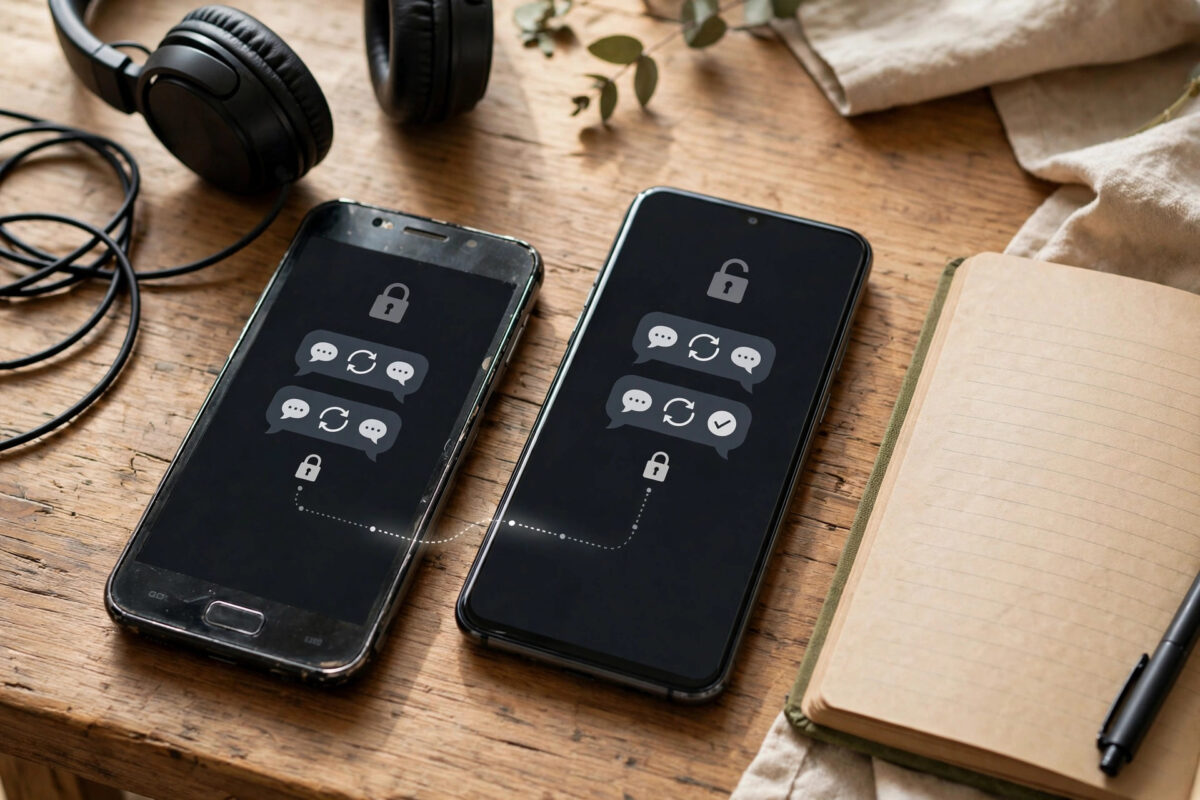
Moving to a new phone is exciting until you remember your private conversations. Telegram and Signal are two of the most trusted messaging apps, but they handle chat backup in almost opposite ways. Telegram keeps most chats on its servers, ready on any device. Signal keeps your messages on your phone by design, and moving them takes deliberate steps.
If you treat both apps the same way, you can easily lose your Signal history while assuming it will simply appear, or waste time looking for a Telegram backup button that does not exist. This guide explains exactly how to protect both apps when you change phones.
Quick Answer
For Telegram, simply sign in on the new phone with the same number and your cloud chats, media, and groups return automatically, but secret chats do not transfer. For Signal, use the in-app transfer feature to move messages directly from old phone to new phone during setup, or restore from an encrypted Android backup file using its 30-digit passphrase. Keep your old phone until both apps are fully checked on the new one.
The Key Difference Between Telegram and Signal Backups
Understanding the design of each app tells you what to do. Telegram is a cloud service. Your regular chats, called cloud chats, are stored on Telegram’s servers and synced across your phone, tablet, and computer. Your account, not your handset, holds the history.
Signal is built for maximum privacy. Messages are stored only on your device, not on a Signal server you can download them from later. That is excellent for privacy, but it means Signal cannot simply restore your chats when you sign in. You must actively move them, device to device, or carry an encrypted backup file with you.
Moving Telegram to a New Phone
What Transfers Automatically
When you install Telegram on a new phone and sign in with the same phone number, your cloud chats, groups, channels, contacts, and shared media become available. Older media may download as you scroll or when you open it, rather than all arriving at once, to save space and time.
- On the new phone, install Telegram from the official app store.
- Open it and enter the same phone number used on the old phone.
- Enter the login code sent to your other Telegram session, by SMS, or by call.
- If you turned on two-step verification, enter that password as well.
- Wait for chats to load, then open a few important conversations and scroll back to check media.
What Does Not Transfer
Secret chats are tied to the specific device where they were created. They do not appear on the new phone, and they cannot be backed up or moved. If a secret chat holds something important, save what you are allowed to keep before you retire the old phone, understanding that the other person expected that conversation to stay private and device-bound.
Downloads and cached files stored locally also do not matter much, because Telegram can fetch shared media from its servers again when you open it, as long as the messages themselves are cloud chats.
Exporting Telegram Chats for Your Own Archive
If you want a personal copy outside Telegram, the desktop app offers an export tool to save chats and media on your computer. This is an archive, not something you import into the new phone. The official Telegram FAQ explains how cloud chats and multi-device sign-in work.
Moving Signal to a New Phone: The Transfer Method
Signal’s direct transfer is the recommended way to move. It sends your history securely from the old phone to the new phone over a local Wi-Fi connection, without uploading your chats to a cloud service.
- Keep your old phone working and do not uninstall Signal from it yet.
- Install Signal on the new phone and begin registration with the same phone number.
- When offered, choose the option to transfer from an existing device.
- Follow the prompts on both phones so they can find each other on the same Wi-Fi network.
- Confirm the connection and safety details if shown, then leave both phones close, charging, and untouched until the transfer reports success.
- Open Signal on the new phone and check several chats, including older media and group conversations.
Our guide to moving apps and data to a new phone step by step places this Signal transfer in the wider order of a full phone switch, which helps you avoid doing steps in the wrong sequence.
The official Signal support page on backups and restoring messages is the best reference if your screens differ slightly from the steps above.
Moving Signal Using an Encrypted Backup File on Android
On Android, Signal can also create an encrypted local backup. This method helps when a direct transfer is not possible, but it demands care.
- On the old phone, open Signal, tap your profile, then Chats, then Chat backups.
- Turn on backups and copy down the 30-digit passphrase exactly. Store it somewhere safe and separate from the phone.
- Tap Back Up Now and wait for the backup to finish.
- Find the backup file in the Signal folder on your phone storage and copy it to the new phone, a computer, or secure cloud storage.
- On the new phone, install Signal, choose the restore option before registering, select the backup file, and enter the passphrase.
- Complete registration with the same number and verify your chats arrived.
Without the exact passphrase, the backup file cannot be opened by anyone, including Signal. There is no recovery service for a lost code. Write it carefully, check it twice, and never store the only copy of the code inside the same backup folder note that could be lost with the phone.
On iPhone, Signal does not offer the same file-based backup route. iPhone users should rely on the device-to-device transfer during the switch, which is another reason to keep the old iPhone available and working until the move is proven.
Prepare Before You Switch: A Shared Checklist
- Keep the same phone number for both apps if at all possible. If your number is changing, use each app’s change number feature on the old phone before you move.
- Make sure your SIM or eSIM plan is ready, because login codes may arrive by SMS or through an existing signed-in session.
- Remember your Telegram two-step verification password if you set one, and your Signal PIN, which protects your account and registration.
- Charge both phones and connect them to the same stable Wi-Fi network.
- Update both apps on the old phone to the latest version before starting.
- Allow enough time. A large Signal transfer is not a two-minute job.
After the Move: Verify Both Apps Properly
Open your most important chats, a busy group, and an older conversation in each app. Play a voice note, open a photo, and send a test message. Keep the old phone, unreset, for several days in case something is missing.
Common Mistakes and Troubleshooting Tips
- Deleting Signal from the old phone first: This can destroy your only copy of your history. Transfer first, delete later.
- Losing the Signal backup passphrase: Without it, an encrypted backup is useless. Record it on paper or in a trusted password manager.
- Expecting Telegram secret chats on the new phone: They never transfer by design. Plan for that in advance.
- Changing numbers at the same time as changing phones: Doing both together multiplies problems. Change one thing at a time using in-app number change tools first.
- Interrupting a Signal transfer: Moving phones apart, letting one sleep, or dropping Wi-Fi can break the process. Keep both awake, close, and charging.
- Tip: If a Signal transfer fails, restart both phones, reconnect to the same Wi-Fi, and try again while the old phone still holds your chats.
Privacy Notes Worth Remembering
Signal makes moving harder because your history is not sitting on a company server. Guard your backup file and passphrase like cash, because anyone with both could read your chats. With Telegram, cloud chats are stored by the service so they can sync, while secret chats stay device-only.
Conclusion
Telegram and Signal ask different things of you when you change phones. Telegram asks only that you sign in with the same number and remember your verification password, because cloud chats follow your account. Signal asks you to actively transfer your history or protect an encrypted backup and its passphrase, because your chats live only with you. Prepare both phones, move Signal first while the old phone is safe, verify everything, and only then retire the old device.
Frequently Asked Questions
Do I need to back up Telegram before changing phones?
For regular cloud chats, no manual backup is needed. Signing in on the new phone with the same number brings them back. Only secret chats fail to move, because they are stored solely on the original device.
Can I restore Signal chats from Google Drive or iCloud?
Signal does not work like WhatsApp here. It uses direct device-to-device transfer, or on Android an encrypted local backup file with a passphrase. A normal cloud device backup alone is not the standard Signal restore method.
What happens if I lose my Signal 30-digit backup passphrase?
The backup cannot be opened without it, and Signal cannot recover it for you. This is by design for privacy. Keep the passphrase stored safely and separately before you rely on a backup file.
Can I move Telegram and Signal if I also change my phone number?
Yes, but change the number inside each app on the old phone first, using its change number feature, then move phones. Doing the number change and device change together is much more likely to cause login and restore problems.
How long does a Signal transfer to a new phone take?
It depends on the size of your history and your Wi-Fi speed. Small histories may take minutes, while years of media can take much longer. Keep both phones charging, close together, and on the same Wi-Fi until it finishes.



Leave a Reply