
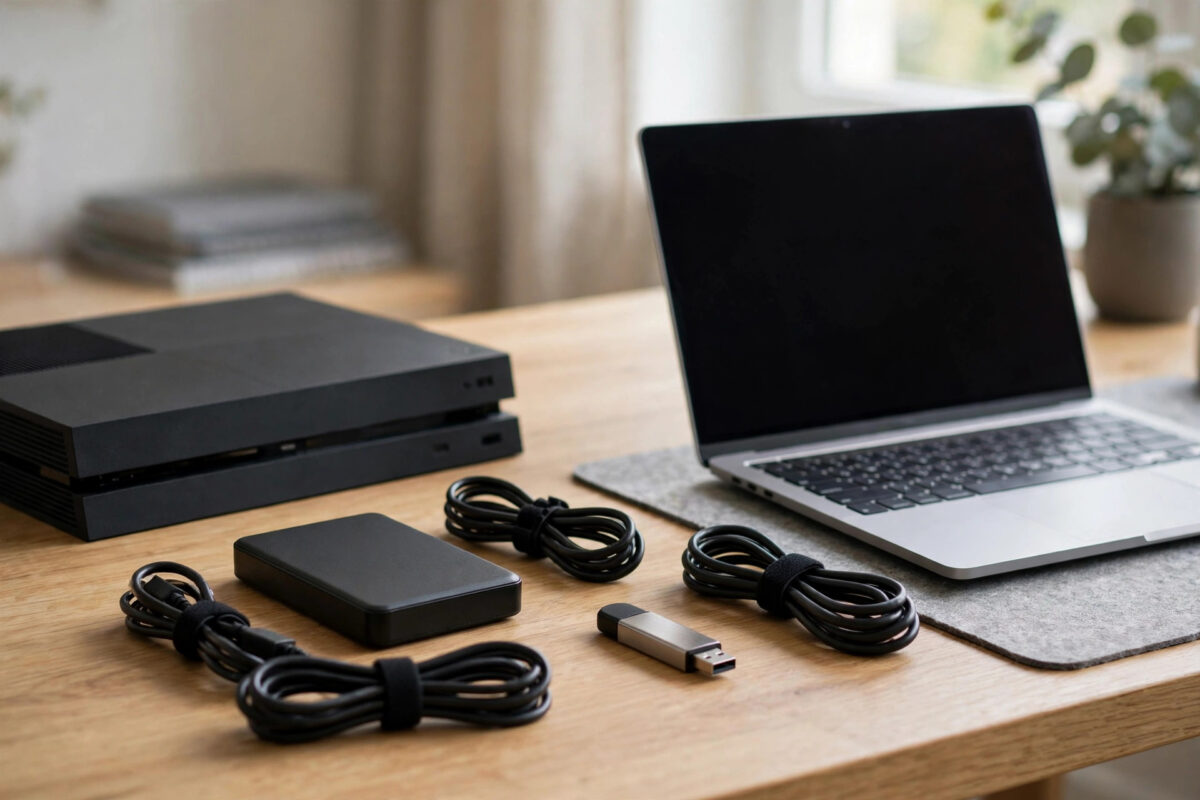
Both the PS5 and Xbox will happily play movies, music and photos from a USB drive — but only if the drive is formatted the way they expect. Plug in a drive with the wrong format and the console acts as if it is empty, or ignores it entirely.
For media playback, that format is exFAT. It works on both consoles, on Windows and on Mac, and unlike the older FAT32 it has no 4GB file-size limit, so full-length 4K films copy across without errors.
Quick Answer
Back up the drive first, because formatting erases it. On Windows, right-click the drive in File Explorer, choose Format, select exFAT, and use the default allocation unit size. On a Mac, use Disk Utility, choose Erase, and set the format to ExFAT with the Master Boot Record scheme. Then copy your media into simple folders, plug the drive into the console, and open its media player.
What Each Console Actually Supports
The PS5 reads exFAT and FAT32 drives for media, screenshots and clips, but FAT32’s 4GB limit makes it a poor choice for video. NTFS is not supported for media on PS5 at all. The Xbox is slightly more flexible: it reads exFAT and NTFS for media playback through its Media Player app. Since exFAT works on both consoles and on every computer, it is the one format to standardise on. The PlayStation support site and Xbox support both confirm exFAT for USB media.
One important separation: a drive you format on a PC for media is not the same as console game storage. If a PS5 or Xbox formats a drive itself for installing games, that drive becomes locked to the console ecosystem and your PC can no longer read it. Keep your media drive and your game-storage drive as two different physical drives.
Format to exFAT on Windows
- Back up the drive. Copy anything you need from the USB drive to your PC. The format will erase every file on it.
- Open File Explorer. Find the drive under This PC and check the drive letter twice so you format the correct device.
- Right-click and choose Format. In the dialog, set File system to exFAT.
- Leave allocation unit size on Default. For very large drives used mainly for big video files, 128KB or 256KB can copy slightly faster, but Default works perfectly well.
- Name the drive. A short label such as MEDIA makes it easy to recognise on the console.
- Click Start and confirm. The format takes seconds on a flash drive and a minute or two on a large hard drive using the quick format option.
Format to exFAT on a Mac
- Back up the drive to your Mac or another disk first.
- Open Disk Utility and choose View, then Show All Devices, so you select the physical drive and not just a volume.
- Click Erase. Set Format to ExFAT and Scheme to Master Boot Record. The scheme matters: GUID-formatted drives occasionally confuse consoles, while Master Boot Record is recognised everywhere.
- Erase and copy your media onto the freshly formatted drive.
Organise Media So the Consoles Find It
Consoles browse USB media through folders, so a tidy structure saves frustration. Put films in a folder called Video, music in Music, and photos in Pictures. For PS5-captured screenshots and clips, the console creates its own PS5 folder structure when you export — do not rename those folders if you want the console to keep recognising the drive for exports. If you ever hit the size error while copying a film onto an older FAT32 drive, our guide to fixing the “file is too large” error on a PS5 USB drive explains exactly why it happens and the alternatives.
Common Mistakes to Avoid
- Formatting the wrong drive. Check the letter, size and label before clicking Start. This is the single most destructive mistake on this page.
- Letting the console format your media drive for games. Decline that prompt. Once a console claims a drive for game storage, your PC cannot read it.
- Using NTFS for a shared drive. The Xbox reads it, the PS5 does not. exFAT keeps one drive working on both.
- Yanking the drive out mid-copy. Use Safely Remove Hardware on Windows or Eject on Mac, or the exFAT file system can be left with errors.
- Buying a suspiciously cheap huge drive. Fake-capacity drives lose files silently. Test any bargain drive before trusting it with your only copy of anything.
Testing the Drive on Each Console
After copying your media, test the drive before the big film night. On the PS5, plug the drive into a USB port, open the Media Gallery or a media player app such as the built-in USB player in the media home, and browse to your folders. Play thirty seconds of a film, skip forward, and confirm audio and seeking both work. On Xbox, open the Media Player app, select the drive as the source, and do the same spot check. Testing one short clip of each type — a film, a song, a photo — catches container problems early, when they are still a PC problem rather than a living-room problem.
If a Console Refuses to See the Drive
Work through this short list before reformatting in frustration. First, try a different USB port on the console; front and rear ports occasionally behave differently with particular drives. Second, confirm the drive is partitioned as Master Boot Record, especially if it was prepared on a Mac, where GUID is the default scheme — consoles can be fussy about this in a way PCs are not. Third, check the drive is not actually formatted NTFS (Xbox reads it, PS5 does not) or FAT32 with your film split across error messages. Fourth, test the drive back on the PC: if the computer cannot read it either, the drive itself — not the format — is the problem, and it is time to test the drive’s health and your backups. Finally, remember that a drive the console formatted for game storage will never appear as a media drive anywhere; the two roles are mutually exclusive and each demands its own physical drive.
Keep one more habit: after adding new media on the PC, always eject properly and give the console a few seconds to index the drive when you plug it in. Large libraries can take a moment to appear in full, and pulling the drive during indexing is another way to teach a file system bad habits.
Conclusion
exFAT, the default allocation size, and a Master Boot Record partition scheme give you a USB drive that both consoles and every computer can read. Format once, organise your media into clear folders, always eject safely, and the drive becomes a reliable bridge between your PC and your PS5 or Xbox.
Frequently Asked Questions
Will formatting delete the games on my USB drive?
Formatting deletes everything on the drive, full stop. But note that a PC-formatted exFAT drive cannot hold installed PS5 or Xbox games anyway — game storage is a separate, console-managed format on its own drive.
What allocation unit size should I pick?
Default is the safest answer. If the drive is 256GB or larger and will store mostly big video files, 128KB or 256KB marginally reduces overhead. Small sizes like 4KB waste space when storing thousands of tiny files on a huge drive.
Why does my Xbox see the drive but my PS5 does not?
It is probably formatted as NTFS. Xbox reads NTFS for media, PS5 does not. Reformat it to exFAT and both consoles will see it.
How big a drive can I use for media?
exFAT itself supports drives far larger than anything sold today. Both consoles happily read multi-terabyte exFAT drives for media, as long as the partition scheme is Master Boot Record.
Can I use the same drive on PS5, Xbox and PC?
Yes — that is exactly what exFAT is for. Just remember it is for media files only, and always eject it properly on each device before unplugging.



Leave a Reply