
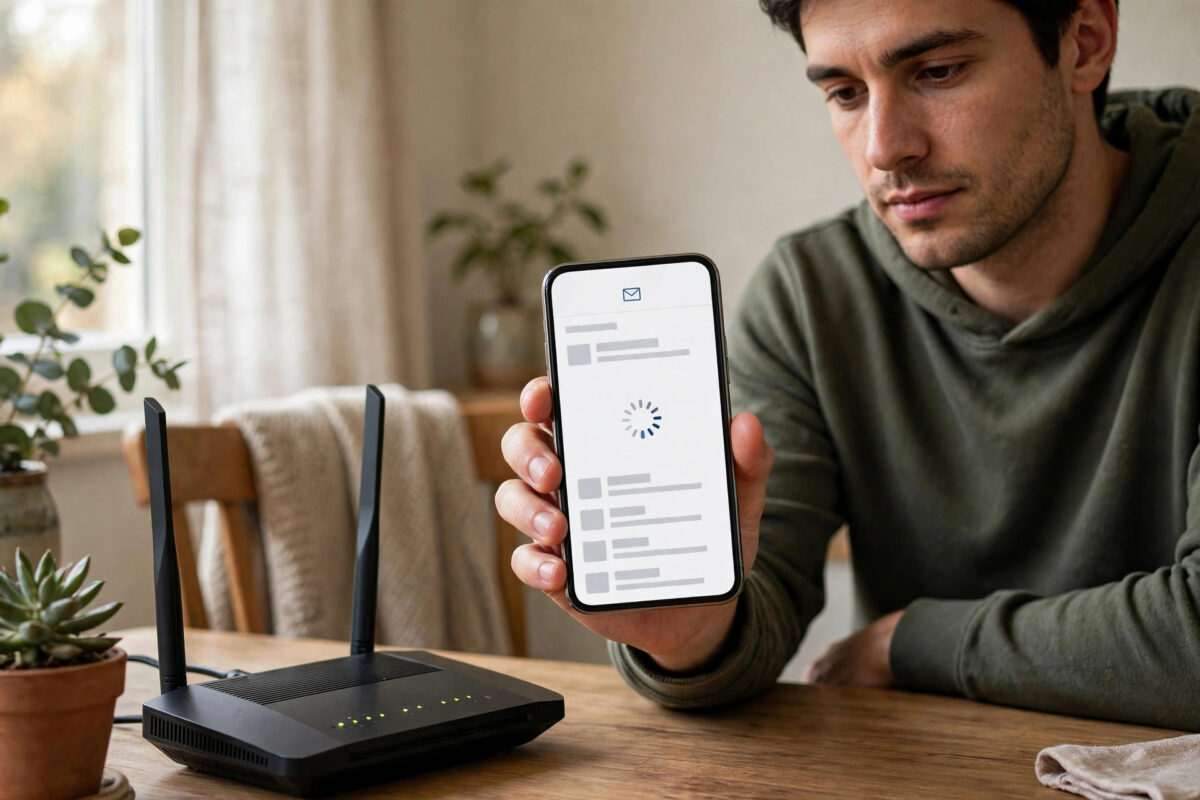
You tap the Yahoo Mail app, ready to check an important message, and a notice appears saying Yahoo is experiencing technical difficulties. The app will not load your mail, restarting it shows the same message, and you are left wondering whether the problem is Yahoo, your phone, or your account.
Usually it is something simple: a weak connection, outdated app data, or a temporary Yahoo outage. This guide walks through the fixes in a sensible order, from quick checks to a full reinstall, so you can get your inbox working again.
Quick Answer
To fix the “we’re experiencing technical difficulties” message in the Yahoo Mail app, check your internet connection, fully close and reopen the app, clear the app cache on Android or offload it on iPhone, and update the app to the latest version. If it continues, check for a Yahoo outage, remove and re-add your account, or reinstall the app. Yahoo’s Mail help pages recommend similar steps for app loading problems.
What This Message Means
This is a general error. The app tried to reach Yahoo’s servers or load your account data and something in that process failed. The message does not say which part failed, which is why a step-by-step approach works best.
Typical Causes
- A weak, unstable, or captive Wi-Fi connection, such as hotel or café networks.
- A temporary problem or maintenance on Yahoo’s servers.
- Corrupted temporary data stored by the app.
- An old version of the app that no longer matches Yahoo’s current service.
- Phone settings that block the app, such as aggressive battery saving or a VPN.
- A signed-in session that has expired or become stuck.
Your emails are not at risk. They live in your account, and the app is only a window into them.
Step 1: Check Your Connection and Yahoo’s Status
- Open another app or a web page to confirm the internet is working.
- If you are on Wi-Fi, switch to mobile data, or the other way around, and reopen Yahoo Mail.
- Turn airplane mode on for ten seconds, then off, to force a fresh connection.
- Sign in to any pop-up page if you are on public Wi-Fi at a hotel, airport, or café.
- Check whether other users are reporting Yahoo problems; if there is an outage, waiting is the real fix.
If the app works on mobile data but not on your home Wi-Fi, restart your router and try again before changing phone settings.
Step 2: Fully Close and Restart the App
Swiping the app away from the recent apps list is not always the same as closing it, but a proper restart clears small glitches.
- Open your phone’s recent apps view.
- Swipe the Yahoo Mail app away to close it completely.
- Wait about 30 seconds.
- Reopen the app and allow it time to load fully before tapping anything.
- If the message returns, restart the whole phone and try once more.
A phone restart sounds basic, yet it clears memory problems and stuck background processes that a simple app restart cannot.
Step 3: Clear the App Cache
Over time the app stores temporary files to load faster. When those files become corrupted, the technical difficulties message can appear at every launch.
On Android
- Open Settings, then Apps, then Yahoo Mail.
- Tap Storage and cache.
- Tap Clear cache. Avoid Clear data at this stage unless the cache alone does not help.
- Reopen Yahoo Mail and sign in if asked.
On iPhone
iOS does not offer a clear-cache button for most apps. The equivalent is to offload the app from Settings, under General and iPhone Storage, which removes the app but keeps its documents, then reinstall it from the same screen. A full delete and reinstall, covered below, has the same effect.
Step 4: Update the App and Your Phone Software
An outdated app is one of the most common reasons for repeated errors. Open your app store, search for Yahoo Mail, and install any pending update. Then check for a phone system update and install it if one is waiting. Yahoo regularly changes how its service talks to the app, and old versions eventually stop working properly. After updating, restart the phone once before testing the app again.
If the browser version of Yahoo Mail shows a numbered error instead, the steps differ slightly; our guide about fixing Yahoo Mail temporary error 14 covers that browser case.
Step 5: Remove and Re-Add Your Account
If the app itself is healthy but your account session is stuck, removing and re-adding the account forces a clean sign-in.
- In the Yahoo Mail app, open the menu and go to account management or settings.
- Select your account and choose the option to remove or sign out of it.
- Close the app completely after removing the account.
- Reopen the app and add the account again with your full email address and password.
- Complete any verification step Yahoo asks for, such as a code sent by text or email.
Removing the account from the app does not delete the account or any emails. It only removes that phone’s connection to it, which you restore by signing in again. You can review signed-in devices anytime in Yahoo’s account security settings.
Step 6: Check Phone Settings That Can Block the App
- VPN: Turn it off and test. Some VPN servers are blocked or treated as suspicious.
- Battery saving: Exclude Yahoo Mail from strict battery optimization so the system does not freeze it in the background.
- Date and time: Set them to automatic. A wrong clock can break secure sign-ins.
- Data restrictions: Make sure the app is allowed to use mobile data and background data.
- Storage space: If your phone is nearly full, free some space. Apps behave strangely with almost no storage left.
Step 7: Reinstall the App as a Last Resort
If nothing above works, delete the Yahoo Mail app, restart the phone, and install a fresh copy from the official app store. Sign in and give the inbox a few minutes to sync, especially if you have a large mailbox. A reinstall replaces damaged app files and clears every piece of stored local data in one move.
Common Mistakes to Avoid
- Repeatedly tapping retry for an hour: If it is an outage, retrying does nothing. Check the service status and wait.
- Downloading Yahoo Mail from unofficial sites: Only use the official app stores. Fake mail apps steal passwords.
- Clearing app data before noting your sign-in details: Make sure you know your password and recovery options first.
- Changing your password again and again: The error is rarely a password problem. Repeated changes can trigger extra security checks.
- Ignoring public Wi-Fi sign-in pages: The app cannot work until the network lets your phone reach the internet.
- Assuming your account was hacked: This message alone is not a sign of hacking. Check account activity calmly after you regain access.
Conclusion
The technical difficulties message in the Yahoo Mail app is vague, but the causes are ordinary. Confirm your connection and Yahoo’s status, restart the app, clear its cache, update it, and re-add your account if the session is stuck. Work through the steps in order and you will almost always find the inbox loads again without any risk to your emails.
Frequently Asked Questions
Is Yahoo Mail down when I see this message?
Sometimes. If many users report problems at the same time, it is an outage and waiting is the only fix. If the service is up for others, the cause is on your phone, and the cache, update, and reinstall steps apply.
Will reinstalling the app delete my emails?
No. Your emails are stored in your Yahoo account online. Reinstalling only removes the app and its local data from the phone. After signing in again, your mailbox syncs back.
Why does the app work on Wi-Fi but not on mobile data?
Your mobile plan or phone settings may restrict the app’s data use, or background data may be switched off for it. Check the app’s data permissions and your phone’s data saver settings.
The error appears only for one of my two Yahoo accounts. Why?
That points to a stuck session for that specific account rather than an app-wide problem. Remove just that account from the app and add it again to force a fresh sign-in.
What should I do if nothing in this guide works?
Try signing in to Yahoo Mail in your phone’s browser. If that works, the account is fine and the app installation is the problem, so reinstall once more after a phone restart. If the browser also fails, wait and check Yahoo’s service status again later.



Leave a Reply