
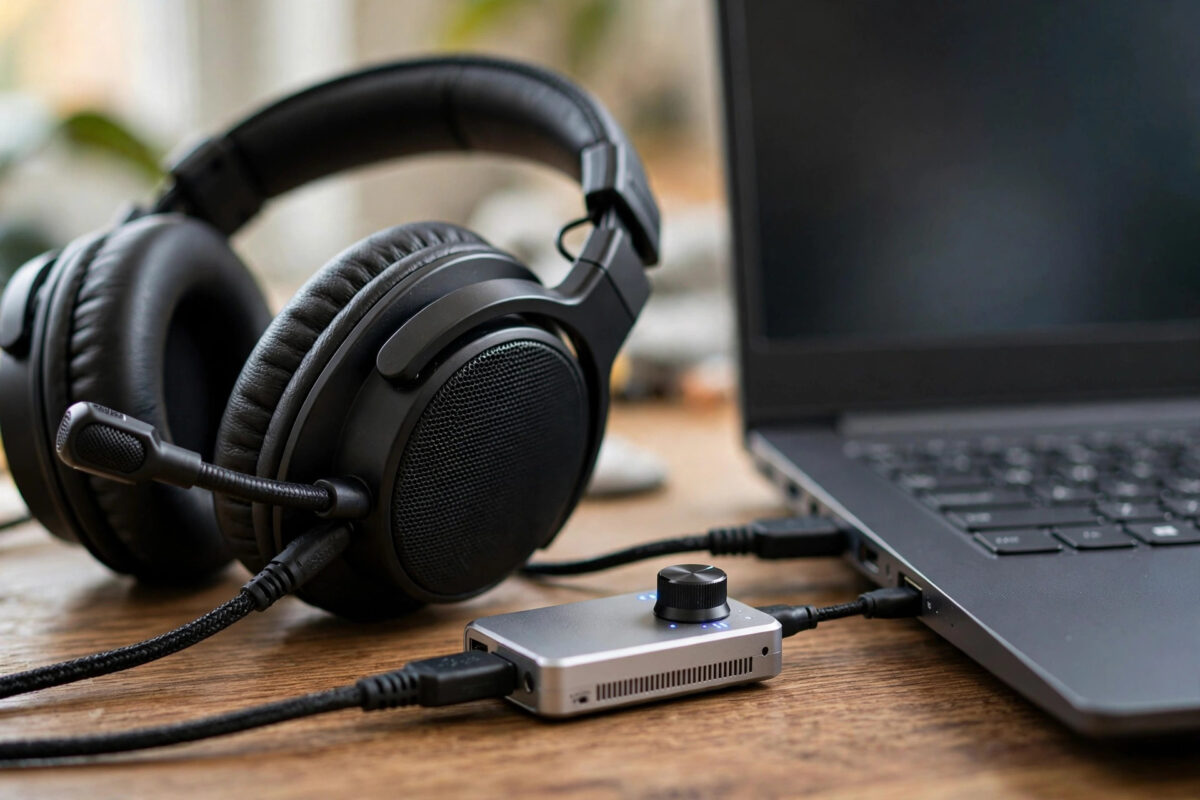
Your USB headset, microphone, DAC, or speakers were working fine — then the October 2026 Windows update arrived, and now Device Manager shows a yellow warning with Code 10: this device cannot start. It is one of the most frustrating post-update problems because the hardware is clearly detected, yet Windows refuses to use it.
Context matters here. Microsoft released KB5127648 on October 13, 2026, Patch Tuesday, for Windows 11 versions 24H2, 25H2 and 26H2, and that rollout brought a cluster of reported problems including install errors 0x800f0845, 0x80070306 and 0x800f0989, Smart App Control becoming grayed out, Remote Desktop error 0xC000000D, and WPA2-Enterprise Wi-Fi breakage. A USB audio Code 10 appearing immediately after that same update fits the same pattern: a driver or audio service that was disturbed during servicing, rather than a suddenly broken headset.
The good news is that Code 10 for USB audio is usually recoverable with driver and service repairs you can do at home. This guide takes you from the quick reseat-and-restart checks through Device Manager driver fixes, audio service checks, and system file repairs, in the order most likely to restore sound fastest.
Quick Answer
To fix a USB audio device Code 10 error after the October 2026 Windows update, uninstall the device in Device Manager, disconnect it, restart your PC, and reconnect it so Windows reinstalls a clean driver.
If Code 10 returns, update or roll back the USB audio driver, restart the Windows Audio services, and run DISM and SFC to repair any system files damaged during the KB5127648 installation.
What Does Code 10 Mean for a USB Audio Device?
In Device Manager, Code 10 is a general message: This device cannot start. (Code 10). For USB audio, it means Windows enumerated the device — it knows something is plugged in — but the driver failed to start the device properly. The failure can sit in the device-specific driver, the generic USB Audio class driver, the USB controller, or the Windows Audio service stack that the device depends on.
After a cumulative update, common causes are a partially updated driver, a corrupted driver cache entry, aggressive USB power saving, or a conflict with the previous driver version. Hardware failure is also possible, so test on another PC early.
Microsoft lists Code 10 among its standard device errors in the Device Manager error codes guide on Microsoft Support, and its recommended first response — updating or reinstalling the driver — is exactly where we will start after the basic checks.
Fix 1: Reseat, Restart, and Test Another Port or PC
- Unplug the USB audio device completely. Do not just mute or disable it.
- Restart your PC via Start > Power > Restart.
- After Windows loads, plug the device directly into a different USB port on the PC — ideally a port on the computer itself, not a hub or dock.
- Wait a full minute and check sound in Settings > System > Sound.
- If it still fails, test the same device on another computer if you can. If it fails with Code 10 there too, the device or its cable is likely faulty.
- Also test a different USB cable, especially for DACs and headsets with detachable cables.
Fix 2: Uninstall the Device in Device Manager and Reinstall It Cleanly
This is the core fix for post-update Code 10 and should be done exactly as written.
- Right-click Start and open Device Manager.
- Expand Sound, video and game controllers and also check Audio inputs and outputs and Universal Serial Bus controllers for the device or any entry with a yellow warning icon.
- Right-click the USB audio device and choose Uninstall device.
- If a checkbox says Attempt to remove the driver for this device, tick it — this removes the possibly corrupted driver copy.
- Click Uninstall, then physically unplug the device.
- Restart your PC, wait until the desktop settles, then plug the device back in and give Windows two minutes to reinstall it.
- Open Device Manager again and confirm the yellow warning and Code 10 are gone.
See the USB audio device class overview on Wikipedia for why Windows can reinstall many devices without a manufacturer download.
Fix 3: Update, Roll Back, or Manually Choose the Driver
Update the Driver
- In Device Manager, right-click the device and choose Update driver > Search automatically for drivers.
- Also check the headset or DAC maker’s official support page for a Windows 11 driver newer than yours, and install it if available — download only from the manufacturer, never from driver-updater sites.
- Go to Settings > Windows Update > Advanced options > Optional updates > Driver updates and install any audio or USB driver listed there.
Roll Back if the Update Replaced a Working Driver
- In Device Manager, double-click the device and open the Driver tab.
- If Roll Back Driver is available, click it, choose a reason, and restart.
- Test sound immediately after the restart before installing anything else.
Try the Generic USB Audio Driver
- Right-click the device, choose Update driver > Browse my computer for drivers > Let me pick from a list.
- Select USB Audio Device or the generic Microsoft driver if listed, click Next, and restart after it installs.
Fix 4: Restart Windows Audio Services and Check the Default Device
- Press Windows + R, type services.msc, and press Enter.
- Find Windows Audio, right-click it, and choose Restart. Do the same for Windows Audio Endpoint Builder.
- Double-click each service and confirm its Startup type is Automatic.
- Go to Settings > System > Sound and select your USB device under both Output and, for headsets, Input.
- Click the device and run Test if offered, and check its volume is not set to zero.
Always verify the default device after a fix — Windows may have switched output to your monitor during the update.
Fix 5: Disable USB Power Saving for the Affected Port
- In Device Manager, expand Universal Serial Bus controllers.
- Double-click each USB Root Hub entry, open the Power Management tab, and untick Allow the computer to turn off this device to save power.
- Click OK for each hub, then restart your PC.
- Reconnect the USB audio device and test for Code 10 again in Device Manager.
This is especially relevant for laptops after sleep or a cold boot.
We cover related audio and driver recovery steps in our Windows troubleshooting guides at Network Ustad, including what to do when a device works on one port but fails on all others.
Fix 6: Repair System Files and Revisit the Update
- Open Terminal (Admin) and run DISM /Online /Cleanup-Image /RestoreHealth. Restart when it completes.
- Run sfc /scannow in a new admin terminal and restart again if it repairs files.
- Check Settings > Windows Update for a newer cumulative update and install it — follow-up updates often contain driver and servicing corrections for the October release.
- If Code 10 began exactly with KB5127648 and nothing else works, use Settings > Windows Update > Update history > Uninstall updates to remove KB5127648 as a test, restart, and recheck the device — then update again promptly for security.
Common Mistakes and Useful Tips
- Using third-party driver updater tools: These frequently install wrong or outdated USB audio drivers and make Code 10 worse. Use Device Manager, Windows Update, or the device maker’s site only.
- Uninstalling without unplugging: The clean reinstall works best when the device is physically disconnected during the restart, so no stale instance is recreated.
- Testing through a hub or dock: Always test directly on the PC first. Hubs add their own drivers and power limits to the problem.
- Forgetting the default output check: A fixed device set to the wrong output looks identical to a broken device in daily use.
- Skipping the other-PC test: If the headset shows Code 10 on two computers, stop repairing Windows and contact the manufacturer — it is hardware.
Tip: create a restore point in Control Panel > Recovery once sound is back, so you have a known-good state to return to.
Conclusion
A USB audio Code 10 error after the October 2026 Windows update is almost always a driver-start problem created during servicing, not proof that your headset or DAC has died. A clean Device Manager uninstall and reinstall fixes most cases, supported by driver updates or rollback, healthy Windows Audio services, sensible USB power settings, and DISM and SFC repairs if KB5127648 left system files damaged. Work through the fixes in order, test directly on the PC each time, and you should have your USB sound back without replacing any hardware.
Frequently Asked Questions
What does Code 10 mean in Device Manager?
Code 10 means the device was detected but its driver could not start it: This device cannot start. For USB audio after an update, it most often points to a corrupted, replaced, or conflicting driver rather than broken hardware.
Will uninstalling the device in Device Manager delete my settings?
Uninstalling removes the driver instance for that device. Your personal files are unaffected, and app-level equalizer or headset settings stored by the manufacturer’s software usually remain, though Windows sound settings for that device may reset to defaults.
Why does my USB audio device work on another PC but show Code 10 here?
That result proves the hardware is healthy and isolates the fault to your PC’s driver cache, USB controller settings, audio services, or the recent update. Focus on the clean reinstall, generic driver test, and DISM and SFC repairs in this guide.
Should I download drivers from a driver update website?
No. Only use Windows Update, Device Manager’s built-in search, Optional updates, or the official support page of your headset, microphone, or DAC manufacturer. Third-party driver sites are a common source of wrong drivers and bundled unwanted software.
Did the October 2026 update permanently damage USB audio support?
No evidence suggests permanent damage. KB5127648, released October 13, 2026, had several reported servicing problems, and USB audio Code 10 cases linked to updates are typically resolved by reinstalling the driver or installing a follow-up cumulative update.



Leave a Reply