
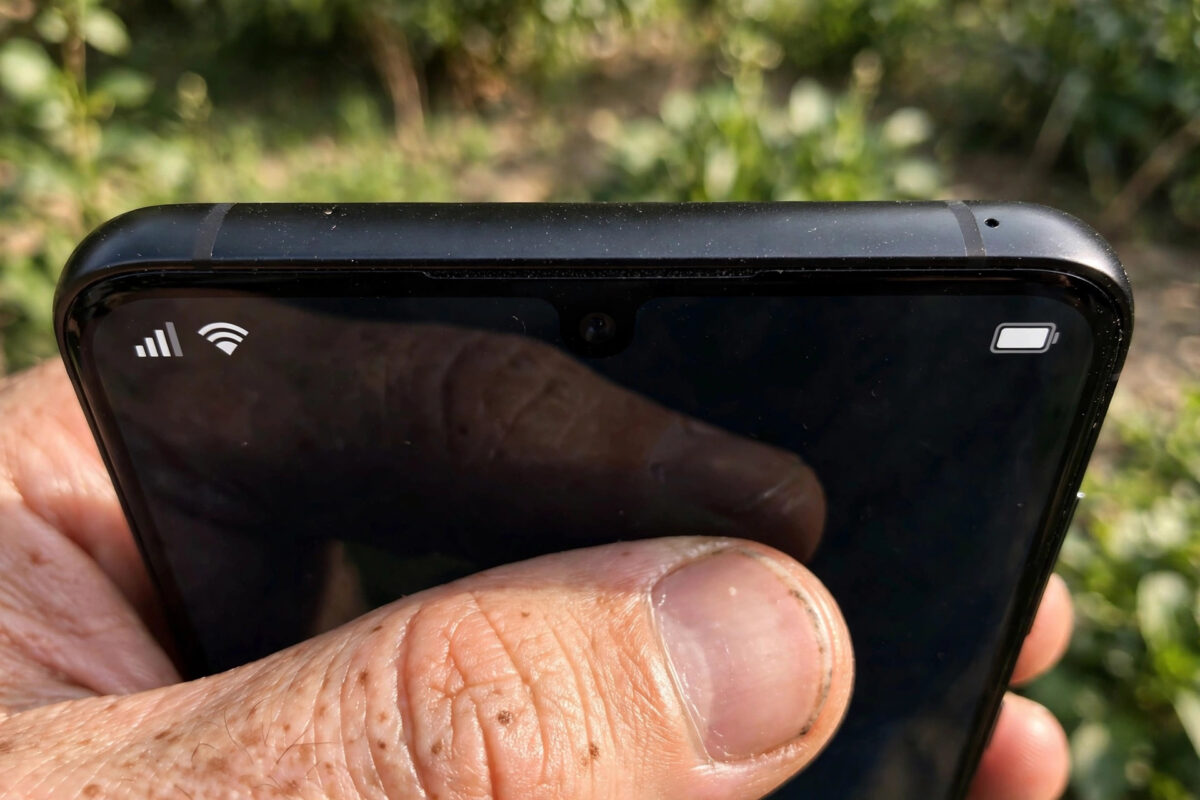
You update your Galaxy to One UI 9, unlock the phone, and something looks wrong at the very top of the screen. The battery icon is missing, the clock has moved or vanished, Wi-Fi and signal icons do not appear, or the status bar looks emptier than it did yesterday. If you customise your phone with Samsung’s Good Lock, the first place to check is QuickStar, the module that controls status bar and quick panel icons.
Missing status bar icons after a major update are a common and fixable problem. One UI 9 is based on Android 17 and changes system UI components underneath, so Good Lock modules often need their own updates to match. At the same time, icon visibility settings can reset during the upgrade, which makes it look as if icons were removed when they were simply turned off.
This guide explains how QuickStar controls those icons, how to update it correctly after One UI 9, where every visibility toggle lives, and how to test whether the problem is QuickStar, another Good Lock module, or a system setting outside Good Lock entirely.
Quick Answer
Missing status bar icons after the One UI 9 update are usually caused by QuickStar needing an update or its icon visibility settings being reset. Open Good Lock, update QuickStar, then open QuickStar and turn on the icons you want under Visibility of Indicator Icons. Restart your phone after changing the settings so the status bar redraws correctly.
How QuickStar Controls Status Bar Icons
QuickStar is Samsung’s Good Lock module for customising the quick panel and status bar. Among other options, it lets you hide or show individual indicator icons such as the clock, battery, Wi-Fi, mobile signal, Bluetooth, location, alarm and NFC icons. Many users hide icons to get a cleaner look, then forget the setting exists months later when an update changes the bar.
After a major One UI update, two things happen at once. First, the system UI itself changes, so an older QuickStar version may not apply its settings correctly to the new bar. Second, the update or the module update can reset visibility choices to defaults. The result is confusing: you did not change anything on purpose, but your icons are gone or different. Samsung describes Good Lock modules and their updates through the Galaxy Store, and keeping them current is covered in Samsung’s Good Lock support guide.
Step 1: Update Good Lock and QuickStar First
Do not start by toggling dozens of settings on an outdated module. Updating first is essential after One UI 9, because module compatibility is version-specific.
- Open the Galaxy Store and check for updates for Good Lock itself.
- Open Good Lock and look for an update badge next to QuickStar.
- Tap QuickStar and update it if a new version is available. If it shows as incompatible or disabled, wait for its update rather than sideloading a version from another site.
- Update other UI-related modules you use, such as Quick panel or theme modules, so they do not conflict.
- Restart the phone after the module updates finish.
If QuickStar does not appear in Good Lock at all after the update, reinstall it from within Good Lock or the Galaxy Store for your region. Availability varies by country and model, and a module may return a few days after a major rollout once its compatible version is published. You can find more update walkthroughs in our Samsung guides at Network Ustad.
Step 2: Turn the Missing Icons Back On in QuickStar
Once QuickStar is updated, check its visibility controls directly. This is where reset settings are fixed.
- Open Good Lock > QuickStar and make sure QuickStar is turned on at the top.
- Tap Visibility of Indicator Icons.
- Review the list and turn on every icon you want to see, such as Clock, Battery, Wi-Fi, Signal, Bluetooth or Alarm.
- Go back and check the Clock settings in QuickStar if only the clock is missing. Make sure it is not set to Hide.
- Lock the phone and unlock it, or restart it, to force the status bar to redraw.
If the Battery Percentage Is Missing but the Icon Is There
- Go to Settings > Notifications > Advanced settings and turn on Show battery percentage, if your model places the option there.
- Alternatively, check Settings > Battery for a battery percentage display option.
- Then return to QuickStar and confirm the battery icon itself is visible under Visibility of Indicator Icons.
The icon and the percentage are controlled in different places on some models, so you may need both settings on.
Step 3: Check System Settings Outside QuickStar
If QuickStar settings look correct, check the system settings that can also hide icons. A Focus or Do Not Disturb profile, a change in notification settings, or a theme applied after the update can affect what you see.
- Go to Settings > Notifications > Advanced settings and check Show notification icons. Choose All notifications if it was set to None or Only the top few.
- Check the status bar area in both light and dark mode, and with the quick panel closed. Some icons only appear in certain contexts by design, such as location only while in use.
- If you use a third-party launcher or theme, temporarily switch back to One UI Home and the default theme to test.
- Turn off any active Routine in Settings > Modes and Routines that changes display or notifications, then test again.
Step 4: Reset QuickStar if Settings Do Not Stick
If you turn icons on and they disappear again after a restart, QuickStar’s stored settings may be corrupted by the version jump. Clearing the module’s data gives it a clean start without affecting your photos or accounts.
- Go to Settings > Apps > QuickStar.
- Tap Storage > Clear cache first, then restart and test.
- If the problem returns, go back to Storage and tap Clear data. You will need to set up your QuickStar customisations again.
- Open Good Lock, set QuickStar up fresh, turn on your chosen icons, and restart once more.
- If QuickStar still fails, uninstall the module from Good Lock, restart, and install the latest version again.
As a final isolation test, turn QuickStar completely off and restart. If icons return with QuickStar off, the module or its settings are definitely the cause. If icons are still missing with QuickStar off, the problem is a system setting or a system bug, and you should check for a follow-up One UI patch in Settings > Software update. Official help is available through Samsung Support.
Common Mistakes and Tips
The most common mistake is updating One UI but never opening Good Lock afterwards. Modules do not always auto-update at the same moment as the system, so an old QuickStar may silently stop working. Another mistake is looking for app notification icons inside QuickStar. QuickStar controls system indicators; app icons are managed in Settings > Notifications. Mixing those up leads to changing the wrong toggles for an hour.
A useful tip is to take a screenshot of your QuickStar visibility settings once your bar looks right. After the next major update, you can restore your exact choices in a minute. Also, update Good Lock modules before a major One UI update if updates are offered, and check them again the day after. Finally, change one module at a time. If you use several Good Lock modules that touch the status bar or quick panel, enabling and testing them one by one shows you immediately which one conflicts after an update.
Conclusion
Missing status bar icons after One UI 9 almost always come down to QuickStar: the module needs updating for the new system UI, or its Visibility of Indicator Icons settings were reset. Update Good Lock and QuickStar first, turn your clock, battery, signal and other indicators back on inside QuickStar, restart, and then check the system notification settings if app icons are also affected. If settings will not stick, clear QuickStar’s cache or data and set it up fresh. In a few careful steps, your status bar will look exactly as you left it before the update.
Frequently Asked Questions
Why did my status bar icons disappear after the One UI 9 update?
Major updates change the system UI and often reset Good Lock settings. QuickStar may also be on an older version that does not match One UI 9. Updating QuickStar and re-enabling icons under Visibility of Indicator Icons fixes most cases.
Where is the Visibility of Indicator Icons setting?
Open Good Lock, tap QuickStar, make sure it is turned on, then tap Visibility of Indicator Icons. From there you can turn individual system icons such as clock, battery, Wi-Fi and signal on or off.
QuickStar is missing from Good Lock after the update. What should I do?
Update Good Lock in the Galaxy Store and restart. If QuickStar still does not appear, its compatible version for One UI 9 may still be rolling out for your model or region. Check again in a day or two and install it from Good Lock when it appears.
Does clearing QuickStar data delete anything important?
No. Clearing QuickStar data only removes that module’s own customisation settings, which you will need to set again. It does not delete photos, messages, apps or your Samsung account.
Why are my app notification icons missing but system icons are fine?
That is usually not QuickStar. Go to Settings > Notifications > Advanced settings and check Show notification icons. If it is set to None or a limited number, change it to All notifications and test again.



Leave a Reply