
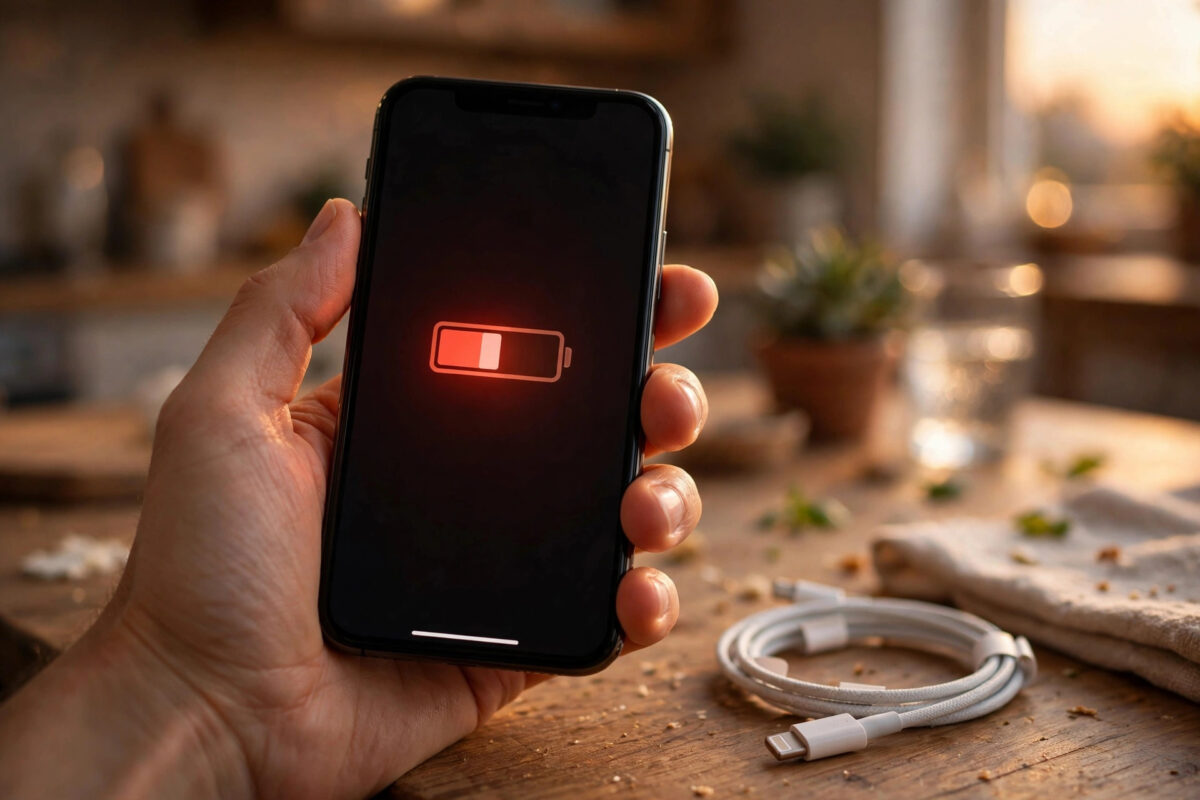
Updating your iPhone and then watching the battery fall twice as fast as the day before is frustrating. Since the iOS 27 update, fast battery drain has become one of the most common complaints, and it hits people in different ways. Some see the phone warm during light use. Others lose a large chunk of charge overnight. A few watch it drop on a desk.
Some extra drain after a major update is normal, and much of the rest is settings-related and fixable. Apple Intelligence features are a major factor for many users, because intelligent features do real work in the background. This guide separates the temporary causes from the permanent ones, and gives you a clear order to work through so you can measure whether each change actually helps.
Quick Answer
To fix iPhone battery draining fast after the iOS 27 update, first give the phone two to three days to finish background indexing, then check Settings > Battery for the real culprit app.
Turn off Apple Intelligence features you do not use, reduce Background App Refresh, check battery health, and install iOS 27.0.1 if you have not already. Most post-update drain is temporary or caused by one app or feature, not a damaged battery.
Why Battery Drain Spikes After a Major iOS Update
A big update is not a small change behind the scenes. After installing iOS 27, your iPhone re-indexes photos, messages, and files for search, finishes optimising apps, and may download additional data for new features. That work is deliberately spread out, often happening while the phone is idle or charging, but it still uses power. This is why experienced users expect one to three rougher days after a major release before judging battery life fairly.
Apple Intelligence adds a second layer. Features that summarise, generate, suggest, and process content are useful, but processing is work, and work uses battery. If several of those features switch on with the update and you never use them, you are paying a power cost for nothing. That is why the fixes below pay so much attention to intelligent features and background activity rather than just telling you to lower the brightness, although that helps too.
Finally, one misbehaving app can spoil everything. An app that has not been updated for iOS 27 may loop, sync endlessly, or hold the phone awake. The Battery settings page will usually expose it clearly, which is why checking it early is essential. Apple explains this screen on Apple’s official battery and performance support page, and it is worth reading alongside this guide.
Step 1: Check for iOS 27.0.1 and Give Indexing Time
- Open Settings > General > Software Update.
- If iOS 27.0.1 is available, install it. Early point releases commonly include fixes for problems found in the first wide rollout of a major version.
- If your device is staying on the older line, note that iOS 26.7.1 is the maintenance release for devices remaining on iOS 26, rather than the fix for a phone already on iOS 27.
- Leave your iPhone plugged in and connected to Wi-Fi overnight for a night or two, so indexing and optimisation can finish on power instead of battery.
- Restart the phone once after updating. A clean restart clears temporary glitches that can keep processes running.
If drain is still clearly abnormal after three days of normal use, stop waiting and start measuring. Waiting only helps the temporary causes.
Step 2: Find the Real Culprit in Battery Settings
- Open Settings > Battery and wait for the usage graphs to load.
- Look at the last 24 hours and the last 10 days views. A single app taking a very large share is your first suspect.
- Tap an app to see whether its usage was on screen or in the background. Heavy background use from an app you rarely open is a red flag.
- Check Battery Health on the same screen or under Settings > Battery > Battery Health, and note the maximum capacity.
Now act on what you find. Update the suspect app in the App Store, because developers ship compatibility fixes quickly after a major iOS release. If no update exists and the app is not essential, delete it for two days and measure the difference. If battery health capacity is very low, the phone may simply be showing the honest limits of an ageing battery, and no setting will fully reverse that.
Step 3: Reduce Apple Intelligence and Background Work
There is no single master switch for Apple Intelligence in iOS. Features are controlled individually, which makes this step a short tour rather than one tap, but it is one of the most effective tours you can take.
- Open Settings > Apple Intelligence & Siri and review each feature listed there.
- Turn off any Apple Intelligence feature you do not recognise or do not use, one by one.
- Open the settings for your most-used apps and check for intelligent or AI options inside them, since some features are managed per app.
- Go to Settings > General > Background App Refresh and set apps you do not need updating in the background to Off, or limit the whole feature to Wi-Fi.
- Go to Settings > Privacy & Security > Location Services and set apps that do not need your location to While Using or Never, instead of Always.
Change a handful of things at a time, then use the phone normally for a day. If you change thirty settings in one sitting, battery life may improve, but you will never know which change mattered or which feature you actually miss.
Step 4: Apply the Reliable Everyday Savings
- Use Low Power Mode while testing. Turn it on in Settings > Battery. If drain slows dramatically, background activity was a big part of the problem.
- Check mail fetching. In Settings > Apps > Mail > Mail Accounts > Fetch New Data, hourly fetching or manual fetching is gentler than constant push for accounts that are not urgent.
- Watch weak signal areas. A phone hunting for signal in a low-coverage building drains fast regardless of settings. Note whether your worst drain happens in one place.
- Review widgets and live activities. Constantly updating home screen and lock screen items are convenient but not free. Remove the ones you never glance at.
- Keep auto-brightness on. The screen remains one of the biggest power users, and automatic adjustment in Settings > Accessibility > Display & Text Size handles it better than most manual habits.
Browse our iPhone troubleshooting guides at Network Ustad after the immediate drain.
Step 5: Reset Settings Only If Nothing Else Works
If drain remains severe after several days, no single app is responsible, and battery health is acceptable, a settings reset is the last software step before contacting support. Go to Settings > General > Transfer or Reset iPhone > Reset > Reset All Settings. This returns system settings to defaults without deleting your apps, photos, or messages, but it does remove saved Wi-Fi passwords and preferences, so treat it as a deliberate last step, not a first reaction. After the reset, reapply only the settings you actually need and monitor for another day.
Common Mistakes and Useful Tips
- Judging battery life on day one. Indexing makes the first day unrepresentative. Give a major update two to three days before declaring a problem permanent.
- Closing all apps constantly. Repeatedly force-closing apps usually wastes power, because iOS then reloads them fully next time. Leave app management to the system.
- Turning everything off at once. You lose useful features and learn nothing. Make measured changes and observe.
- Ignoring the Battery page. Guessing wastes days. The usage list almost always points to the app, the background activity, or the battery health behind the drain.
- Assuming the battery is damaged. Check maximum capacity first. Software causes are far more common after an update than sudden hardware failure.
- Skipping the point update. Staying on the first release while complaining about its bugs misses the fixes in iOS 27.0.1.
Conclusion
Fast battery drain after iOS 27 is annoying, but it is rarely mysterious once you measure it. Let indexing finish, install the latest point release, read the Battery page honestly, and trim the Apple Intelligence and background features you never use. Most users see battery life settle back to normal within a few days using only those steps. If yours does not, and battery health is low or the phone runs hot at rest, that is the point to contact Apple Support rather than endlessly changing settings.
Frequently Asked Questions
How long does post-update battery drain normally last?
For a major release like iOS 27, one to three days of heavier drain is common while indexing, photo analysis, and optimisation finish. Drain that is still severe after three days of normal use deserves investigation rather than more waiting.
Does Apple Intelligence really use that much battery?
It can, especially if several features are active and processing in the background. The cost varies by feature and by how you use your phone, which is why turning off only the features you do not use is a smarter test than guessing.
Should I downgrade from iOS 27 to fix the battery?
Downgrading is generally not the practical answer for most users, and devices staying on iOS 26 are covered by the iOS 26.7.1 maintenance release instead. Work through the battery checks and install iOS 27.0.1 first, because most post-update drain is fixable in settings.
When is battery drain a hardware problem?
Suspect hardware when maximum capacity in Battery Health is very low, the phone is hot while doing nothing, or the battery percentage drops in large jumps. In those cases, a battery service is more relevant than any setting in this guide.
Will a factory reset fix the drain?
It sometimes does, by removing a corrupted setting or a rogue configuration, but it is disruptive and rarely necessary. Try Reset All Settings first, which keeps your data, and only consider a full erase after backing up and exhausting the simpler steps.



Leave a Reply