
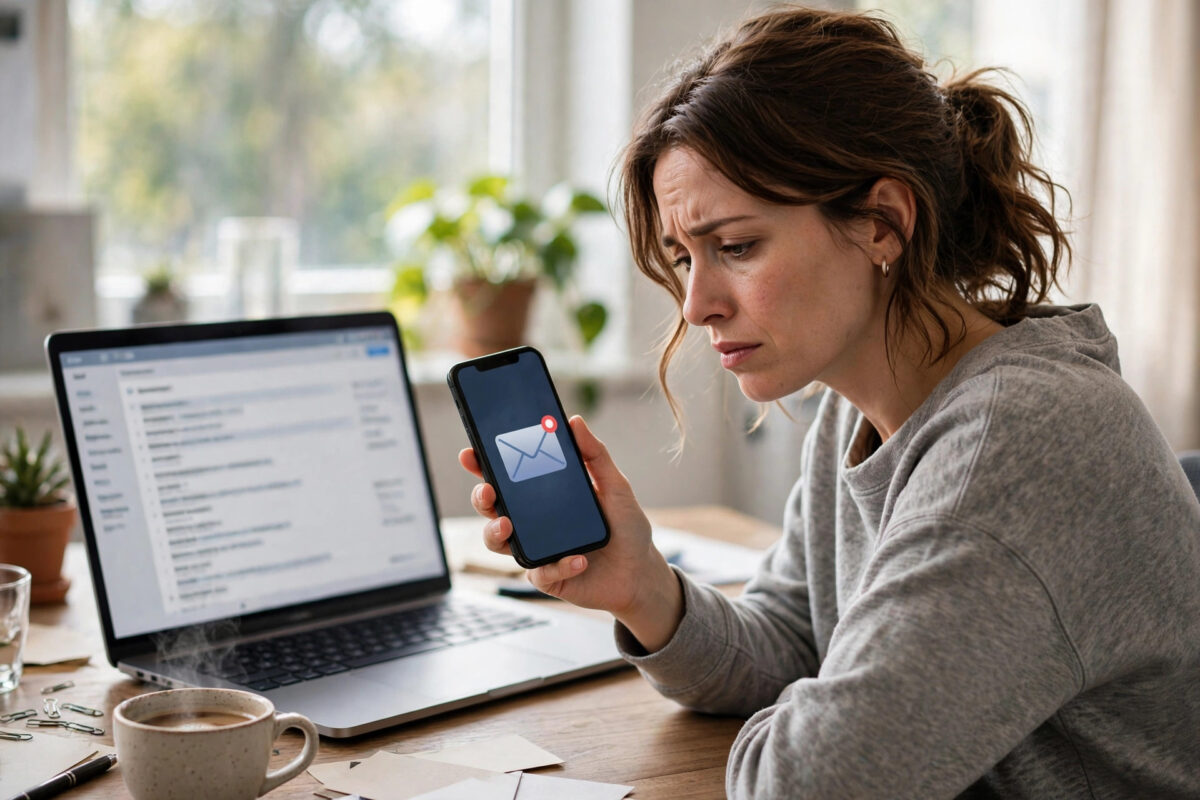
Few small glitches are as annoying as a red badge that will not go away. You open Gmail, the counter says you have three unread emails, you search everywhere, and there is nothing new to read. Or the opposite happens: the badge shows zero, yet unread messages are sitting in your inbox. This mismatch is common, and in most cases it is not a sign that mail is lost.
The count and the actual messages can fall out of sync for several ordinary reasons: a filter quietly marking things, mail hiding in a tab or label, another device changing things in the background, or a browser or app cache holding old numbers. This guide walks through the causes in order, from the quickest checks to the deeper fixes.
Quick Answer
Type is:unread in the Gmail search box to see every unread message in your account, including mail hidden in tabs, labels, and the Promotions or Social categories. In most cases the “missing” unread emails appear there, and opening or marking them as read brings the badge back in line. If the search shows nothing but the badge remains, refresh the page, clear the app cache, and check for filters or other devices that may be changing your mail.
Step One: Find the Real Unread Messages
Before changing any settings, confirm what is actually unread. The inbox view only shows one category at a time, so unread mail can easily hide elsewhere.
- Open Gmail on a computer for the clearest view.
- Click the search box at the top and type is:unread, then press Enter.
- Review the full list of results. This search covers your entire account, not just the inbox tab you were viewing.
- To narrow it down, type is:unread in:inbox to see only unread mail that is still in the inbox.
- Open any messages you find, or select them and mark them as read if you already know what they are.
Many people solve the problem right here. A newsletter in the Promotions tab, an automated receipt under a label, or a message that a filter skipped past the inbox can all keep the counter above zero while your main inbox looks empty. Google’s own support page on Gmail search operators lists the full set of search terms you can combine with is:unread, such as adding a date or a sender.
Check the Inbox Tabs and Categories
Gmail’s default inbox sorts mail into Primary, Social, Promotions, Updates, and Forums tabs. Each tab holds its own unread messages, and the main badge counts them together. A single unread promotional email can therefore make it look like you have mail waiting in Primary when you do not.
Click each tab in turn and look for bold subjects, which mark unread mail. If you rarely use some tabs, consider turning them off in Settings under the Inbox section, so all mail lands in one list and counting becomes simple. This does not delete anything; it only changes how incoming mail is sorted.
Look for Filters That Change Read Status
Filters are a frequent hidden cause. A filter can skip the inbox, apply a label, mark messages as read, or do the opposite and leave copies in unexpected places. If a filter marks some mail as read automatically, the badge may look lower than you expect. If a filter moves unread mail to a label you never open, the badge stays high.
- Click the gear icon and choose “See all settings.”
- Open the “Filters and Blocked Addresses” tab.
- Read through your filters and note any that skip the inbox, mark as read, or apply labels.
- Edit or pause any filter that no longer matches how you work.
- Run the is:unread search again to see if the numbers now make sense.
While you are there, check the “Forwarding and POP/IMAP” settings too. Another email program connected to your account, such as a desktop client or a phone app using POP, can download messages and change their status in ways that confuse the count.
Fix the Count on Your Phone
If the wrong number appears on your phone’s app icon, the problem is often the app or the phone’s notification system, not Gmail itself.
On Android
- Open the Gmail app, pull down to refresh, and wait a few seconds for syncing to finish.
- Search is:unread inside the app to confirm whether any unread mail truly exists.
- If the badge is still wrong, open your phone Settings, go to Apps, choose Gmail, and clear the cache. Do not clear data unless you are ready to set the app up again.
- Check that Gmail is allowed to sync: in the app settings, make sure “Sync Gmail” is turned on for your account.
On iPhone
- Open Gmail and refresh the inbox by pulling down.
- If you use Apple Mail with your Google account, open that app too, because its badge counts separately and may be the one you are seeing.
- Restart the phone. A simple restart clears many stuck badge counts.
- If the badge persists, remove the account from the mail app and add it again to force a fresh sync.
Also remember that each app shows its own badge. Gmail, Apple Mail, and a third-party client can all display different numbers at the same moment if one of them has not synced recently. Give a healthy connection a minute before assuming something is broken.
Fix the Count in a Web Browser
On a computer, a stale browser cache or a misbehaving extension can freeze the displayed count. Refresh the Gmail tab first. If that fails, open Gmail in a private or incognito window; if the count is correct there, the problem is your normal browser profile. Clear the cache for Gmail, then disable extensions one at a time, especially ad blockers and email add-ons, until the count updates normally.
Another useful trick is to force a full account view. Our practical Gmail storage and inbox cleanup guide explains how searches and labels work together, which helps when unread mail is scattered across years of archived messages.
Mark Everything Read to Reset the Count
If the is:unread search reveals hundreds of old unread messages you do not need, resetting everything to read is sometimes the cleanest fix.
- Search is:unread in Gmail.
- Tick the select box at the top of the results, then click the link that selects all conversations matching the search, not just the first page.
- Click the “Mark as read” button, shown as an open envelope icon.
- Wait for Gmail to finish, then refresh the page and check the badge.
Be careful with this option. Marking everything as read also affects messages you may have deliberately left unread as reminders. If you use unread status as a to-do system, instead select only the tabs, labels, or date ranges you are sure about, for example is:unread older_than:1y for mail more than a year old.
Common Mistakes and Helpful Tips
- Only checking the Primary tab: The badge counts all tabs and labels. Always verify with a full account search first.
- Forgetting other devices: A tablet or old phone signed into your account can mark mail read or unread in the background.
- Ignoring the Spam and Trash folders: Unread mail there normally does not affect the inbox count, but checking them rules out confusion about missing messages.
- Clearing app data too quickly: Clearing cache is safe; clearing all app data signs you out and removes local settings, so use it only as a later step.
- Tip: Star or label important unread mail before doing a bulk mark-as-read, so you can find it again afterwards with is:starred or the label name.
- Tip: If counts break often, review your filters monthly. Old filters are the most common long-term cause.
Conclusion
A mismatched unread badge almost always has a simple explanation: unread mail hiding in another tab or label, a filter changing messages quietly, or an app or browser showing a stale number. Start with the is:unread search to see the truth, then work through tabs, filters, and device sync in that order. In nearly every case, the badge and your inbox will agree again within a few minutes, with no mail lost at all.
Frequently Asked Questions
Why does Gmail say I have unread mail when my inbox looks empty?
Because the count includes mail in the Social, Promotions, Updates, and Forums tabs, plus labelled and archived messages that still have unread status. Running an is:unread search shows all of them in one list, so you can open them or mark them as read and clear the count.
Does unread mail in Spam affect the badge?
Normally, no. The inbox badge reflects mail in your inbox and its categories. Spam and Trash are counted separately. However, if a filter or another email program moves messages unexpectedly, checking those folders helps you rule out missing mail.
The badge is wrong only on my phone. What should I try first?
Refresh the app and check that sync is enabled, then clear the app cache on Android or restart the phone on iPhone. Phone badges are updated by the operating system and can lag behind the real account, especially after poor network coverage or a recent app update.
Can another person or device change my unread count?
Yes. Any device or email program signed into your account can mark messages as read or unread, and those changes sync to Gmail. If you share the account or use several clients, check each one. If you do not recognise the activity, change your password and review account security.
Will marking all messages as read delete anything?
No. Marking as read only changes the status of the messages; it does not delete, archive, or move them. They stay exactly where they are and can still be found by search. You can also mark individual messages as unread again if you change your mind.



Leave a Reply