
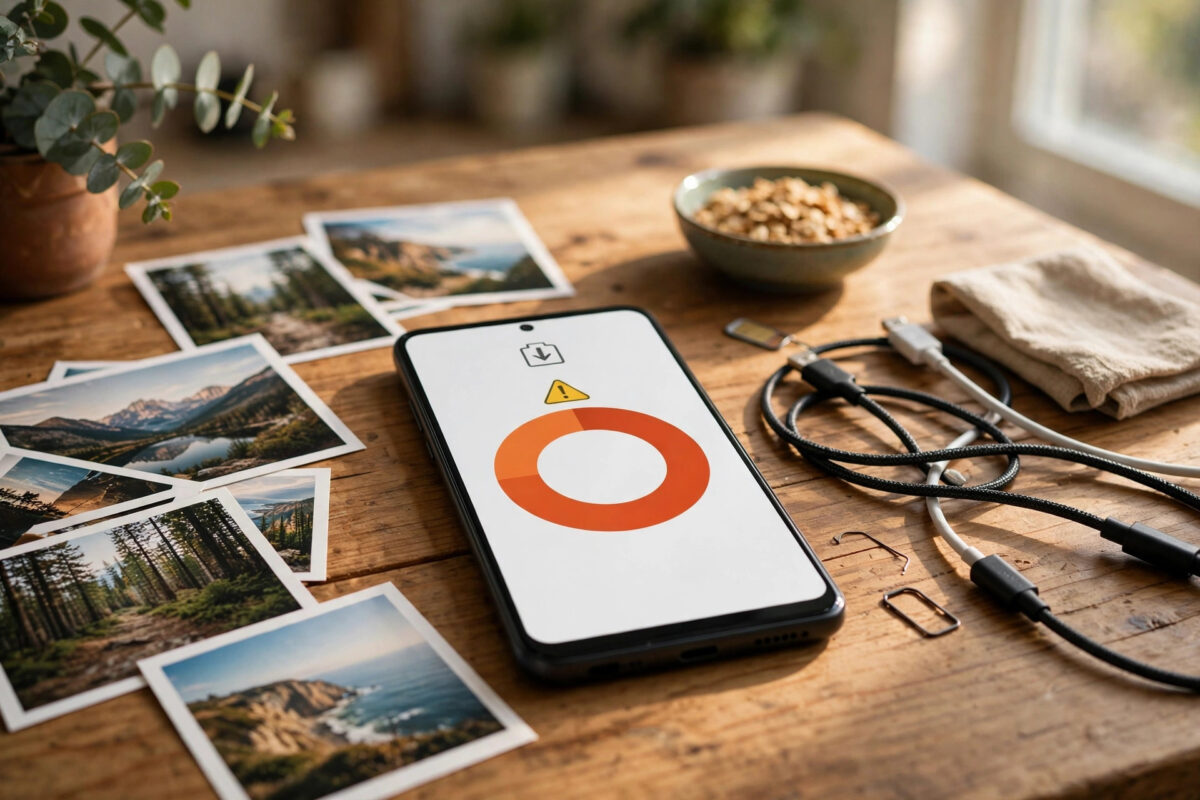
When your Android phone drops below 500MB of free space, Gmail quietly pauses syncing to protect the device. New emails stop arriving, sent messages can sit in the Outbox, and a sync paused or storage warning appears that does not clear on its own.
Many people assume their account is broken, but the real problem is simply space. Gmail needs room to download messages, attachments, and search data. This guide explains how much space you actually need, the fastest safe ways to free it, and how to restart sync so your inbox catches up properly.
Quick Answer
Free up at least 1GB of storage, not just a few megabytes above the 500MB limit, then restart your phone and open Gmail to force a manual sync. Delete large downloads and unused apps, clear cached data for heavy apps, and move photos or videos to cloud storage or a computer. Once enough space is available, Gmail sync usually resumes within a few minutes.
Why Gmail Pauses Sync When Storage Is Low
Android treats very low storage as a risk. When free space falls under a safety threshold, the system stops background sync for apps like Gmail, Photos, and Drive so the phone can keep running.
Gmail needs free space for more than the text of your emails. It stores attachments you open, offline search indexes, and drafts with photos. If the phone cannot guarantee that space, Gmail pauses rather than risking failed downloads and corrupted data.
The pause also explains strange side effects. Notifications stop because no new mail is downloaded, the Outbox holds messages because attachments cannot be processed, and the Gmail widget looks frozen even though your account works fine on a computer.
How Much Free Space Does Gmail Really Need?
The warning appears under 500MB, but aiming for exactly 501MB will not help for long. One large attachment or app update will push you back under the limit.
Aim for at least 1GB free for basic reliability, and 2GB or more if you receive lots of attachments. That buffer also makes your whole phone faster, because Android itself needs working space for updates and temporary files.
Step 1: Check Exactly What Is Using Your Storage
Before deleting anything, look at the breakdown. Guessing wastes time, and people often delete photos when a single game or video folder is the real problem.
- Open Settings and tap Storage, which may be under Battery and device care on Samsung phones.
- Wait for the analysis to finish and review the categories: apps, images, videos, audio, downloads, and system.
- Tap each large category to see the biggest items inside it.
- Note the top three space hogs. Those are your fastest wins.
- Take a screenshot or remember your starting free space so you can measure progress.
On many phones you will also see a clean-up suggestion card. It is safe to review its recommendations, but check each item before accepting, especially for downloads you still need.
Step 2: Free Space Quickly and Safely
Start with the items that give back the most space for the least effort. Work through this list in order.
- Open the Downloads folder in your Files app and delete old PDFs, installers, duplicate documents, and videos you no longer need.
- Delete large videos from WhatsApp and Telegram media folders, where forwarded clips quietly pile up.
- Uninstall games and apps you have not opened in months. You can reinstall them later from the Play Store.
- Clear the cache of heavy apps such as YouTube, TikTok, Instagram, and your browser. Go to Settings, Apps, choose the app, then Storage and cache, then Clear cache.
- Empty the trash or recycle bin inside your Gallery and Files apps. Deleted photos often sit there for 30 days and still count against storage.
- Delete downloaded songs, podcasts, and offline Netflix or YouTube videos you have finished.
Avoid tapping Clear storage or Clear data on apps unless you understand the result. For most apps that erases settings and downloaded content, and for some it signs you out completely. Clearing cache is the safe option.
Move Photos and Videos Off the Phone
For most people, photos and videos are the largest category by far. Moving them gives lasting relief instead of a one-day fix.
Back everything up to Google Photos, another cloud service, or your computer over a cable, and verify the copies open correctly. Only then use the free up space option in Google Photos, which removes local copies that are safely backed up. Google explains the process in its official Google Photos backup help guide.
If you record a lot of 4K video, consider lowering the default recording resolution for everyday clips. A single minute of 4K footage can use as much space as hundreds of emails.
Step 3: Restart Sync Once Space Is Freed
Freeing space does not always restart Gmail sync instantly. Give it a clear signal with these steps.
- Restart your phone. This clears the low-storage state Android was holding.
- Connect to Wi-Fi and, if possible, plug in the charger.
- Open Settings, tap Passwords and accounts, and confirm automatically sync app data is on.
- Tap your Google account, tap Account sync, and make sure Gmail is switched on.
- Open Gmail, swipe down on the inbox to refresh, and wait two to five minutes for backlogged mail to arrive.
If mail still does not arrive, open the Gmail app info page and confirm battery usage is not set to restricted. Also check our guide on fixing Gmail not syncing on Android for account-level sync faults that are not caused by storage.
Step 4: Reduce How Much Space Gmail Uses
Once sync is back, a few settings stop Gmail from filling the phone again. These changes mainly affect the local copy, not your mailbox on Google’s servers.
- Limit sync days: In Gmail settings, tap your account and set Days of mail to sync to 30 instead of a much longer period.
- Download attachments wisely: Turn off automatic attachment downloads on mobile data if you receive large files often.
- Clear Gmail cache: Clear the Gmail cache from its app info page every few months if your mailbox is very large.
- Tidy large emails: On a computer, search Gmail for larger:10M to find huge messages, and delete or save their attachments elsewhere if you do not need them.
Remember that deleting an email on the phone deletes it from your account everywhere if it syncs. For messages you want to keep, download the attachment to cloud storage first, then delete the email copy if appropriate.
Tips to Stop the Problem Coming Back
Low storage creeps back slowly, so small habits work better than emergency clean-ups. Review your storage once a month and act while you still have a comfortable buffer.
Turn on automatic archiving for unused apps if your phone offers it. Android can offload apps you rarely open while keeping their data, which returns space without a full uninstall. Google describes storage management options on its official Android storage help page.
Be careful with messaging apps. Set WhatsApp and similar apps to stop auto-downloading videos on mobile data, and leave large group chats that constantly forward clips. Also move new camera recordings to the cloud regularly rather than waiting for a warning.
If your phone has a microSD slot, move media and downloads to the card. Do not move essential apps there unless the phone recommends it, because cards are slower and can fail.
Finally, watch the warning signs: apps updating slowly, the camera refusing to save, or photos failing to back up all suggest storage is getting tight again before Gmail pauses.
Common Mistakes to Avoid
The most common mistake is freeing only a tiny amount of space. Deleting 100MB when you are already below the threshold barely moves the needle and the pause returns within days.
Another mistake is factory resetting the phone as a first step. That works only because it empties storage, and it costs you hours of setup. A targeted clean-up achieves the same result safely.
Avoid unknown cleaner apps that show alarming warnings. Many are ad-heavy, delete caches your apps will rebuild anyway, and some request permissions they do not need. Your phone’s built-in storage tools are enough.
Also avoid deleting emails in bulk out of panic. Gmail’s share of your phone storage is usually modest compared with videos and apps. Check the storage breakdown first so you fix the real cause.
Conclusion
Gmail pausing sync under 500MB of free space is a protective measure, not an account failure. Check the storage breakdown, free at least 1GB by removing large downloads, unused apps, and backed-up media, then restart and trigger a manual sync. With a few preventive settings and a monthly storage check, you can keep Gmail syncing smoothly without another emergency clean-up.
Frequently Asked Questions
Will my emails be lost while Gmail sync is paused?
No. New emails keep arriving in your account on Google’s servers and you can read them at gmail.com on a computer. They simply are not downloaded to the phone until storage is freed and sync resumes.
How much storage should I free to restart Gmail sync?
Free at least 1GB to be safe. Clearing only enough to pass 500MB usually leads to another pause within days. More free space also helps app updates, photos backup, and overall phone speed.
Why is Gmail still not syncing after I freed space?
Restart the phone, confirm auto-sync is on, and check that Gmail sync is enabled inside your Google account settings. Then open Gmail and pull down to refresh. Battery restrictions and data saver modes can also block sync.
Does clearing the Gmail cache delete my emails?
No. Clearing the cache removes temporary local files only. Your emails remain in your account and Gmail will rebuild the cache as it syncs. Clearing storage is stronger and resets the app, so use cache first.
Can I move Gmail to an SD card to save space?
Not reliably. Gmail is a system-linked Google app and is not designed to run from external storage. It is far more effective to move photos, videos, and downloads to the SD card and keep Gmail on internal storage.



Leave a Reply