
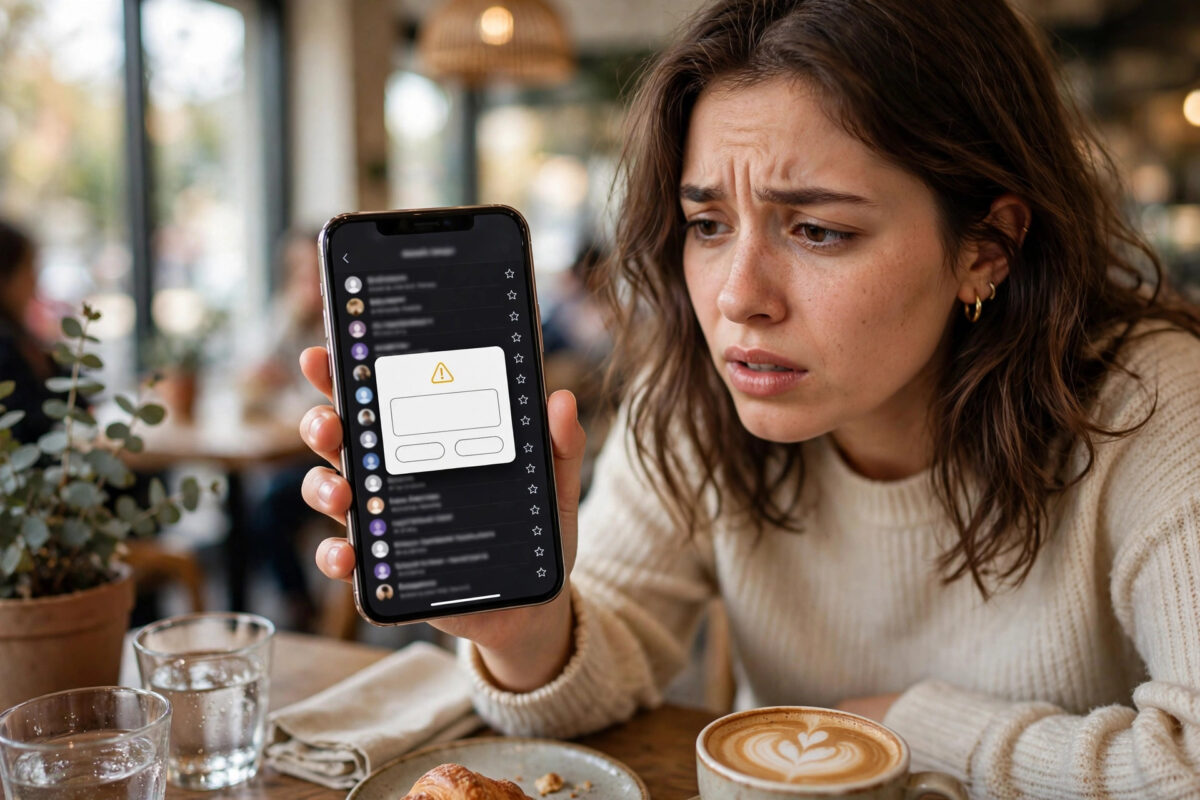
You open Mail on your iPhone and a warning pops up: Cannot Verify Server Identity. It may name your email provider’s server, and it offers you choices like Details, Cancel, or Continue.
It is an alarming message. Many people tap Continue without thinking, or Cancel and then find their email has stopped working altogether.
Most of the time this error has a simple cause, such as a date setting, an expired certificate, or a glitch after an iOS update. This guide helps you fix it properly.
Quick Answer
First check that your iPhone’s date and time are set automatically, then restart the phone and try Mail again. If the warning persists, go to Settings, Mail, Accounts, select the account, and re-verify it, or delete and re-add the account so the iPhone downloads a fresh server certificate. Only tap Continue after confirming in Details that the certificate is issued to your real email provider’s server.
What Cannot Verify Server Identity Actually Means
When Mail connects to your email server, the server presents a digital certificate. That certificate proves the server is who it claims to be, and it enables the secure, encrypted connection for your messages.
Your iPhone checks the certificate against a set of rules. The name on the certificate must match the server Mail is connecting to, the certificate must be within its valid dates, and it must be issued by an authority the iPhone trusts.
If any check fails, the iPhone refuses to trust the connection silently and shows this warning instead. In other words, the message means I cannot prove this server is genuine, not that the server is definitely fake.
Common Causes of the Error
- Your iPhone’s date or time is wrong, so a valid certificate looks expired or not yet valid.
- Your email provider renewed or changed its certificate and your phone is holding an old cached copy.
- A recent iOS update or restore left the account’s trust settings in a confused state.
- You are on a hotel, cafe, or workplace Wi-Fi network that intercepts secure connections.
- The account was set up manually with a server name that does not match the certificate.
- Very rarely, an actual problem on the provider’s server or a genuine attack attempt.
Before You Tap Anything: Check the Certificate Details
When the warning appears, tap Details rather than Continue or Cancel. Look at the server name and the organisation the certificate was issued to. It should clearly belong to your email provider, such as Apple, Google, Microsoft, Yahoo, or your own provider’s mail domain.
If the name matches your provider and you are on your normal home or mobile connection, the cause is almost always a stale or renewed certificate, and continuing after the fixes below is reasonable. If the name is completely unrelated, or the warning only appears on one public Wi-Fi network, disconnect from that network and do not continue. Try mobile data instead. Apple’s own explanation of trusted certificates is available on Apple Support for trusted root certificates if you want the technical background.
Step-by-Step Fixes That Solve Most Cases
Step 1: Set Date and Time Automatically
- Open Settings and go to General, then Date and Time.
- Turn on Set Automatically.
- If it was already on, turn it off, wait ten seconds, and turn it back on.
- Force close the Mail app and reopen it.
This single step fixes a surprising number of cases, especially after travel, a flat battery, or a manual time change. Certificates are extremely sensitive to clock errors.
Step 2: Restart and Switch Networks
- Restart your iPhone fully.
- Turn Wi-Fi off and test Mail on mobile data.
- If it works on mobile data, the problem is your Wi-Fi network, not your account.
- On your home network, restart your router and test again.
If the error appears only on one network, forget that network in Wi-Fi settings and rejoin it, or avoid using Mail on public networks that trigger the warning.
Step 3: Toggle the Account Off and On
- Go to Settings, then Mail, then Accounts.
- Select the affected account.
- Turn Mail off for that account, wait thirty seconds, and turn it back on.
- Open Mail and allow time for messages to resync.
Step 4: Delete and Re-Add the Account
If the warning keeps returning, re-adding the account forces the iPhone to fetch a completely fresh certificate and rebuild the connection. This is the most reliable fix.
- Go to Settings, Mail, Accounts, select the account, and tap Delete Account. For IMAP and modern accounts your mail stays on the server, so deleting on the phone does not delete your mailbox.
- Restart the iPhone.
- Go back to Accounts and tap Add Account.
- Choose your provider from the list rather than Other where possible, and sign in normally.
- Similar sign-in problems are covered in this guide about fixing the no password provided error in Apple Mail, which shares several of the same account repair steps.
- Open Mail and confirm the warning is gone and new messages arrive.
If the account was set up manually with a custom server name from your employer or hosting company, re-enter exactly the server names they gave you. A certificate mismatch often comes from using a shortened or old server name.
Fixes for Stubborn Cases
Update iOS
Go to Settings, General, Software Update, and install any available update. Apple updates its trusted certificate store through iOS updates, so an old version can distrust a perfectly valid new certificate. Back up your phone before a major update as a sensible precaution.
Reset Network Settings
If several accounts show the warning at once, network settings may be damaged. Go to Settings, General, Transfer or Reset iPhone, Reset, and choose Reset Network Settings. Be aware this removes saved Wi-Fi passwords, so you will need to rejoin your networks afterwards. Do this only after the simpler steps above have failed.
Check for a VPN or Security App
VPN apps, parental control profiles, and workplace device management can route or inspect mail connections and trigger certificate warnings. Temporarily disconnect the VPN and test Mail. If the warning disappears, adjust the VPN settings or speak to whoever manages the profile rather than ignoring warnings permanently.
Wait Out a Provider Problem
Occasionally the provider really has let a certificate expire or misconfigured a server. If the error started suddenly for a well-known provider, with correct date settings and on multiple networks, check the provider’s status page or support feed and wait a few hours. There is nothing to fix on your phone in that case.
For account setup steps specific to iPhone, Apple keeps its current instructions on Apple Support for setting up email accounts on iPhone.
Staying Safe With Certificate Warnings
Treat this warning as a pause button, not an annoyance to dismiss. Never enter your email password on a page or prompt that appears after a certificate warning you do not recognise. Do not install unknown profiles or certificates sent by email that claim to fix the problem. A legitimate provider will never ask you to install a random certificate to keep using Mail. When in doubt, cancel, switch to mobile data, and check the account through the provider’s official app or website instead.
Common Mistakes to Avoid
- Tapping Continue blindly every time: Check Details first. Continuing is fine for your own provider’s matching certificate, not for an unknown name on public Wi-Fi.
- Ignoring the date and time setting: It feels unrelated, but a wrong clock is one of the top causes and the fastest fix.
- Deleting the account without checking the type: Old POP accounts may store mail only on the phone. Confirm your account type or back up before deleting.
- Re-adding with the wrong server name: Manual setups must use the exact hostnames your provider specifies, or the mismatch returns instantly.
- Installing certificates from strangers: Never install a trust certificate sent by email or a pop-up. This can genuinely compromise your phone.
- Resetting the whole phone first: A full reset is almost never needed. Work through the account and network steps in order.
Conclusion
The Cannot Verify Server Identity warning means your iPhone could not confirm your mail server’s certificate, usually because of a wrong clock, a renewed certificate held in cache, or a network interfering with the connection. Check the certificate details, set date and time automatically, restart, test on mobile data, and delete and re-add the account if needed. Those steps resolve the vast majority of cases safely. Only trust the connection again once the certificate clearly belongs to your real email provider.
Frequently Asked Questions
Is it safe to tap Continue on this warning?
It depends on the details. If Details shows a certificate issued to your actual email provider and you are on a trusted network, continuing is usually safe and simply accepts a renewed certificate. If the name is unfamiliar or you are on public Wi-Fi, tap Cancel and switch networks instead.
Why did this error start after an iOS update?
Updates can refresh security rules and trusted certificate lists, which sometimes exposes an old cached certificate or an outdated manual server setting. Deleting and re-adding the account after the update normally clears it completely.
Will deleting my account delete my emails?
For Gmail, iCloud, Outlook, Yahoo, and other IMAP or modern accounts, no. Your mail lives on the server and resyncs when you re-add the account. Only very old POP setups that download and delete from the server carry a risk, so check your account type first.
The error only happens on my home Wi-Fi. What should I do?
Restart your router, check for router firmware updates, and make sure the router’s own date and time are correct. Some routers with security filtering can interfere with certificates. Testing on mobile data confirms whether the account itself is healthy.
Why does the warning name a server I do not recognise?
Many providers use central server names that differ from their brand name, which can look unfamiliar but still be legitimate. Search the exact name through your provider’s official help pages before deciding, and never continue if the name belongs to an unrelated company or website.



Leave a Reply