
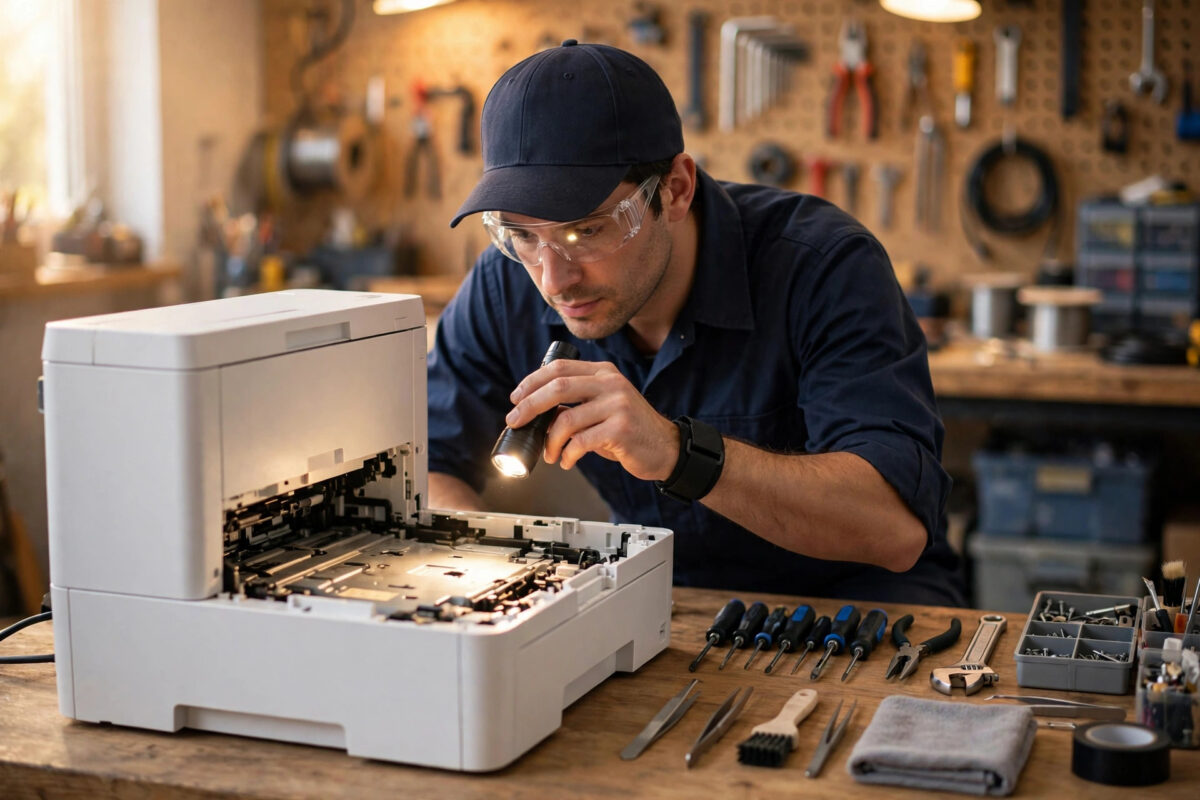
Your Epson printer has ink, it has paper, and it was printing yesterday. Today it shows a message you have never seen: the ink pad is at the end of its service life. Nothing you press clears it, and the printer will not print. It sounds like a final verdict, but in most cases it is not. It is a planned maintenance stop built into the printer.
This guide explains what an ink pad is, why Epson counts its life with software instead of measuring it, what your real options are when the message appears, and how to decide between a service, a counter reset, and replacing the printer.
Quick Answer
Your Epson printer says the ink pad is at the end of its service life because an internal counter estimates that the waste ink pads, which absorb ink from head cleaning, have reached their safe capacity. The printer stops to prevent waste ink leaking inside the machine. The proper fix is pad or maintenance box replacement, usually with a counter reset. Resetting the counter after checking the pads can restore printing, but the pads themselves still contain the ink.
What Is an Ink Pad in an Epson Printer?
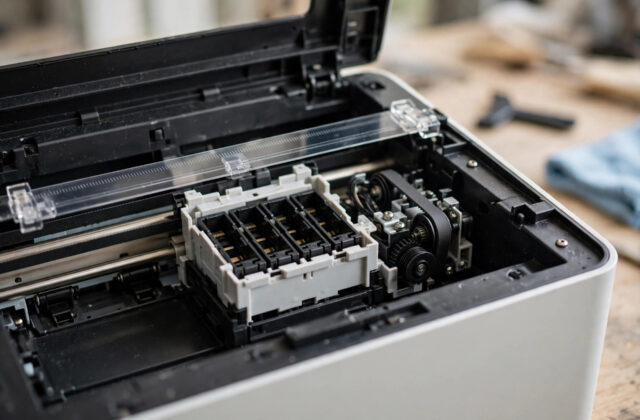
Hidden in the base of your printer is a set of absorbent pads made from dense, felt-like material. Their job is simple and essential: they catch waste ink. That waste comes from several normal processes:
- Head cleaning cycles: The printer pushes ink through the nozzles to clear blockages, and that ink has to go somewhere.
- Start-up and priming: Charging ink after set-up, a refill, or cartridge changes sends ink into the pads.
- Borderless printing: Printing to the edge of the page oversprays a small amount of ink, collected below the paper path.
- Parking and wiping: When the head rests, a cleaning station wipes it and collects the residue.
Over the life of the printer this adds up to a surprising amount of liquid. The pads hold it safely, spread it out, and let it dry slowly. They are, in effect, the printer’s sump, and like any sump they have a limit.
Some newer and office Epson models use a user-replaceable maintenance box instead of fixed pads. On those models the same message means the box is full, and you can swap it yourself in minutes. On most home EcoTank and WorkForce models, the pads are internal and not designed for casual replacement.
Why the Printer Uses a Counter Instead of a Sensor
Owners often ask why the printer guesses instead of measuring. A reliable wetness sensor inside a pad, working accurately for five or more years in a warm, inky environment, would add cost and its own failure problems. Counting is cheaper and predictable.
So the firmware keeps a waste ink counter. Every cleaning cycle, priming action, and borderless print adds a calculated amount. When the total reaches the limit Epson set for your model, the printer stops, displays the service life message, and on some models blinks its red lights in a set pattern.
This design has two consequences:
- The message can arrive early: If you ran many cleaning cycles, the counter climbs fast, even if much of that ink dried in the pads and space remains.
- The message can also be right: A heavily used printer may genuinely have saturated pads. The counter cannot tell you which case you are in. Only inspection, or an honest look at your usage history, can.
Is It Safe to Keep Printing After This Message?
The printer will not let you, and that block is deliberate. If pads truly overflow, waste ink can pool in the base, reach electronic boards, stain the surface under the printer, and in bad cases leak out entirely. Epson stops the machine before that point under normal assumptions.
That is why any fix has two halves: the counter, and the ink sitting in the pads. A complete repair deals with both. If you notice ink under the printer or dampness around the base, do not reset and carry on; that printer needs physical pad service first.
Your Options When the Message Appears
Option 1: Replace the maintenance box, if your model has one
- Check your manual or printer menu to confirm your model uses a replaceable maintenance box.
- Buy the correct genuine box for your model number.
- Follow the on-screen replacement steps. The printer recognises the new box and resets its counter automatically.
This is the easiest outcome, and it is fully supported by Epson. Seal the old box in the supplied bag and dispose of it with household waste according to local guidance. Do not open or wash it.
Option 2: Book a pad service
A service centre or good independent technician will open the printer, replace the saturated pads, clean the base, and reset the counter with service software. For a mid-range printer this is usually far cheaper than a new machine, and it returns the printer to a genuinely safe state. Service contacts are listed through the Epson support and service locator page.
Option 3: Reset the counter yourself after checking the pads
On popular models such as the EcoTank L-series, owners commonly reset the counter using an adjustment program over USB. This restores printing when the counter, rather than truly full pads, caused the stop. It is most defensible when cleaning history is light and you have inspected for leaks. The full process for one common model is covered in our guide on resetting the waste ink pad counter on the Epson L3210.
Option 4: Replace the printer
Sometimes replacement is the honest answer: when the printer is very old, when print quality has other faults, or when a service quote approaches the price of a new model with a fresh warranty and full ink. Compare real numbers before deciding.
How Long Do Ink Pads Normally Last?
There is no single page number, because the counter measures cleaning activity more than pages. Still, patterns are consistent:
- Light home use with rare cleaning: the message may never appear within the printer’s useful life.
- Regular home and small office use: typically several years and many thousands of pages before the limit.
- Heavy cleaning habits, frequent power cleanings, or lots of borderless photo printing: the limit can arrive much sooner, sometimes within a couple of years.
Tips to Delay the Message in Future
- Print a little, regularly: A small colour print each week keeps nozzles clear naturally, removing most reasons to clean.
- Clean only when the nozzle check shows a problem: Check first, clean once, and re-check. Never run three cleanings in a row as a guess.
- Avoid power cleaning unless advised: The strong mode uses far more ink and fills the counter fastest.
- Use genuine ink: Ink formulated for your head clogs less, which means less cleaning over the printer’s life.
- Keep the printer plugged in: Many models run gentle automatic maintenance when idle but powered. Weeks unplugged can lead to dried nozzles and a cleaning marathon later.
- Be careful with borderless printing: Enjoy it for photos, but routine borderless documents add overspray to the pads.
Common Mistakes and Misunderstandings
- Believing the printer is dead: This is a maintenance stop, not a death sentence. Most printers return to full service after one of the options above.
- Resetting repeatedly with no pad plan: Each blind reset removes your only warning. Endless resets are how leaks happen.
- Washing and reusing old pads: Washed pads lose absorbency and the process spreads waste ink everywhere. Replacement is the proper route.
- Confusing this with a cartridge error: New cartridges or refilled tanks do not clear this message. It is about waste ink storage, not supply ink.
- Paying the first site promising a magic fix: Some sites charge for reset tools or keys. Check official guidance on the Epson contact and official support page before paying anyone.
Conclusion
When your Epson printer says the ink pad is at the end of its service life, it is telling you its waste ink counter has reached the safe limit and it has stopped to prevent a leak. The pads collect real ink, so the message deserves respect, but it is a planned service point rather than the end of the printer. Replace the maintenance box if your model has one, book a pad service for a complete fix, or reset the counter only after honestly checking the pads and your usage history. Then print regularly and clean sparingly, and you will likely not see the message again for a long time.
Frequently Asked Questions
Can I clear the ink pad message by turning the printer off and on?
No. The service life stop is stored in memory and returns at every start-up until the box is replaced, the pads are serviced, or the counter is reset. Restarting is worth one try to rule out a glitch, but it is not a fix.
How much does Epson charge to replace ink pads?
Prices depend on model and country, and labour is usually the larger part. For budget home printers the quote can approach replacement cost, while for mid-range and office models service is normally good value. Ask for the full quote, including the counter reset, before agreeing.
Does resetting the counter damage the printer?
The reset itself does not damage anything; it simply zeroes an estimate. The risk comes afterwards, if the pads are truly saturated and waste ink overflows into the machine. That is why inspection must accompany any reset.
Which Epson models show this message?
Virtually all Epson inkjet and EcoTank models with waste ink collection can show a version of it, including the L-series, EcoTank ET-series, WorkForce, and Expression ranges. Wording varies by model and region, but the meaning is the same.
How can I check my waste ink counter level before the message appears?
Most home models do not show the percentage in normal menus. Service software and some third-party utilities can read it, which helps you plan service in advance. For most owners, printing habits are a simpler guide: heavy cleaning use means an earlier message.
Leave a Reply