
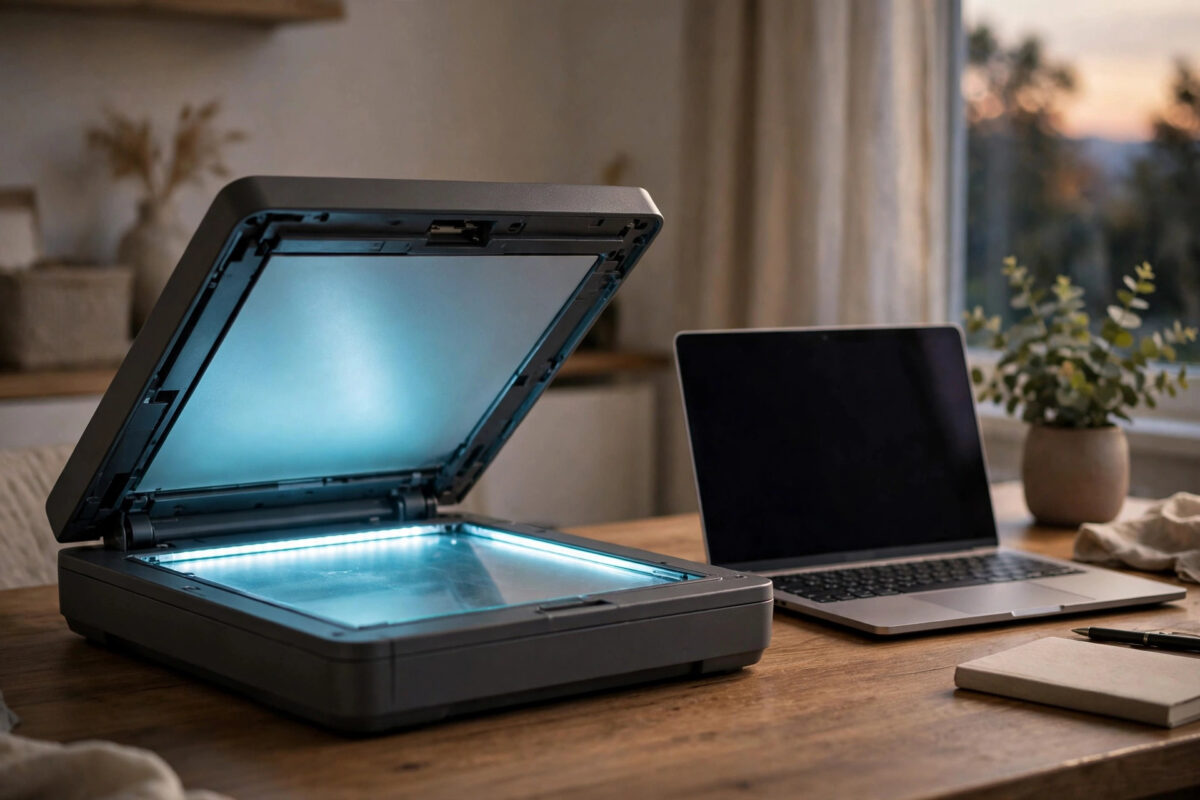
You press the scan button, the scanner lamp lights up brightly, and then nothing else happens. The lamp stays on, the scanning unit does not move, the software on your computer sits at a waiting or preparing message, and eventually you get a vague communication error or no result at all. Sometimes the same thing happens the moment you switch the machine on, before you have asked it to do anything. The scanner never finishes its startup routine, so it never becomes ready.
Quick Answer
A Canon scanner lamp that stays on while the scanner never initializes usually means the scanning unit is stuck, locked, or cannot complete its calibration movement at startup. Turn everything off, check that the transport lock underneath or at the back is fully unlocked, inspect and replace the USB cable, and reconnect the scanner directly to the computer. Then restart and reinstall the Canon driver if needed. If the lamp stays lit with no carriage movement on a clean setup, the lamp, motor, or scanner board may have failed and needs repair.
What Initialization Actually Involves
When a scanner powers on, it does more than turn a light on. The control board lights the lamp, moves the scanning unit a short distance along its rail, reads a white calibration strip hidden under the edge of the glass, and then parks the unit at its home position. Only when all of that succeeds does the scanner report itself as ready.
Why the Cause Is Not Always the Lamp Itself
It is natural to assume a lamp problem means the lamp is broken. In practice the lamp lighting up at all is a good sign, because a completely dead lamp or power fault usually gives a dark scanner and a different error. Stuck movement, a locked transport switch, a poor USB connection on bus-powered models, and corrupted driver communication interrupt initialization just as often, and they are much cheaper to fix.
Step-by-Step Checks, From Simplest to Deepest
- Power everything down properly. Close the scanning software, turn the printer or scanner off, and unplug its power cable or USB cable completely. Wait a full minute. This clears a stalled startup state that a quick restart sometimes keeps. Leave the lid open while it rests so you can watch the scanning unit during the next power-up.
- Check the transport lock. Many Canon scanners have a locking switch underneath the unit or on the back panel that holds the scanning unit still during transport. If it is locked, or halfway between positions, the motor cannot move the unit and initialization fails at once. Slide it firmly to the unlocked symbol position shown in your manual. If you have just moved house, moved offices, or unpacked the scanner, this is the most likely cause.
- Watch what happens at power-up. Reconnect power with the lid open and turn the scanner on. Watch the unit under the glass. Does it move a little, judder, or stay completely still? Does it move to one end and stop there? A small movement followed by a stop suggests it is trying to calibrate and failing. No movement at all with the lamp on points more toward the lock, motor, power, or board.
- Replace the USB cable and change the port. Use a short, good quality USB cable, connect directly to a port on the computer, and avoid hubs, docks, and extension leads for this test. On a laptop, connect the charger as well, because a low-power port on battery can be enough to light the lamp but not enough to run the motor reliably. Try a different port so you rule out one damaged socket.
- Test without the computer. On an all-in-one printer, disconnect the USB or network connection and try a copy made from the printer control panel alone. If copying works, the scanner hardware is fine and your problem is the driver or connection to the computer. If copying stalls in exactly the same way, the fault is inside the printer or scanner itself.
- Reinstall the Canon driver and scanning software. If the hardware test passed, uninstall the Canon scanner driver and MP Navigator or IJ Scan Utility, restart the computer, and install the latest full driver package for your exact model and operating system. Reconnect the device only when the installer asks you to, because connecting too early is a common cause of a half-installed scanner.
- Try another computer if you can. A quick test on a second machine separates a computer problem from a scanner problem better than any guess. If the scanner initializes normally there, rebuild the driver setup on the first computer. If it fails in exactly the same way, stop reinstalling software and treat it as a hardware fault.
Model-specific lock positions and error meanings are shown in the manual for your device, which you can download from the official Canon support and manuals library by searching your exact model name. Keep that manual open for your test, because moving the lock while the unit is powered, for example, is something some manuals specifically warn against.
Signs That Point to a Hardware Fault
Some patterns mean the basic checks have done all they can. A loud clicking or buzzing from under the glass at startup suggests the drive belt or gear is slipping while the motor tries to find home. A scanning unit that always parks in the middle of the glass and never returns is another strong hardware sign. So is a lamp that flickers, lights only part of its length, or gives a visibly uneven light when you look through the glass edge.
On older scanners, the cold cathode lamp in some models and the inverter that powers it can age, while newer LED models more often fail at the motor, belt, or board level. None of these parts are user replaceable on Canon consumer scanners, which are sealed units with no spare parts channel for home repair. Our guide to fixing a scanner that is not detected in Windows 11 covers the software side in more depth if your scanner initializes on its own but the computer still cannot see it.
Common Mistakes to Avoid
- Leaving the transport lock half-unlocked. The switch must sit fully in the unlocked position. A switch knocked during a move can look unlocked at a glance and still block the unit.
- Testing through a USB hub. Hubs and docks cause exactly this kind of almost-working behaviour on bus-powered scanners. Always test with a direct connection first.
- Forcing the scanning unit by hand. Do not push the unit along its rail. You can damage the belt and turn a motor or sensor fault into a mechanical one.
- Opening the scanner unit. Consumer Canon scanners are not designed to be opened at home. Breaking the sealed glass assembly ends any chance of a clean repair.
Conclusion
A Canon scanner whose lamp stays on but which never initializes is stuck in the middle of its startup routine, not simply suffering from a bright light. Work in order: full power-down, transport lock, a careful watch of the unit at power-up, glass and calibration area, a direct connection with a known good cable, a standalone copy test, and only then driver reinstallation. That order separates the free fixes from a real hardware fault quickly.
Frequently Asked Questions
Where is the transport lock on my Canon scanner?
On most standalone LiDE models it is a sliding switch on the underside of the scanner. On all-in-one printers it may be underneath the scanner unit or near the back, depending on the model. Your manual has a diagram for your exact device. Make sure the switch is pushed fully to the unlocked symbol.
Can a bad USB cable really stop a scanner initializing?
Yes, especially on LiDE scanners that take power from USB. A damaged or very long cable, or one running through a hub, can deliver enough power to light the lamp but not enough stable power and data for the motor and calibration steps. A short direct cable is one of the most effective tests you can run.
Why does my scanner work for copying but not for scanning to the PC?
That pattern shows the scanner hardware, lamp, and motor are working, because a copy uses the same scanning unit. The problem sits in the connection, driver, or scanning software on the computer. Reinstall the full Canon driver package for your operating system and test with a direct USB connection.
Is it worth repairing a scanner that never initializes?
It depends on the model and its age. Consumer scanners and low-cost all-in-ones are sealed units, so a motor, lamp, or board repair often costs close to a replacement. For a higher-value printer, get a quote using the exact error code first. Rule out the lock, cable, and driver before you spend anything.
How long should scanner initialization normally take?
Only a few seconds. You should see or hear the unit move briefly, the lamp may brighten, and then the device should show ready or appear available in your scanning software. If the lamp stays on for minutes with no ready state and no progress, the routine has stalled and you should work through the checks in this guide.


Leave a Reply