
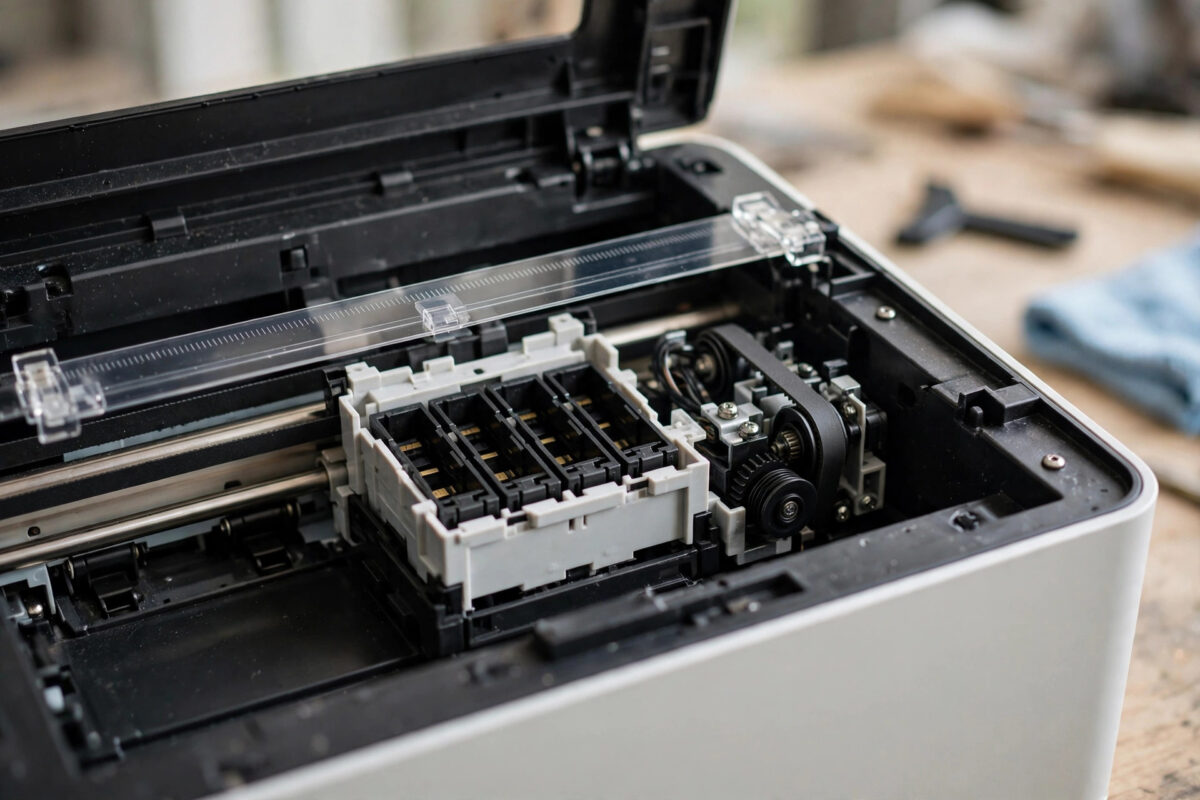
You switch on your Epson printer, hear the usual start-up sounds, and then everything stops. The screen shows error 0xEA, and the ink carriage, which should slide smoothly from side to side, does not move at all. It feels as if the printer has jammed solid on its first task of the day.
The good news is that 0xEA has a narrower meaning than many Epson codes. It is closely linked to the carriage and the clear timing strip it reads as it moves. This guide explains the meaning in plain language, the checks you can do safely at home, and the point where you should stop and seek a repair.
Quick Answer
Epson error 0xEA means the printer cannot correctly detect or move the print carriage during start-up. The most common causes are packing material or paper blocking the carriage, a dirty or damaged encoder strip, or a carriage stuck on its rail. Turn the printer off, unplug it, remove any obstructions, and gently check that the carriage can slide. If the strip is damaged or the carriage motor has failed, the printer needs professional service.
What the Carriage Does and Why It Matters
Inside almost every Epson inkjet, the ink cartridges sit in a moving unit called the carriage. A motor pulls it left and right on a metal rail while the print head lays down tiny drops of ink in exactly the right places. Paper feeds forward a small step at a time, and the two movements together build your page.
At start-up the printer runs a short routine. It moves the carriage to find its home position, checks that movement is smooth, and confirms its sensors can read the carriage position. If that routine fails, the printer stops rather than risk damage, and on many models it reports error 0xEA. That is why this error appears before you print anything. The printer is not complaining about your document, ink, or computer. Its most basic movement test has failed.
The Encoder Strip Behind Many 0xEA Errors
Behind the carriage runs a thin, clear plastic strip with very fine markings. This is the encoder strip, or timing strip. As the carriage moves, a small sensor reads those markings many times per second. That is how the printer knows exactly where the carriage is.
If the strip is dirty with ink mist, dust, or a fingerprint, the sensor can misread it. If it has slipped out of the sensor slot, come loose at one end, or been scratched, the printer may think the carriage has not moved at all, even if the motor works. The result is the same: error 0xEA, often with a carriage that barely moves. Understanding this one part changes your approach. You are checking a physical path and a physical strip, not a software setting.
Common Causes When the Carriage Will Not Move
- Packing tape or foam left inside: Common on new or recently moved printers.
- Paper jam or foreign object: A scrap, label, or small object wedged under the carriage.
- Dry or dirty rail: Years of dust can make the carriage stick at the start of travel.
- Encoder strip problems: A dirty, loose, or damaged strip stops position detection.
- Carriage stuck at its parking station: Dried ink can glue the head to the cleaning unit on the right after long storage.
- Motor, belt, or board failure: Less common, but possible on older machines.
Step-by-Step Checks You Can Do Safely
Work slowly and in order. Do not skip unplugging, because the carriage can move suddenly when power returns.
Step 1: Power down completely
- Cancel any print job waiting on your computer.
- Turn the printer off with the power button.
- Unplug the power cable and wait at least two minutes.
- Remove all paper from the trays.
Step 2: Look for packing material and obstructions
- Open the top cover or scanner unit as your model allows.
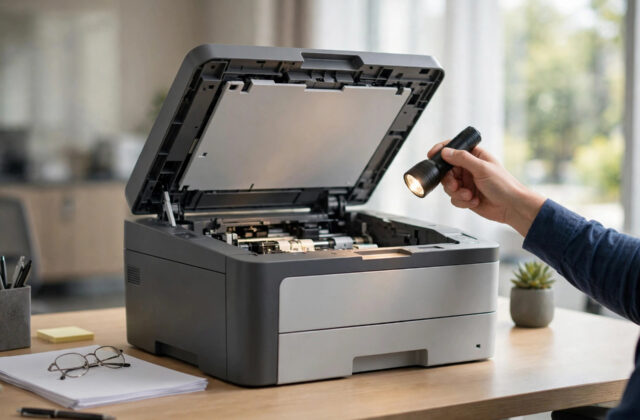
- Shine a light along the carriage path from left to right.
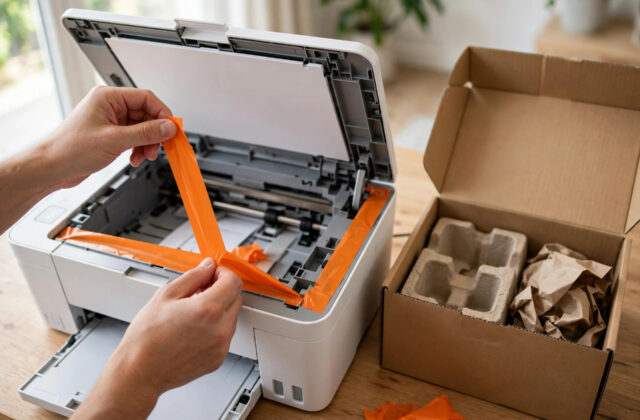
- Remove any blue tape, foam, cardboard, or loose paper.
- Check under the carriage itself, where small scraps hide.
- Check the far right parking area and the far left end of the rail.
Step 3: Test carriage movement by hand
- With the printer still unplugged, place your fingers gently on the carriage.
- Slide it slowly towards the centre. It should move with mild, even resistance.
- If it moves, slide it left and right once to feel for sticky spots.
- If it will not move at all, do not force it. The parking unit may not have released, or a gear may be jammed.
A carriage that moves freely by hand but not under power suggests the mechanics are fine and the fault is the encoder strip, motor, or electronics. Our guide on freeing a stuck Epson printer carriage safely covers the locked parking station case in more detail.
Step 4: Inspect and gently clean the encoder strip
- Locate the clear strip running through or just behind the carriage.
- Check it passes through the sensor slot on the back of the carriage and is attached at both ends.
- If it looks cloudy, wipe it very gently with a soft, dry, lint-free cloth, or one barely dampened with clean water.
- Use almost no pressure. Scrubbing or solvents can damage its markings.
- Leave the cover open a few minutes so the strip dries before powering on.
Never use alcohol or window cleaner on this strip, and never stretch it. A strip that has snapped or pulled off its mount is a repair-shop job.
Step 5: Restart and observe
- Close the cover, plug in, and turn the printer on.
- Watch and listen during start-up. Normal start-up includes a smooth carriage sweep.
- If the error returns, note exactly what happened: no movement, a short movement then a stop, or movement with grinding.
- Write that detail down. It is the most useful information you can give a technician.
Model-specific diagrams for opening covers are available through the Epson support and product manuals page, which helps if your printer opens in an unusual way.
What the Movement Pattern Tells You
- No movement and no motor sound: The motor may not be receiving power, suggesting a board or motor fault.
- Motor sound but no movement: The belt may have slipped or broken, or the carriage is locked.
- Short movement, then error: The encoder strip is the prime suspect, because the printer starts correctly then loses position.
- Movement with clicking or grinding: Stop using the printer. A gear or obstruction is being damaged.
- Full movement but error still shows: A sensor fault is possible. Seek service rather than repeating start-ups.
Tips to Prevent 0xEA Returning
- Keep the printer covered during long idle periods, so dust stays off the rail and strip.
- Print something small every few weeks, so dried ink does not glue the head to its parking pad.
- After moving house or office, check for packing material before the first start-up.
- Keep paper clips and small objects away from open printer covers.
- Place the printer on a flat, stable surface. A tilted desk strains carriage travel.
If the printer is brand new and shows 0xEA on its first start-up, do not remove screws. Almost every new-machine case is leftover packing material, and anything beyond that is a warranty matter. Use the Epson contact and warranty support page while your proof of purchase is at hand.
Common Mistakes to Avoid
- Forcing a locked carriage: The fastest way to turn a small fault into a broken belt or bent rail.
- Cleaning the strip with solvents: Chemicals can erase the markings the sensor depends on.
- Repeated power cycling: Ten restarts will not clear a physical blockage and can stress the motor.
- Ignoring the pattern: Whether the carriage moves a little or not at all changes the diagnosis completely.
- Oiling the rail with household oil: The wrong lubricant attracts dust and can drip onto sensors.
Conclusion
Error 0xEA with a carriage that does not move at start-up means the printer failed its basic carriage movement or position check. The usual culprits are simple: packing material, a paper scrap, a sticky rail, or a dirty encoder strip, and the checks in this guide cover all of them without special tools. Observe the exact movement pattern, clean the strip gently, and never force anything. If the carriage is locked solid, the strip is damaged, or there is no motor sound at all, the honest next step is professional service, where the motor, belt, and board can be tested properly.
Frequently Asked Questions
Is error 0xEA the same as a paper jam error?
Not exactly, although a jam can cause it. A normal jam message means paper is detected in the feed path. Error 0xEA is about the carriage: the printer could not move it or could not read its position, which a jam under the carriage can also trigger.
Can a dirty encoder strip really stop the carriage completely?
Yes. If the sensor cannot read the strip, the printer may stop the motor almost immediately to avoid losing track of position. Gentle cleaning has fixed many 0xEA cases where the mechanics were perfectly sound.
My printer is new and shows 0xEA. What should I check first?
Check for packing tape, foam, and cardboard inside the carriage area. One missed piece is the most common cause on a first start-up. If nothing is left inside, use your warranty rather than opening the machine further.
Why does the carriage move a little and then stop with 0xEA?
That pattern usually means the motor and belt work, but position reading fails partway. Inspect the encoder strip for ink spots, a scratch, or a loose end, and check for a paper scrap the carriage reaches after short travel.
Is it worth repairing an older printer with error 0xEA?
If the cause is a detached strip, a jam, or a minor mechanical part, repair is often reasonable. If the main board or motor has failed on a low-cost model, replacement is usually better value. Ask for a diagnosis quote first.
Leave a Reply