
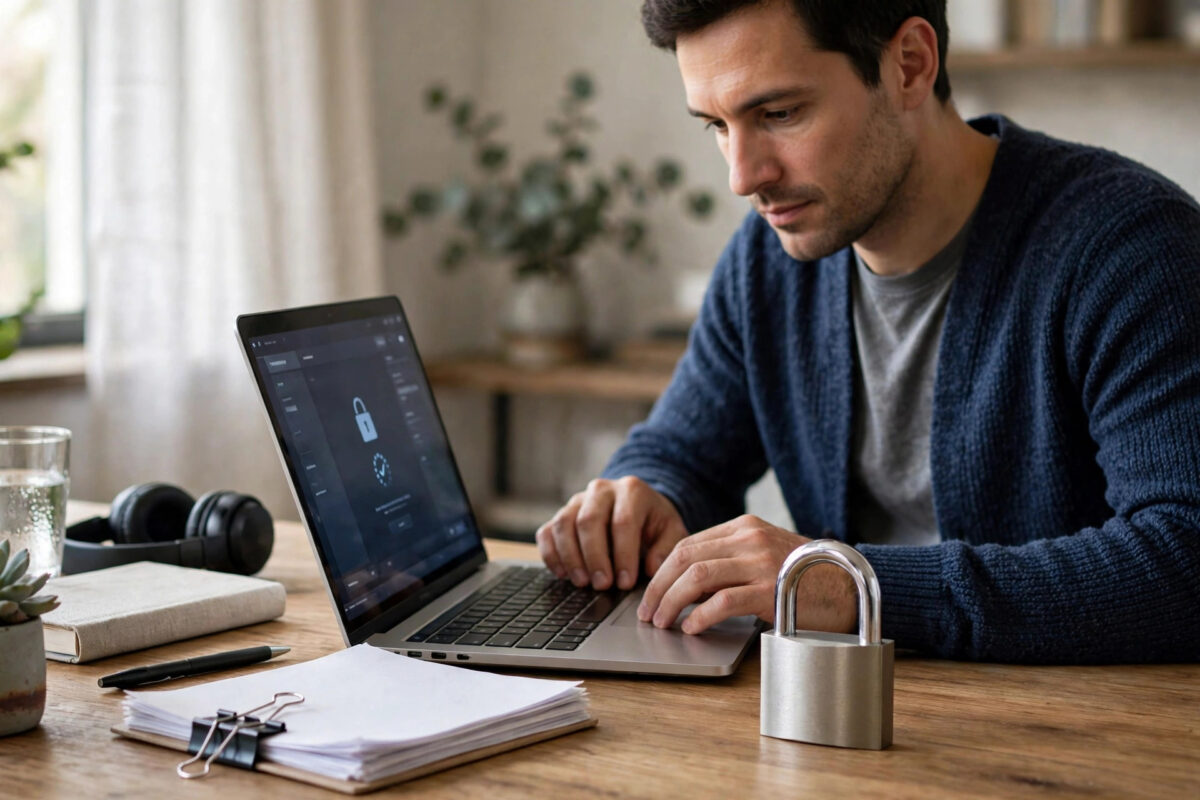
Cloud storage is convenient, but uploading a file normally means trusting the provider completely. Staff systems, account breaches, or a wrongly shared link could expose tax returns, passport scans, business plans, or private photos. Encrypting files on your own computer before uploading solves this: the cloud only ever receives scrambled data that is useless without your password.
This is often called client-side or zero-knowledge encryption, because only you hold the key. This guide explains the main methods in plain language, from simple encrypted zip files to dedicated encryption tools, and the mistakes that can lock you out of your own data.
Quick Answer
Use a trusted tool on your computer to encrypt the file with a strong password before uploading it — for example, create an AES-256 encrypted archive with 7-Zip, or use Cryptomator for whole folders. Upload only the encrypted result, and store the password separately in a password manager. Without that password, the cloud provider cannot read your files — and neither can you, so never lose it.
How Encrypting Before Upload Protects You
Normal cloud uploads are protected while travelling to the provider and while stored on its servers, but the provider holds the keys. That means the files can be opened by the provider’s systems, produced if legally required, or exposed if your account is taken over and sharing is changed.
When you encrypt first, the file is scrambled on your device with a key made from your password. The provider stores only the scrambled version. A hacker who steals the file, a stranger who receives a shared link, or even the provider itself sees meaningless data. Only someone with your password can unlock it.
The trade-off is responsibility. Cloud features such as preview, search inside documents, online editing, and easy sharing usually stop working for encrypted files. And there is no password reset: if you forget the password, the files are gone for practical purposes. Encrypt what is sensitive, and keep everyday files normal for convenience.
Method 1: Create an Encrypted Archive With 7-Zip
For a few files or a single project folder, an encrypted archive is the simplest starting point. 7-Zip is a free, well-known tool for Windows, and similar archive tools exist for Mac.
- Install 7-Zip from its official website and restart your file explorer if prompted.
- Select the files or folder you want to protect.
- Right-click the selection and choose the option to add it to an archive.
- Set the archive format to 7z for the strongest built-in options.
- In the encryption section, enter a long password twice.
- Choose AES-256 encryption and tick the option to encrypt file names as well, so even the list of files stays hidden.
- Create the archive, then open it and test the password before uploading anything.
- Upload only the encrypted archive to your cloud storage, and delete the unencrypted cloud copies if any existed before.
Avoid the older ZipCrypto option if it is offered. Choose AES-256, which is the strong modern standard. The Microsoft Support guide to OneDrive Personal Vault shows how built-in vault features compare, but remember a provider vault still differs from encrypting files yourself before upload.
Method 2: Encrypt Whole Folders With Cryptomator
If you regularly work with sensitive folders, creating archives every time becomes tiring. Cryptomator is a popular free tool built for this job. It creates a vault: a special folder where you drop files normally, while the tool stores an encrypted version inside your cloud folder.
- Install Cryptomator and create a new vault located inside your Dropbox, OneDrive, or Google Drive folder.
- Set a strong password for the vault and save the recovery information it offers somewhere safe.
- Unlock the vault; it appears like a normal extra drive or folder on your computer.
- Drag your sensitive files into the unlocked vault and work with them as usual.
- Lock the vault when finished. Your cloud app then syncs only the encrypted data.
On your phone or another computer, install the same tool, point it at the synced vault, and unlock it with your password to reach the files. Our guide to keeping private documents safe in cloud storage explains how vaults fit into a wider privacy routine.
Method 3: Built-In and Office Options
Some apps encrypt individual documents. Microsoft Word and Excel let you require a password to open a file, and many PDF tools can encrypt a PDF with a password. These are fine for a single document you email or upload occasionally, as long as the tool uses strong encryption and you choose a proper password.
Built-in disk tools can also create encrypted containers or disk images on some systems. These suit advanced users backing up a whole set of files at once. Whichever method you choose, confirm it uses AES-256 or an equivalent modern standard, and test opening the result on a second device before you rely on it.
Create a Password You Will Not Lose or Have Guessed
Your encryption is only as strong as its password. Use a long passphrase made of several unrelated words plus a number or symbol; length beats complexity tricks that are hard to remember. Never reuse your cloud account password, email password, or any password you use anywhere else.
Store the password in a reputable password manager, and keep a written or printed backup in a secure place at home for your most important archives. Tell a trusted family member where the emergency copy is if these files matter to your household. The Dropbox Help explanation of how encryption works is a helpful read on the difference between provider encryption and protecting files yourself.
Common Mistakes That Ruin Encryption
- Forgetting the password: There is no help desk reset for files you encrypted yourself. Store the password properly before uploading anything important.
- Uploading the original as well: Encrypting a copy is pointless if the plain version also sits in the cloud. Check the folder and remove unencrypted duplicates.
- Leaving file names visible: Names like tax-return-2025 can reveal a lot. Use tools that encrypt file names, or give archives neutral names.
- Using weak or reused passwords: A short password can be cracked by automated guessing. Long, unique passphrases are essential.
- Never testing recovery: Download the encrypted file to another device and open it before you trust the system with the only copy.
- Sharing the password with the file: Send passwords through a separate channel, just as with protected shared links.
A Simple Routine for Sensitive Files
Keep it practical. Sort files into two groups: everyday files that can live normally in the cloud, and sensitive files such as ID scans, financial records, legal papers, and private business documents. Put the sensitive group into one encrypted vault or a small number of encrypted archives. Back up the password in your password manager, keep one local copy of the encrypted files on a drive at home, and review the folder every few months to remove what you no longer need to keep.
Conclusion
Encrypting files before uploading is the strongest privacy step a normal cloud user can take. Use AES-256 encrypted archives for occasional files, a vault tool like Cryptomator for folders you use often, and a long unique password stored safely in a password manager. Test that you can open everything before deleting local originals, and remember the golden rule: the password is the key, and if it is lost, the files are lost with it.
Frequently Asked Questions
Can the cloud provider read files I encrypt before uploading?
No, not in any practical way, if you used strong encryption and a long password. The provider stores scrambled data and does not have your password. That is the main advantage of encrypting on your own device before upload.
What happens if I forget my encryption password?
The files cannot be opened. There is no reset link or support agent who can unlock files you encrypted yourself. This is why storing the password in a password manager and keeping a secure backup copy is essential.
Is an encrypted zip file safe enough for documents?
Yes, if you use the 7z format or AES-256 zip encryption with a long password and encrypted file names. Avoid old zip encryption standards, and never judge safety by the file type alone — the encryption method and password strength matter most.
Can I still share encrypted files with other people?
Yes. Share the encrypted file or its cloud link as normal, then send the password separately by a different channel. The other person may need the same tool, such as 7-Zip or Cryptomator, to open it on their device.
Why not encrypt everything in my cloud storage?
You could, but previews, search, online editing, and quick sharing stop working, and every access needs your password. Most people encrypt only sensitive documents and leave ordinary files unencrypted for convenience, balancing privacy with everyday ease of use.



Leave a Reply