
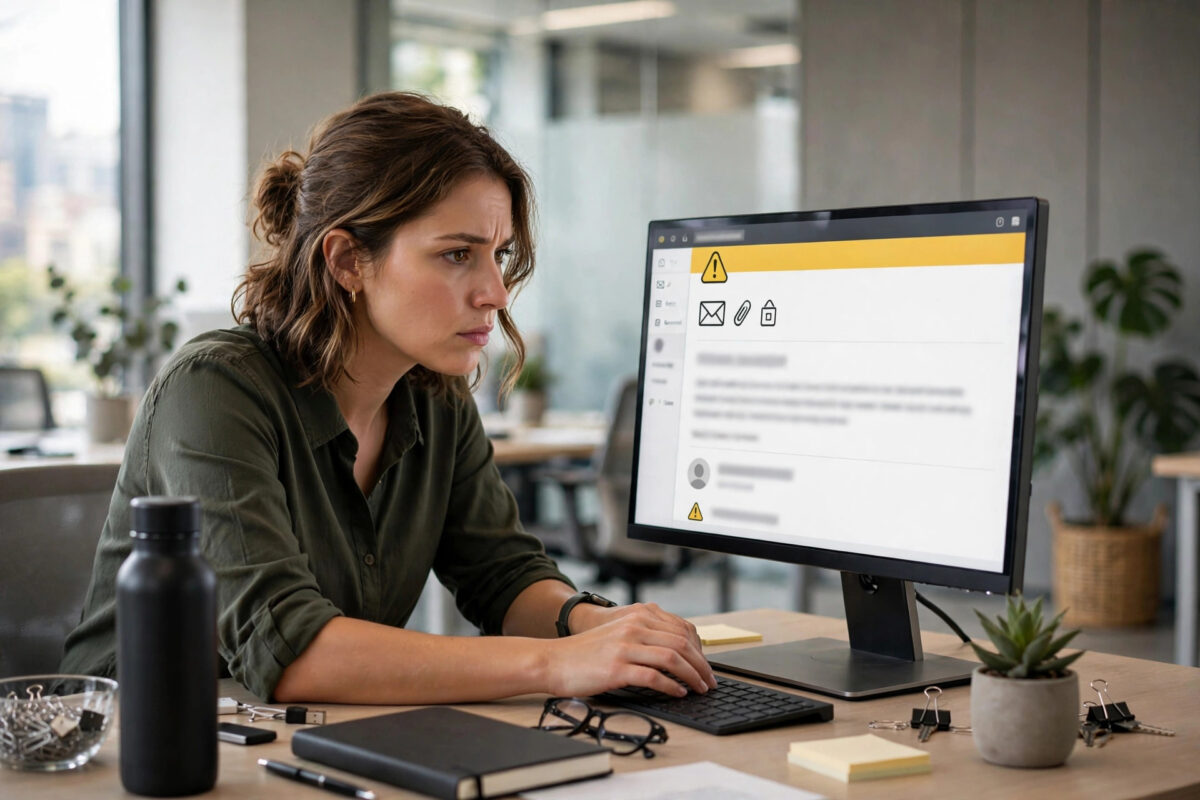
When an email is abusive, threatening, or clearly a scam, reporting it with just a screenshot rarely gets results. Support teams, email providers, and even the police need the message in its original form, with the full technical headers attached. Those headers show where the email really came from, which servers handled it, and whether the sender address was faked.
Most people have never saved an email this way, because email apps hide the original file behind menus with names like View Source or Download Message. This guide explains what full headers are, why they matter for abuse reports, and exactly how to download a complete email with headers in Gmail, Outlook, Apple Mail, and Yahoo Mail.
Quick Answer
To download an email with full headers, open the message in your email service, find the option to view the original or message source, and save that complete file. In Gmail, use the three-dot menu and choose Download message to get an .eml file, or Show original to copy the full headers. In Outlook on the web, use the message menu to download or view the message source. Send that original .eml or .msg file, not a screenshot or a forwarded copy, when you report abuse, because only the original preserves the headers that prove the email’s true source.
What Are Email Headers and Why Do They Matter?
Every email carries two parts. The first is the part you see: the sender name, subject, date, and message body. The second is a block of technical lines called headers, which are added automatically as the message travels across the internet.
Headers include information such as:
- Received lines: Each server that handled the message adds a line, building a route from sender to recipient with dates and times.
- Return-Path and Reply-To: The addresses that bounces and replies actually go to, which may differ from the visible sender.
- Authentication results: Checks called SPF, DKIM, and DMARC that show whether the sending server was allowed to use that domain and whether the message was altered.
When you forward an email normally, most of this information is stripped away. Without headers, abuse teams often cannot trace the source or confirm spoofing.
Before You Download: Safety First
If the email is threatening, do not reply to it and do not click its links or open its attachments, which can carry malware. Save your evidence copy first, before deleting or blocking anything, because once an email is permanently deleted its headers are usually gone. Download the original file, submit your report, then block the sender.
How to Download an Email With Full Headers in Gmail
Gmail gives you two good options. The .eml download is best for attaching to a report, while Show Original is best for copying header text into a form.
- Open Gmail on a computer. The full options are easiest on desktop. Open the abusive message.
- Click the three-dot menu at the top right of the message, next to the Reply arrow. Do not use the menu for the whole conversation if you need one specific message; open that message’s own menu.
- Choose Download message. Gmail saves the complete email as an .eml file, including all headers and the body exactly as received. Keep this file unchanged.
- For header text instead, choose Show original. A new page shows the full headers and the raw message. Use the Copy to clipboard button if the report form asks you to paste headers.
- Attach the .eml file to your report. When you email the abuse team or upload evidence to a form, attach the downloaded file itself rather than forwarding the message.
On the Gmail mobile app, your options are limited. You can report spam or phishing directly in the app, but for a full header download, sign in to Gmail in a desktop browser and follow the steps above. Google explains original message viewing in its help on tracing an email with full headers in Gmail.
How to Download the Original in Outlook
Outlook on the Web
- Open Outlook in your browser and open the message.
- Click the three-dot menu at the top right of the message.
- Look under View for View message source to see the full headers, which you can copy.
- To save the whole message as a file, use the Download option in the message menu where available, which saves an .eml file in newer versions. Alternatively, drag the message from the list to your desktop in some setups, or open it and use Save as through the file options in desktop Outlook.
Outlook Desktop App for Windows and Mac
- Double-click the message to open it in its own window.
- Go to File, then Save As, and save the message. The Windows app typically saves an .msg file, which preserves headers and content for investigation.
- To see headers directly, open File, then Properties on Windows, and look at the Internet headers box at the bottom. On Mac, right-click the message in the list and use View Source, depending on your version.
- Attach the saved file to your abuse report without editing it.
Microsoft covers message source options in its guidance on viewing email message source and headers in Outlook. Note that the free Outlook mobile app does not offer a full header download, so use the web or desktop version for evidence.
How to Get Full Headers in Apple Mail and Yahoo Mail
Apple Mail on Mac
- Open the message in Mail.
- Go to View, then Message, then Raw Source to display the complete headers and source.
- Use File and Save As to save the message, choosing Raw Message Source format where offered, or drag the message to the desktop to create an .eml file.
Yahoo Mail
- Open the message in a browser.
- Click the More menu, the three dots above the message.
- Choose View raw message to see the full headers in a new window, and copy them for your report.
If you want to understand what the lines you just saved actually mean, pair this guide with our walkthrough on reading Gmail email headers to check for a spoofed sender, which explains Received lines and authentication results in plain language.
How to Report the Abuse Once You Have the File
Different situations go to different places:
- Phishing and scams: Report inside your email app using Report phishing or Report spam, and also send the .eml file to your provider’s phishing address if they publish one.
- Abuse from a Gmail sender: Use Google’s abuse reporting forms and attach or paste the full headers from Show Original.
- Threats or harassment: Send the original file to the sender’s provider abuse desk, which is usually listed as abuse at their domain, and keep a copy for the police if the threat is serious. Contact local law enforcement directly for threats of violence.
- Work or school email: Forward your downloaded evidence to your IT or security team exactly as instructed by them, since they may have an internal process and logging system.
In your report, write a short factual summary: who you are, when the email arrived, what it asks for or threatens, and that the original message file with full headers is attached. Investigators work faster with a clear summary plus untouched evidence.
Common Mistakes to Avoid
- Forwarding instead of attaching the original: A normal forward loses the headers that matter most.
- Sending only a screenshot: A screenshot shows the claim but proves nothing about the source.
- Editing the downloaded file: Opening and re-saving an .eml file in another program can change it. Attach the untouched download.
- Deleting the email before reporting: Once it is gone from Trash as well, you may have no evidence left.
- Replying to the abuser: A reply confirms your address is active and can escalate harassment. Report, block, and delete instead.
Conclusion
Downloading an email with full headers is a small skill that makes a big difference when something goes wrong. Gmail’s Download message and Show Original options, and Outlook’s message source and Save As features, give you the complete original file that abuse teams need to trace a sender and act. Save the evidence before deleting anything, attach the untouched .eml or .msg file to your report with a short summary, and then block the sender with confidence that the real technical proof has been preserved.
Frequently Asked Questions
What is an .eml file and is it safe to send?
An .eml file is a standard format that stores one complete email, including headers, body, and attachments, exactly as received. It is the normal format abuse teams ask for. Sending the file as an attachment to a provider or IT team is safe and expected. Just do not open strange .eml files from unknown people on your own computer.
Can I download full headers from the Gmail phone app?
Not fully. The Gmail app lets you report spam or phishing, but it does not offer Download message or Show Original. Use Gmail in a computer browser to save the complete original file with headers for a detailed abuse report.
Why does the abuse team need headers if they can see the sender address?
The visible sender address can be faked in seconds. Headers contain the delivery path and the SPF, DKIM, and DMARC authentication results, which show which servers really sent the message and whether the domain was spoofed. That is the evidence needed to shut down the real source.
Should I copy headers into a report or attach the whole file?
Do whichever the reporting form requests. If it offers file upload, attach the untouched .eml file because it contains everything. If it only has a text box, paste the full header block from Show Original or View Source. When you can, provide both a short summary and the complete evidence.
What should I do after reporting a threatening email?
Keep a copy of your downloaded evidence and your report outside your inbox, block the sender, and delete the message from your mailbox. If the email contains a credible threat to your safety, contact your local police and give them the original file. Do not engage with the sender.



Leave a Reply