
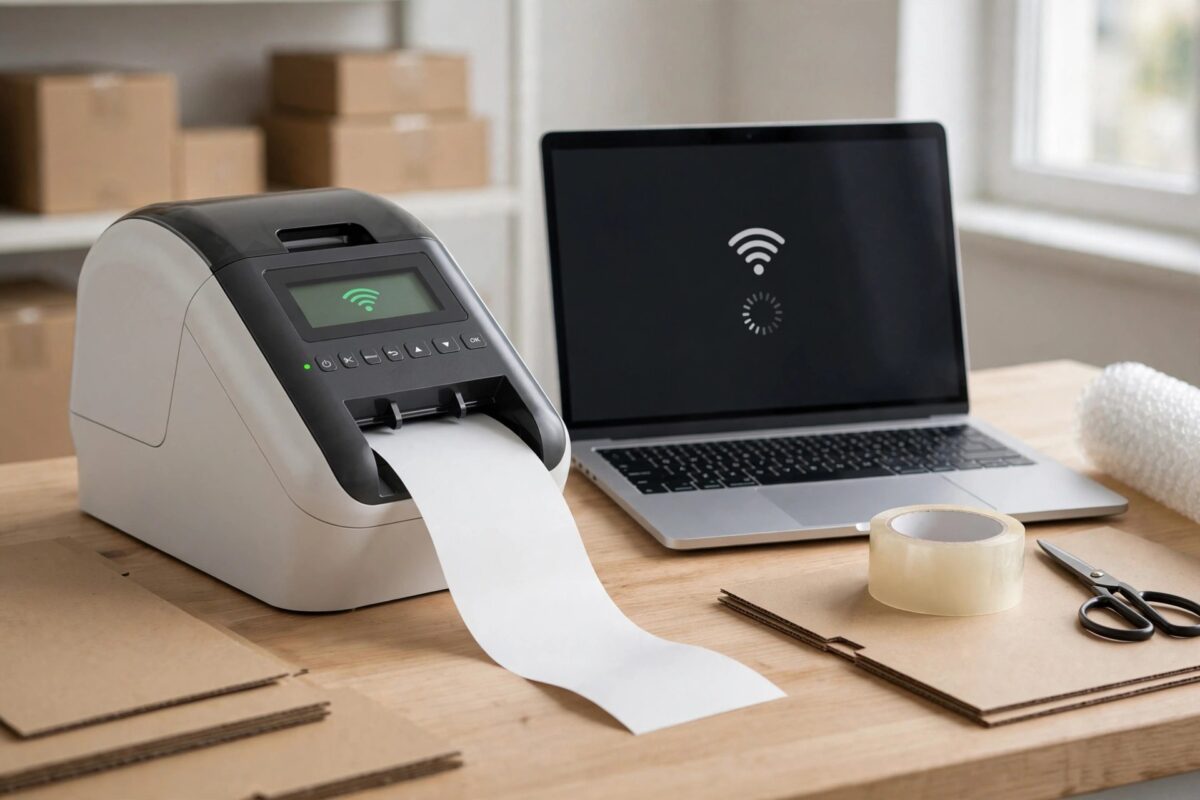
The Brother QL-820NWB is a professional label printer that can connect by USB, Wi-Fi, Ethernet, and Bluetooth. Bluetooth is ideal for a clean desk or a laptop that moves around, because you need no cable or router to print labels.
Many first-time users get stuck because Bluetooth must be turned on at the printer, the printer must be made discoverable, and the computer must complete pairing before the driver will print. This guide walks through the full process for Windows and Mac in a clear order.
Quick Answer
Turn Bluetooth on in the QL-820NWB settings menu, set it to visible or pairing mode, then add the printer from your computer’s Bluetooth settings and enter the pairing code if asked. After pairing, install or confirm the Brother QL-820NWB driver and select the Bluetooth-connected printer in your label software. Print a single test label before printing a full batch.
What You Need Before You Start
A little preparation prevents the most common pairing failures, so check these items first.
- The QL-820NWB is plugged in, turned on, and loaded with a genuine DK label roll that is fitted correctly.
- Your computer has Bluetooth built in or a working Bluetooth adapter, and Bluetooth is turned on in the operating system.
- The printer is within two to three metres of the computer during pairing, with no metal cabinet or thick wall between them.
- You know the printer’s Bluetooth name and, if your unit uses one, its PIN or passkey. The default information is in the user guide and on the printer’s settings report.
- Brother P-touch Editor or your label application is installed, or you have the installer ready to download.
Bluetooth Versus Wi-Fi: Which Should You Use?
Bluetooth is best for one computer printing to one nearby printer. Wi-Fi or Ethernet is better when several computers must share the printer. You can set up more than one method, but test Bluetooth on its own first.
Step 1: Turn On Bluetooth on the QL-820NWB
- Press the Power button to turn the printer on and wait for the status light to show it is ready.
- Press the Menu button on the printer.
- Use the up and down arrow buttons to find Bluetooth in the settings list, then press OK.
- Select Bluetooth On/Off and set it to On.
- Go to the Automatic Reconnection option if shown and turn it on as well, so the printer reconnects to the same computer after sleep or a restart.
- Note the Bluetooth Device Name shown in the menu. It will usually include QL-820NWB and part of the serial number, which helps you pick the right device if several Brother printers are nearby.
- Return to the main screen. Keep the printer near the computer and leave it on during pairing.
If Bluetooth does not appear in the menu, check the full manual for your unit rather than performing a factory reset first, because a reset will also erase Wi-Fi and other network settings.
Step 2: Pair the Printer From Windows
- On the Windows computer, open Settings, then Bluetooth and Devices, and make sure Bluetooth is switched on.
- Click Add device, then choose Bluetooth.
- Wait for the QL-820NWB to appear in the list. Select it when it shows.
- If Windows asks for a PIN, enter the PIN shown in the printer guide for Bluetooth pairing, or confirm the pairing code matches on both screens if your version shows a code comparison.
- Wait for the message that the device is paired or ready to go. Do not turn the printer off at this moment.
- Open Settings, then Printers and Scanners, and check whether the QL-820NWB now appears. If it does not appear automatically, install the driver package next and Windows will create the printer queue.
Install the Driver and Label Software on Windows
- Download the Full Driver and Software Package or the Printer Driver plus P-touch Editor for the QL-820NWB from the official Brother downloads centre for label printers, matching your Windows version.
- Run the installer and choose Bluetooth connection when the setup asks how the printer is connected, if that option appears.
- Select the paired QL-820NWB from the list the installer finds.
- Finish the installation and restart the computer if the installer asks you to.
- Open P-touch Editor, create a simple one-line test label, and send it to the QL-820NWB.
Step 3: Pair the Printer From a Mac
- Open System Settings, go to Bluetooth, and turn Bluetooth on.
- Make sure the QL-820NWB is on, Bluetooth is enabled in its menu, and it is close to the Mac.
- Find the QL-820NWB in the Nearby Devices list and click Connect.
- Enter the pairing PIN if the Mac asks for one, using the same code as for Windows pairing for your unit.
- Open the Brother driver installer for macOS if you have not installed it yet, and complete setup for the QL-820NWB.
- Go to Printers and Scanners in System Settings, add the QL-820NWB if it is not already listed, and set it as the printer in P-touch Editor for Mac.
- Print one test label at a small size to confirm the connection, the label roll size detection, and the cutter all work.
Mac users should also confirm that P-touch Editor has permission to use Bluetooth if macOS asks. Denying it will leave the printer paired but unusable inside the label software.
Step 4: Print a Proper Test and Check Settings
Pairing alone does not guarantee good labels. After the first successful test, check three settings before a real batch.
- Label size: In P-touch Editor, confirm the label size matches the DK roll actually loaded. A mismatch causes cut-off text or wasted labels.
- Printer selection: If you also have the same printer installed by USB or Wi-Fi, your software may have kept the old queue selected. Choose the Bluetooth queue by name.
- Auto cut: Set Auto Cut on or off as you prefer and print two labels to confirm the cutter behaves as expected.
Our beginner guide to setting up a Brother label printer and choosing DK rolls explains label sizes and template settings that will save you wasted rolls after the Bluetooth connection is working.
Troubleshooting When Bluetooth Will Not Connect
Printer Does Not Appear in the Bluetooth List
Move the printer closer, turn its Bluetooth off and on again, and restart the computer’s Bluetooth. Remove old Brother Bluetooth entries first, because a stale entry can block fresh discovery. Also check the printer is not already connected to a phone or another computer.
Pairing Fails or the PIN Is Rejected
Remove the printer from the computer’s Bluetooth list, restart both devices, and pair again. Type the PIN carefully and check whether your unit uses a default PIN or a custom PIN set by a previous owner. If the printer was used before, that custom setting is the most likely reason a default code fails.
Paired but Nothing Prints
Paired means the Bluetooth link exists; it does not mean the print queue is correct. Check that the QL-820NWB is selected in your label app, that no jobs are stuck in the queue, and that the printer shows no jam, open cover, or wrong roll error. Clearing a stuck queue fixes most cases. If problems continue, consult the Brother product support search for QL-820NWB help for firmware and driver updates.
Common Mistakes and Useful Tips
- Pairing from the wrong menu: Always start pairing from the computer’s Add Device flow after Bluetooth is on at the printer, not the other way around.
- Standing too far away during setup: Pair at close range first. You can test the normal working distance afterwards.
- Forgetting automatic reconnection: Turn it on at the printer so you do not need to pair again after every sleep or restart.
- Multiple queues with the same name: Rename or remove old USB and Wi-Fi queues in a test phase if staff keep printing to the wrong one.
- Skipping the single test label: Always print one label first. A full batch on the wrong roll size is an expensive mistake.
Conclusion
Connecting a Brother QL-820NWB to a computer by Bluetooth works reliably when you follow the order: enable Bluetooth on the printer, pair from the computer, install or confirm the correct driver, and select the Bluetooth printer in your label software. Keep the printer close during setup, turn on automatic reconnection, and prove the setup with one test label. After that, cable-free label printing becomes a simple everyday task.
Frequently Asked Questions
Can the QL-820NWB use Bluetooth and Wi-Fi at the same time?
Yes, the QL-820NWB supports multiple interfaces, and different computers can reach it by different methods. For setup and troubleshooting, configure and test one connection at a time so you can tell which queue and driver are working correctly.
What is the Bluetooth range of the QL-820NWB?
In a normal office the practical range is about ten metres with a clear line of sight, and less through walls, metal shelving, or cabinets. If labels fail at your normal desk distance, test closer first to separate a range problem from a driver problem.
Do I need P-touch Editor to print by Bluetooth?
You need software that can send label jobs in the correct format, and P-touch Editor is Brother’s own free tool for this printer, so it is the best choice for testing. Other label and point-of-sale software can also print if it supports the QL-820NWB driver.
Why does my computer forget the printer after restarting?
This is usually because automatic reconnection is off at the printer, the Bluetooth entry was removed, or the computer’s Bluetooth adapter power saving is turning the connection off. Enable automatic reconnection on the printer and check the adapter power settings on the computer.
Can I connect the QL-820NWB to a phone by Bluetooth as well?
Yes, the printer can also work with Brother’s mobile label apps, but a phone connection can occupy the printer when you try to pair a computer. Disconnect the phone app during computer setup, complete the computer test print, and then reconnect devices one at a time.
Leave a Reply