
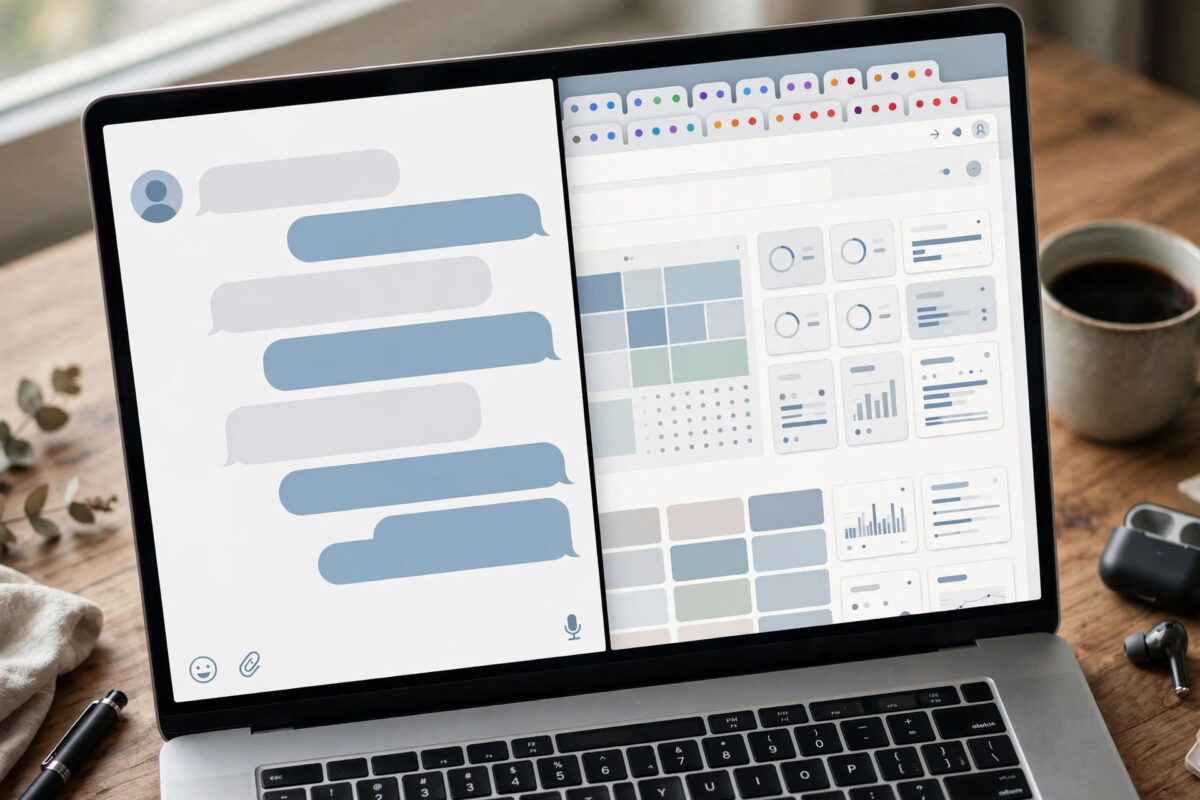
You installed the ChatGPT Chrome extension, clicked its icon, and found two options staring back at you: Chat mode and Work mode. They sound similar, they sit side by side, and picking the wrong one wastes time — one will only talk about your tabs when you wanted a job done, and the other will start working when all you wanted was a quick answer.
The two modes arrived together in the extension upgrade on October 15, 2026, and together they turned the extension from a simple sidebar assistant into something considerably more capable. Understanding the difference takes about five minutes and saves a lot of trial and error.
This guide breaks down what the difference between Chat and Work mode in the ChatGPT Chrome extension really is, when to use each one, and how to switch between them inside a single workflow.
Quick Answer
The difference is that Chat mode gives you conversational help about your open tabs, while Work mode makes ChatGPT actively complete multi-step tasks across those tabs for you.
Use Chat mode to ask questions, summarise a page, or get explanations. Use Work mode to compare products across tabs, gather data from several pages, or prepare organised outputs. Both were added to the ChatGPT Chrome extension on October 15, 2026.
The Core Difference in One Minute
Think of Chat mode as talking to a knowledgeable colleague who can see your screen. You ask, it answers. It can summarise the article in front of you, explain a confusing paragraph, compare two pages you mention, or draft text based on what you are reading. But the work itself, the clicking, gathering, and assembling, remains yours.
Work mode is hiring that same colleague to do the job. You describe the outcome you want, and ChatGPT moves across your open tabs, collects what it needs, organises it, and presents a finished or nearly finished result. You shift from operator to supervisor: briefing, approving key steps, and reviewing.
That single distinction — conversation versus completion — explains every other difference between the modes, from speed to risk to the kind of prompt each one needs. As OpenAI’s official Chrome extension announcements framed it, the two modes exist because browser help comes in two shapes: questions you want answered and tasks you want finished.
Chat Mode Explained: Conversational Help About Your Tabs
Chat mode is the extension’s original personality, refined. With Chat mode active, ChatGPT can reference the pages you have open so your questions carry context. Instead of copying a paragraph into ChatGPT, you simply ask about the tab you are viewing.
Typical Chat mode jobs include summarising a long article, explaining jargon on a documentation page, extracting the key points from a report, answering “what does this page say about refunds?”, and drafting a reply or note based on page content. The interaction stays back-and-forth, and nothing happens to your tabs beyond being read for context.
Chat mode is fast, low-risk, and ideal when your judgement is needed at every step anyway. If you are learning a topic, reviewing something sensitive, or only have a question or two, it is the right choice. Our coverage of ChatGPT tools and Chrome extension guides recommends it as the default mode for everyday browsing assistance.
Work Mode Explained: ChatGPT Working Across Your Tabs
Work mode changes the relationship. You provide a task brief, and ChatGPT carries out a sequence of steps across your open tabs: opening relevant pages, extracting specified information, comparing entries, and assembling the result in the format you requested.
Typical Work mode jobs include building a comparison table from five product tabs, gathering prices and specifications into one list, collecting key facts from several research sources, shortlisting options against criteria you set, and preparing a structured summary from many pages at once. Each job follows the same pattern — multiple tabs, multiple steps, one organised output.
Because Work mode acts rather than merely answers, it includes checkpoints. It outlines its plan, proceeds step by step, and pauses for your approval at consequential moments. That supervision model is essential: the mode is powerful precisely because it does things, so your attention is part of the design, not an optional extra.
Side-by-Side Comparison
- Purpose: Chat mode answers questions about your tabs. Work mode completes tasks across your tabs.
- Your role: In Chat mode you do the work with advice. In Work mode you brief, supervise, approve, and review.
- Best prompts: Chat mode suits questions like “Summarise this page.” Work mode suits briefs like “Compare these four tabs in a table of price and features.”
- Speed: Chat mode is instant for single questions. Work mode is slower per run but far faster than doing a multi-tab job manually.
- Risk level: Chat mode is read-and-respond, so risk is minimal. Work mode acts across pages, so it needs curated tabs and attentive approvals.
- Output: Chat mode gives explanations and drafts. Work mode gives completed comparisons, gathered datasets, and structured deliverables.
Neither mode is “better” in the abstract. They are tools for different moments in the same workflow, and experienced users switch between them several times in a single session.
How to Choose: A Simple Decision Guide
- Ask: is this a question or a job? One question, one page, one answer means Chat mode. Multiple pages and multiple steps means Work mode.
- Count the tabs involved. If the answer lives in the tab you are looking at, stay in Chat mode. If it must be assembled from three or more tabs, switch to Work mode.
- Consider the stakes. For sensitive pages or decisions needing your judgement at every stage, Chat mode keeps you hands-on. For mechanical gathering, Work mode saves the effort.
- Consider the output you need. An explanation points to Chat mode. A finished table, list, or comparison points to Work mode.
- When in doubt, start with Chat mode. Ask a scoping question first, such as what information the tabs contain, then escalate to Work mode with a sharper brief.
A common productive pattern is Chat first, Work second. Use Chat mode to understand a topic and identify which tabs matter, then hand Work mode a precise brief to gather and organise the details. The reverse also works: let Work mode assemble the data, then use Chat mode to interrogate the result.
Common Mistakes When Choosing a Mode
- Using Chat mode for a multi-tab job: Asking one question at a time across six tabs is slow and error-prone. That is exactly the work Work mode exists to do in one run.
- Using Work mode for a quick question: Briefing a full task to learn one fact from one page is overkill. Chat mode answers in seconds with no setup.
- Giving Work mode a Chat-style prompt: “Tell me about these laptops” is a question, not a brief. Work mode needs a goal, sources, fields, and an output format to perform well.
- Leaving sensitive tabs open in Work mode: Curate your tabs for every Work mode run. Chat mode’s lighter touch does not excuse untidy tabs either, but the risk matters more when the assistant is acting.
- Assuming the mode remembers everything: Stay in the same session for continuity, and restate key context when you switch modes mid-workflow to avoid crossed wires.
Conclusion
Chat mode and Work mode are not rivals; they are the two halves of a complete browser assistant. Chat mode keeps you in the conversation, answering questions about your tabs quickly and safely. Work mode steps up when a task spans tabs and steps, doing the gathering and organising while you supervise and decide. Learn to spot whether your need is a question or a job, and the right choice becomes automatic. Master both, and the extension quietly removes some of the most tedious friction from your working day.
Frequently Asked Questions
When were Chat mode and Work mode added to the extension?
Both tab-control modes arrived in the ChatGPT Chrome extension upgrade on October 15, 2026. The update split the extension’s behaviour into conversational help about tabs in Chat mode and active task completion across tabs in Work mode.
Can I switch between Chat mode and Work mode in one session?
Yes. Many users ask scoping questions in Chat mode, switch to Work mode to execute the task, then return to Chat mode to discuss the results. Restate your key context when switching so the follow-up starts from the right place.
Does Work mode cost extra compared with Chat mode?
Pricing is tier-based rather than mode-based in general terms: free tiers typically include core access with usage limits, while paid tiers offer higher limits for heavier use. Check your account in the extension and on OpenAI’s site for the current details that apply to you.
Is Chat mode safer than Work mode?
Chat mode only reads and responds, so it carries less risk. Work mode acts across tabs, which is why it includes plan reviews and approval pauses. With curated tabs and attentive supervision, Work mode is designed to be used safely for everyday tasks.
Where can I find official help on using the two modes?
The OpenAI Help Center for the Chrome extension and ChatGPT support documents both modes, including setup, controls, and troubleshooting. It is the best first stop if a mode is missing, a task stalls, or behaviour differs from this guide.



Leave a Reply