
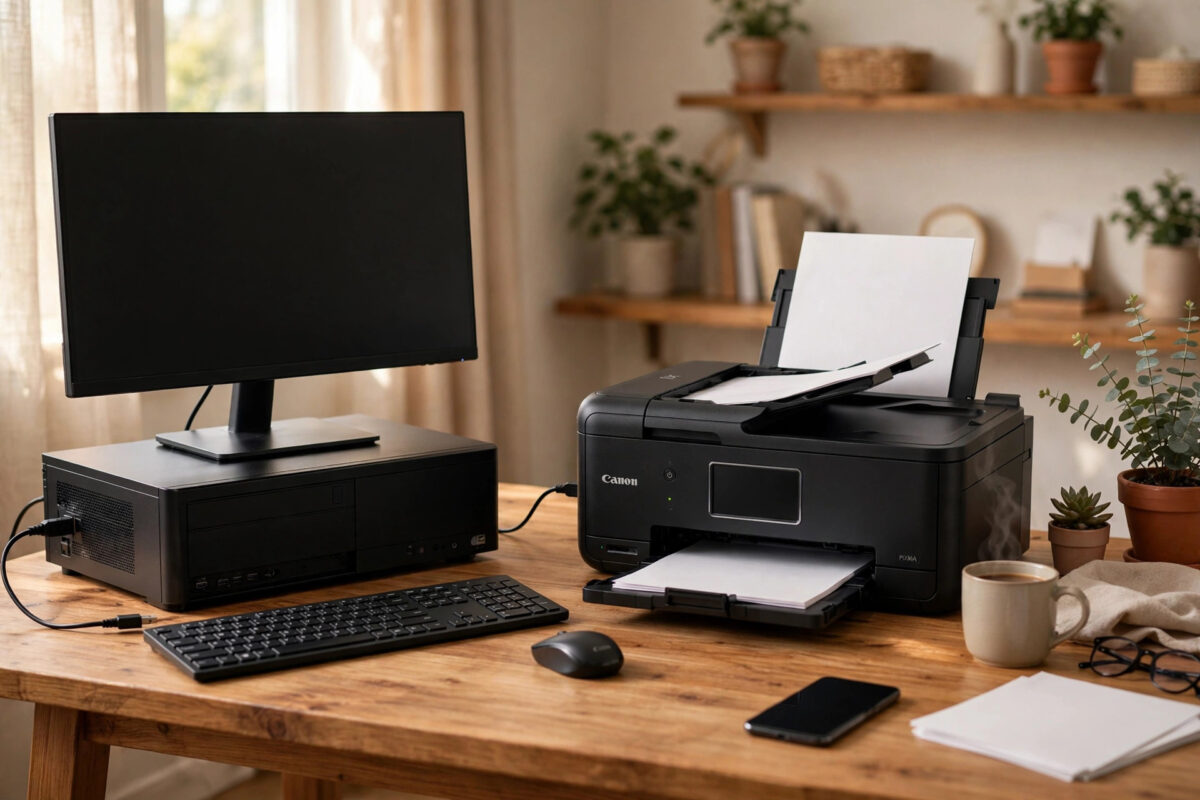
Your Canon PIXMA TR8620 prints happily from your phone and over Wi-Fi, yet the moment you plug it into your PC with a USB cable, nothing happens. The job sits in the queue, the printer stays silent, or Windows acts as if no printer exists at all. This split behaviour is actually helpful: it proves the printer itself works, so the fault sits in the USB path between the PC and the machine.
This guide works through the USB side only: the cable and port, how Windows sees the device, the port the driver is using, and the reinstall that fixes cases where the USB driver was never set up properly.
Quick Answer
Most TR8620 USB failures come from a faulty or charge-only cable, a bad USB port, or the fact that the printer was installed for Wi-Fi only, so no USB port was ever created. Swap in a known good printer USB cable on a rear PC port, check Device Manager for the printer, and confirm the driver is set to a USB port. If it still fails, remove the printer and reinstall with USB chosen during setup.
Why Wi-Fi Works but USB Does Not
Wi-Fi and USB are two completely separate connections, even though they end at the same printer. The Wi-Fi path goes through your router using a network port on the PC. The USB path goes through a physical cable, a USB port on the printer and PC, and a virtual USB printer port in Windows.
A break anywhere in that second chain stops USB printing while Wi-Fi keeps working perfectly. That is why swapping parts one at a time, instead of changing everything at once, finds the fault fastest. Change one thing, test, and only then move on.
Step 1: Check the Cable, the Port, and the Basics
- Turn the printer on and make sure it shows its normal home screen, not an error.
- Unplug the USB cable at both ends and look at the connectors. The printer end is a square-shaped USB-B plug, which must push in fully and sit firm.
- Replace the cable with a proper printer data cable. Many spare cables from phone chargers carry power only and move no data at all.
- Plug into a USB port directly on the PC, ideally a rear port on a desktop. Avoid hubs, docks, and front panel ports for this test.
- Keep the cable under about three metres. Very long USB cables cause unreliable printer detection.
- Watch the PC screen as you plug in. Windows should play a sound or show a device notice.
If a different cable and port make the printer appear straight away, you have found the fault. That outcome is more common than most people expect.
Step 2: See How Windows Detects the Printer
Press the Windows key and X together and open Device Manager. Plug and unplug the USB cable slowly while watching the list. A healthy connection makes an entry appear and disappear, usually under Print queues, Imaging devices, or Universal Serial Bus controllers.
- If an entry appears with a yellow warning mark, the driver is broken or missing. Right-click it, uninstall the device, unplug the cable, and restart the PC.
- If an entry appears and vanishes with each plug, the connection is alive and the problem is in the printer settings instead.
- If nothing changes at all, the cable, the port, or the printer’s USB socket is not making contact. Repeat Step 1 with another PC if you can, to see which side is at fault.
Canon lists the TR8620’s connection options and setup downloads on the official Canon support page for the PIXMA TR8620, which is the safest place to confirm the current driver version for your system.
Step 3: Check the Port the Driver Is Using
A very common trap: the PC has one TR8620 entry that was created during Wi-Fi setup, and it still points at a network port. USB jobs sent to that entry go nowhere, because the driver is talking to the network address while you expect the cable to work.
- Open Settings, then Bluetooth & devices, then Printers & scanners, and select your TR8620.
- Open Printer properties and go to the Ports tab.
- Look at which port is ticked. A network install shows a WSD or IP address port. A USB install should show a port named like USB001, labelled as a virtual printer port for USB.
- If a USB port exists in the list, tick it, apply, and print a test page.
- If no USB port exists at all, the USB side was never installed. Skip to the reinstall in Step 5 instead of forcing settings here.
While you are in the queue, cancel any stuck jobs first. Old failed jobs block new ones and make every later test look broken.
Step 4: Restart the Print Spooler and Clear Stuck Jobs
Windows sends every job through a background service called the Print Spooler. After failed USB attempts, it can hold onto broken jobs and refuse new ones.
- Press the Windows key and R, type services.msc, and press Enter.
- Find Print Spooler in the list, right-click it, and choose Restart.
- Open the TR8620 print queue and cancel every waiting document.
- Send one fresh test page by USB and watch the queue as it processes.
If the spooler stops again on the same old job, that document is corrupt. Clear the queue, restart the spooler once more, and always test with a brand new simple document rather than resending the failed one.
It also helps to separate USB problems from general connection problems. If the printer sometimes vanishes over Wi-Fi too, read our guide to fixing a printer that keeps showing offline and work through those checks as well, since both faults can exist at the same time.
Step 5: Reinstall With USB Selected
When no USB port exists, a clean reinstall with the correct connection choice is the reliable fix.
- Disconnect the USB cable and remove every TR8620 entry from Printers & scanners.
- Restart the PC so the old driver files are released.
- Download the full driver package for the TR8620 from Canon’s support site and run it as administrator.
- When setup asks for the connection method, choose USB connection.
- Connect the cable only when the installer tells you to, and wait while it detects the printer and creates the USB port.
- Let setup finish, then print its test page.
After this, you will normally have two ways to print: the original Wi-Fi entry and the new USB entry. Name them clearly in your head by checking the Ports tab once, so you always send each job to the connection you mean to use.
Step 6: Rule Out PC-Side USB Problems
If the reinstall still cannot detect the printer, test the PC itself. Plug another USB device, such as a memory stick, into the same port to prove the port works. Try the printer and its cable on a second computer if one is available. If the TR8620 is invisible on every PC with a known good cable, the printer’s USB socket may be damaged, and that is a repair issue rather than a settings issue.
Also check for a Windows setting that suspends USB power. In Device Manager, open the USB Root Hub properties, and on the Power Management tab, untick the option that lets the computer turn off the device to save power. Laptops use this setting often, and it can drop a printer connection mid-job.
Common Mistakes to Avoid
- Using a charging cable: It fits and powers nothing visible, but carries no data, so the PC stays silent.
- Testing through a hub: Hubs and docks hide detection faults. Always test direct to the PC first.
- Sending jobs to the Wi-Fi copy: Check which printer entry and port your app selected before blaming the cable.
- Skipping the queue clear: One stuck job makes every new USB test fail for the wrong reason.
- Connecting the cable before setup asks: Windows then installs a basic driver and the Canon USB port never gets created.
- Assuming the printer is broken: Wi-Fi printing proves the print engine works. Stay focused on the USB chain.
Conclusion
A TR8620 that prints on Wi-Fi but not USB is almost never a dead printer. Work the chain in order: prove the cable and port, watch Device Manager, check the driver port, clear the spooler, and reinstall with USB selected if no USB port exists. Most users find their fault in the cable or the missing USB install, and both are quick, free fixes.
Frequently Asked Questions
Can I use Wi-Fi and USB on the TR8620 at the same time?
Yes. The printer can stay joined to Wi-Fi for phones and other devices while one PC uses USB. Windows simply creates a separate printer entry and port for each connection, so pick the right entry when you print.
What type of USB cable does the TR8620 need?
It needs a standard USB A-to-B printer cable, the type with a square plug at the printer end. Use a good quality data cable under about three metres long, and avoid charge-only cables meant for phones.
Why is there no USB001 port in my printer settings?
That port is created during a USB installation. If the printer was only ever set up over Wi-Fi, the USB port was never made. Reinstalling the Canon driver with USB selected during setup creates it.
Windows makes a sound when I plug in, but nothing prints. Why?
The sound means the PC sees a device, so the cable works. The fault is then in the software path: a stuck queue, the wrong port selected, or a broken driver entry. Clear the queue, check the Ports tab, and reinstall if the port is wrong.
Could a Windows update break USB printing?
Yes, updates occasionally replace or reset printer drivers. The printer may revert to a network port or a basic driver. Repeating the port check and, if needed, the Canon reinstall restores normal USB printing.
Leave a Reply