
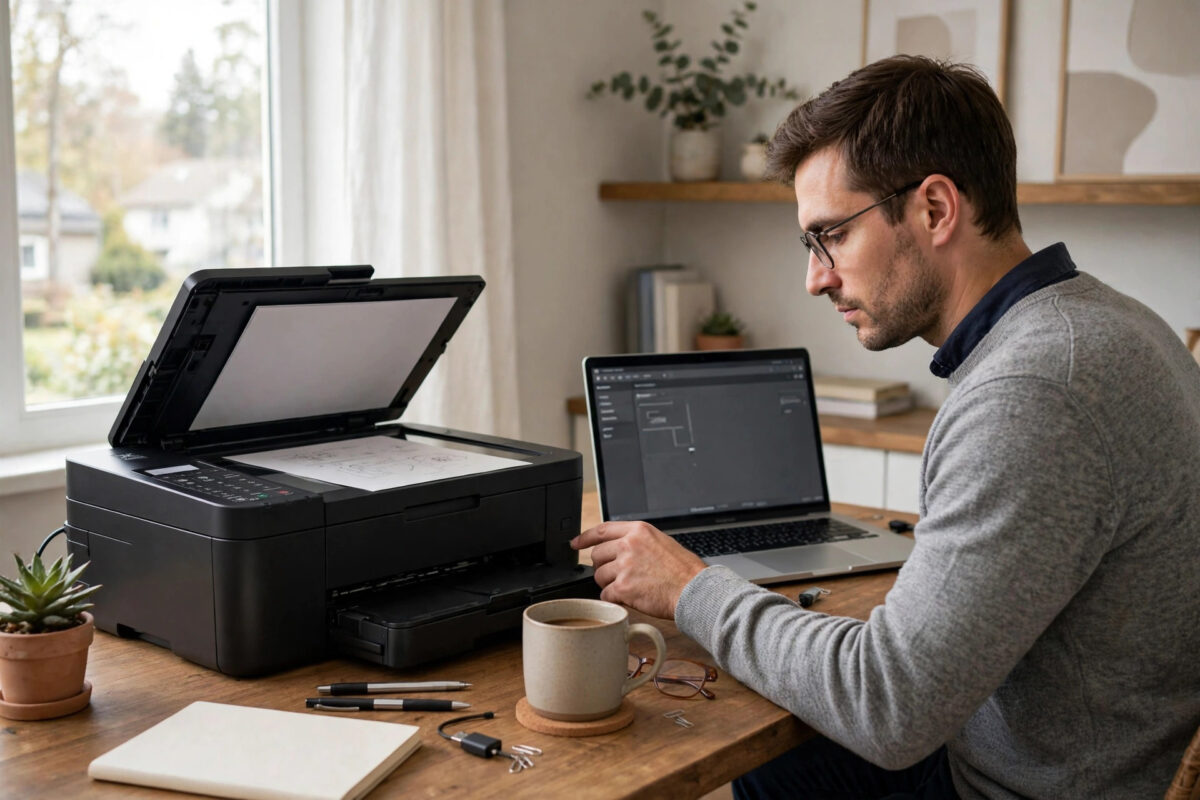
You press Scan in Canon IJ Scan Utility and get a message that the scanner cannot be found, even though the same printer prints without any trouble. This is one of the most common Canon scanning problems, and it tricks people because printing and scanning use different parts of the driver.
The printer half can work perfectly while the scanner half is missing, blocked, or pointing at the wrong connection. This guide explains why IJ Scan Utility loses the scanner and gives you a clear order of fixes for both USB and Wi-Fi connections on Windows and Mac.
Quick Answer
IJ Scan Utility cannot find your scanner when the full Canon driver is not installed, the scanner is not selected in IJ Network Scanner Selector, or the Windows WIA service or firewall blocks the connection. Reinstall the full MP Drivers package for your exact model, restart your computer, open IJ Scan Utility, and confirm your printer is selected at the top. For network scanning, also make sure the computer and printer are on the same Wi-Fi network.
Why Printing Works but Scanning Does Not
A Canon all-in-one uses separate driver components for printing and scanning. Windows can often print using a basic built-in driver that it installs on its own. That basic driver has no scanning support at all. IJ Scan Utility needs the Canon scanner driver, sometimes called the ScanGear driver, plus the utility itself.
That is why the classic pattern looks like this: the printer appears in your apps, documents print fine, but IJ Scan Utility opens empty, shows no scanner name, or reports that it cannot communicate with the scanner. The fix is almost always about the full driver and the scanner selection, not about the printer hardware.
Fix 1: Check the Basics Before Changing Anything
- Turn the printer on and make sure no error code shows on its screen. A cartridge or paper error can block scanning.
- Confirm the printer and computer are on the same network. Check the Wi-Fi name on the printer screen and compare it with your computer.
- If you use USB, try a different USB port and, if possible, a different short cable. Avoid USB hubs for testing.
- Restart both the printer and the computer once. This clears stuck scan jobs and services more often than people expect.
- Close other scanning apps. Programs like Windows Scan, Photoshop, or another Canon utility can hold the scanner busy.
Fix 2: Select the Correct Scanner in IJ Scan Utility
Sometimes the scanner is installed but IJ Scan Utility is pointing at the wrong device, for example an old printer you no longer own, or the USB version when you now use Wi-Fi.
- Open IJ Scan Utility from your Start menu or Applications folder.
- Look at the printer or scanner name shown near the top of the window, next to the product name drop-down.
- Click the drop-down and select your exact model. For network use, choose the entry that ends with Network or shows your printer network name. For USB, choose the plain model name without Network.
- Click Settings or Preferences once, then close it, to force the utility to save the selection.
- Place a document on the glass, close the lid, and click Document or Photo to test a scan.
If your model does not appear in the list at all, the scanner driver is missing. Go straight to the reinstall fix below. Canon explains the selection step in the official Canon IJ Scan Utility startup and settings guide.
Fix 3: Run IJ Network Scanner Selector
For Wi-Fi scanning, Canon installs a small tool called IJ Network Scanner Selector. If the printer is not enabled there, IJ Scan Utility will not see it, even when printing over Wi-Fi works.
- On Windows, search for IJ Network Scanner Selector in the Start menu and open it. On a Mac, find it in the Canon Utilities folder.
- Wait while it searches your network.
- Select your printer by its model name and MAC address or serial number when more than one device appears.
- Make sure the Enable checkbox or radio button is set for that printer, then click OK or Apply.
- Reopen IJ Scan Utility and test a scan again.
While testing network scanning, also watch for dropouts. If your printer keeps disappearing from the network entirely, work through our guide to fixing a printer that keeps showing offline alongside these scan fixes, because an unstable connection will break scanning again and again.
Fix 4: Reinstall the Full Canon MP Drivers
This is the fix that solves the problem for most people. Download the complete driver package, not just the printer driver.
- Disconnect the USB cable if you use one. Leave the printer on.
- On Windows, open Settings, then Apps, and uninstall Canon MP Drivers, IJ Scan Utility, and IJ Network Scanner Selector if they are listed.
- Restart your computer.
- Go to Canon support for your exact model and download the MP Drivers or the full Driver and Software package for your Windows or macOS version.
- Run the installer and follow its steps. Connect USB only when the installer asks, or choose your Wi-Fi printer when it is found.
- Restart the computer again after installation, even if the installer does not ask.
- Open IJ Scan Utility and confirm your scanner is now listed and selected.
Download only from Canon so you get the scanner components as well. You can find your model through the official Canon PIXMA support and driver downloads page and then follow the driver links for your region.
Fix 5: Check the WIA Service and Firewall on Windows
Windows Image Acquisition Service
- Press the Windows key, type Services, and open the Services app.
- Find Windows Image Acquisition, also listed as WIA or StiSvc.
- If it is stopped, right-click it and choose Start. Set its Startup Type to Automatic if it keeps stopping.
- Also check that Remote Procedure Call and Shell Hardware Detection are running, because WIA depends on them.
- Try scanning again.
Firewall and Antivirus
Security software sometimes blocks the scanner while allowing printing. Temporarily pause your third-party firewall for one test scan. If scanning works with it paused, add IJ Scan Utility and the Canon MP Drivers to its allowed apps list, then turn protection back on. Do not leave your firewall off.
Common Mistakes and Useful Tips
- Installing only the printer driver. The package name matters. You need MP Drivers or the full software package that includes ScanGear and IJ Scan Utility.
- Testing on a guest Wi-Fi network. Guest networks often block devices from seeing each other. Connect both devices to your main home or office network.
- Using a VPN during network scanning. A VPN can hide local devices. Disconnect the VPN for a test scan.
- Skipping the restart after reinstalling. Scanner services load on start-up. Without a restart, IJ Scan Utility may still show the old empty list.
- Scanning from the wrong app selection. In IJ Scan Utility, use Auto, Document, or Photo for a first test. Custom settings with an odd source, like film on a model without a film unit, will fail.
- Forgetting the scanner lock on older models. A few older Canon scanners have a transport lock switch underneath. If yours has one, make sure it is unlocked.
What If USB Scanning Works but Wi-Fi Scanning Does Not?
That result tells you the scanner itself is healthy and the problem is purely the network path. Re-run IJ Network Scanner Selector, confirm both devices share the same network name, and move the printer closer to the router for a test. If your router uses separate 2.4 GHz and 5 GHz names, connect the printer and computer to the same one, preferably 2.4 GHz, because many PIXMA models only support 2.4 GHz Wi-Fi.
Conclusion
When IJ Scan Utility cannot find your scanner, think driver and selection first, hardware last. Confirm the correct scanner is selected, enable it in IJ Network Scanner Selector for Wi-Fi use, and reinstall the full MP Drivers package if the scanner never appears. Add the WIA service and firewall checks on Windows, and most Canon printers return to scanning within one careful pass of these steps.
Frequently Asked Questions
Why does IJ Scan Utility open but show no scanner name?
An empty name usually means the scanner driver is not installed, or the utility is set to a device that was removed. Reinstall the full MP Drivers for your exact model, restart your computer, and then select the scanner from the drop-down at the top of IJ Scan Utility.
Can I scan without IJ Scan Utility?
Yes. On Windows you can test with Windows Scan or Windows Fax and Scan, and on a Mac you can use Image Capture. If those apps also cannot see the scanner, the driver problem is confirmed. If they work, the issue sits inside IJ Scan Utility settings or its selection.
Do I need USB and network entries for the same printer?
Canon often installs both a USB entry and a network entry for one printer. That is normal. Pick the entry that matches how you connect now. Choosing the USB entry while the cable is unplugged, or the network entry while on the wrong Wi-Fi, will both give a scanner not found message.
Why does scanning stop working after a Windows update?
Large Windows updates sometimes replace Canon drivers with basic Microsoft drivers or stop the WIA service. Check the WIA service first, then reinstall the latest MP Drivers from Canon for your model. This restores the Canon scanner components the update removed.
What error codes appear with this problem?
Common related messages include scanner is not available, cannot communicate with scanner, and ScanGear errors such as 2,156,50 or 2,155,58 on network models. Note the exact code. Connection codes almost always point back to driver selection, network sharing, or a blocked service, not a broken scanner unit.
Leave a Reply