
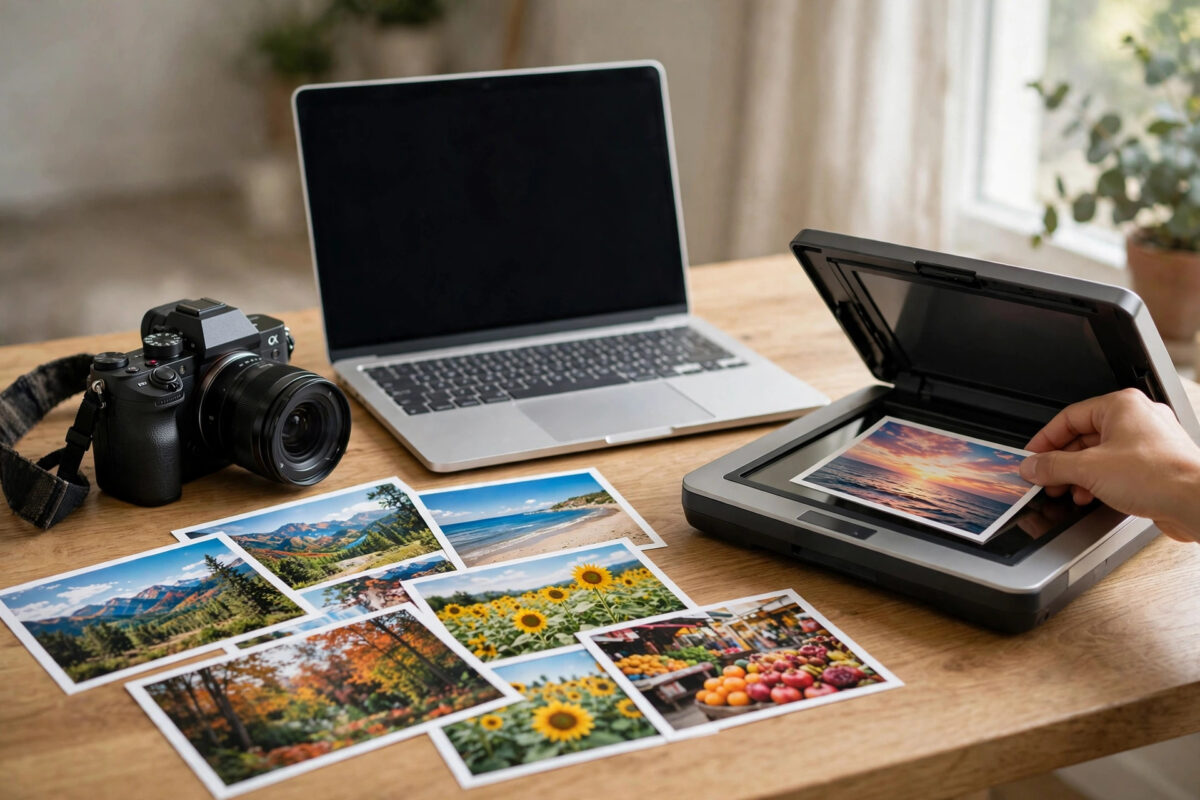
Images are the heaviest part of most WordPress pages, and uploading camera-sized photos is the fastest way to make a site crawl. A good image optimization plugin compresses every upload automatically, converts formats like WebP, and can shrink your existing library in bulk. The best free options differ mainly in quotas and how much they automate, and this guide compares them honestly.
We will look at the leading free plugins, what their free tiers really include, and how to choose based on how many images you publish.
Quick Answer
For most WordPress sites, ShortPixel and Imagify are the best free image optimization plugins: both compress new uploads automatically, convert to WebP, and offer a modest free monthly quota that suits small sites. If your host runs LiteSpeed, the free LiteSpeed Cache plugin’s image optimization is a strong no-extra-plugin option. High-volume sites will outgrow free quotas and should budget for a paid tier.
The Best Free Image Optimization Plugins
ShortPixel
A favorite for control: choose lossy, glossy or lossless compression per site, convert to WebP (and AVIF on paid tiers), and optimize in bulk from the Media Library. The free tier covers a limited number of images per month, plenty for a small blog. It also keeps backups of originals if you enable them, which is reassuring.
Imagify
Made by the WP Rocket team, Imagify is the simplest to use: install, pick a compression level, and it handles uploads and bulk optimization with a beautiful interface. Its free tier is measured in megabytes per month rather than image count. The “aggressive” level suits most photos; “ultra” squeezes harder for image-heavy pages.
Smush
The most beginner-famous name, with one-click bulk optimization and lazy loading built in. Its free tier compresses without a strict monthly cap but limits bulk processing batch sizes and reserves some features (like full CDN delivery and larger file sizes) for Pro. A friendly starting point for non-technical owners.
LiteSpeed Cache image optimization
If you are on LiteSpeed hosting, this is already in your stack: it pulls images to its QUIC.cloud service in batches on a free quota, returns optimized versions plus WebP variants, and needs no separate plugin.
EWWW Image Optimizer
Notable because it can optimize on your own server without sending images to an external service (handy for privacy), with cloud compression as an option. The interface is more technical, but it has no strict image-count cap for local compression.
How to Choose in One Minute
- Count your uploads: a handful per week fits any free quota; hundreds per month points to paid tiers.
- Prefer simple: choose Imagify or Smush. Prefer control and WebP/AVIF options: choose ShortPixel.
- On LiteSpeed hosting: try the built-in optimizer before adding anything new.
- Whichever you pick, enable automatic optimization for new uploads so the problem never returns.
Current quota details live on each vendor’s page; start with the ShortPixel and Imagify listings on WordPress.org. Pair image work with the caching advice in our Network Ustad WordPress guides for the full speed picture.
Lossy, Lossless and Glossy: Picking a Compression Level
The settings names confuse everyone, so here is the plain version. Lossless compression shrinks files without changing a single pixel; savings are modest (often 5 to 15 percent) and it suits logos, screenshots and anything with crisp text. Lossy compression discards data your eye barely registers and saves 40 to 80 percent, which is why photographs should almost always be lossy; at sensible quality levels even photographers struggle to spot the difference on a web page. Some plugins offer a middle “glossy” setting tuned for photography portfolios. The practical method: optimize ten representative images at your chosen level, view them at 100 percent on the largest screen you own, and judge with your own eyes rather than trusting a number. If faces, skies and gradients still look clean, the level is right.
The Resize Habit That Matters More Than Compression
Compression cannot save a fundamentally wrong-sized image. A 4000-pixel photo displayed in a 700-pixel column wastes bandwidth no matter how well it is squeezed. Build the habit at the source: export images near the size they will display (WordPress also generates multiple sizes automatically, and modern themes serve the right one via srcset). Set a maximum upload dimension if your plugin offers it, so contributors cannot accidentally publish poster-sized files. Pair that with WebP conversion and lazy loading, and a typical image-heavy page often loses 60 to 80 percent of its weight: the single largest speed win available to most WordPress sites, achieved entirely with free tools.
Setting Up Your Chosen Plugin in Ten Minutes
- Install and activate the plugin, then connect the account or API key it asks for; free tiers activate instantly.
- Choose your compression level (start with the balanced/lossy option) and enable WebP conversion and delivery.
- Turn on automatic optimization for new uploads so the library never grows unoptimized again.
- Run the bulk optimizer on your existing media; let it work in the background and check back in an hour.
- Open three image-heavy pages and inspect the photos closely for artifacts; adjust the level if anything looks degraded.
- Re-run a speed test on your heaviest page and record the improvement next to your baseline.
That is the entire discipline. Image optimization rewards the owner who sets it once and lets it compound quietly, which is why the automatic-upload setting in step three matters more than any other toggle in the plugin.
Images Beyond the Blog: Logos, Icons and Product Shots
Not all images deserve the same treatment, and a minute of categorization improves results. Photographs (blog features, product shots, galleries) take lossy compression beautifully and gain the most from WebP. Logos and interface graphics with sharp edges and flat colors often compress better as PNG or SVG, and over-aggressive lossy settings make their edges fuzzy, so exempt them or choose lossless for that folder if your plugin allows rules. Screenshots containing text sit in between: test one at your standard setting at full size before bulk-processing a library of tutorials. Product images deserve a final look at the largest size your store displays, because a compression artifact on the item someone is about to buy costs more than the bytes it saved. Sort the library mentally into these buckets once, set the plugin accordingly, and automation handles the rest forever.
Common Mistakes and Tips
Do not run two optimizers at once; double compression degrades quality and wastes quota. Keep original backups enabled until you trust your settings. Remember that compression is only half the fix: resizing matters more, so set your theme’s image sizes sensibly and avoid uploading 5000-pixel originals. Check a few optimized photos at full size for artifacts, especially faces and gradients, and choose a gentler level if you see banding.
Conclusion
ShortPixel leads for control, Imagify for simplicity, Smush for casual ease, and LiteSpeed’s built-in tool wins if your hosting supports it. Install one, let it optimize automatically, and clear your existing library in bulk. Your pages will shed megabytes in an afternoon.
Frequently Asked Questions
Does image compression reduce quality visibly?
At sensible lossy levels, no. Good optimizers remove data human eyes barely register. Compare a few images after your first bulk run; if you spot artifacts, switch to a gentler setting.
What is WebP and why do plugins push it?
WebP is a modern image format typically 25 to 35 percent smaller than equivalent JPEGs at the same quality, supported by all modern browsers. Serving WebP is the easiest large win most sites have left.
Can I optimize images I already uploaded?
Yes. Every plugin here has a bulk optimizer in the Media menu that processes your existing library, though free tiers may process it in batches over time.
Will an image plugin fix my PageSpeed score alone?
It fixes the image-related warnings, which are often the biggest. Caching and JavaScript issues need their own fixes, so treat image optimization as one part of the speed routine.
Are free quotas enough for a blog?
Usually. A blog posting a few images a week fits comfortably in typical free monthly allowances. Stores and photography sites uploading daily will likely need a paid tier.



Leave a Reply