
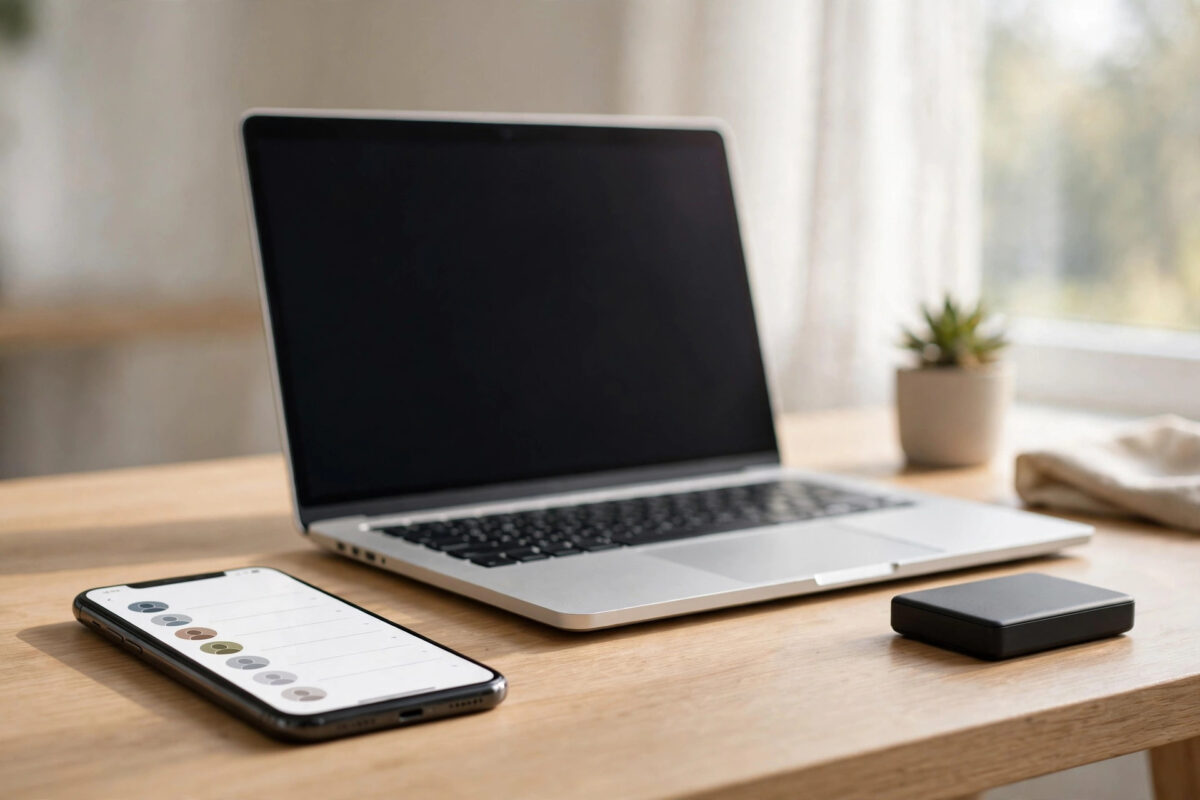
Your contacts list is one of the most valuable things on your phone. It holds family numbers, work contacts, doctors, schools, and businesses you may need in an emergency. If your phone is lost or damaged and your contacts only live on that device, rebuilding the list can take weeks.
The smart solution has two parts: save your contacts to your Google account so they sync safely, and also export them as a file you keep yourself. This guide walks you through both, step by step, on Android and from a computer.
Quick Answer
On Android, open the Contacts app, go to Settings, and choose Import or Manage contacts to move phone and SIM contacts into your Google account, then turn on contact sync in your Google account settings. To export a file, open Google Contacts in a browser, select the contacts, click Export, and download them as a CSV or vCard file to store on your computer.
Why You Need Both Google Sync and a File Backup
Saving contacts to Google is convenient. Once contacts are in your Google account, they appear automatically on any new Android phone when you sign in. You can also view and edit them on a computer, and Google protects them if your phone is lost.
However, sync alone has a weakness. If you delete a contact by mistake, that deletion can sync everywhere. If you lose access to your Google account, you lose the contacts too. An exported file solves this. A CSV or vCard file sitting on your computer or external drive is a frozen snapshot that nothing can change or delete remotely.
Using both gives you daily convenience plus a true backup. It takes only a few minutes to set up.
Step 1: Move Phone and SIM Contacts Into Google
Many people have contacts scattered in three places: the phone memory, the SIM card, and their Google account. Only Google contacts sync and back up properly, so the first job is to gather everything into Google.
Step-by-Step Instructions on Android
- Open the Contacts app on your phone.
- Tap your profile picture or the menu icon, then tap Contacts settings or Settings.
- Look for Import, Manage contacts, or Move contacts, depending on your phone brand.
- Choose Import from SIM card if your SIM holds contacts, and select your Google account as the destination.
- Next, if you see contacts saved to the device, use the Move to another account or Export and Import option to bring them into the same Google account.
- Wait for the import to finish. Do not close the app during the process.
- Open the Contacts app again and check the account filter. Show only your Google account contacts and confirm the missing numbers now appear.
The names of menus vary slightly between Samsung, Pixel, Xiaomi, and other brands, but every modern Android phone has these import options inside the Contacts app settings.
Step 2: Turn On Google Contact Sync
Moving contacts once is not enough. You also need sync switched on, so every new contact you save goes to Google automatically in the future.
Step-by-Step Instructions
- Open Settings on your phone.
- Tap Passwords and accounts, or Accounts and backup, then tap your Google account.
- Tap Account sync.
- Make sure the Contacts toggle is turned on.
- Also, when saving a new contact in future, check the save location at the top of the form and choose your Google account instead of Device or SIM.
The Google Support guide to backing up and syncing device contacts explains how the automatic save-to-Google setting works on different Android versions.
You can test sync easily. Save a test contact, wait a minute, then check it appears at contacts.google.com on your computer. Delete the test contact afterward from both places.
Step 3: Export Your Contacts as a File From a Computer
Now create the file backup. A computer browser is the easiest place to do this because Google Contacts has a clear Export button.
Step-by-Step Instructions
- On your computer, open your browser and go to Google Contacts.
- Sign in with the same Google account used on your phone.
- Confirm your full contacts list is visible. If contacts are missing, wait for sync or repeat Step 1.
- To export everything, look for the Export option in the settings gear menu or the left sidebar, depending on your layout.
- To export only some contacts, tick the checkbox beside each contact first, then choose Export selected contacts.
- Choose your format. Pick Google CSV for spreadsheets and restoring to Google, Outlook CSV for Outlook, or vCard for Apple devices and most phone imports.
- Click Export and save the file to your computer.
- Rename the file clearly, for example Contacts Backup 2026-10-21.csv, and note how many contacts it contains.
Our step-by-step guide on how to export contacts from iPhone to a CSV file is useful if your family uses both Android and iPhone and you want matching backups for every device.
CSV or vCard: Which Format Should You Choose?
CSV files open in Excel and Google Sheets, so you can read, sort, and clean your contacts easily. CSV is the best choice if you want to inspect the data or import it into email and customer tools. Its weakness is that contact photos and some custom fields may not transfer perfectly.
vCard files, which end in .vcf, are designed specifically for contacts. They keep more details together, including photos in many cases, and almost every phone and contacts app can import them. If your main goal is restoring the list to a phone later exactly as it is now, vCard is usually the safer choice.
Many careful users export both formats. It costs nothing, takes one extra minute, and gives you maximum flexibility later.
Step 4: Export a File Directly From Your Phone
You can also export without a computer. This is handy when you want to send yourself a quick copy.
- Open the Contacts app and go to Settings or Manage contacts.
- Tap Export or Share contacts.
- Select the account or contacts to export.
- The phone creates a .vcf file. Choose where to send or save it, such as your email, your computer through a cable, or a file manager folder you back up regularly.
- Move the file off the phone. A backup that stays only on the same phone does not protect you if the phone is lost.
How to Store and Restore Your Contacts File
Store the exported file in at least two places, such as your computer and an external hard drive or USB stick. Create a new export every few months, and always before changing phones, because a year-old file will miss recent contacts.
To restore, import the file into Google Contacts on a computer using the Import option, or open the .vcf file on a new phone and choose your Google account as the save location. After importing, check for duplicates. Google Contacts has a Merge and fix tool that finds duplicate entries and combines them safely.
Keep in mind that contacts files contain private phone numbers and email addresses of many people. Store them in a password-protected folder and never post them publicly.
Common Mistakes to Avoid
- Saving new contacts to the device or SIM: These do not sync to Google. Always choose your Google account as the save location.
- Exporting before sync finishes: If you export too early, recent phone contacts will be missing from the file. Confirm the full list appears online first.
- Keeping the backup only in your downloads folder: Organize it into a dated backup folder so you can find the newest version quickly.
- Never testing the file: Open the CSV in a spreadsheet once to confirm names and numbers are readable and complete.
- Forgetting duplicates: Importing an old file on top of a synced account creates duplicates. Use the merge tool after any restore.
- Sharing the file casually: Your contacts file exposes other people’s private details. Treat it like a personal document.
Conclusion
Protecting your contacts takes just two habits: keep every contact saved and synced in your Google account, and export a CSV or vCard file a few times a year to store on your computer. Together, these steps mean a lost, broken, or replaced phone will never cost you your address book again. Set it up today while your list is complete, and future phone changes will take minutes instead of weeks.
Frequently Asked Questions
Are contacts saved on my SIM card backed up to Google?
No. SIM contacts stay on the SIM until you import them. Use the Import from SIM option in the Contacts app and choose your Google account as the destination.
What is the difference between backup and sync for contacts?
Sync keeps your Google account and phone matching at all times, including deletions. A file export is a fixed snapshot that does not change, which is why it works as a true backup.
Can I open a CSV contacts file in Excel?
Yes. CSV files open directly in Excel and Google Sheets, with names, numbers, and emails in columns. Avoid editing column headers if you plan to import the file back later.
How do I restore contacts from a vCard file?
Open the .vcf file on your phone and choose to save the contacts to your Google account, or use the Import option in Google Contacts on a computer and select the file.
Will exporting contacts delete them from my phone?
No. Export only creates a copy as a file. Your contacts remain on your phone and in your Google account exactly as before.



Leave a Reply