
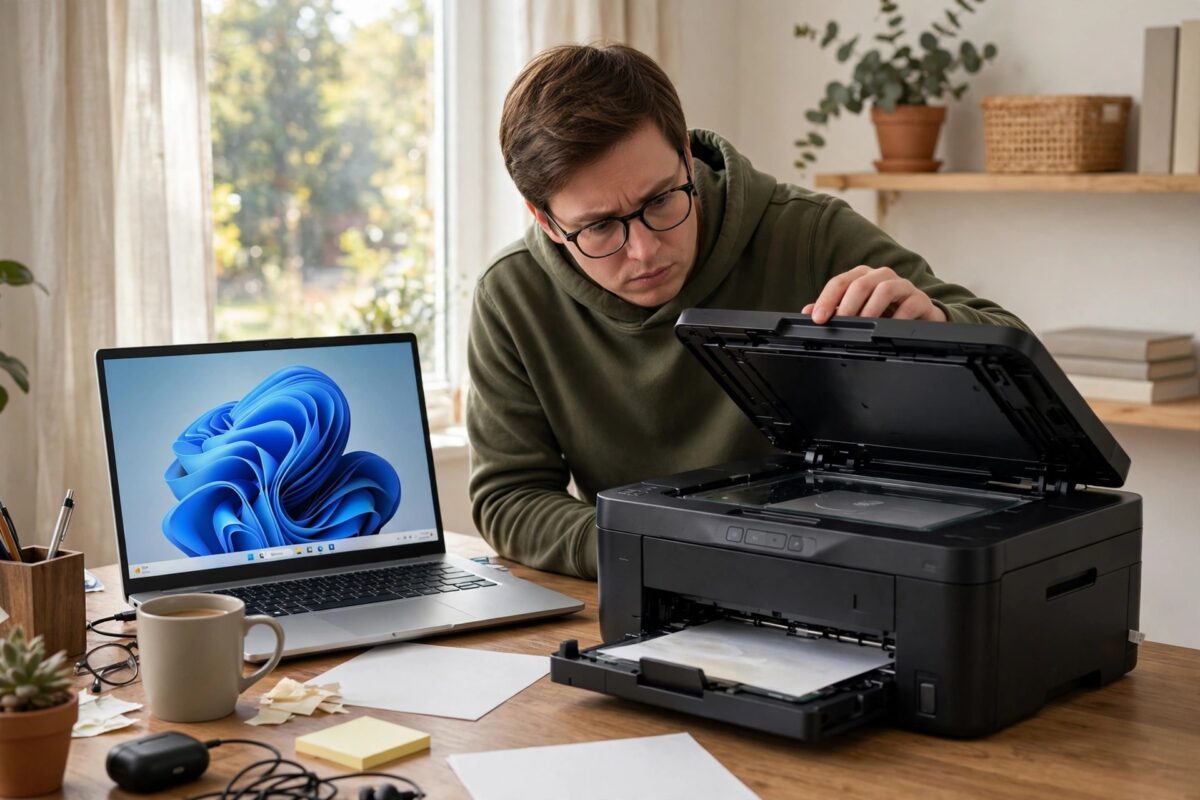
Your Brother printer prints without any problem, but scanning from Windows fails with a TWAIN error. The scanning app may freeze, show a message such as TWAIN driver not found, or report error codes like TW006, TW007, or CC4-202-00000008. For many users this happens suddenly after a Windows update or a driver reinstall.
TWAIN errors are software communication errors, not usually a broken scanner. The scanner hardware is fine in most cases, which is why scanning from the printer panel or from Brother iPrint&Scan often still works. This guide fixes the Windows side step by step.
Quick Answer
Restart the Windows Image Acquisition service, then uninstall the Brother scanner driver completely and reinstall the Full Driver and Software Package for your exact model from Brother’s website. Reconnect the printer, set the correct scanner in your app, and test with Brother iPrint&Scan first. Most TWAIN errors are caused by a corrupted driver, a stopped WIA service, or the app pointing to the wrong TWAIN source.
What TWAIN Means and Why It Fails
TWAIN is an old but still widely used standard that lets scanning applications talk to scanner hardware. Programs such as older photo editors, document managers, and some office tools do not scan directly. They call the Windows TWAIN system, which then calls the Brother TWAIN driver for your model.
If any link in that chain breaks, the app reports a TWAIN error even though the message does not tell you which link failed. A Windows update can replace a shared file, security software can block the driver, a USB change can create a duplicate device, or the driver can be left half-installed after an interrupted setup.
Common TWAIN Error Signs
- The scanner does not appear in the Select Source or Acquire list in your app.
- The app finds the scanner but fails immediately with a TWAIN or connection error code.
- Scanning works in one program but fails in another program on the same computer.
- Scanning works by USB but fails over Wi-Fi, or the opposite.
- The error started right after a Windows feature update, a driver update, or an antivirus change.
Write down the exact error code and the name of the app you were using. That detail matters later, because an app-specific failure needs a different fix from a system-wide driver failure.
Step 1: Basic Checks Before Changing Drivers
- Confirm the Brother machine is turned on, shows Ready, and has no error on its own display.
- Try a copy directly from the printer panel. If copying works, the scanner lamp and paper feed are working.
- Restart both the printer and the computer. Leave the printer off for thirty seconds before turning it back on.
- If you use USB, plug the cable directly into the computer, try a different USB port, and keep the cable under three metres. Avoid USB hubs for testing.
- If you use Wi-Fi, confirm the printer and computer are on the same network name and that the printer has a stable signal.
- Test a scan with Brother iPrint&Scan or Windows Fax and Scan. If these work, your hardware and basic driver are fine and the problem is specific to your other app or its TWAIN source selection.
Step 2: Restart the Windows Image Acquisition Service
Windows scanning depends on the Windows Image Acquisition service, often shortened to WIA. If this service is stopped or stuck, TWAIN calls fail across many programs.
- Press Windows key plus R, type services.msc, and press Enter.
- Find Windows Image Acquisition (WIA) in the list.
- Check its status. If it is not running, right-click it and choose Start.
- Double-click the service and set Startup type to Automatic, then click Apply.
- Also check that Remote Procedure Call and Shell Hardware Detection are running, because WIA depends on normal Windows services.
- Close Services and try scanning again.
If WIA will not start, note any error number Windows shows. That error usually points to a deeper Windows problem rather than a Brother problem, and repairing Windows system files may be needed before any scanner driver will work.
Step 3: Cleanly Reinstall the Brother Driver Package
Installing a new driver over a corrupted one rarely fixes TWAIN errors. A clean reinstall is more reliable and is the most important step in this guide.
- Disconnect the USB cable if you use one, but leave the printer turned on if you use Wi-Fi so you can note its IP address from its network settings page.
- Download the Full Driver and Software Package for your exact Brother model and your exact Windows version from the official Brother downloads centre. Do not use driver updater sites.
- Open Windows Settings, go to Apps, and uninstall all Brother software for that model, including older MFL-Pro entries.
- Open Control Panel, go to Devices and Printers, remove the Brother printer and any duplicate copies, then open Print Server Properties and remove the old driver package if Windows offers that option.
- Restart the computer when uninstalling finishes.
- Run the downloaded Full Package as administrator and follow the connection steps exactly. Connect the USB cable only when the installer asks for it.
- Restart again after installation, then test scanning first in Brother iPrint&Scan.
During installation, temporarily pausing third-party antivirus scanning can help if previous installs were blocked, but turn protection back on immediately afterwards. Never leave a computer unprotected to keep a scanner working.
Step 4: Select the Correct TWAIN Source in Your App
Many TWAIN errors are simply the app trying to use an old, duplicate, or wrong scanner entry. After a reinstall, an app may still remember the previous source.
- Open your scanning application and find File, Acquire, Import, or Select Source in its menu. The exact wording varies by program.
- In the source list, choose the entry that matches your Brother model and your connection type, such as the TWAIN entry for USB or for network scanning.
- Avoid entries labelled WIA if your workflow specifically needs TWAIN features, and avoid old entries for a printer you no longer own.
- Close and reopen the app after changing the source, then run a low-resolution preview scan as a test.
If your program is 64-bit and only offers limited TWAIN support, check whether the program maker recommends WIA or its own scanning plug-in instead. Brother also provides guidance in its Brother support frequently asked questions library for model-specific scanning limitations on newer Windows versions.
If scanning over the network is your main problem, our guide on fixing a Brother scanner that is not detected on the network covers IP address, firewall, and router checks in more depth.
Common Mistakes and Helpful Tips
- Installing the wrong model driver: Similar model names are not interchangeable. A driver for a DCP model will not correctly support an MFC model.
- Skipping the restart: Driver files are locked while Windows is running. Without restarts, old files stay active and the error remains.
- Using only the basic plug-and-play driver: Windows may install a basic print driver that prints well but has no full TWAIN scanner support. Always use the Full Package for scanning.
- Ignoring duplicate devices: Three copies of the same printer in Devices and Printers will confuse apps. Keep one working copy after a clean install.
- Testing only in one old program: Always test in iPrint&Scan or Windows Fax and Scan first to separate a driver fault from an app fault.
Keep the downloaded Full Package file in a clearly named folder with the model number and date. If a future Windows update breaks scanning again, you can repeat the clean reinstall quickly without searching for the file again.
Conclusion
Brother TWAIN scanner errors on Windows are usually caused by a stopped WIA service, a corrupted or partial driver install, duplicate devices, or the wrong TWAIN source selected in an app. Restart WIA, remove the old software completely, reinstall the Full Driver and Software Package for your exact model, and test in a known-good app before blaming your main program. Followed in order, these steps restore scanning for most users without any hardware repair.
Frequently Asked Questions
Why can I print but not scan on my Brother machine?
Printing and scanning use different drivers and services. The print driver can be healthy while the scanner driver or the Windows Image Acquisition service is broken. That is why a clean scanner driver reinstall often fixes scanning without affecting printing.
What does TWAIN error CC4-202 mean?
CC4 errors in Brother software generally mean the software cannot communicate with the scanner at the driver or network level. Check the connection, restart WIA, and perform a clean reinstall of the Full Package for your model if the error persists.
Does Windows 11 still support TWAIN scanners?
Yes, Windows 11 supports TWAIN through compatible drivers, but some older applications and older Brother models have limited support. Using Brother iPrint&Scan or a WIA option in your app may be more reliable for newer setups.
Should I use USB or Wi-Fi to test TWAIN errors?
Test with USB if you can, even if you normally use Wi-Fi. A successful USB scan proves the scanner and driver work and tells you the remaining problem is network related, such as an IP change or firewall block.
Will reinstalling the driver delete my saved scan settings?
It can reset saved shortcuts and destinations inside Brother software. Note down important folder paths and email settings before uninstalling, then recreate them after the clean install and a successful test scan.
Leave a Reply