
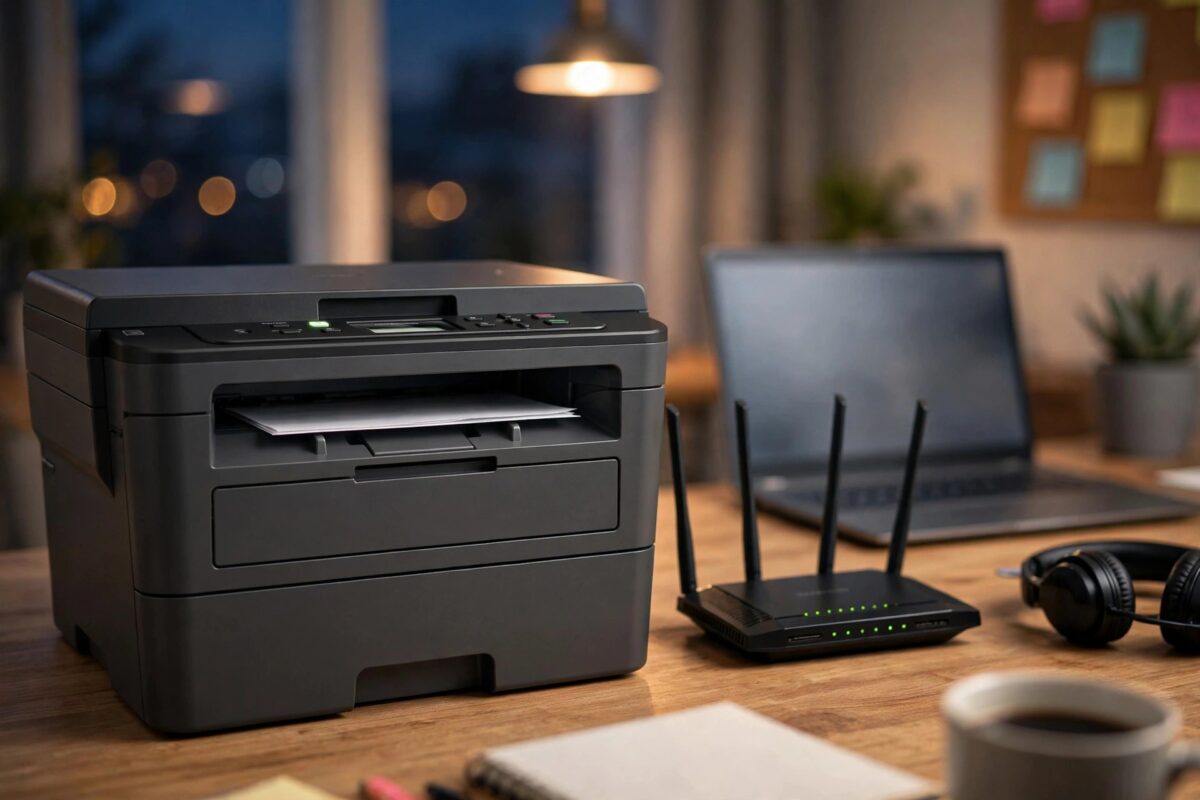
The Brother HL-L2390DW is a fast, simple black-and-white laser printer that many people rely on for home office and small business work. When it works, you send a job from any room and it prints straight away. When it keeps losing its Wi-Fi connection every day, the pattern is familiar: it prints in the morning, shows as offline by the afternoon, and only comes back after you restart the printer or the router.
Daily dropouts like this are rarely random. They usually come from a small set of causes involving sleep settings, router behaviour, signal strength, and address changes on your network. This guide explains each cause in plain language and gives you a fix order that solves the problem permanently for most owners.
Quick Answer
A Brother HL-L2390DW that loses Wi-Fi every day is usually going into deep sleep and failing to wake on the network, or receiving a new IP address from the router that your computer does not follow. Place the printer on the 2.4 GHz network with a strong signal, turn off Deep Sleep effects by extending the sleep timer, and reserve a fixed IP address for the printer in your router. Re-add the printer on your computer using that fixed address to stop daily offline errors.
Why Daily Dropouts Happen
Deep Sleep and Auto Power Off
To save energy, the HL-L2390DW drops into Sleep and then Deep Sleep after a period without jobs. In Deep Sleep the Wi-Fi radio uses very little power and, on some router combinations, it misses the signals that keep it visible on the network. When you next print, your computer looks for the printer, gets no reply in time, and marks it offline. The printer may wake when you press a button, which is why a quick restart seems to fix it.
The Router Assigns a New IP Address
Most home routers hand out addresses using DHCP and can give a device a different address after a restart or lease renewal. If your computer saved the printer at yesterday’s address, today’s jobs go to the wrong place. This is one of the most common reasons a printer is fine after setup and offline the next day.
Weak Signal, Distance, and Interference
Laser printers are often placed in a corner, inside a cabinet, or on the far side of the house from the router. Walls, metal shelving, and appliances weaken the 2.4 GHz signal the printer uses. A weak connection may hold while the printer is awake, then drop when traffic is low. Other networks on the same channel add interference that makes daily drops more likely.
Band and Router Feature Problems
The HL-L2390DW uses 2.4 GHz Wi-Fi only. If your router combines both bands under one name, band steering may handle the printer in a way it does not support. Router firmware changes and Wi-Fi 6 modes can also break a connection that worked for months.
Step-by-Step Fixes in the Right Order
Step 1: Improve the Wi-Fi Signal at the Printer
- Print a Network Configuration report from the printer menu: Menu, then Print Reports, then Network Config. Check the signal strength shown.
- If the signal is Weak, move the printer closer to the router or move the router higher and more central.
- Keep the printer out of closed metal cabinets and away from large metal objects.
- Avoid placing the printer directly beside a microwave or thick masonry wall if you can.
- Retest after any move. Even one or two metres can make a daily dropout disappear.
If moving the printer is not practical, a Wi-Fi extender or mesh node placed between the router and the printer room is a better solution than repeatedly reconnecting a weak printer. Our explainer on improving home Wi-Fi coverage for printers and office devices covers placement options in more detail.
Step 2: Connect Correctly to the 2.4 GHz Network
- On the printer, go to Menu, Network, WLAN, Setup Wizard.
- Select your network name. If your router shows separate 2.4 GHz and 5 GHz names, choose the 2.4 GHz one.
- Enter the password carefully. Passwords are case-sensitive.
- Print the Network Configuration report again and keep it. You will need the IP and MAC address for the next steps.
Step 3: Adjust Sleep Settings on the Printer
- On the printer panel, press Menu, then go to General Setup, Ecology, Sleep Time.
- Increase the sleep time so the printer stays awake through your working day, for example 30 to 60 minutes.
- Reducing how quickly the printer sleeps often reduces dropouts, though it uses slightly more power.
- Test by leaving the printer untouched for several hours, then sending a job without touching the printer first.
Step 4: Reserve a Fixed IP Address in Your Router
This is the single most effective long-term fix for daily offline problems.
- Find the printer’s MAC address on the Network Configuration report.
- Log in to your router’s admin page, usually through the address and password printed on the router label.
- Open the DHCP, LAN, or Connected Devices section and find Address Reservation or Static Lease.
- Reserve an address for the printer’s MAC address, choosing an address inside your network range.
- Save the setting, restart the printer, and print a new Network Configuration report to confirm the printer now uses the reserved address.
Brother’s own official HL-L2390DW manuals and network guides explain the printer side of this setup, and your router maker’s support pages cover the reservation screens on their side.
Step 5: Re-Add the Printer on Your Computer
Remove the old printer entry on your computer, restart it, then add the printer again at the fixed address. On Windows you can add it manually by IP address; on a Mac, re-add it from Printers and Scanners. Then test after several idle hours.
Step 6: Update Firmware and Check Router Settings
- Check for a firmware update for the HL-L2390DW on Brother’s support site and follow the instructions exactly.
- Check for a router firmware update in the router admin pages and install it if one is offered.
- In the router’s wireless settings, set the 2.4 GHz channel to 1, 6, or 11 rather than Auto if neighbouring networks are causing interference.
- Turn off any router feature that puts inactive wireless clients to sleep or roams them aggressively between access points.
Quick Fixes When You Need to Print Right Now
- Press a button on the printer to wake it, wait 30 seconds, then try the job again.
- Cancel stuck jobs in the computer’s print queue, then resend one job at a time.
- Restart the printer only, leaving the router running, so addresses do not change again.
- Connect temporarily by USB if you have a deadline. USB printing bypasses Wi-Fi entirely on this model.
Common Mistakes and Tips
- Testing only straight after setup: A printer can look fixed for an hour and still drop overnight. Judge success after a full idle day and night.
- Ignoring the signal report: Software fixes cannot overcome a very weak signal. Check the Network Configuration report before changing advanced settings.
When the Problem Is Not Wi-Fi Settings
If the printer drops even when placed in the same room as the router, with sleep extended and a fixed address reserved, consider other causes. Test the printer on a different network, such as a phone hotspot, to separate printer faults from router faults. If it holds a connection on the hotspot but not on your router, the router combination is the problem. If it drops everywhere, contact Brother’s official support team with your network reports and a description of the tests you have done.
Conclusion
Daily Wi-Fi dropouts on the Brother HL-L2390DW almost always trace back to Deep Sleep behaviour, a changing IP address, or a weak 2.4 GHz signal. Strengthen the signal, connect the printer to a clean 2.4 GHz network, extend the sleep timer, reserve a fixed address in the router, and re-add the printer at that address on your computer. Tested over a full idle day, that combination turns a printer you had to restart every afternoon into one that is simply ready whenever you need it.
Frequently Asked Questions
Why does my HL-L2390DW show as offline every morning?
Overnight the printer sits in Deep Sleep for hours and the router may renew addresses. If the printer misses wake-up checks or its address changes, the computer marks it offline by morning. Extending sleep time and reserving a fixed IP address address both parts of this pattern.
Does the HL-L2390DW support 5 GHz Wi-Fi?
No. This model supports 2.4 GHz wireless only. It cannot join a 5 GHz-only network. If your router uses one combined network name, make sure the 2.4 GHz band is enabled and consider a separate 2.4 GHz name for the printer if band steering causes problems.
What is a good signal strength for the printer?
On the Network Configuration report, a strong signal is ideal, and a medium signal usually works if it is stable. A weak signal that fluctuates is the one that causes daily drops. Aim to improve placement until the report no longer shows the lowest rating.
Will a fixed IP address affect my other devices?
No, if you reserve an address that is not already used by another device. The reservation simply guarantees the router always gives that one address to the printer. Your other devices continue to receive their addresses automatically.
Should I use Wi-Fi Direct instead of my router?
Wi-Fi Direct is useful for a one-off job without a network, but it is not a good permanent replacement for router printing in a home office. Each device connects individually, which is less convenient than a stable router connection with a fixed address.
Leave a Reply