
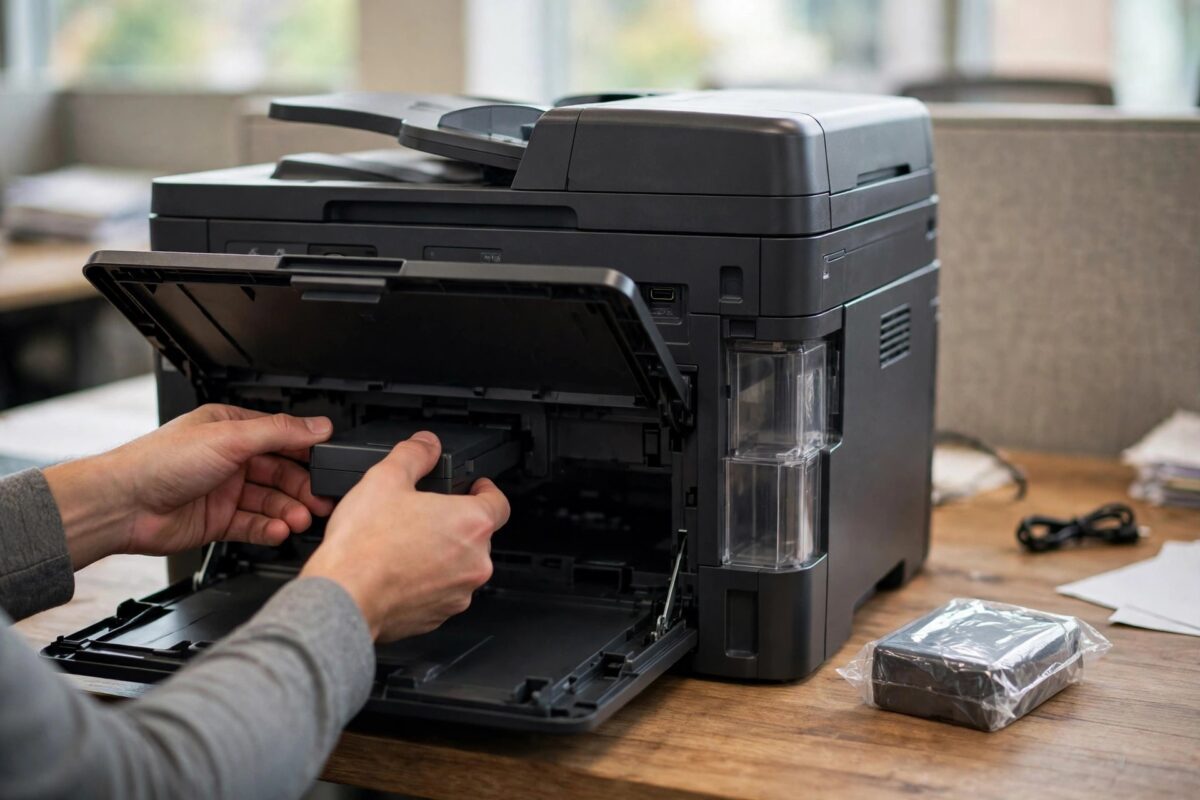
Your Epson EcoTank ET-5850 has stopped printing and is asking for a new maintenance box. For many owners this is the first time they have even heard of the part, so the message feels alarming. In reality it is a routine service item, much like replacing an ink tank, and the job takes about five minutes with no tools.
The maintenance box catches waste ink during head cleaning and borderless printing. When it fills up, the printer stops to protect itself from an ink leak. Fitting a genuine replacement and confirming the change on screen resets the counter automatically on this model, and printing resumes straight away.
Quick Answer
To replace the maintenance box on an Epson ET-5850, turn the printer on, open the rear maintenance box cover, slide out the old box, and push a new genuine Epson maintenance box in until it clicks. Close the cover and confirm the replacement on the printer screen when asked. The ET-5850 detects the chip on the new box and resets the maintenance counter itself, so no separate reset tool is needed.
What the Maintenance Box Does
Every time the printer cleans its print head, primes ink, or prints borderless photos, a small amount of ink has to go somewhere. That waste ink flows into the maintenance box, where absorbent material locks it away safely. The ET-5850 tracks how much ink has passed into the box and compares it with the box capacity.
When the counter reaches its limit, the printer displays a message that the maintenance box is at the end of its service life and stops printing. This is planned behaviour, not a breakdown. The box is designed to be swapped by the user, and its chip tells the printer exactly how much space the new box has.
Signs the maintenance box needs replacing
- A screen message says the maintenance box is full or at the end of its service life
- The printer refuses to print but shows no paper or ink tank errors
- The maintenance box level in the printer settings shows empty or near zero
- The printer has done heavy borderless printing or frequent head cleaning over a long period
You can check the remaining life at any time from the home screen under maintenance or settings. Epson lists the correct box part number for this model in the Epson support information for EcoTank maintenance boxes, and the part number is also printed on the old box itself.
Before You Start: Get the Right Box
The ET-5850 uses a specific maintenance box with a chip matched to the model. A box for a different EcoTank may physically look similar but will not be accepted, and the counter will not reset.
- Buy the genuine Epson maintenance box listed for the ET-5850, and keep the part number from your old box to compare.
- Keep the new box sealed until you are ready to fit it, so dust stays off the chip contacts.
- Have a plastic bag ready for the old box. It contains waste ink and should be handled carefully.
- Note that the old box cannot be emptied and reused. The chip records it as full, and refitted boxes are rejected.
- Order a spare in advance if your office prints heavily, so the next change causes no downtime.
Third-party boxes are sold for less, and some work, but a faulty chip can leave the printer still reporting a full box after the swap. For a part that protects the printer from internal ink leaks, the genuine box is the safer economy, as our guide to essential Epson EcoTank maintenance habits that extend printer life explains in more detail.
Step-by-Step: Replace the Maintenance Box
The printer should be turned on for this job, because the screen guides the process and registers the new box. Work on a flat surface with a sheet of scrap paper under the rear of the printer, just in case of drips.
- Leave the printer switched on and cancel any print jobs in the queue.
- Go to the back of the printer and find the maintenance box cover, a small rectangular panel held by a single screw-free latch or one screw depending on production run.
- Open or remove the cover and set it aside.
- Grip the handle of the old maintenance box and pull it straight out, keeping it level so no ink spills.
- Place the old box directly into the plastic bag and seal it. Do not tilt it or turn it upside down.
- Take the new box out of its packaging and remove any protective tape, holding it by its edges and keeping fingers off the green chip.
- Slide the new box into the slot, in the same orientation, and push firmly until it seats fully and clicks.
- Refit the rear cover.
- Look at the printer screen. It should recognise the new box and show the maintenance box level restored.
- Run a test print to confirm normal operation has resumed.
If the screen still shows the old warning after the swap, remove the box and reseat it once, checking that no tape covers the chip. A box that is even slightly unseated will not be read by the printer.
About Resetting the Counter
Owners coming from older Epson models often expect to run a separate reset utility for the waste ink counter. The ET-5850 works differently. Its maintenance box carries a chip, and the printer reads that chip to set the counter.
How the reset works on this model
- Fitting a new genuine box resets the maintenance counter automatically when the printer reads the fresh chip.
- There is no menu option to reset the counter manually, and none is needed.
- The printer will not reset for an old box, a box from the wrong model, or a box whose chip reports it as full.
- Third-party reset tools sold online are aimed at older fixed-pad printers. They do not apply to the ET-5850 and using them risks firmware problems.
So if you followed the swap and the counter did not reset, the problem is the box or its seating, not a missing reset step. Check the part number, the chip, and the fit, in that order. The official steps for your exact model are also laid out on the official Epson support pages for the EcoTank ET-5850.
Disposing of the Old Box Safely
The old box holds real waste ink. Keep it sealed in the bag, keep it upright, and follow your local rules for disposing of ink consumables. Never open the box to empty it: the pads inside are saturated, and a refitted box will still report as full because of its chip.
How to Make the New Box Last Longer
You cannot avoid waste ink completely, because head cleaning is part of healthy printing, but you can slow down how fast the box fills.
- Run head cleaning cycles only when print quality actually drops, not as a daily habit. Each cycle pushes ink into the box.
- Keep the printer plugged in and let it do its own short automatic maintenance, which uses far less ink than repeated manual cleanings.
- Print regularly. A printer used every week needs fewer heavy cleanings than one left idle for months.
- Use borderless printing when you need it, not by default, since it produces extra overspray ink.
- Keep an eye on the box level in settings, so replacement day is planned, not a surprise stop.
Common Mistakes to Avoid
- Tilting the old box: waste ink can escape. Keep it level from slot to bag.
- Touching the chip: greasy fingers on the green chip can stop the printer reading the new box.
- Buying by looks alone: similar-looking boxes for other models will not reset the counter.
- Trying to wash and reuse the old box: the chip still reports full, so the effort gains nothing.
- Turning the printer off mid-change: leave it on so the screen can register the new box correctly.
- Ignoring the early warning: the printer warns before the box is completely full. Ordering at the first warning avoids a full stop later.
Conclusion
Replacing the maintenance box on the ET-5850 is a five-minute user job: open the rear cover, slide the old box out level into a bag, push a genuine new box in until it clicks, and close the cover. The chip on the new box resets the counter automatically, so no reset utility or service visit is required. If the warning survives the swap, reseat the box and verify its part number. Keep a spare box on the shelf and check the level monthly, and this maintenance task will never hold up an urgent print job again.
Frequently Asked Questions
Do I need a reset tool for the ET-5850 maintenance counter?
No. The counter is stored against the box chip. A new genuine box resets it as soon as the printer reads the chip, and there is no manual reset option or tool needed.
Can I empty and reuse my old maintenance box?
No. Even if you cleaned the pads, the chip still reports the box as full and the printer will reject it. The box is a single-life consumable by design.
How long does an ET-5850 maintenance box last?
It depends on use. Heavy borderless printing and frequent head cleaning fill it faster, while normal office printing with occasional cleaning can make a box last a very long time. Check the level in settings for your own printer’s real figure.
The new box is fitted but the warning is still there. What now?
Remove the box and reseat it firmly, check that no tape covers the chip, and confirm the part number matches the ET-5850. If a genuine, correctly seated box is still rejected, contact Epson support.
Is it safe to keep printing after the first low warning?
Yes, for a short while. The first warning means the box is nearing its limit, not that it has overflowed. Order the replacement then, and swap it before the printer stops at the full limit.

Leave a Reply