
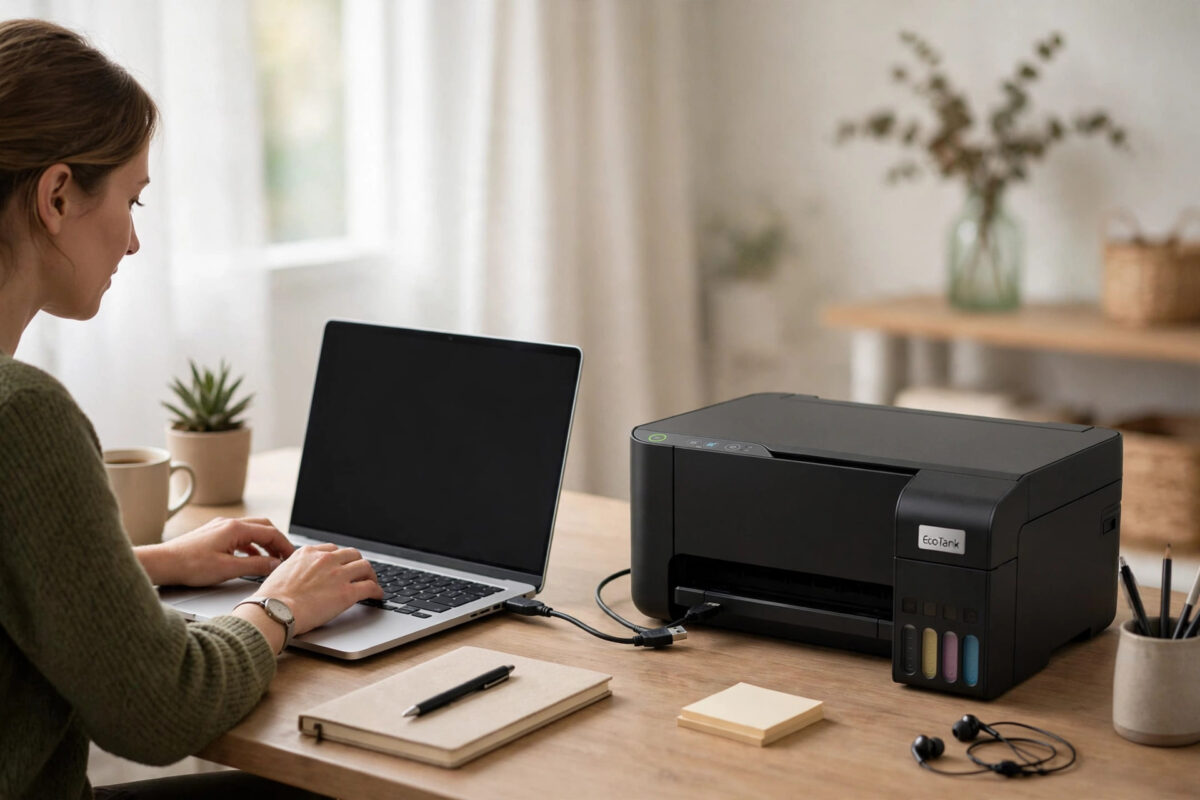
Your Epson EcoTank L3210 was working well, and then it stopped with a message saying the ink pad is at the end of its service life, or that parts inside have reached the end of their life. The printer has ink, the paper is fine, yet it refuses to print. In many cases the physical pads are not soaked at all. The printer has simply reached a count it was programmed to stop at.
That stop is controlled by a waste ink pad counter, and an Epson adjustment program can reset it. This guide explains what the counter does, how the reset works step by step, and why resetting without checking the pads can cause an ink leak later.
Quick Answer
To reset the waste ink pad counter on an Epson L3210, connect the printer by USB, run the Epson adjustment program for the L3210, enter Particular Adjustment Mode, select Waste Ink Pad Counter, tick the main pad counter, and choose Initialization. The printer will print again after a restart. Only do this after checking the waste pads are not actually saturated, or after fitting an external waste tank, because the reset does not remove any ink from the pads.
What the Waste Ink Pad Counter Actually Is
Every time your L3210 cleans its print head, primes ink, or runs a start-up routine, a small amount of ink does not go on paper. That waste ink is directed into absorbent pads hidden in the base of the printer. Over months and years, those pads slowly fill.
Epson cannot fit a sensor that measures how full the pads really are, so the printer estimates it instead. A counter in the printer memory rises with every cleaning cycle and print job. When the estimate reaches a set limit, the printer stops and reports that the ink pad is at the end of its service life. The logic is protective: a truly saturated pad can leak ink inside the machine and onto your desk.
The key point is that the counter is an estimate, not a measurement. Printers that ran many cleaning cycles reach the limit early, sometimes while the pads still have capacity. That gap between estimate and reality is why resets exist, and also why they must be used with care.
Before You Reset: Check the Real Condition of the Pads
Resetting takes five minutes. Cleaning leaked waste ink from inside a printer, or from furniture, takes far longer. Spend a few minutes on these checks first:
- Think about how the printer has been used. Heavy cleaning use and years of daily printing mean the pads have genuinely absorbed a lot of ink.
- Look under and behind the printer for damp patches, ink smell, or staining on the surface below.
- If your regional L3210 version has an accessible waste area, inspect it following the manual. Do not open screwed panels if you are not confident.
- Decide your plan for waste ink going forward: replace the pads, have a technician replace them, or route waste to an external tank if you reset regularly.
If the printer is still under warranty, stop here and contact support instead. A reset with third-party software can complicate a warranty claim, and pad service may be covered. Confirm your cover through the Epson support and service options page.
What You Need for the Reset
- A Windows computer, since the adjustment program is a Windows tool.
- A direct USB cable connection to the L3210. Do not attempt this over Wi-Fi.
- The adjustment program version that lists the L3210 or its supported L-series range.
- Administrator access on the computer.
- About 15 minutes without interruptions, and no print jobs queued.
A caution about downloads: some shared copies carry malware. Download only from a source you trust, scan the file with antivirus, and never pay a site that demands card details for this tool.
Step by Step: Resetting the Counter With the Adjustment Program
- Connect and prepare: Plug the L3210 into the computer with USB, load paper, keep ink above the minimum line, and turn the printer on. Cancel pending jobs.
- Open the program: Extract the downloaded folder, right-click the program file, often named AdjProg, and choose Run as administrator.
- Select model and port: Choose the L3210 as the model. Set the port to the specific USB port showing your printer rather than Auto Selection if several printers are installed.
- Open Particular Adjustment Mode: From the main menu, select this option. A list of service functions will appear.
- Choose Waste Ink Pad Counter: Find the maintenance section and open this item.
- Check current values: Tick the Main Pad Counter box and choose Check. Many users find values near or above 100 percent, confirming the counter caused the stop.
- Run initialization: Tick the Main Pad Counter box again if needed, then choose Initialization to reset the counter to zero and confirm.
- Restart when prompted: Turn the printer off, wait a few seconds, and turn it back on. This completes the reset.
- Verify: Reopen the counter screen and use Check again. The main pad value should now read zero or near zero.
- Print a test page: Print a nozzle check and a simple document to confirm normal operation.
If the program reports a communication error, change the USB cable or port, close other printer software, and try again. Communication failures are the most common reason a reset appears not to work. Our guide on Epson L3210 blinking light errors and what they mean helps you confirm the service message, and not a second fault, stopped your printer.
What to Do About the Physical Pads After Resetting
The reset solves the software stop. It does nothing about ink already inside the pads. You have three realistic options:
- Service replacement: A service centre or technician replaces the pads and resets the counter as part of the job. This is the cleanest option for a printer you depend on daily.
- External waste tank: Experienced users route the waste tube to a small external bottle, so waste ink never reaches the internal pads again. This involves opening the printer.
- Monitored continued use: If the pads were checked and were far from saturated, continue printing and inspect under the printer regularly for leakage.
Do not reset the counter again and again with no inspection at all. Each reset removes the printer’s only warning system. Eventually a truly full pad will overflow, and waste ink in the base can reach boards and motors.
Common Problems During the Reset
- The program does not list the L3210: You have a version for a different range. You need the build that includes L3210 support.
- Communication error at the check step: Use a short, direct USB cable, avoid hubs, select the exact port manually, and close the standard Epson monitor.
- Counter resets but the error stays: Turn the printer fully off and on as instructed, then check both the main pad counter and any platen pad counter shown. Both may need initialization.
- Antivirus blocks the program: Do not ignore this lightly. Scan the file, verify your source, and consider whether the risk is worth it.
- Date or expiry message: Some shared builds are date-sensitive. This is a known quirk of unofficial copies and another reason to prefer service for work machines.
Mistakes and Tips From Real Resets
- Do not reset over Wi-Fi: Wireless connections drop during service functions. USB only, every time.
- Do not skip the before-and-after readings: The percentages prove the counter caused the fault and prove the reset worked.
- Do reduce cleaning cycles afterwards: Head cleanings are the fastest way to refill the counter. Print regularly instead.
- Do keep a simple log: Note the date of each reset and rough page count. Two resets in a short period means the pads truly need attention.
Epson’s own position is that pad service is a technician job, and its guidance is published on the Epson contact and support information page. The DIY route is effective and common, but it transfers responsibility for the pads from the printer to you.
Conclusion
Resetting the waste ink pad counter on an Epson L3210 with an adjustment program is a short process: connect by USB, open Particular Adjustment Mode, read the main pad counter, initialize it, and restart. Done carefully, it returns a healthy printer to service when the counter estimate, rather than truly soaked pads, caused the stop. The essential discipline is everything around those five minutes: inspect the pads first, use a trusted program copy, verify the counter reads zero afterwards, and make a real plan for the waste ink that will keep accumulating.
Frequently Asked Questions
Is resetting the waste ink pad counter on the L3210 safe?
Resetting your own printer is a common owner practice, and copies of the tool shared online vary in safety, so scan your download carefully. The physical risk is not the reset itself; it is ignoring genuinely saturated pads afterwards. Inspect first, and the process is reasonable for an out-of-warranty printer.
Why does my L3210 need a reset again a few months later?
The counter rises fastest with head cleaning and power cleaning. If you clean often, or if only one counter was reset last time, the limit returns quickly. Reduce cleaning, fix the cause of any clogging, and check both counters at each reset.
Can I reset the L3210 counter without the adjustment program?
No button combination or driver setting on the L3210 resets this counter. Some third-party utilities claim to do it, but they use the same service functions and carry the same cautions. Be wary of any tool demanding payment per reset.
Will resetting the counter improve print quality?
No. The counter only controls the service-life stop. Quality problems such as missing lines or faded colours have separate causes, usually clogged nozzles or low ink, and remain after a reset until you address them directly.
How do I know if my pads are really full?
Signs include a long history of heavy cleaning, ink odour around the base, dampness or staining under the printer, and a counter that reached its limit after years of service rather than quickly. A technician can inspect the pads directly for certainty.
Leave a Reply