
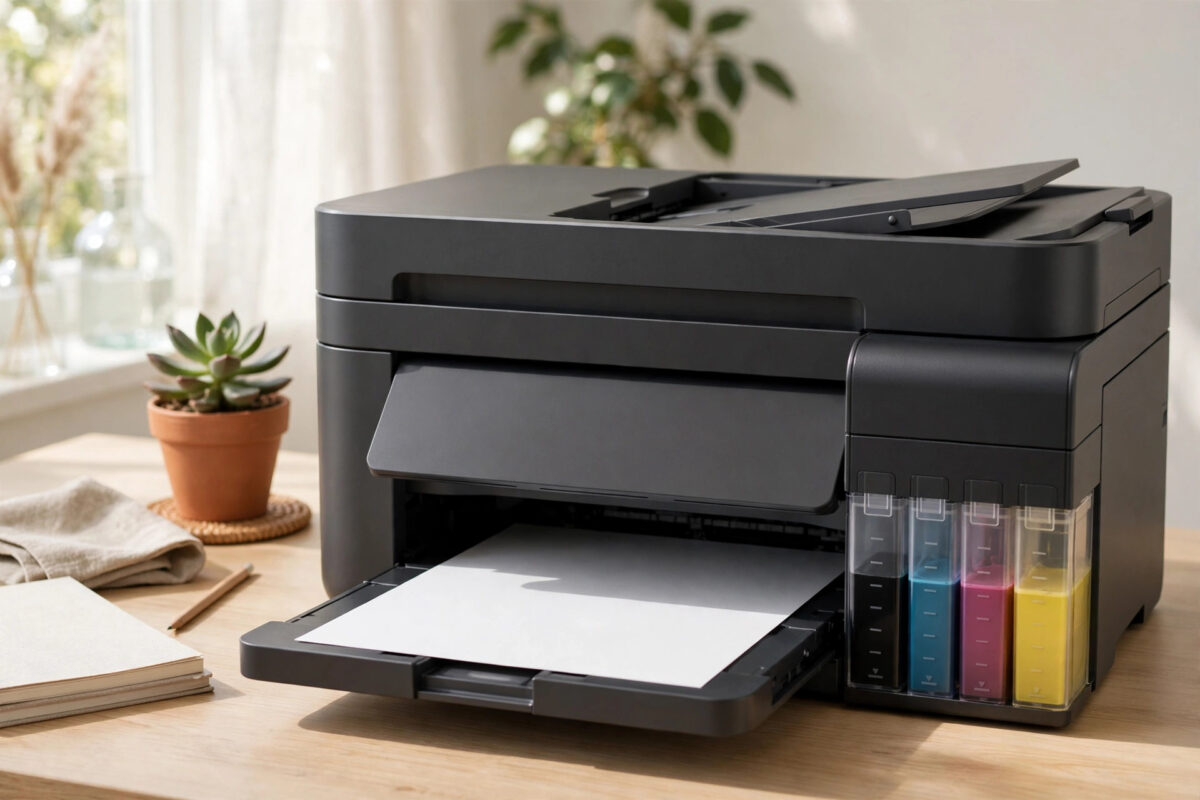
You refilled the tanks on your Epson EcoTank ET-2850, pressed print, and the printer handed you a completely blank page. It sounds normal, the paper feeds normally, but there is no ink on the page at all, or only the faintest trace. This is one of the most common EcoTank problems, and it is very fixable.
Blank pages after a refill are rarely caused by a serious refill mistake. The real cause is usually air in the ink system, a tank cap issue, or nozzles that dried out while the tanks ran low. This guide works through the causes in the right order, from two-minute checks to a proper cleaning cycle.
Quick Answer
An Epson EcoTank ET-2850 printing blank pages after a refill is usually suffering from air in the ink lines or clogged print head nozzles. First confirm the tanks are filled above the minimum line and the caps are closed, then run a nozzle check from the maintenance menu. If the pattern is broken or missing, run one head cleaning cycle and test again. Most cases clear within one or two cleaning cycles once ink is flowing properly.
How the EcoTank Ink System Works
Unlike cartridge printers, the ET-2850 stores ink in tanks at the front. Ink travels through thin tubes to the print head. The system relies on steady pressure and on there being no large air gaps in the tubes.
When a tank runs completely dry, or sits very low for a long time, air can enter the tubes. The print head then tries to print with air instead of ink, and you get blank pages even though the tanks now look full. Refilling does not instantly push that air out; the printer needs its charging and cleaning routines to pull ink through again.
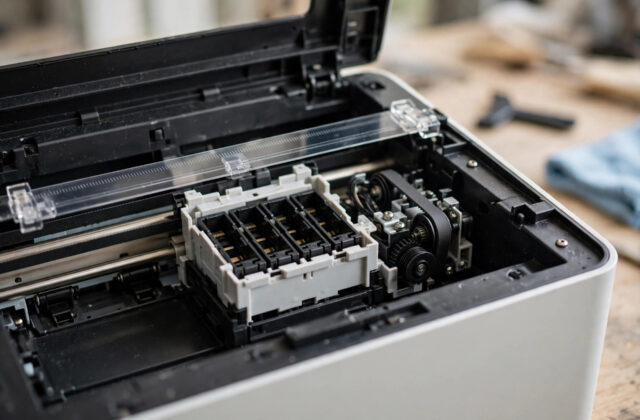
The print head itself can also be the problem. If the printer sat unused while ink was low, the tiny nozzles dry and block. Ink reaches the head but cannot leave it, and the result on paper looks the same: blank.
First Checks: Do These Before Any Cleaning
- Check ink levels by eye: Every colour you print with must be above the lower line on the tank window. A tank that looks half full in poor light may be nearly empty.
- Confirm the right ink: The ET-2850 uses Epson 502 ink bottles (103 in some regions). The bottle nozzle only fits its matching tank, but check black went into the black tank if you refilled several colours.
- Close the tank caps properly: Each cap must be pushed fully closed and the tank cover shut. A loose cap changes the air pressure the system expects.
- Check print settings: Confirm the document has content by testing with a simple test page, and rule out a blank file or wrong mode.
- Reload the paper: Two sheets can feed stuck together, with the hidden sheet taking the ink. Fan the stack before reloading.
These checks take five minutes and solve a surprising number of cases. Move to cleaning only after them, because cleaning uses ink and should not be your first guess.
Step 1: Run a Nozzle Check
The nozzle check is your best diagnostic tool. It prints a small pattern for each colour without involving your computer or document.
- Load plain A4 or letter paper in the rear tray.
- On the printer screen, open the settings or maintenance menu.
- Select nozzle check and let the printer print the pattern.
- Look closely. A healthy pattern shows clean, unbroken grids for black, cyan, magenta, and yellow.
- Broken lines mean clogged nozzles. A missing colour means ink is not reaching the head for that colour. A fully blank sheet means no ink is flowing at all.
Your result decides the next step. Broken lines call for head cleaning. A fully blank sheet after a refill points more strongly to air in the system or an ink charging problem. For help reading these patterns, see our guide on running an Epson nozzle check and head cleaning correctly.
Step 2: Run One Head Cleaning Cycle, Then Test
- From the maintenance menu, select head cleaning and start the cycle.
- Wait until it finishes completely. It takes a few minutes, with pumping and wiping sounds. Do not turn the printer off midway.
- Run another nozzle check and compare it with the first.
- If the pattern improved but is not perfect, run one more cycle.
- If two cycles bring no improvement, stop. More cycles waste ink, fill the waste pad faster, and rarely fix what two could not.
After cleaning, patience helps. Let the printer sit for 30 minutes to a few hours, then run a fresh nozzle check. Tiny air bubbles often settle while the printer rests, and a pattern that looked hopeless can improve on its own.
Step 3: If Pages Are Still Blank, Check Air and Charging
- Was ink charging completed? After the first fill, and sometimes after tanks run fully dry, the printer needs a long charge to pull ink through the whole system. If power was cut or the tank unit was opened during that process, repeat the set-up or ink flushing option your manual describes.
- Look at the ink tubes: With the unit open you can see sections of tube. Large visible air gaps in a colour tube confirm air has entered that line.
- Use power cleaning once, carefully: Most EcoTank models offer a stronger power cleaning in the maintenance menu or driver. It pushes much more ink through and can clear air and stubborn clogs. Use it once only, because it uses a lot of ink and shortens waste pad life. Epson explains this function on the Epson support page for EcoTank maintenance.
- Check the paper type setting: A mismatch will not cause fully blank pages, but a photo printed with plain paper settings can look extremely faint. Match the setting to your paper.
If a power cleaning also gives a fully blank nozzle check, the problem is likely physical: a damaged damper, a disconnected tube, or a failed print head. At that point home steps are exhausted and service is the sensible move.
Why This Happens Right After a Refill
- Letting tanks run dry first: The lower line exists for a reason. Refilling while some ink remains keeps air out of the tubes.
- Mixing inks or using poor substitutes: Third-party inks with different thickness can flow poorly and clog faster. Genuine Epson ink is formulated for these heads.
- Printing a large job immediately: After refilling from very low levels, run a nozzle check first. A small test confirms ink is flowing before you commit 30 pages.
Mistakes and Tips: Getting Ink Flowing Again
- Do not run endless cleaning cycles: Two normal cycles and at most one power cleaning is a sensible limit.
- Do not shake the printer: It does not prime the system and risks spilling ink inside.
- Do not syringe ink into the head yourself: Pressure in the wrong place can rupture the head or dampers on an ET-2850.
- Do print regularly: One small colour page each week keeps nozzles wet and is the cheapest maintenance there is.
- Do date opened ink bottles: Ink stored open for years can thicken. Fresh, genuine, sealed ink removes guesswork.
If only one colour is missing, focus on that colour. A single-colour failure usually means air in that one tube or a clog in that section of the head, which is a better situation than a fully blank page.
When to Contact Epson or a Repair Shop
- Pages stay completely blank after cleaning and one power cleaning.
- Ink is leaking inside the printer or pooling under the tank unit.
- The printer reports a maintenance error after your cleaning attempts.
- A colour tube stays visibly empty while its tank is full, and charging does not refill it.
Before you call, note your nozzle check results and how many cycles you ran. That shows the technician exactly where ink flow stops. Warranty details are listed on the Epson contact and warranty information page.
Conclusion
Blank pages from an ET-2850 straight after a refill almost always mean air in the ink lines or dried nozzles, not a broken printer. Confirm the tanks are truly filled and capped, run a nozzle check to see exactly what is missing, and use one or two cleaning cycles, with a rest in between, to pull ink through again. Reserve power cleaning for stubborn cases, and refill next time before the tanks hit empty. Followed in this order, these steps restore normal printing in most homes, without wasting ink or risking the print head.
Frequently Asked Questions
How many head cleaning cycles should I run on my ET-2850?
Run one, check the pattern, and run a second only if you see clear improvement. If two cycles change nothing, rest the printer for a few hours and try once more, or use a single power cleaning. Endless cycles waste ink and fill the waste pad.
Can non-Epson ink cause blank pages after a refill?
It can contribute. Inks with the wrong thickness may flow badly, introduce air, or clog nozzles faster. If blank pages began right after switching brands, that timing is a strong clue. Genuine Epson 502 or 103 ink removes that variable.
Why is only one colour missing on my prints?
A single missing colour usually means air in that colour tube or a clog in that section of the print head. Check that tank level and cap, then focus cleaning on restoring that colour’s nozzle pattern.
How long should I wait between cleaning cycles?
A rest of 30 minutes to a few hours often helps, because small air bubbles settle. Many users find a nozzle check the next morning looks better than one right after cleaning, without using extra ink.
My nozzle check is blank but the printer sounds normal. Is the head dead?
Not necessarily. Normal sounds with a fully blank check most often mean ink is not reaching the head, due to air or an incomplete charge, rather than a dead head. Work through the charging and power cleaning steps first before concluding the head has failed.
Leave a Reply