
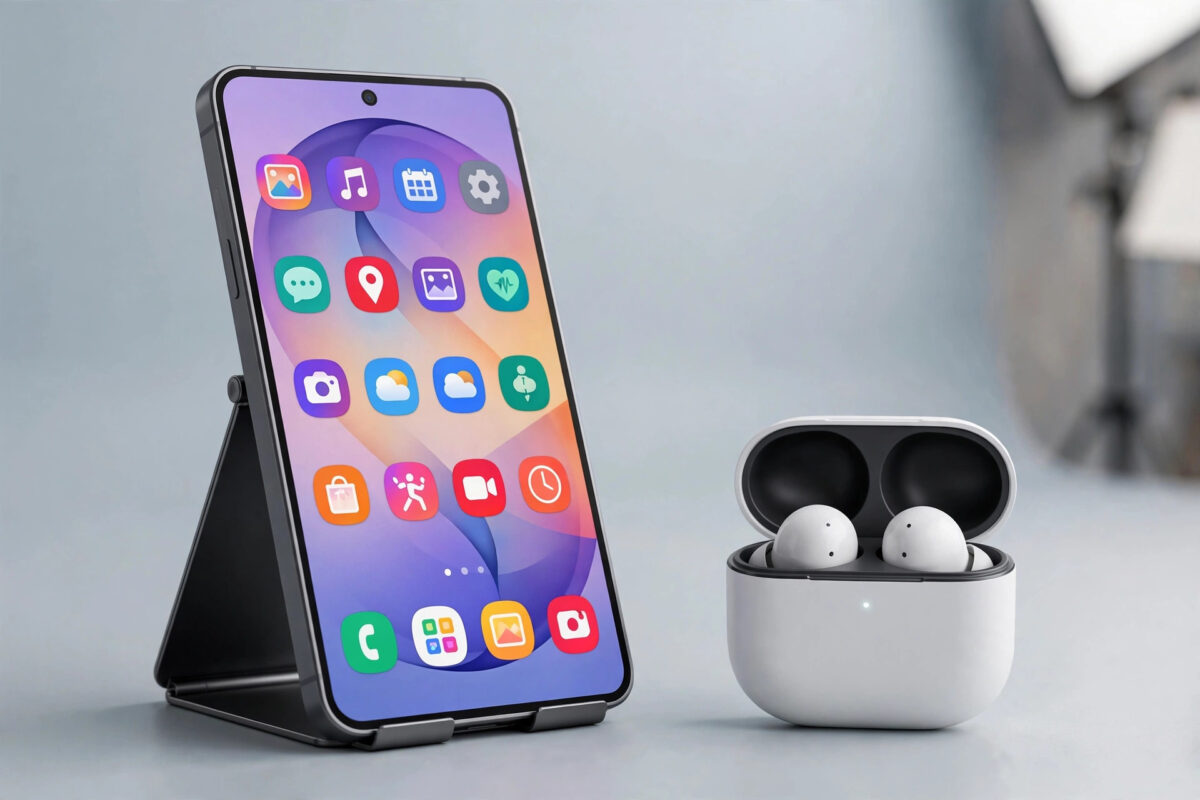
Samsung Galaxy phones pack in more features than almost any other Android phone. The problem is that One UI buries the best ones three menus deep, so most owners never find them.
Whether you have a Galaxy S, Z, or A series phone, these are the hidden features that are genuinely worth turning on today.
Quick Answer
The best hidden Galaxy features are Modes and Routines for automation, Edge panels for quick tools, Secure Folder for private apps, Good Lock for deep customisation, and Labs and gesture shortcuts most people never enable. Most take under a minute each in Settings, and all are free and built in.
Automation and Everyday Shortcuts
1. Modes and Routines: Your Phone on Autopilot
Routines are Samsung’s automation system, similar to shortcuts. You set an “if this, then that” rule once and the phone does it forever.
- Go to Settings > Modes and Routines > Routines.
- Tap the + to create a routine, or pick a ready-made suggestion.
- Try this starter: If I arrive home, then turn on Wi-Fi, unlock sound profile, and open your music app.
2. Edge Panels for Instant Tools
Edge panels give you a swipe-in drawer with apps, contacts, a compass, a ruler, and a clipboard, from any screen.
- Go to Settings > Display > Edge panels and turn it on.
- Tap Panels and add Tools, Clipboard, and People alongside Apps.
- Adjust the handle position and transparency so it does not clash with gestures.
3. Double Press and Side Button Shortcuts
Your side button can do far more than wake the phone. Samsung lets you assign a double press action.
Go to Settings > Advanced features > Side button. Set Double press to Quick launch camera, or choose any app you use constantly, like your authenticator or notes.
Also explore Settings > Advanced features > Motions and gestures. Double tap to turn on screen and Lift to wake are worth enabling on every Galaxy.
4. One-Handed Mode You Can Trigger Anywhere
Large Galaxy screens are hard to use one-handed. One-handed mode shrinks the whole display into easy reach.
Enable it at Settings > Advanced features > One-handed mode. With gestures, swipe down at the bottom edge to trigger it.
Privacy, Security, and Files
5. Secure Folder: A Private Second Phone
Secure Folder creates an encrypted, PIN-protected space with its own apps, photos, and files, completely separate from your main profile.
- Go to Settings > Security and privacy > More security settings > Secure Folder.
- Sign in with your Samsung account and set a separate lock.
- Add banking, work, or private apps and files inside it.
6. Maintenance and Protection Tools Most People Miss
Under Settings > Battery and device care, tap the three dots for Automation and extra options like auto-restart at set times, which keeps the phone running smoothly.
Also enable Auto Blocker under Security and privacy for extra protection. Samsung details Secure Folder on its Secure Folder support guide.
7. Samsung DeX: A Desktop From Your Phone
DeX turns supported Galaxy phones into a desktop when connected to a monitor or TV. Connect with USB-C to HDMI or wirelessly to a Samsung TV, pull down Quick Settings, and tap DeX.
Camera and Gallery Secrets
8. Camera Assistant and Hidden Shooting Modes
Install Camera Assistant from the Galaxy Store to unlock extras like auto lens switching controls, faster shutter options, and cleaner HDMI output.
- Open Camera > More to find Food, Night, Super Slow-mo, and Single Take.
- In Pro mode, save your favourite settings so you do not set them every time.
- Turn on Scan QR codes and Document scan in Camera settings for automatic document straightening.
9. Object Eraser and Gallery Remaster
Your Gallery can remove photobombers without any extra app.
- Open a photo in Gallery and tap the pencil Edit icon.
- Tap the three dots or Tools and choose Object eraser.
- Tap or draw around the person or object and tap Erase.
10. Director’s View and Dual Recording
On supported models, Director’s View in Camera > More records with front and rear cameras at once, or lets you switch lenses while filming without stopping.
Customisation With Good Lock and Labs
11. Good Lock: Samsung’s Official Power Customiser
Good Lock is Samsung’s own customisation suite, free on the Galaxy Store. It is the single biggest hidden upgrade for any Galaxy phone.
Start with these modules:
- Home Up for custom home screen grids, folder styles, and better share menus.
- LockStar to move and resize lock screen items freely.
- Keys Cafe to rebuild your Samsung Keyboard layout and effects.
- Theme Park to build a full theme from your wallpaper colours.
- MultiStar and NavStar for multi-window and navigation bar tweaks.
12. Labs Features: Experimental but Useful
Samsung hides newer ideas under Labs, and some are excellent.
Go to Settings > Advanced features > Labs. Enable multi-window for all apps if you love split screen, and try any new options for your model.
Also check Gallery Labs and Game Booster Labs on gaming models. Features here graduate to normal settings later, so you get them early. For more Galaxy deep dives like these, see our Android tips and guides at Network Ustad.
13. Bixby Text Call and Live Translate
Bixby Text Call answers calls with text: the caller speaks, you see a transcript, and you type replies that are read aloud. It is brilliant in quiet places or for unknown numbers.
Enable it in Phone > Settings > Bixby text call. On Galaxy S24 and newer, Live Translate in the same Phone settings can translate calls in real time on supported languages.
Productivity and Hidden System Tools
14. Clipboard, Smart Select, and Screen Write
Press the Edge panel handle and open Clipboard to see everything you copied recently, not just the last item. Pin useful text so it is never overwritten.
Smart Select, also in Edge panels, lets you capture a rectangle, circle, or animated GIF from any screen, and pin part of a screenshot on top of other apps.
15. Link to Windows and Continuity
Link to Windows, in Settings > Connected devices, mirrors notifications, photos, and texts on your PC. On Samsung tablets, continuity also lets you copy on the phone and paste on the other device.
16 to 25: Quick Wins to Switch On Now
Here are ten more fast wins, each in one line, so you can finish the full list of 25 today.
- Music Share in Bluetooth settings lets friends play music through your connected speaker without pairing to it.
- Call background and video effects in Phone and video call settings blur your background on calls.
- Floating notifications under Settings > Notifications > Advanced turns alerts into bubbles or smart pop-ups.
- Notification history recovers notifications you dismissed by accident. Turn it on before you need it.
- Dual Messenger under Advanced features runs a second copy of WhatsApp or Telegram for a second SIM.
- App pinning in Security settings locks one app to the screen when you lend your phone to someone.
- Video enhancer / Video brightness under Advanced features boosts brightness and colour only inside video apps.
- Protect battery under Battery settings can limit charging to extend long-term battery health.
- RAM Plus under Device care lets you adjust virtual memory. Leave it at the default unless you have a specific reason to change it.
- Maintenance mode in Device care protects your data when you hand the phone in for repair.
Common Mistakes and Tips When Exploring Hidden Features
The biggest mistake is turning on twenty features at once and then forgetting what changed. Enable two or three, live with them for a day, then add more.
Another mistake is downloading third-party apps for jobs the phone already does, like object erasing, screen recording, or QR scanning. Check Samsung’s built-in tools first.
Some features vary by model and region. Good Lock, Bixby Text Call, DeX, and Live Translate are not on every Galaxy A model or in every country, so do not assume your phone is faulty if one is missing.
A useful tip is to use the Settings search bar constantly. Type a word like “Edge,” “Routine,” or “Secure” and Samsung will take you straight to the right screen. Samsung’s support site at Samsung UK support for Galaxy devices is also the best place to confirm whether a feature supports your exact model.
Conclusion
Galaxy phones reward owners who explore. Routines save taps every day, Secure Folder protects what matters, Good Lock makes the phone truly yours, and camera tools like Object Eraser and Single Take improve photos you already take.
None of these 25 features cost anything, and most take less than a minute to enable. Start with the five you need most.
After a week with them, come back for the rest — your Galaxy can do far more than its defaults suggest.
Frequently Asked Questions
Are these features available on all Samsung Galaxy phones?
Most are available on Galaxy S, Z, and recent A series phones running One UI 5 or newer. DeX, S Pen tools, and Live Translate are limited to specific models, so check your model in Settings search or Samsung support.
What is Good Lock and is it safe to use?
Good Lock is Samsung’s official customisation app from the Galaxy Store. It is safe, free, and designed for One UI. Modules like Home Up and LockStar let you customise far beyond the normal settings.
Does Secure Folder use a lot of storage?
Only as much as the apps and files you put inside it. Apps inside Secure Folder are separate copies, so a large game installed in both places will use space twice. Move only what needs privacy.
Will Modes and Routines drain my battery?
No, not noticeably. Routines run inside the system and check simple conditions like time, location, or battery level. Well-made routines, like enabling power saving automatically, can actually improve battery life.
How do I find a feature if my menus look different?
Use the search bar at the top of Settings and type the feature name. One UI versions move menus slightly between updates, but search always finds the current location on your phone.



Leave a Reply