
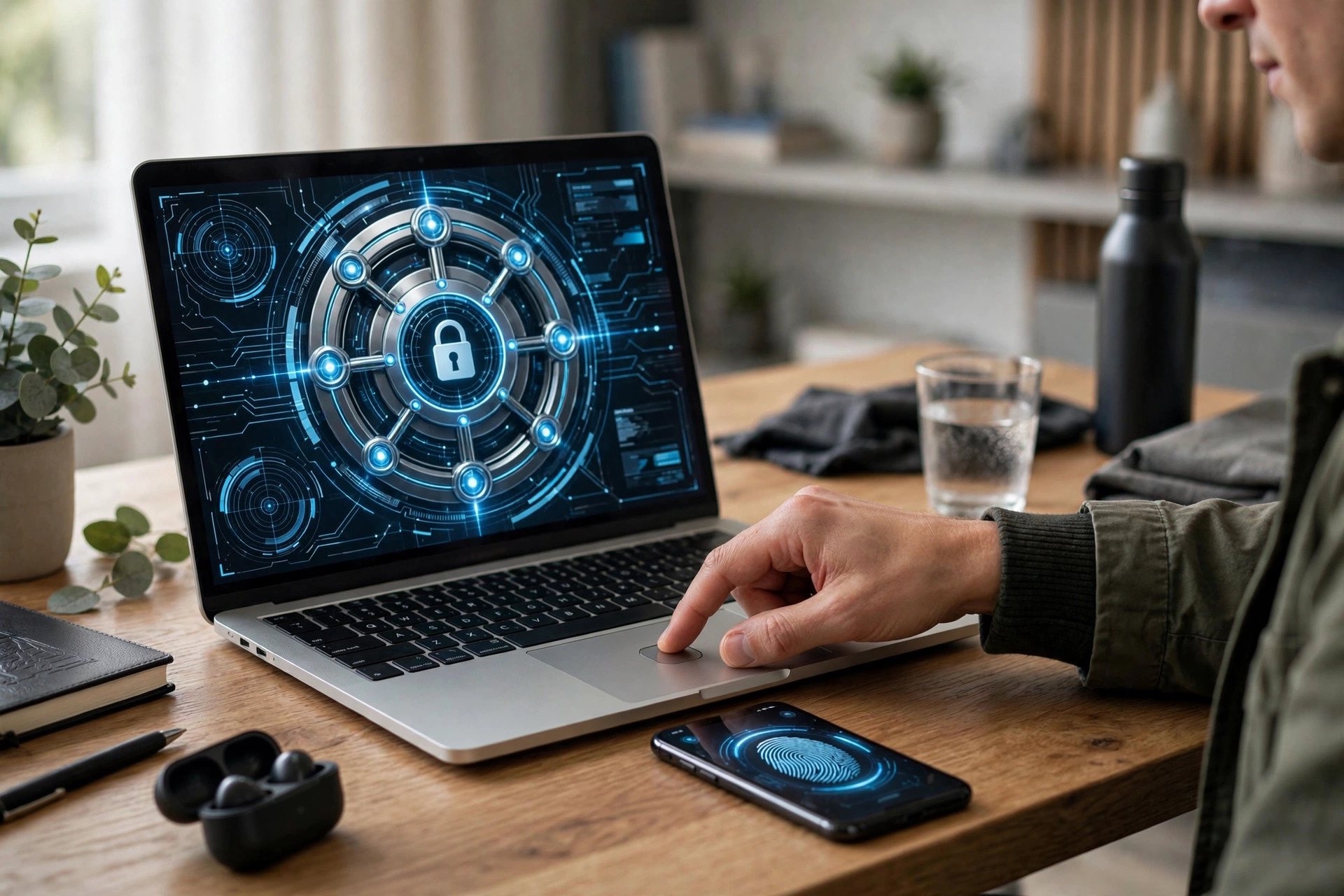
The average person now juggles dozens of online accounts, each demanding a password. Security advice says every password should be long, random, and unique — advice that is simply impossible to follow from memory alone. The predictable result is reuse, and reuse is how one small breach turns into a stolen bank account.
A password manager breaks this trap. It remembers strong, unique passwords for every account so you do not have to, and it fills them in for you in seconds. This guide explains why using one is the single best password decision you can make, and how to judge which options are safest.
Quick Answer
You should use a password manager because it lets every account have a long, unique, random password without you memorising any of them — you only remember one master password.
The safest managers use strong encryption, have been independently audited, support two-factor authentication, and follow a zero-knowledge design where even the company cannot read your vault.
What a Password Manager Actually Does
A password manager is an encrypted vault for your login details. You unlock it with one master password, and the manager does the rest: it generates random passwords when you sign up somewhere new, saves them securely, and auto-fills them when you return to a site or app.
Most managers work across your phone, tablet, and computer, syncing your vault in encrypted form so a password saved on your laptop is available on your phone. Many also store related items such as card details, addresses, and secure notes, and warn you if a saved password appears in a known data breach.
The experience matters day to day. Instead of resetting forgotten passwords constantly, you sign in with a fingerprint or your master password and let the manager handle the credentials. Good security that is also convenient is security people actually keep using.
Why You Should Use One: The Real Benefits
Unique Passwords Everywhere
This is the headline benefit. When every account has a different random password, a breach at one site gives attackers nothing they can use anywhere else. Credential stuffing — the automated testing of leaked logins on other sites — simply stops working against you.
Passwords Stronger Than You Would Ever Type
A manager happily generates and stores a 20-character random string for a shopping site you visit twice a year. No human would create or remember that unaided. Across all your accounts, your overall security jumps dramatically.
Protection Against Phishing
A lesser-known benefit: password managers fill credentials only on the exact website domain they were saved for. If you land on a convincing fake banking page, the manager will not offer your password — a valuable warning sign that something is wrong, before you type anything yourself.
Faster, Easier Sign-Ins
Auto-fill removes the friction that drives bad habits. There is no temptation to pick a simple password for speed when the manager does the remembering and typing. Our guide to building a memorable master password with the passphrase method will help you create the one password you still need to remember.
What Makes a Password Manager Safe?
Trusting one app with all your passwords is a serious decision, so judge candidates against clear criteria rather than marketing claims.
Zero-Knowledge Encryption
The safest design is zero-knowledge architecture: your vault is encrypted on your device using a key derived from your master password, and only the encrypted data ever reaches the company’s servers. The provider cannot read your passwords even if it wanted to — and cannot hand them over or lose them in readable form if it is breached.
Strong, Modern Encryption
Look for AES-256 encryption or an equivalent modern standard such as XChaCha20, which reputable managers state openly in their security documentation. Avoid any product that is vague about how it encrypts data.
Independent Audits and Openness
Trustworthy providers commission regular third-party security audits and penetration tests, and publish the results. Open-source managers go further, letting anyone inspect the code. For example, Bitwarden’s documentation on its encryption and zero-knowledge design explains in plain detail how vault data is protected, exactly the kind of transparency you should expect.
Two-Factor Authentication and Breach Monitoring
The manager itself should support 2FA for signing into your vault on a new device, and ideally alert you when saved passwords appear in breaches or are weak or reused.
Which Password Manager Is Safest?
There is no single official winner, and any reputable, audited manager is vastly safer than reusing passwords or keeping them in a notebook file. Well-regarded options consistently recommended by security professionals include Bitwarden, which is open source and offers a generous free tier; 1Password, known for polished apps and family features; and the password managers built into major platforms from Apple, Google, and Microsoft, which suit people who live entirely in one ecosystem.
Whichever you choose, the safety basics come from how you use it. Pick a manager that meets the criteria above, set a long passphrase as your master password, and turn on two-factor authentication for the vault itself. The guidance from the national Secure Our World programme on using password managers reaches the same conclusion: a reputable manager plus a strong master password is the recommended approach for everyday users.
Be cautious with unknown free managers with no audits, no clear company behind them, and no explanation of their encryption. Your vault holds the keys to your digital life; it is the wrong place to gamble on an obscure app.
How to Get Started, Step by Step
- Choose your manager. Pick a reputable option using the safety criteria in this guide and install it on your phone and computer.
- Create your master password. Use a passphrase of five or six random words, at least 20 characters. This is the one password you must never forget or reuse anywhere else.
- Turn on two-factor authentication for the vault. Protect the manager itself with an authenticator app, and save its backup codes offline.
- Add accounts gradually. Each time you sign into a site over the next few weeks, save the login to the manager. You do not have to import everything on day one.
- Change weak and reused passwords as you go. When you save an account, use the manager’s generator to replace its password with a unique random one, starting with email, banking, and shopping.
- Write down your master password as an emergency backup. Keep it sealed somewhere secure at home. Forgetting it with zero-knowledge encryption means even the provider cannot recover your vault.
Common Concerns, Answered Honestly
People often ask whether putting all passwords in one place creates a single point of failure. It is a fair question. The answer is that the vault is protected by strong encryption and your master password plus 2FA, which is far stronger than the realistic alternative — dozens of weak, reused passwords an attacker can collect from any small breach.
Another concern is cost. Excellent free tiers exist, and paid plans are typically a few pounds a month — cheap insurance compared with the time and stress of recovering even one hijacked email account.
Tips for Getting the Most From Your Manager
Tip 1: Let it generate every new password. Never invent passwords for new accounts yourself again; use at least 16 random characters.
Tip 2: Use the built-in security report. Most managers flag weak, reused, and breached passwords. Work through that list, worst first.
Tip 3: Use secure sharing, not messages. Family plans let you share a streaming or utility login without sending the password in a text that lives forever.
Tip 4: Keep the app updated. Updates patch vulnerabilities. Enable automatic updates for the manager on all devices.
Tip 5: Lock the vault when you step away. Set a short auto-lock time on shared or work computers, and rely on fingerprint or face unlock for convenience on your phone.
Conclusion
A password manager solves the impossible maths of modern passwords. It gives every account a strong, unique password, fills it in for you, warns you about breaches, and even helps you spot phishing pages — all in exchange for remembering one good master passphrase.
Choose an audited, zero-knowledge manager, protect it with a long passphrase and two-factor authentication, and migrate your accounts gradually. Within a few weeks, password stress largely disappears — and your accounts become far harder to compromise.
Frequently Asked Questions
What happens if I forget my master password?
With zero-knowledge managers, the provider cannot reset it or see your data, so recovery may be impossible. That is why you should memorise your passphrase carefully and keep a written copy sealed in a secure place at home as an emergency backup.
Are free password managers safe to use?
Reputable free tiers, such as those from well-known open-source and established providers, use the same encryption as their paid versions. The difference is usually features, not safety. Avoid unknown free apps with no audits or transparency.
Is a password manager safer than my browser’s saved passwords?
Modern browsers have improved a lot and are far better than password reuse. Dedicated managers still lead on cross-platform use, security audits, breach alerts, and secure sharing, which is why most security professionals recommend them.
Can a password manager itself be hacked?
Providers have been targeted, which is exactly why zero-knowledge encryption matters: stolen vault files remain encrypted and useless without each user’s master password. A long, unique master passphrase plus 2FA keeps your vault protected even in that scenario.
Should I store banking passwords in a password manager?
Yes — with a strong master passphrase and 2FA on the vault, a reputable manager is one of the safest places for banking credentials, and it helps you spot fake banking sites because it will not auto-fill on the wrong domain.



Leave a Reply