
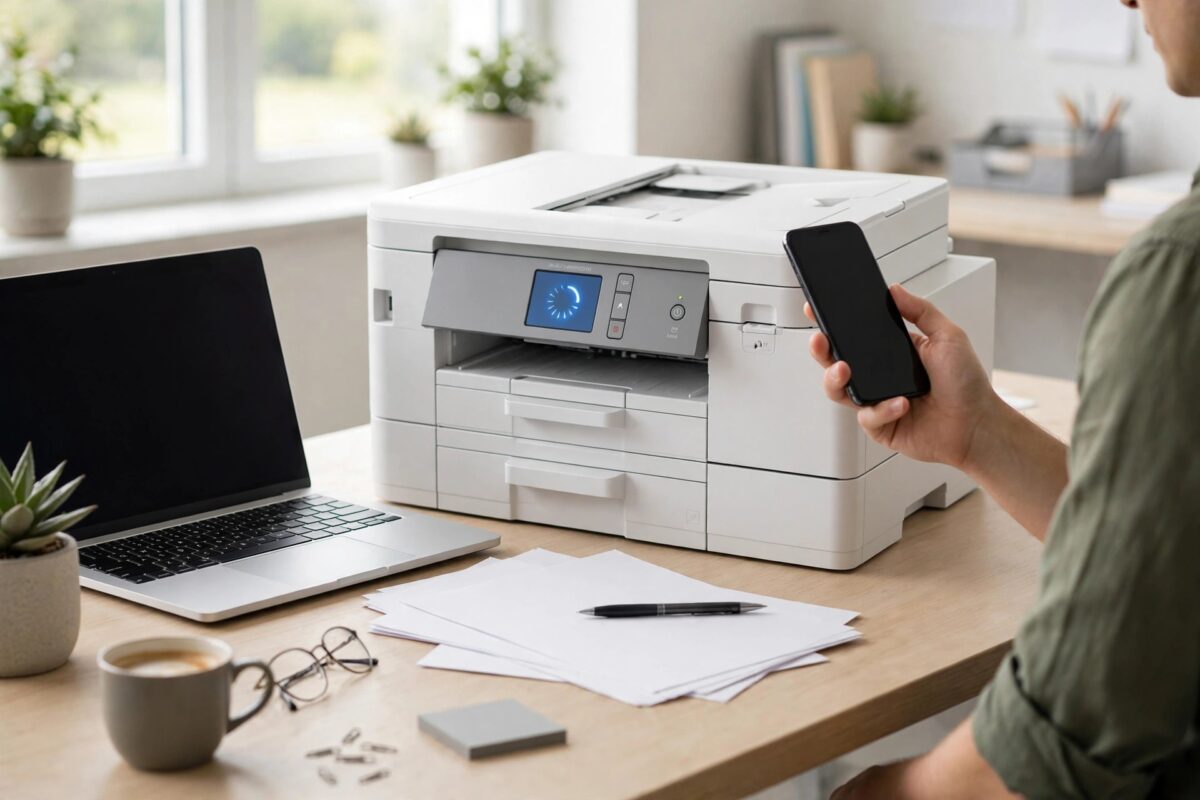
Keeping Brother printer firmware updated fixes bugs, improves Wi-Fi stability, adds support for new operating systems, and sometimes improves print and scan quality. Many owners ignore firmware because printing still works, and then a phone update or router change suddenly breaks the connection. Updating through the Brother iPrint and Scan app is one of the easiest ways to stay current, because you can do it from the phone you already use for mobile printing.
This guide shows you how to check your current firmware, update it safely from the iPrint and Scan app on Android and iPhone, and avoid the mistakes that interrupt an update. It also explains what to do if the app does not show an update, or if your model needs a computer instead.
Quick Answer
To update Brother printer firmware from the Brother iPrint and Scan app, connect your phone and printer to the same Wi-Fi network, open the app, select your printer, open Machine Settings or Maintenance, and choose Firmware Update or Check for Updates if your model supports it. If an update is available, keep the printer powered and connected, confirm the update, and wait until the printer restarts and shows Ready before printing again. If no firmware option appears, your model updates via a computer tool instead.
Why Firmware Updates Matter
Firmware is the software inside the printer itself. It controls how the printer handles print jobs, scanning, Wi-Fi, security, and the control panel. Brother releases updates to fix known faults, such as printers dropping offline, slow AirPrint discovery, scan errors, or problems after a Windows or macOS update. Some updates also add features or improve cloud support.
An update is not the same as a driver update on your computer or an update to the iPrint and Scan app itself. You may need all three at different times. If you update the app but not the firmware, an old printer bug can remain. If you update firmware but use a very old driver on a PC, that PC may still have problems. Keeping both current gives the most reliable result.
Good Reasons to Update Now
- Your printer keeps going offline or is slow to wake from sleep.
- Mobile printing or scanning stopped working after a phone update.
- You changed your router and the printer connection is unstable.
- Brother lists a security or stability fix for your model.
- You are setting up the printer again and want a clean, current start.
Before You Start: Preparation Checklist
A firmware update is simple, but it must not be interrupted. Two minutes of preparation prevents almost every failure.
- Place the printer within good range of your Wi-Fi router. Weak signal is a common reason for a failed transfer.
- Connect your phone to the same Wi-Fi network as the printer. Disconnect from any VPN, and turn off mobile data temporarily if your phone keeps switching networks.
- Make sure the printer shows Ready with no errors such as paper jam, cover open, or empty toner.
- Plug the printer directly into a wall socket. Do not plan to move it during the update.
- Cancel any queued print jobs so nothing tries to print during the update.
- Update the Brother iPrint and Scan app itself from the App Store or Google Play.
- Note your current firmware version from the app or by printing a settings page, so you can confirm the update worked.
The official app features are described on the Brother support site for your printer model and downloads, where you can also confirm whether your model supports firmware updates from mobile.
Step-by-Step: Update Firmware in the iPrint and Scan App
Menu names vary slightly by model, region, and whether you use Android or iOS, but the flow is the same on most current Brother Wi-Fi printers.
- Open Brother iPrint and Scan on your phone or tablet.
- If your printer is not selected, tap the printer name at the top and choose your model from the list on your network. Wait until the app shows it as connected.
- Tap Machine Settings, All Settings, or the gear icon. On some models you tap the printer image, then Machine Info or Maintenance.
- Look for Firmware Update, Update Firmware, or Product Update. Tap it, then tap Check for Update or Check Now.
- If the app says your firmware is up to date, note the version and stop. No further action is needed.
- If an update is found, read the version and notes shown. Tap Update or Start, and confirm when asked.
- Leave the app open and keep your phone near the printer. The app downloads the firmware and sends it to the printer, or prompts the printer to download it directly, depending on the model.
- Watch the printer display. It may show Updating, show a progress bar, and restart one or more times. This is normal. Do not press buttons, open covers, or turn the power off.
- Wait until the display shows Ready. Then check the firmware version again in the app to confirm it has changed.
- Print a small test page and try a scan from the app to confirm both functions work.
What to Do If There Is No Firmware Option in the App
Not every Brother model offers firmware updating inside iPrint and Scan. Some older models, USB-only models, and certain regional versions only update through a computer using the Brother Firmware Update Tool. The absence of the option does not mean your printer cannot be updated.
In that case, go to Brother support on a Windows or Mac computer, enter your model, download the firmware update tool, and run it while the printer is connected by USB or on the same network. Follow the tool prompts exactly and never turn the printer off during the process. Our guide to connecting a Brother printer to Wi-Fi step by step helps if your phone or computer cannot find the printer in the first place.
After the Update: Checks That Matter
- Confirm the version: Compare the new firmware version in Machine Info with the one you noted before.
- Reconnect if needed: Some updates restart Wi-Fi. If the app cannot find the printer, wait two minutes, then reselect it.
- Test core functions: Print from the app, print from a computer, and scan a single page.
- Update other devices: If the firmware fixed a driver-related bug, also update the Brother driver on your computers.
- Check your settings: Review paper size, tray, and default quality. Most updates keep settings, but a quick check avoids a surprise later.
Troubleshooting Failed or Stuck Updates
The App Cannot Find the Printer or an Update
Confirm both devices are on the same network and not on a guest network that isolates devices. Restart the printer, router, and phone in that order, waiting for the printer to show Ready before reopening the app. Disable any VPN on the phone.
The Update Stops or Shows an Error
Note the error wording, leave the printer powered, and try again once you have improved the Wi-Fi signal. Move the phone closer to the router and printer for the retry. If the same error returns, use the computer firmware tool for your model instead, as described in the Brother support troubleshooting and FAQ library.
The Printer Does Not Come Back to Ready
Give it a full five minutes after the last restart sound or display change. If it stays on an Updating screen far beyond the normal time, contact Brother support before power cycling, and tell them the model, starting firmware, and what the display shows. Interrupting a firmware write at the wrong moment can require service, so expert guidance matters here.
Common Mistakes and Best Practice Tips
- Turning the printer off during an update: This is the most serious mistake. Always wait for Ready, even if the printer seems quiet.
- Updating over a weak or different network: Guest networks, hotspots, and VPN connections cause failures.
- Confusing app updates with firmware updates: Updating iPrint and Scan in the app store does not update the software inside the printer.
- Starting with a pending error: Clear jams, close covers, and resolve toner or ink errors before you begin.
- Skipping the test print afterwards: A quick test confirms printing and scanning before you need the printer urgently.
Conclusion
Updating Brother firmware from the iPrint and Scan app is straightforward when your model supports it: connect to the same Wi-Fi, open Machine Settings in the app, check for an update, and let the printer finish and restart without interruption. Prepare properly, confirm the new version, and test print and scan afterwards. If your model shows no firmware option in the app, use the official computer tool for the same result. Keeping firmware current is one of the simplest ways to keep a Brother printer stable, secure, and compatible.
Frequently Asked Questions
Will a firmware update delete my printer settings or Wi-Fi details?
Usually no. Most updates keep network settings, address book, and print preferences. It is still wise to note key settings before updating and to check paper and tray settings afterwards.
Can I update firmware if my printer is connected by USB only?
The mobile app method needs a network connection. For USB-only models, use the Brother Firmware Update Tool on a Windows or Mac computer with the printer connected by USB.
Why does the app say my firmware is up to date but Brother lists a newer version?
The app may check by region, or the newer file may be available as a computer tool first. Download the tool from Brother support for your exact model and region to get that update.
Is it safe to use the printer while firmware is updating?
No. Do not print, scan, open covers, or press buttons during the update. Wait until the printer restarts fully and shows Ready, then test with a single page.
How often should I check for Brother firmware updates?
Every few months is enough for most home and small office users, or sooner if you have a fault that an update is listed to fix.
Leave a Reply