
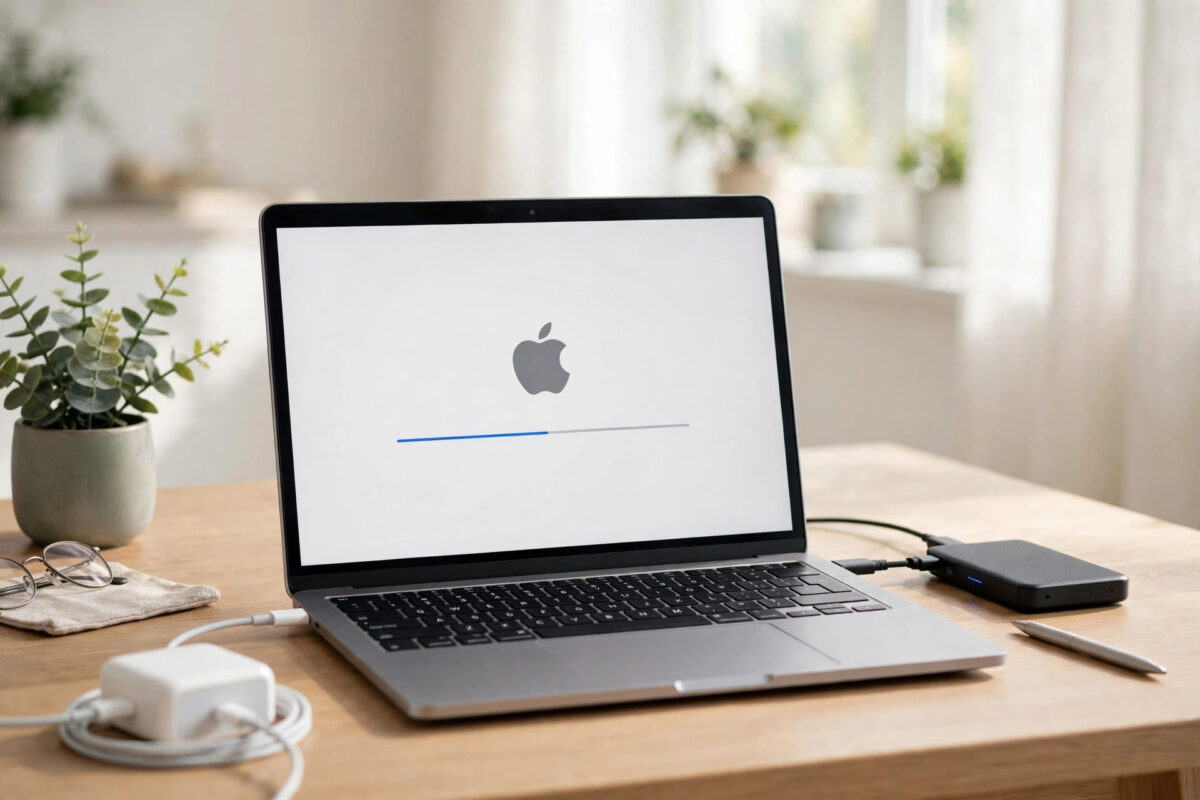
Updating macOS keeps your MacBook secure, fixes bugs, and often improves battery life and speed. At the same time, many people delay updates because they fear losing files, breaking an app they need for work, or being stuck with a laptop that will not start during a busy week. Those worries are understandable, but they are easy to manage with a little preparation.
The safe way to update is not complicated. You check that your MacBook supports the new version, back up your data, free some space, connect to power, and then install the update at a time when you do not urgently need the machine. This guide walks you through every step in order, so your update finishes smoothly with nothing lost.
Quick Answer
To update macOS to the latest version safely, back up your Mac with Time Machine first, connect to reliable Wi-Fi and plug in your charger, then go to System Settings, General, and Software Update, and click Update Now or Upgrade Now. Keep the MacBook open and connected until it restarts and shows the login screen. Never interrupt an update while it is installing.
Why Keeping macOS Updated Matters
Each macOS update does more than add new features. The most important changes are often the ones you never see. Security fixes close holes that harmful websites and apps could use to reach your files. Bug fixes solve Wi-Fi drops, battery drain, sleep problems, and app crashes that many users quietly struggle with for months.
Check That Your MacBook Supports the New Version
Not every MacBook can run every version of macOS. Before planning an upgrade, confirm that your model is on the supported list for the version offered to you. While preparing, it is also worth using our guide on how to check MacBook battery health and cycle count so any battery service can be planned at the same time.
- Click the Apple menu and choose About This Mac to see your model name and year, such as MacBook Pro 14-inch, 2021.
- Open System Settings, then General, then Software Update. Your Mac will only offer upgrades that Apple supports for your hardware in most cases.
- If you want to double-check a major upgrade, read the compatibility list on the official Apple page for that macOS release before installing.
Prepare Your MacBook Before Updating
Good preparation is what makes an update safe. Spend fifteen minutes on these steps and you remove almost all of the risk.
Back Up Everything First
A backup is your safety net. If anything goes wrong, and it very rarely does, a backup lets you restore your files and settings exactly as they were. The easiest method is Time Machine with an external drive. Connect the drive, open System Settings, then General, then Time Machine, and make sure a fresh backup completes before you update. If you use a cloud backup service instead, confirm that your most recent documents and photos have finished uploading. Do not start an upgrade on a day when your last backup is months old.
Free Up Enough Storage Space
Major macOS upgrades need a generous amount of free space to download and install. As a safe rule, aim for at least 25 to 35 gigabytes free before a major upgrade, and at least 10 gigabytes for a small update. Check your space in System Settings under General, then Storage. Delete large downloads you no longer need, empty the Trash, and move big video files to an external drive if space is tight. An update that runs out of space midway is one of the most common causes of a failed install.
How to Update macOS Step by Step
With preparation done, the update itself is straightforward. Follow these steps carefully and then leave the MacBook alone to finish.
- Click the Apple menu and open System Settings.
- Click General in the sidebar, then click Software Update.
- Wait while your Mac checks Apple’s servers. Any available update or upgrade will appear with its size and a short description.
- Click Update Now for a small update, or Upgrade Now for a major new version.
- Enter your administrator password if asked, and agree to the license terms for a major upgrade.
- Let the download complete. You can usually keep working during the download stage, but avoid starting anything important.
- When prompted, click Restart to begin installation, or wait for the Mac to restart on its own if you chose that option.
- Leave the MacBook open, plugged in, and untouched while the progress bar and Apple logo appear. The screen may go dark or restart more than once. This is normal.
- When the login screen appears, sign in and wait a few minutes. The Mac may feel slow at first while it finishes indexing and background setup.
What to Do After the Update Finishes
The job is not quite done when the desktop reappears. A few quick checks confirm that everything survived the update and is running well.
- Return to Software Update and check again. Sometimes a second smaller update, such as a Safari or security patch, becomes available right after a major upgrade.
- Open your most important apps and files to confirm they launch and your data is intact.
- Check that Wi-Fi, Bluetooth, sound, and any printer or external drive you use are working normally.
- Give the Mac a day before judging battery life or speed. Indexing and photo analysis after an upgrade can use extra power for several hours.
- Make a fresh Time Machine backup once you are happy, so your safety net now covers the new system.
If an app behaves strangely after the update, check the App Store or the developer’s site for an update to that app before assuming macOS is at fault. App updates that match the new system usually appear within days of a major release. Apple also publishes advice for the rare case of a stalled install on its page about what to do if your Mac stops responding during an update, which is worth keeping in mind before you ever need it.
What to Do If an Update Fails or Gets Stuck
First, be patient. A progress bar that seems frozen for twenty or thirty minutes during a major upgrade is often still working. Look for very slow movement, and give a large upgrade at least two hours before deciding it is stuck, especially on older MacBooks.
Common Mistakes to Avoid
- Updating without any backup because previous updates went fine. The one time something fails is the time the backup matters.
- Starting a major upgrade minutes before you need the MacBook for an exam, meeting, or deadline.
- Closing the lid, unplugging the charger, or forcing a shutdown because the progress bar looks slow.
- Ignoring low storage warnings and hoping the installer will manage. Failed updates very often trace back to too little free space.
- Downloading macOS installers from unofficial websites. Only use Software Update or official Apple sources, never third-party download sites.
Conclusion
Updating macOS safely is mostly about preparation, not technical skill. Confirm your model is supported, complete a fresh backup, free enough space, plug in power, and choose a quiet time for the restart. Then let Software Update do its work without interruption, and run a second check afterwards for follow-up patches. Follow this routine for every update and you will get the security and stability benefits of the latest macOS without ever risking your files or your working day.
Frequently Asked Questions
How long does a macOS update usually take?
A small security or bug-fix update often finishes in fifteen to thirty minutes, including the restart. A major upgrade usually takes forty-five minutes to ninety minutes, depending on your internet speed, storage speed, and the age of your MacBook. Older machines and large upgrades sit at the longer end, so always allow more time than you expect.
Will updating macOS delete my files or photos?
No, a normal macOS update is designed to keep all your files, photos, apps, and settings in place. Deletion is not part of the process. However, no technology is perfect, which is exactly why a fresh Time Machine backup before updating is strongly recommended. With a backup, even a rare failure cannot cost you your data.
Should I install a major new macOS version on the first day it is released?
If your MacBook is your main work or study machine, waiting one to three weeks is a wise habit. Early releases occasionally contain bugs that affect specific apps or accessories, and Apple usually fixes the worst of them in the first small update. Security-only updates for your current version, by contrast, should be installed promptly at any time.
Why does Software Update say my Mac is already up to date?
This message means you are running the newest version available for your model, or that a major upgrade is offered separately lower on the same screen. Scroll the Software Update window and look for an upgrade banner. If your MacBook is older, it may have reached the final macOS version its hardware supports, though security patches may still arrive for a while.
Can I use my MacBook while the update is downloading?
Yes, you can usually keep working while the update downloads in the background, as long as you stay connected to power and the internet. Save your work regularly during this stage. Once the installation and restart begin, you cannot use the MacBook at all until the login screen returns, so plan that part for a break in your day.



Leave a Reply