
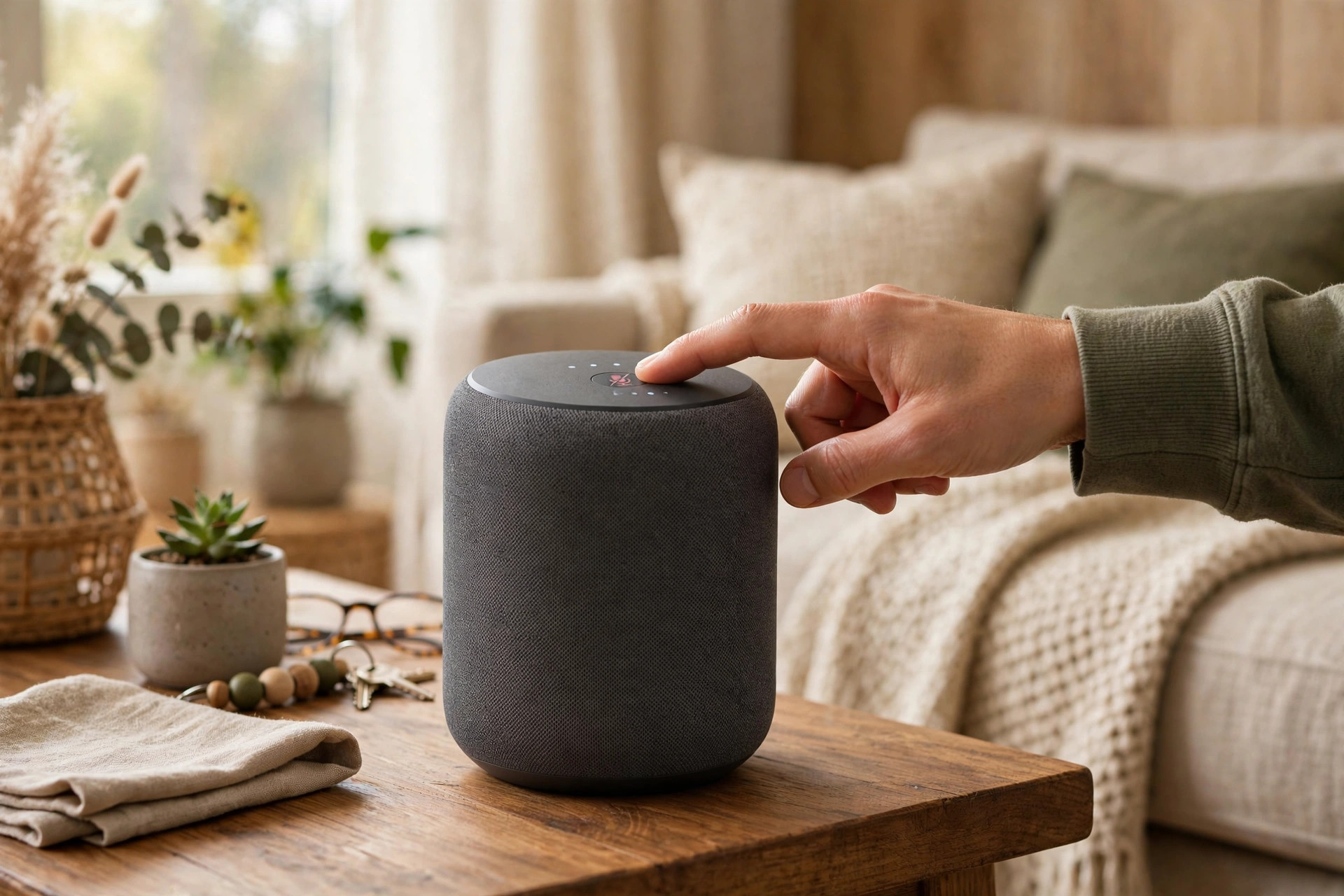
Smart speakers have become a normal part of many homes. They play music, set timers, answer questions, and control lights with a simple voice command. That convenience comes from a microphone that is always listening for a wake word, and that is exactly what makes many people uneasy. If you have ever wondered whether your speaker is recording private conversations, you are not alone.
The good news is that you do not have to unplug the device or give up its useful features to get more privacy. Every major platform — Amazon Alexa, Google Assistant, and Apple HomePod — gives you controls to review recordings, delete stored audio, stop human review, and even mute the microphone completely. The key is knowing where those settings live and which ones actually make a difference.
This guide walks you through practical steps for each major speaker and simple habits that keep your home private.
Quick Answer
You can stop most unwanted recording by muting the microphone when you are not using the speaker, turning off voice history saving in the companion app, and regularly deleting stored recordings. On Alexa, Google, and Siri devices, disable human review and auto-save options, review your activity weekly, and place speakers away from private areas like bedrooms for the strongest protection.
How Smart Speakers Actually Listen and Record
Understanding the technology helps you make better choices. A smart speaker does not normally stream everything you say to the cloud all day. Instead, it listens locally for its wake word — such as Alexa, Hey Google, or Hey Siri. Only after it thinks it heard that word does it start recording and sending audio to the company’s servers for processing.
Problems happen in two ways. False activations are common — a TV show or similar-sounding word can trigger the device by mistake. Companies have also saved recordings to improve speech recognition, sometimes with human review. Privacy settings let you opt out, but they are rarely on by default.
How to Stop Alexa From Recording and Saving Conversations
Amazon Echo devices offer the most detailed privacy dashboard, but the options are spread across the Alexa app and your Amazon account page. Work through these steps in order for the best result.
- Mute the microphone physically. Press the microphone off button on top of your Echo. A red light means the microphone is disconnected — the only setting that guarantees no listening.
- Open privacy settings. In the Alexa app, go to More, then Settings, then Alexa Privacy. This opens the central hub for recordings and permissions.
- Review and delete voice history. Tap Review Voice History, filter by date range or device, listen to any unexpected clips, and choose Delete All Recordings for that range. Repeat this monthly.
- Turn off voice recording storage. In Alexa Privacy, select Manage Your Alexa Data. Under Voice recordings, choose the option to not save recordings or to auto-delete them after three months. Shorter retention means less risk.
- Disable human review and improvement use. In the same Manage Your Alexa Data screen, turn off the toggle that allows Amazon to use your voice recordings to improve Alexa services. This stops your clips being used for training and manual review.
- Check smart home permissions. Review which skills have access to your microphone, location, or contacts, and remove any skill you no longer use or do not recognise.
How to Stop Google Assistant Speakers From Saving Audio
Google Nest and Home speakers link to your Google Account activity controls. If you use Google services on your phone as well, these changes will affect both, which is usually a benefit.
- Use the mute switch. On most Nest speakers, slide the physical microphone switch on the back or base. The device will announce that the mic is off and show orange lights. No wake word will work until you switch it back on.
- Pause voice and audio activity. Visit your Google Account activity controls in a browser or the Google Home app. Find Voice and Audio Activity and pause it, or set auto-delete to three months.
- Review My Activity. Search your activity history for Assistant entries, play back any clips you do not recognise, and delete them individually or clear the full Assistant history.
- Turn off personal results in private spaces. In the Google Home app, select your speaker, open Settings, then Privacy, and limit personal results so calendar entries, messages, and other private details are not read aloud to anyone in the room.
- Enable Guest Mode. Say Hey Google, turn on Guest Mode when visitors are over. In Guest Mode, interactions are not saved to your account and personal results are disabled.
Google provides detailed guidance on these controls through its official Google Nest privacy and microphone help pages, which are worth bookmarking if you add more devices later.
How to Protect Privacy on Apple HomePod
Apple takes a more restrictive approach by design. Siri requests are associated with a random identifier rather than your Apple ID in the same way as other platforms, and audio is not retained unless you opt in to sharing. You should still check the settings, especially in a shared home.
- Turn off Listen for Hey Siri. In the Home app, press and hold your HomePod, open Settings, and disable Listen for Hey Siri. You can still use Siri by touching the top of the device.
- Disable analytics sharing. In the same settings screen, turn off the option to share audio recordings to improve Siri and Dictation if it is enabled.
- Delete Siri history. On an iPhone or iPad linked to the HomePod, go to Settings, Siri and Search, then Siri and Dictation History, and delete the history for that device.
- Limit personal requests. Restrict personal requests to when your iPhone is nearby and authenticated, so guests or children cannot access messages, reminders, or notes through the speaker.
Placement and Household Habits That Reduce Risk
Settings are only half the solution. Where you place a speaker and how your household uses it has a big impact on what it can accidentally capture.
- Keep speakers out of bedrooms and bathrooms. A kitchen or living room speaker gives you most benefits with far less exposure to private conversations, calls, and sensitive discussions.
- Keep speakers away from TVs and radios. Distance reduces false activations from adverts or programmes that say a wake word or a similar phrase.
- Use mute during sensitive conversations. Make it a habit to press mute before discussing finances, health, work matters, or anything you would not want transcribed and stored.
- Review who is in your household account. Remove old phones, former housemates, and unused voice profiles. Each added profile is another path to your history.
- Check indicator lights. Learn what the light on your device means. If it activates when no one spoke to it, review that recording the same day and consider moving or muting that speaker.
For broader home protection, combine these habits with strong account security. Use a unique password and two-factor authentication on the Amazon, Google, or Apple account that controls the speaker. Our practical guides to securing your home technology and personal accounts cover those account basics step by step for non-technical readers.
Common Mistakes to Avoid
- Assuming mute in the app is the same as hardware mute. Only the physical mute button or switch disconnects the microphone. Software settings can change after updates.
- Deleting recordings but leaving auto-save on. Without changing retention, your history simply grows back within weeks.
- Forgetting linked accounts. Recordings live in your cloud account, not just on the device. Secure that account with two-factor authentication.
- Placing a speaker next to a work computer. Confidential calls and meetings are the most common source of accidental sensitive recordings.
- Never reviewing history. A two-minute monthly review is the fastest way to spot false activations and misbehaving skills or routines.
- Ignoring children’s profiles. Set up kid accounts with stricter filters and no purchase or personal results access.
Conclusion
You do not need to choose between a helpful smart speaker and a private home. By using the hardware mute, turning off long-term recording storage, disabling human review, and deleting existing history, you remove the main risks while keeping everyday features working. Add sensible placement and a monthly two-minute review, and your speaker becomes a tool you control rather than one you worry about.
Start with one device today. Mute it when it is not needed, clear its history, and change its retention setting. Once you have done it once, the same routine takes less than five minutes for every other speaker in your home.
Frequently Asked Questions
Does my smart speaker record everything I say all day?
No, under normal operation it listens locally for a wake word and only records after activation. False activations do happen, which is why reviewing your voice history and using mute during private conversations are important safeguards.
Can I still use my speaker if I turn off recording storage?
Yes. Core features like music, timers, alarms, weather, and smart home control still work. You may lose some personalisation, such as voice-based recommendations, but most households notice very little difference in daily use.
How often should I delete my voice history?
If you leave storage enabled, review and delete at least once a month. A better option is to set auto-delete to three months or turn off saving entirely, then spot-check your history every few weeks for unexpected activations.
Is muting the microphone enough on its own?
Hardware mute is the strongest single step because the device cannot hear while muted. It does not delete recordings already stored in your account, so combine muting with deleting history and securing your account password.
What should I do if I find a recording I did not trigger?
Delete that clip, check which device captured it, and move that speaker away from TVs or busy conversation areas. If false activations keep happening, keep that unit muted by default and only enable it when you intend to use it.



Leave a Reply