
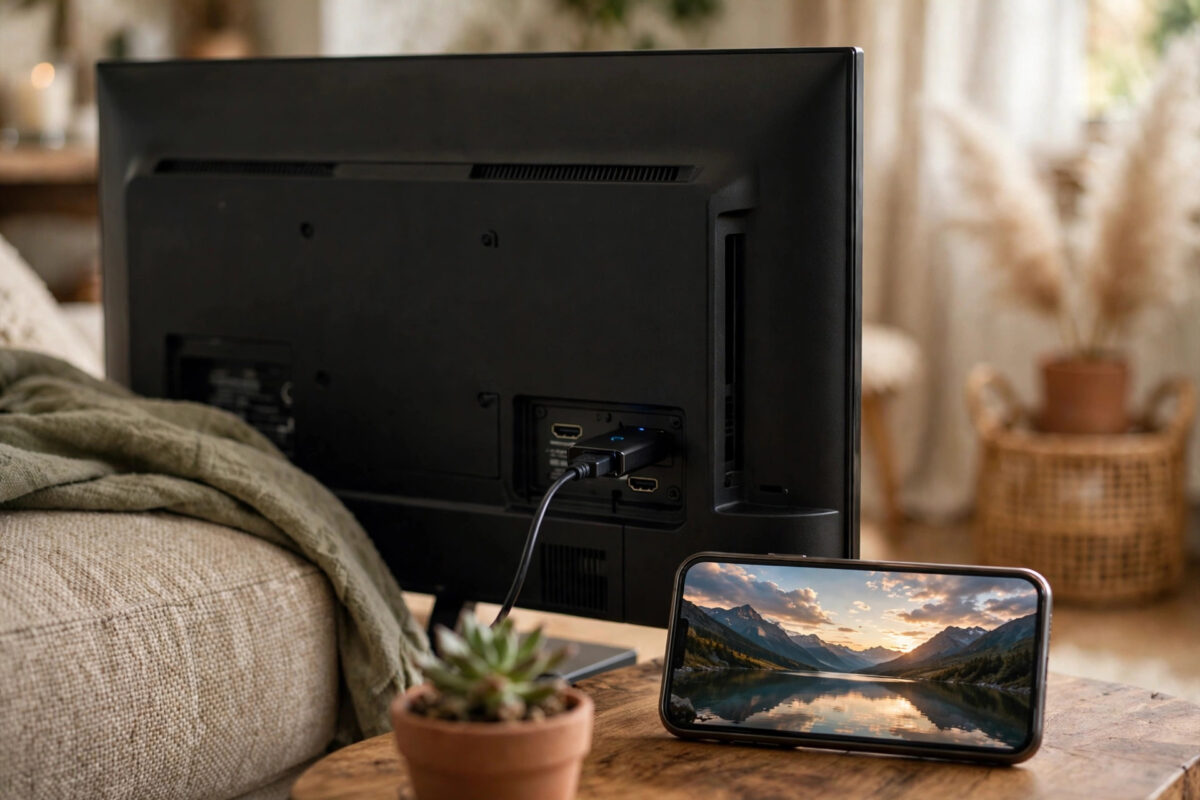
A Chromecast turns almost any TV with an HDMI port into a smart TV: you find a video, song, or photo on your phone and “cast” it to the big screen in one tap. Setup is the same whether you have a Chromecast with Google TV (the oval model with a remote) or an older plug-only Chromecast — the difference is that the newer model also has its own apps and home screen. This guide covers the full process for both, plus the Wi-Fi and guest-mode settings that make casting smooth for everyone in the house.
Quick Answer
Plug the Chromecast into an HDMI port and into power (use the wall adapter, not a TV USB port), switch the TV to that input, then open the Google Home app on your phone, tap Devices > Add > New device, and follow the prompts to connect it to your Wi-Fi. On the Chromecast with Google TV, you can also complete setup using the included remote on the TV screen itself.
What You Need
- A TV with a free HDMI port (any TV from the last 15 years qualifies — it does not need to be “smart”).
- A phone or tablet with the Google Home app installed and Bluetooth on.
- Your Wi-Fi name and password. Chromecast works on 2.4GHz and 5GHz networks.
- The power adapter from the box. TV USB ports often supply too little power and cause random restarts — the wall adapter avoids this entirely.
- A Google account for the Chromecast with Google TV; the older models can be set up with one too and work better with it.
Step-by-Step Setup
- Plug in the Chromecast: Connect it to an HDMI port and plug the power cable into a wall socket. Note which HDMI number you used.
- Switch the TV input: Use the TV remote’s Source/Input button to select that HDMI port. You should see a Chromecast welcome or setup screen. If you see “No signal”, reseat the HDMI connector and check the power light on the Chromecast.
- Open Google Home on your phone: Tap Devices, then Add, then New device. Choose the home to add it to.
- Let the app find the Chromecast: It appears as “Chromecast” followed by a setup number. Tap it.
- Match the code: Your phone shows a four-character code; confirm the same code appears on the TV. This makes sure you are setting up your Chromecast and not a neighbour’s.
- Choose the Wi-Fi network and enter the password. On Android, the app may offer the password saved on your phone.
- Name the device by room (“Living Room TV”) — this name is what you will say to a Google Assistant speaker later and what appears in casting lists.
- Finish the optional steps: link streaming services, choose ambient-mode photos, and let the device install its first update. Leave it plugged in until the update completes, even if it seems slow.
For the Chromecast with Google TV, you can instead pick up its remote at the welcome screen and set everything up on the TV directly: language, Wi-Fi, Google account sign-in (a QR code makes this quick), and app selection. Google’s own Chromecast support pages show screenshots for each model if you get stuck on a particular screen.
Your First Cast
Open YouTube, Netflix, Spotify, or another cast-enabled app on your phone, start playing something, and tap the Cast icon — a rectangle with a Wi-Fi symbol in the corner. Choose your Chromecast from the list. The TV takes over the stream; your phone becomes the remote for pause, volume, and seeking. The phone is not mirroring — you can use other apps or even lock the phone and the video keeps playing, because the Chromecast pulls the stream directly from the internet.
To cast something without a cast button — a phone photo or your whole screen — open the Google Home app, tap the Chromecast, and choose “Cast my screen”. For non-smart TVs this is also one of the main routes for mirroring, as our guide on mirroring your phone screen on a non-smart TV explains alongside the cable and stick alternatives.
Settings Worth Knowing
Guest Mode (older Chromecast models)
Guest mode lets visitors cast without joining your Wi-Fi: the Chromecast emits a PIN (shown on its idle screen) that guests enter in their app. Enable it in Google Home > your Chromecast > Settings > Guest mode. Handy for parties; turn it off again if you prefer a closed house.
Ambient Mode
Choose what the TV shows when idle: your Google Photos albums, curated artwork, or a clock and weather. Personal photos need you to select an album in the device settings — the Chromecast never shows your whole library.
HDMI-CEC: One Remote Behaviour
If your TV supports HDMI-CEC (every brand calls it something different: Anynet+, Simplink, Bravia Sync, Viera Link), casting from your phone can automatically switch the TV on and jump to the right input. Enable CEC in the TV’s settings if this does not happen. The Chromecast article on Wikipedia lists each generation’s capabilities if you are unsure which model you own.
Troubleshooting
- The app cannot find the Chromecast: Make sure the phone is on the same Wi-Fi network, Bluetooth is on, and the Google Home app has location permission. Move closer to the TV during setup.
- The cast icon is missing in apps: Your phone is probably on a guest network, a VPN, or mobile data. Reconnect to the home Wi-Fi and reopen the app.
- Video buffers constantly: The Chromecast’s Wi-Fi signal is weak behind the TV. Move the router closer, use the HDMI extender from the box to reposition the dongle, or switch the Chromecast to the other Wi-Fi band in its settings by forgetting and re-adding the network.
- Chromecast keeps rebooting: Almost always underpowered USB. Use the supplied wall adapter.
- Factory reset: Hold the button on the Chromecast itself until the light changes (about 25 seconds on newer models) if you are moving it to a new house or giving it away.
Common Mistakes to Avoid
- Powering it from the TV’s USB port: It works until it doesn’t — brownouts during updates can corrupt the device.
- Setting it up on a guest or extender network with a different name: Your phone must be able to reach the Chromecast on the same network to cast.
- Ignoring the first update: Casting reliability improved a lot in later firmware; let it finish before judging performance.
- Confusing casting with mirroring: Casting hands the stream to the Chromecast (better quality, phone stays free); mirroring copies your screen (more delay, phone stays busy).
Conclusion
Chromecast setup is a ten-minute routine: HDMI, proper power, the right TV input, then the Google Home app handles the rest — code matching, Wi-Fi, naming, and updates. Once it is done, the cast button in your favourite apps does everything. Keep it on the wall adapter, keep phone and Chromecast on the same network, and even a decade-old TV behaves like a modern smart TV.
Frequently Asked Questions
Does Chromecast work on a TV that is not smart?
Yes — that is its main purpose. Any TV with an HDMI port works, including old plasma and LCD models. The TV just needs to display the HDMI input; all the smart features live in the Chromecast itself.
Do I need a Google account to use Chromecast?
For the Chromecast with Google TV, yes, to sign in and download apps. Older Chromecast models can cast from apps without heavy account use, but setup through Google Home still works best with a Google account signed in.
Can I cast from an iPhone?
Yes. Cast-enabled apps like YouTube, Netflix, and Spotify on iPhone have the same cast button. Whole-screen mirroring from an iPhone is the exception — iOS does not mirror to Chromecast natively, though some third-party apps offer workarounds.
Why does casting stop when I lock my phone?
It should not for proper casting — the Chromecast streams independently. If playback stops, you were probably using screen mirroring instead, or your phone’s battery settings killed the controlling app; exempt Google Home and your video app from battery optimisation.
Can I use Chromecast without Wi-Fi, in a hotel or caravan?
It needs a network, but it can be a phone hotspot: set up the Chromecast on the hotspot network using a second device, or change its network in Google Home each time. Hotel Wi-Fi with a login page usually will not work without workarounds such as a travel router.



Leave a Reply