
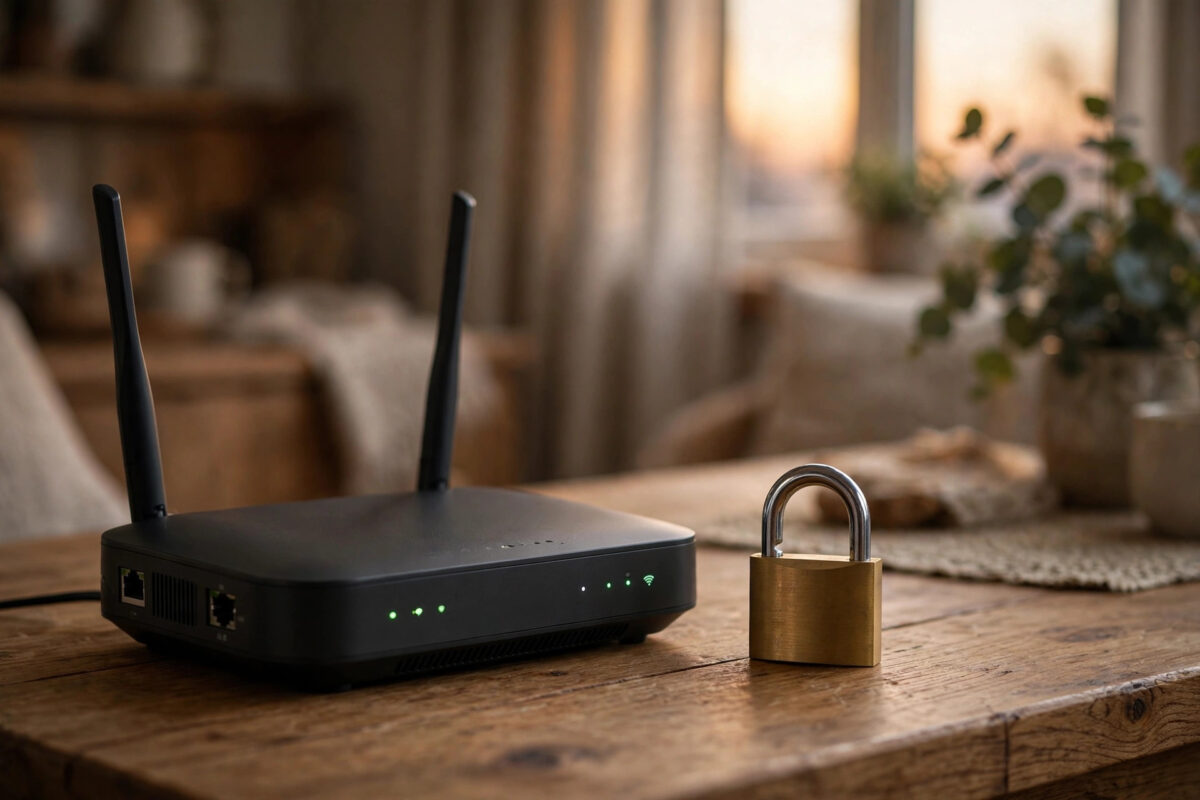
Your evening stream starts buffering, your game pings jump for no reason, and pages that loaded instantly last week now crawl. One of the most common hidden causes is simple: someone outside your home is using your Wi-Fi.
Sometimes it is a neighbor who once got your password for a quick favor. Sometimes it is a stranger who guessed a weak password in minutes.
Either way, they slow you down, eat into any data allowance, and create a real security risk. This guide shows you how to lock your broadband down properly, step by step.
Quick Answer
Secure your broadband by changing the default router admin password, using WPA3 or WPA2-AES with a long unique Wi-Fi password of at least 16 characters, disabling WPS and remote management, updating firmware, and reviewing connected devices. Remove anyone you do not recognize and never share your main password again.
How Neighbors Get Onto Your Network in the First Place
Most unwanted access is not sophisticated hacking. It is an old password shared too widely, a default password printed in a manual, or a router left on outdated security settings for years.
Once someone is on your Wi-Fi, they are inside your home network. That is a very different position from someone attacking you from the internet.
Warning Signs Someone Else Is Using Your Wi-Fi
Look for speeds that drop at predictable times, such as evenings when neighbors are home. Check for unknown device names in your router list, like an unfamiliar phone or laptop that never leaves.
Other clues include your data usage rising without explanation, smart lights or speakers behaving oddly, and the router activity light flashing heavily when all your own devices are off.
Why It Matters Beyond Slow Speeds
Anyone on your network can potentially see shared folders, printers, and smart devices that trust local connections. They can also use your connection for activity that appears to come from your address.
That is why securing Wi-Fi is not just about performance. The guidance on securing home devices and networks from the UK National Cyber Security Centre stresses strong passwords and up-to-date software for exactly this reason.
Step-by-Step: Lock Down Your Router Properly
Work through these steps in order. The whole process takes about 20 minutes, and you will only need to reconnect your own devices once at the end.
- Connect a laptop to the router with an Ethernet cable or your current Wi-Fi, then open the admin page, usually 192.168.0.1 or 192.168.1.1.
- Sign in and change the router admin password immediately if it is still admin, password, or the default printed on the label.
- Open Wireless Security settings and set the mode to WPA3-Personal if available, or WPA2-AES if not. Never use WEP or WPA-TKIP.
- Create a new Wi-Fi password of at least 16 characters using three or four random words plus numbers, and apply it to both the 2.4 GHz and 5 GHz bands.
- Turn off WPS, including PIN mode, in the wireless settings.
- Disable remote management, WAN-side administration, and any cloud access you do not actively use.
- Save the settings, let the router reboot, and reconnect only your own devices with the new password.
Choosing a Password That Actually Holds Up
Length beats complexity tricks. A passphrase like correct battery staple style phrases is far stronger than a short password full of symbols that you will forget and write on a note by the router.
Never reuse your email or banking password for Wi-Fi, and never use your address, family names, or the network name itself. Attackers try those first because they are publicly visible.
What to Do About the Network Name
Change the default SSID, the Wi-Fi name, so it does not reveal your router model. A name like the default from the manufacturer tells a neighbor exactly which exploits to try.
Do not put your house number or surname in the name either. Pick something neutral that your household recognizes but that reveals nothing personal.
If you want a deeper walkthrough before you start, our guide to changing your Wi-Fi password and router security settings safely covers the menus on the most common UK routers.
Check Who Is Connected and Remove Strangers
Changing the password kicks everyone off, but you should still audit the device list to understand what was there and to confirm only your devices return.
- In the router admin pages, open Attached Devices, DHCP Clients, or Connected Devices.
- List every phone, laptop, TV, console, and smart device in your home and match them one by one to the list.
- Turn off Wi-Fi on a device you suspect and refresh the list to confirm its identity before removing anything.
- Block or remove any MAC address you cannot identify, and note it down in case it reappears.
- Repeat this check once a month. It takes two minutes and catches new problems early.
Use a Guest Network for Visitors
Almost every modern router offers a guest network. Turn it on for visitors, tradespeople, and neighbors who genuinely need temporary access.
Guest networks keep visitors off your main network, so they cannot reach your computers, storage, or smart home controls. Change the guest password whenever you like without reconnecting all your own devices.
Extra Settings That Make a Real Difference
Once the basics are done, a few additional settings close the loopholes that basic guides often miss.
Keep Firmware Updated
In the router’s System or Administration section, check for firmware updates and install any that are offered. Enable automatic updates if the option exists.
Outdated firmware is one of the easiest ways into a home router. Manufacturers patch known flaws quietly, so a router that has not been updated in two years should be treated as vulnerable.
Turn Off Features You Do Not Use
Disable UPnP if you do not need it for gaming or media servers, and turn off port forwarding rules you no longer recognize. Each open service is another door into your network.
Also disable the old 2.4 GHz WPS push-button window after setup is finished. Leaving pairing modes permanently on defeats the point of a strong password.
Position and Range
You cannot stop your signal reaching next door, walls and distance weaken it but never contain it fully. What you can do is place the router centrally in your home, away from front windows and shared walls.
That improves your own coverage while reducing the usable signal outside. It is a small gain, but combined with WPA3 and a long password, it makes casual piggybacking impractical.
Common Mistakes to Avoid
The biggest mistake is sharing the main Wi-Fi password out of politeness and never changing it. One shared password can spread to an entire street within months.
Another is hiding the SSID and thinking the network is now secure. Hidden networks are still discoverable with free tools, and hiding the name can make your own devices less secure when they search for it away from home.
People also leave the router admin page on its default login because it is convenient. That is the single most dangerous shortcut, because anyone on the Wi-Fi, or in some cases from the internet, can then reconfigure your whole network.
Finally, do not ignore firmware warnings or keep a router that no longer receives updates. If the manufacturer has abandoned it, replace it, a basic modern router costs far less than dealing with a compromised network.
Conclusion
Securing your broadband from neighbors comes down to a short list done properly: a unique admin password, WPA3 or WPA2-AES, a long Wi-Fi passphrase, WPS and remote management off, and firmware kept up to date.
Add a guest network for anyone who visits, check your connected devices monthly, and change the password the moment you suspect it has spread. Do that once, carefully, and your connection stays fast, private, and yours alone.
Frequently Asked Questions
How can I tell exactly which devices are neighbors?
Compare the router’s connected device list against every device in your home, matching names and MAC addresses shown in each device’s Wi-Fi settings. Anything left over after you account for TVs, consoles, and smart plugs should be blocked and investigated.
Will changing my Wi-Fi password kick neighbors off immediately?
Yes. Once you save a new password and the router reboots, every device must reconnect with the new password. Devices that only knew the old one stay disconnected, which is why you should also change the admin password at the same time.
Is WPA3 really necessary, or is WPA2 enough?
WPA2-AES with a long password is still strong for home use. WPA3 is better, especially against offline password guessing, so use it if your router and devices support it, and use the mixed WPA2 and WPA3 mode during transition if older devices struggle.
Can my neighbor slow me down even without my password?
They cannot use your broadband allowance without access, but heavy Wi-Fi use next door can cause interference on crowded 2.4 GHz channels. Switching to 5 GHz where possible and choosing a less congested channel in your router settings usually fixes that.
Should I tell my neighbor I know they used my connection?
Usually there is no need for a confrontation. Change your passwords, secure the router, and the problem ends quietly. If you suspect deliberate hacking or any illegal activity through your connection, keep router logs and contact your provider for advice.

Leave a Reply