
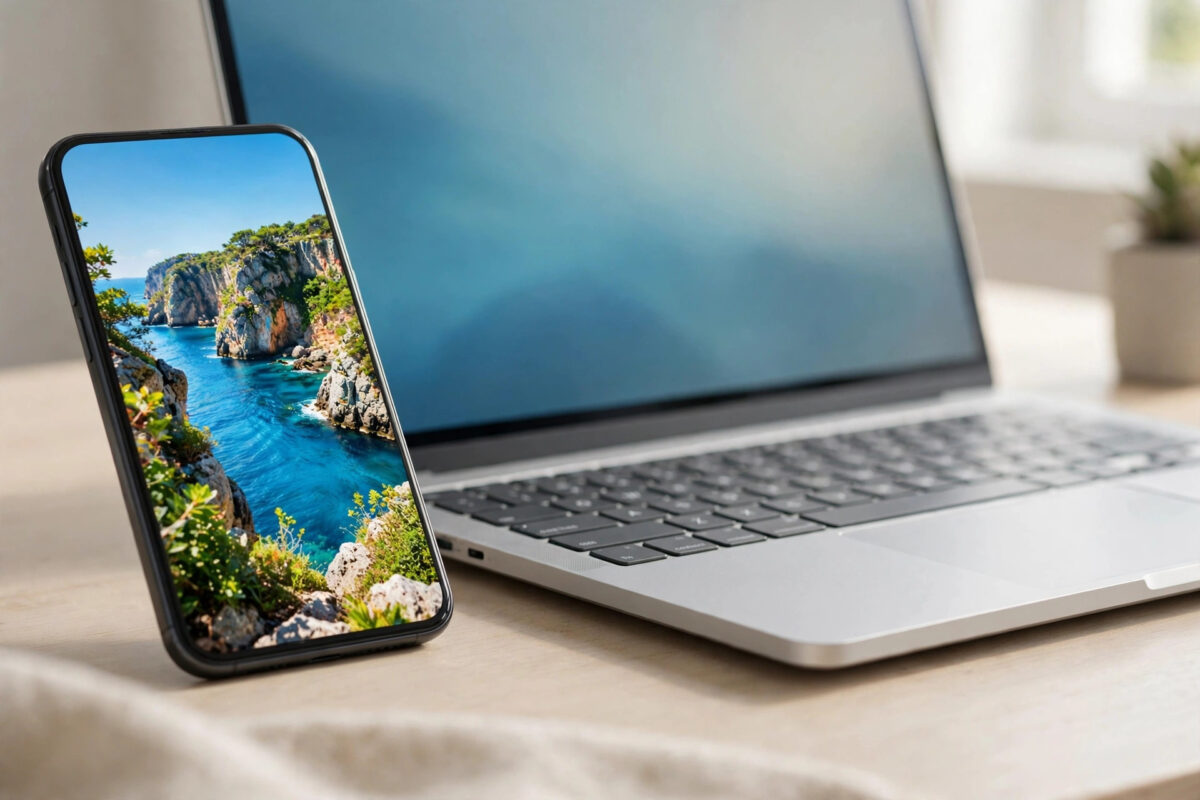
If you use an iPhone, you have probably met the HEIC format without realising it. Your photos look perfect on your phone, but they refuse to open on Windows, fail to upload to websites, or get rejected by printing services.
The good news is you do not need to install anything to fix this. Free online converters can turn HEIC photos into widely compatible JPG files in under a minute.
Quick Answer
Upload your HEIC photo to a free online converter such as CloudConvert or heictojpg, select JPG as the output, and download the result. The whole process takes 30 to 60 seconds per photo and needs no software install or account on most free tools.
What Is HEIC and Why Does It Cause Problems?
HEIC stands for High Efficiency Image Container. Apple adopted it as the default photo format on iPhones and iPads to save storage space.
An HEIC photo can be roughly half the size of a similar JPG at the same quality. That efficiency is helpful on your phone, where storage is limited.
The problem is compatibility. Many Windows apps, older photo editors, government portals, and job application sites still do not support HEIC properly.
JPG, by contrast, works almost everywhere. Every browser, editor, printer, and social platform accepts JPG without extra codecs or plugins.
Apple explains the format and sharing options in detail on the Apple Support guide to HEIF and HEVC media formats, which is worth reading if you shoot a lot on iPhone.
Converting to JPG does not mean you should delete your originals. Keep HEIC files as your archive and create JPG copies only when you need to share or upload.
What to Check Before You Convert
Check how many photos you need to convert. Free online tools are perfect for one to twenty images, but large batches can be slow.
Check your internet connection as well. HEIC files from newer iPhones can be large, and uploading them on slow mobile data is frustrating.
Consider privacy before you upload. Family photos are usually fine on reputable converters, but avoid uploading sensitive documents or private images to unknown sites.
Most trusted converters delete files automatically after a short period. Still, you should read the privacy note on the tool you choose before proceeding.
Finally, decide on quality. Most converters let you keep high quality, which is best for printing, or reduce size slightly for faster sharing.
How to Convert HEIC to JPG Online: Step by Step
Method 1: Using a general converter like CloudConvert
- Open your browser and go to a trusted HEIC to JPG converter website.
- Click the button to select files and choose the HEIC photo from your device.
- Confirm the output format is set to JPG or JPEG.
- Click the options icon if you want to adjust quality or resize the image.
- Click Convert and wait for the upload and conversion to finish.
- Click Download to save the new JPG file to your device.
- Open the downloaded file to confirm it looks correct before sharing it.
This method works on Windows, Mac, Android, and Chromebook. You do not need an Apple device to convert files someone sent you.
Method 2: Using a dedicated HEIC converter
- Open a dedicated HEIC to JPG site in your browser.
- Drag and drop one or more HEIC files onto the page.
- Wait while the tool processes the files automatically.
- Preview the converted images if the tool offers a preview.
- Download each JPG individually or download all as a ZIP file.
Dedicated tools are often faster for batches because there are fewer settings. General converters give you more control over quality and size.
Whichever route you choose, test with one photo first. That way you can check quality and file size before converting a whole set.
If you convert photos often, explore more browser utilities in our Online Tools guides and tutorials on NetworkUstad to speed up everyday file tasks.
How to Convert on iPhone Without a Website
Your iPhone can also create JPG copies without any converter. This is useful when you have no internet or prefer not to upload files.
- Open Settings on your iPhone and tap Camera.
- Tap Formats and choose Most Compatible to shoot in JPG from now on.
- To convert existing photos, open the Files app method or share via Mail, which often converts automatically.
- Alternatively, go to Settings, then Photos, and set Transfer to Mac or PC to Automatic for JPG on transfer.
Changing the camera format affects only new photos. Existing HEIC photos in your library stay as HEIC until you convert or share them.
Online converters remain the best option when you are on a Windows PC. They need no settings changes and work with photos from any source.
Quality, Size, and Metadata: What Changes?
A common worry is whether JPG conversion ruins photo quality. In practice, a high-quality JPG conversion looks identical for normal viewing and printing.
JPG uses lossy compression, so some data is discarded. At quality settings of 85 to 95 percent, the difference is invisible to most people.
File size usually grows when you move from HEIC to JPG. That is expected, because HEIC was designed to be more efficient than JPG.
Metadata needs attention too. Good converters preserve the date, location, and camera details stored in the original file.
Some free tools strip metadata to reduce size. If location or date matters for your records, check the downloaded file properties afterwards.
Colour can shift slightly on some tools, especially with HDR iPhone photos. Compare the JPG against the original on the same screen before a big batch.
Best Practices for Batch Conversion
Organise your HEIC files into one folder before you start. Uploading from a single folder is faster and reduces the chance of missing a photo.
Convert in small groups rather than one huge upload. If your connection drops, you will lose less progress and can retry quickly.
Use a consistent naming habit for outputs. Many tools keep the original name and only change the extension, which keeps your library tidy.
After downloading, spot-check three or four images at full zoom. Look at faces, text in the background, and bright skies for artefacts.
Keep your original HEIC files until you are fully satisfied. Storage is cheap compared with losing an original photo you cannot retake.
Common Mistakes and Tips
The most common mistake is uploading private photos to an unknown converter with no privacy policy. Stick to well-known tools for personal images.
Another mistake is choosing the lowest quality setting to save space. The saving is small, but the loss in detail for prints can be obvious.
Many users convert the same photo repeatedly from a JPG copy. Always convert from the original HEIC file to avoid compounding quality loss.
Do not forget to check orientation. A few tools mishandle rotated iPhone photos, so confirm portraits are not sideways after conversion.
If a website still rejects your upload after conversion, check its size limit. You may need to resize the JPG as well as change its format.
Tip for Windows users: install the free HEIF extensions only if you need previews. For simple sharing and uploading, JPG conversion is still simpler.
Conclusion
Converting HEIC photos to JPG online for free is quick, safe on reputable tools, and solves almost every compatibility problem in one step. Upload, convert, download, and your photo will work everywhere.
For one-off photos, a dedicated converter is fastest. For batches and quality control, a general converter with settings is the better choice.
Keep your HEIC originals as your archive, use JPG copies for sharing, and you will get the storage benefits of HEIC without the headaches.
Frequently Asked Questions
Is it safe to convert HEIC photos online?
Yes, if you use a reputable converter that deletes files after processing. Avoid unknown sites for sensitive images and check the privacy policy first.
Will converting HEIC to JPG reduce quality?
At high quality settings the difference is not visible in normal use. Keep quality at 85 percent or above for prints and important photos.
Can I convert HEIC to JPG on Windows for free?
Yes. Online converters work in any Windows browser with no install needed. Just upload the HEIC file and download the JPG result.
How do I convert many HEIC photos at once?
Choose a converter that supports batch upload and ZIP download. Convert in small groups, then check a few files before deleting anything.
Why are my JPG files larger than the HEIC originals?
HEIC compresses more efficiently than JPG, so JPG copies are normally larger. This is expected and is the trade-off for wider compatibility.
Leave a Reply