
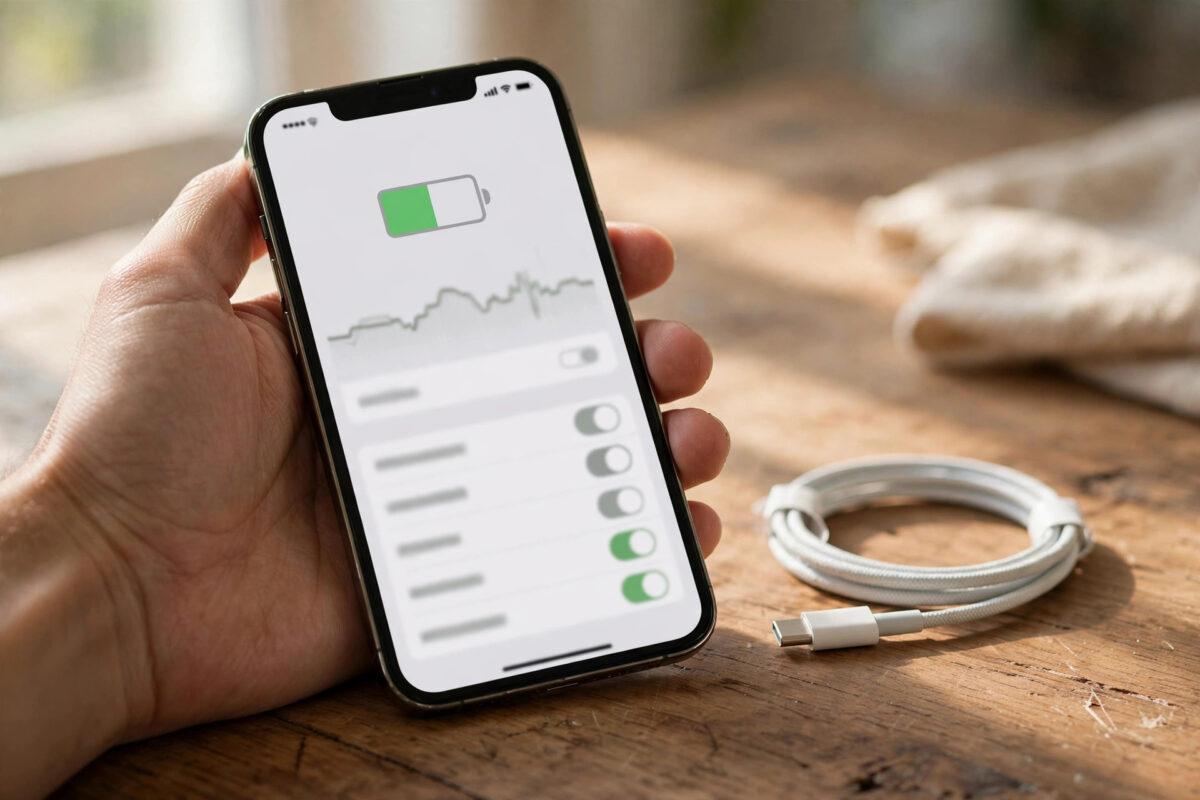
Every iPhone battery slowly wears out with use. After a year or two of daily charging, you may notice your phone dying earlier in the day than it used to. The good news is that your iPhone can tell you exactly how healthy its battery still is, and you do not need any app or tool to see it. The information is built into the Settings app, and it only takes a few seconds to find.
Quick Answer
Open Settings, tap Battery, then tap Battery Health & Charging. The Maximum Capacity percentage shows how much charge your battery can hold compared to when it was brand new. A reading of 100% means the battery is like new, while anything under 80% means the battery is worn out and Apple suggests getting it serviced or replaced.
Step-by-Step: Check Your Battery Health
The exact screens are almost the same on every modern iPhone, whether you are running iOS 27 or an older version. Follow these steps:
- Open the Settings app on your iPhone.
- Scroll down and tap Battery.
- Tap Battery Health & Charging near the top of the screen.
- Read the number next to Maximum Capacity.
- Also check the Peak Performance Capability message below it, which tells you whether the battery can still deliver full power when the phone works hard.
On newer models such as the iPhone 17 and iPhone 18 series, this screen also shows extra details like the cycle count and the date the battery was made. The cycle count tells you how many full charge cycles the battery has been through, which is a simple way to judge how much life it has left.
What Does Maximum Capacity Actually Mean?
Maximum Capacity is a simple comparison. When your iPhone left the factory, its battery could hold a certain amount of energy, and that amount is treated as 100%. As the battery ages through hundreds of charges, the chemicals inside slowly wear down, so it holds a little less energy every month. If your screen shows 92%, your battery now holds about 92% of the energy it held when new.
This is normal for every rechargeable battery, not a fault. Apple designs iPhone batteries to keep roughly 80% of their original capacity after 500 full charge cycles on older models, and after 1,000 cycles on the iPhone 15 and later. How fast you get there depends on how often you charge and how hot the phone gets while charging.
What the Peak Performance Message Means
Under the capacity number you will see a short message about performance. If it says your battery is supporting normal peak performance, everything is fine. If your phone has ever shut down unexpectedly because the battery could not deliver enough power, iOS may turn on performance management to stop it happening again. You will see a note explaining this, and you can turn the feature off, although Apple does not recommend doing so on a weak battery.
When Should You Replace the Battery?
Apple’s own guidance is that a battery under 80% maximum capacity is significantly degraded. In real life, that is usually when problems start: the percentage drops in big jumps, the phone slows down during heavy tasks, or it switches off at 15% or 20%. If your capacity is in the low 80s and you are happy with how long the phone lasts, there is no rush. If it is under 80% and you struggle to get through the day, a replacement is the cheapest way to make the phone feel new again.
You can read more about how lithium-ion batteries age on Apple’s guide to why lithium-ion batteries age, which explains the science in simple terms.
Simple Habits That Slow Down Battery Ageing
You cannot stop a battery from ageing, but you can slow it down a lot:
- Turn on optimised charging so the phone does not sit at 100% all night.
- Keep the phone away from heat, especially in a hot car or direct sunlight.
- Use the charger and cable that came with the phone, or a trusted brand.
- Avoid letting the battery hit 0% every day; top it up little and often.
- Remove thick cases while charging if the phone feels hot.
If you have noticed your charge disappearing quickly lately, our guide on checking which apps use the most battery on iPhone will help you find the real culprit before you blame the battery itself.
Mistakes to Avoid
Many people install free “battery doctor” apps from the App Store, but these apps cannot see your real battery health because iOS does not share that data with them. They only guess based on usage. The number in Settings is the only accurate reading. Another common mistake is panicking at 97% or 98% after a few months. A drop of a few percent in the first year is completely normal and no reason to visit a repair shop.
Reading the Rest of the Battery Screen
While you are in the Battery section of Settings, the main Battery page (one step back from the health screen) is worth a look too. It shows a graph of your battery level over the last 24 hours, with green sections marking when the phone was charging and a note of when it was last charged to full. Below that, the “Last 10 Days” view averages your usage, which is far more useful for spotting patterns than a single unusual day.
These graphs help you separate two very different problems. If your maximum capacity is a healthy 95% but the graph shows the battery emptying by lunchtime, your issue is usage, not wear, and an app or setting is responsible. If the graph shows a gentle, predictable decline that simply does not stretch as far as it used to, and capacity is in the low 80s, that is honest battery ageing. Checking both screens together stops you replacing a battery when the real fix was deleting one misbehaving app, and stops you blaming apps when the battery genuinely is worn out.
Conclusion
Checking your iPhone battery health takes less than a minute: Settings, Battery, then Battery Health & Charging. Treat 100% to 90% as healthy, the 80s as ageing but usable, and under 80% as the point where a replacement is worth the money. Combine that check with gentle charging habits and your battery will serve you well for years.
How Often Should You Check?
A quick check every few months is plenty for most people. The moments that genuinely deserve a look are when your battery life changes noticeably, before you buy a used iPhone, before you sell yours, and after any period where the phone has been exposed to serious heat. On a second-hand purchase, this one screen tells you more about the phone’s remaining life than any other check: ask the seller to show it, or check it yourself the moment the phone is in your hands. A used phone at 88% with honest wear is a fair buy; one at 78% should be priced with a battery replacement already in mind, so factor that cost into what you offer.
Frequently Asked Questions
Why did my maximum capacity drop suddenly after an update?
Sometimes an iOS update recalibrates the battery reporting system, so the number becomes more accurate rather than worse. A drop of 1–3% after an update is usually just the phone correcting its estimate, not real damage happening overnight.
Can I improve my maximum capacity number?
No. The wear is physical and cannot be reversed by software, settings or apps. The only way to return to 100% is to fit a new battery. Anyone claiming an app can restore capacity is misleading you.
How many charge cycles should my battery last?
Older iPhones were designed to keep 80% capacity for about 500 cycles, while the iPhone 15 and newer models are rated for about 1,000 cycles. Gentle use and cool temperatures can stretch that further.
Does fast charging damage battery health faster?
Fast charging creates more heat, and heat is the main enemy of battery life. Used now and then it is fine, but charging slowly overnight with optimised charging enabled is kinder to the battery over the long term.
Is a cheap third-party battery replacement a good idea?
It can be a false economy. Non-genuine batteries may show no health data at all in Settings, may swell or overheat, and can trigger warning messages. An Apple or authorised repair with a genuine battery is the safer choice.



[…] If you plan to keep your phone for three or four years, the 80% limit is surprisingly practical. Most people never truly need the last 20% on a normal day, and the battery stays healthier for far longer. You can read your current health figure any time using our guide on checking iPhone battery health and maximum capacity. […]