
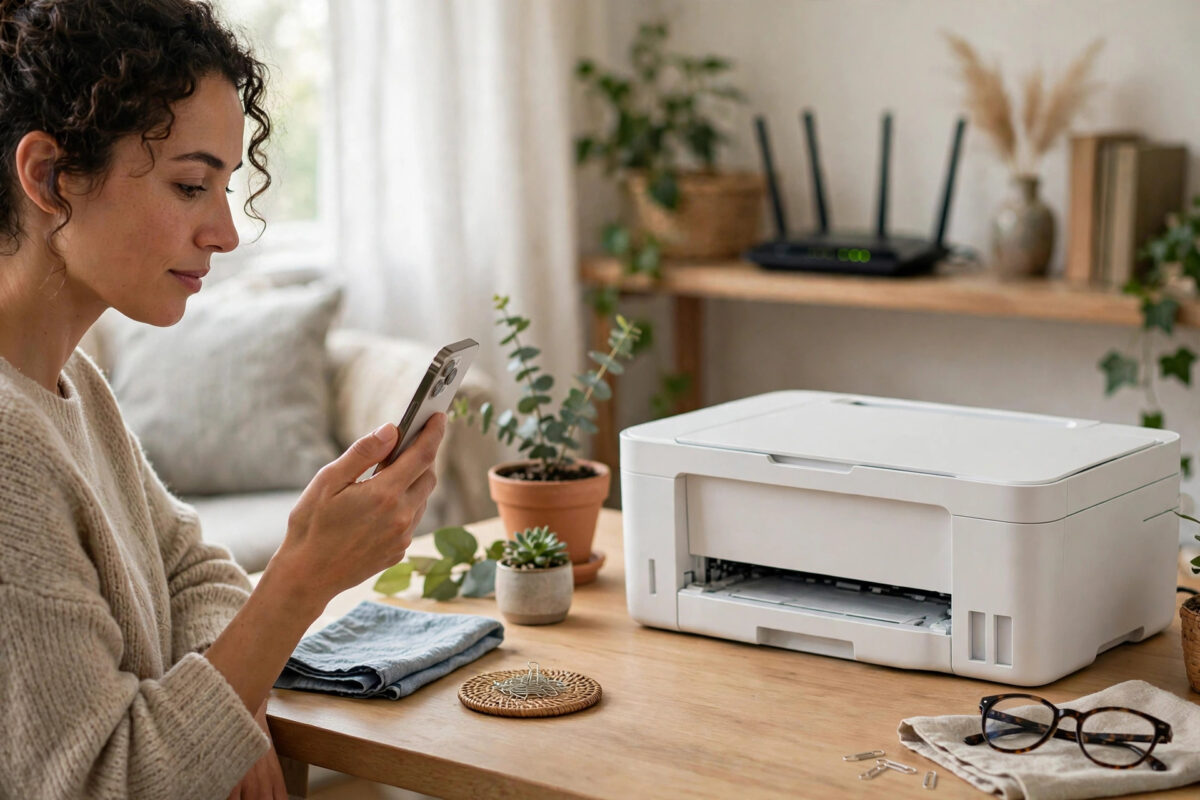
You open a photo on your iPhone, tap Share, tap Print, and wait for your Canon PIXMA to appear. Nothing shows. It says No AirPrint Printers Found, even though the printer is on, on Wi-Fi, and prints fine from your laptop. It is frustrating because everything looks correct.
AirPrint has strict requirements that are easy to miss. The iPhone and printer must be on the exact same Wi-Fi network, the printer must support AirPrint with it enabled, and the router must allow the discovery service that lets the iPhone see the printer. If any one fails, the printer disappears from the list. This guide checks each requirement in simple steps so you can find and fix the broken one.
Quick Answer
Connect your iPhone and Canon PIXMA to the exact same 2.4 GHz home Wi-Fi network, make sure AirPrint is enabled on the printer, and restart the router, printer, and iPhone in that order. Turn off any VPN, avoid guest networks, and the printer should appear in the iPhone print list within a minute. Most cases are caused by the iPhone being on 5 GHz or a guest network while the printer is on 2.4 GHz.
How AirPrint Works and Why the Printer Disappears
AirPrint is Apple’s built-in printing system. There is no driver to install on the iPhone. Instead, the iPhone searches your local Wi-Fi for printers that announce themselves using a service called Bonjour. If the printer announces and the iPhone hears it on the same network, the printer appears automatically.
That means AirPrint cannot cross network boundaries. A guest network, VPN, or isolated band will hide the printer, as will a router that blocks multicast traffic.
Canon models that support AirPrint need the feature turned on. It is on by default on most models, but a factory reset or a LAN setting change can turn off related services. Finally, many PIXMA printers only connect on 2.4 GHz, while iPhones prefer faster 5 GHz. That band mismatch is the most common reason a printer is invisible to an iPhone but works from a laptop that uses a saved IP address.
Step 1: Confirm Your PIXMA Supports AirPrint and Is Ready
- Check your exact model. Most recent PIXMA TS, TR, G, and MG models support AirPrint, but a few very old models do not. Search your model on Canon’s site if unsure.
- Make sure the printer is on, has paper, shows no error lights or codes, and displays Ready. A printer stuck on an ink or paper error often stops announcing itself.
- Print a network configuration page: Setup, Device Settings, LAN Settings, Print LAN Details. Keep it, because it shows the Wi-Fi name, IP address, and connection status.
Apple states the same basic rule in Apple Support guidance on printing with AirPrint: the printer and iOS device must be on the same Wi-Fi network.
Step 2: Put iPhone and Printer on the Exact Same Network
This step fixes the majority of cases, even when you think they already match.
- On the iPhone, open Settings, Wi-Fi, and note the exact network name with the tick.
- Compare it with the SSID on the Canon network page. They must match letter for letter. If not, reconnect the printer.
- To reconnect the printer, go to Setup, LAN Settings, Wireless LAN Setup, and run standard setup. Choose your home network and enter the password slowly. Pick the 2.4 GHz version if you see names like HomeWiFi and HomeWiFi-5G.
- If your router uses one name for both bands, consider giving the 2.4 GHz band its own name in the router app, such as HomeWiFi-2G, and connecting printers to it. This solves band steering problems permanently for many homes.
- Turn off any VPN app. A VPN routes traffic away from your local network, so AirPrint cannot find local printers while it is on.
- Do not use a Guest network. Guest networks isolate devices by design, so they can use the internet but cannot see your printer.
After both are on the same network, wait 60 seconds. Discovery is not instant after a change. Then open a photo, tap Share, Print, and Select Printer to check again.
Step 3: Restart in the Right Order
- Turn off the printer and unplug it for 30 seconds.
- Restart the router: unplug for 30 seconds, plug back in, and wait two to three minutes until Wi-Fi lights are steady.
- Restart the iPhone fully. Power it off, wait 10 seconds, and turn it on.
- Plug in and turn on the printer last. Wait until its Wi-Fi light is steady and it shows Ready.
- Reconnect the iPhone to Wi-Fi if needed, then try printing again.
Order matters: router first, then the printer announces itself, then the iPhone searches fresh. Restarting only the iPhone rarely helps if the router discovery table is stuck. If the printer still shows offline on other devices, work through our guide to fixing a printer that keeps showing offline for extra router and IP checks.
Step 4: Check AirPrint and Bonjour on the Printer
- Find the printer IP address on the LAN details page, for example 192.168.1.45.
- On a device on the same network, type that IP into a browser to open the printer Remote UI. The admin password is often the serial number on newer models. Check the label on the back if prompted.
- Find AirPrint Settings or LAN Settings. Set AirPrint to Enable and Bonjour to Enable. Save and restart the printer if you changed either.
- Confirm the active connection is Wireless LAN, not wired LAN, if you are using Wi-Fi.
Canon explains where these settings live in the Canon PIXMA manual section on printing with AirPrint, which is a useful reference for screen models.
Step 5: Fix iPhone Settings That Block Discovery
- Private Wi-Fi Address: In Settings, Wi-Fi, tap the info icon beside your home network. If it is set to Rotating and your router uses device filtering, try Fixed for your home network, then forget and rejoin the network once.
- Forget and rejoin: Tap Forget This Network, reconnect, and retype the password. This clears a bad saved profile that can block local discovery while internet still works.
- Update software: Update iOS, and check Canon support for a printer firmware update. Old firmware can have Bonjour bugs fixed in newer versions.
- Try another app: Test from Photos, Safari, and Mail. If AirPrint works in one app but not another, the problem is that app, not the connection.
- Reset network settings as a last step: Settings, General, Transfer or Reset iPhone, Reset Network Settings erases saved Wi-Fi passwords, so only do it if you know them. It often fixes stubborn discovery faults.
As a check, try the Canon PRINT app. If it finds the printer but AirPrint does not, the issue is Bonjour or AirPrint settings.
Router Settings That Block AirPrint
- AP or client isolation: Must be Off on your main network. It blocks devices from seeing each other.
- Multicast: Enable it if your router offers the option. On mesh systems, ensure phone and printer are not isolated on different nodes.
- Band steering: Some routers push the iPhone to 5 GHz aggressively. A separate 2.4 GHz name for printers avoids this.
- Separate VLANs: If printers are on an IoT VLAN and the iPhone is on the main VLAN, discovery will fail without a Bonjour reflector rule. For most homes, keep both on one simple network.
Common Mistakes to Avoid
- Assuming any Wi-Fi is the same network: Two networks can both give internet but still be isolated. Names must match exactly.
- Testing far from the router: Weak signal at the printer can drop its announcement. Move it closer during testing if the signal is one bar.
- Leaving VPN on: Even VPNs that claim to allow local traffic can block Bonjour. Turn it fully off for the test.
- Confusing Wi-Fi Direct with AirPrint: Wireless Direct connects the phone straight to the printer but leaves home Wi-Fi and internet. It is a one-off backup, not a fix for home AirPrint.
- Skipping the router restart: Many people skip it, yet it clears the most stuck discovery cases.
Conclusion
When your iPhone cannot find your Canon PIXMA, the cause is almost always network sameness, band mismatch, or blocked discovery, not a broken printer. Put both devices on the exact same 2.4 GHz home network, enable AirPrint and Bonjour, restart router, printer, and iPhone in order, and remove VPN or guest isolation. Once those basics line up, AirPrint works instantly with no driver, and your PIXMA should stay visible for photos, emails, and documents.
Frequently Asked Questions
Why does my printer work from my laptop but not my iPhone?
Your laptop uses a driver and a saved IP address, so it can reach the printer despite some network differences. AirPrint relies on Bonjour discovery on the exact same local network. If the iPhone is on 5 GHz, a guest network, or a VPN, it will not discover a printer the laptop can still reach.
Does my PIXMA need to be on 2.4 GHz for AirPrint?
Most PIXMA models only have a 2.4 GHz radio, so the printer will be on 2.4 GHz. Some routers bridge bands well, but many do not forward Bonjour reliably between bands. Using a shared or 2.4 GHz name for both is the most reliable fix.
What does “No AirPrint Printers Found” mean?
It means the iPhone searched and heard no printer announcing AirPrint. It does not mean the printer is broken. It usually means a network mismatch, disabled AirPrint or Bonjour, router isolation, or that the printer was still starting up.
Can I use AirPrint without a router?
Some models offer Wireless Direct for a direct phone-to-printer link. You can print that way, but the iPhone leaves home Wi-Fi and loses internet during printing. It is a backup, not a replacement for fixing home network AirPrint.
I enabled AirPrint but it still does not appear. What next?
Restart router, printer, and iPhone in order with VPN off, on the same network. Then print the LAN details page and confirm the printer IP range matches your iPhone Wi-Fi IP range, and check the router for AP isolation. Those checks find almost every remaining cause.
Leave a Reply