
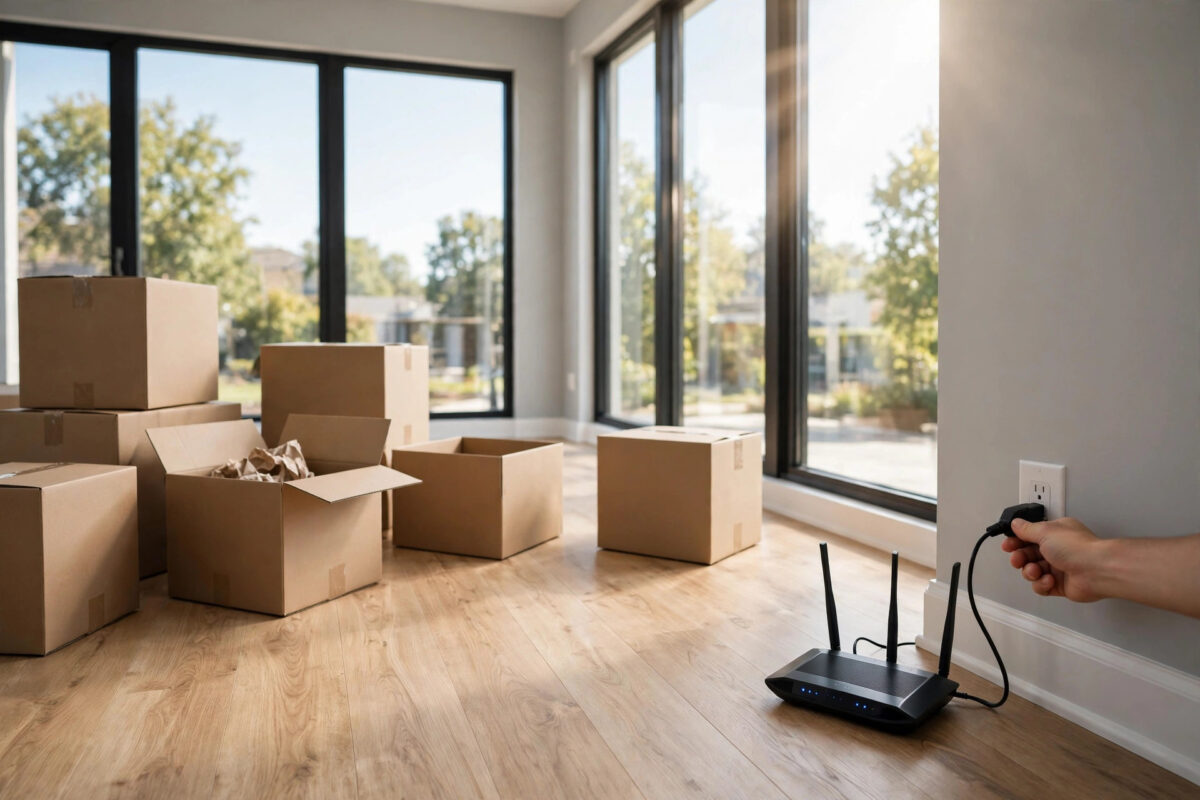
Moving house is stressful enough without arriving to find no internet for work, school, or even the smart doorbell. Ordering broadband is one of those jobs that rewards being done early.
This step-by-step guide covers the whole process, from checking what is available at the new address to securing the Wi-Fi on moving day, in the order that avoids delays.
Quick Answer
Check availability at the new address three to four weeks before moving, order the service for your move-in date, then on the day connect the router, log in to its admin page, change the Wi-Fi name and password, and test every room. Early ordering is the single most important step.
Step One: Check What Is Available at the New Address
Broadband availability is tied to the exact property, not the town. Two houses on the same street can have completely different options.
Full fibre may be available from one network but not another. Always check several providers and alternative networks, not just your current one.
General consumer guidance from Ofcom, the UK communications regulator is a reliable starting point for understanding your rights when switching and moving services.
- Find the full postcode and house number or flat number.
- Run the address through at least three provider availability checkers.
- Note whether each result is full fibre (FTTP), part-fibre (FTTC), or cable.
- Record the estimated and guaranteed speeds for your shortlist.
- Check mobile coverage too, as a backup option for the first days.
If the property is a new build, ask the developer which networks are pre-installed. New estates often have fibre already run to each home.
Step Two: Choose the Right Speed for the Household
Do not just copy your old package. A new home often means new routines, more rooms, and sometimes home working that the old place never had.
Use per-person planning. Allow roughly 25 Mbps per person for a household that streams in the evening and works or studies from home.
Remember the key figures: Netflix needs about 5 Mbps for HD and about 15 Mbps for 4K per stream. Two 4K TVs alone justify at least a 50 Mbps service.
- 1–2 people, light use: 35–70 Mbps is usually enough
- 3–4 people, mixed use: 100–150 Mbps is comfortable
- 5+ people or heavy 4K and gaming: 300 Mbps or more
- Two full-time home workers: prioritise 20 Mbps+ upload
Also check contract length against your tenancy. Renters on a 12-month tenancy should avoid 24-month deals without a clear early-exit cost.
Step Three: Order Early and Time the Switch
Order three to four weeks before moving if you can. Standard installations often need an engineer slot, and popular dates fill up fast.
If you are staying with the same provider, ask for its home-move service. Many providers transfer your package and keep your account history intact.
If you are switching, the new provider usually handles the switch for broadband. Confirm who cancels what, in writing, so nothing is cut off early.
- Choose your installation or activation date for move-in day or the day after.
- Confirm whether an engineer visit is needed and who must be present.
- Ask where the router will be delivered and arrange a safe delivery option.
- Diarise the old service end date to avoid paying for two full months.
- Save every confirmation email in one folder for moving day.
Never let the old service end before the new one is live if someone works from home. A short overlap is cheap insurance.
Step Four: Prepare the New Property
If you can visit before moving day, do a five-minute survey. It will save an hour of frustration later.
Find the master socket or fibre entry point. On full fibre homes, look for a small white ONT box, usually near the front of the property.
Check power sockets nearby. The router needs power close to the entry point, or a long cable run that looks messy and performs badly.
Plan the router position now: central, raised, and out in the open. Kitchens full of metal and ground-floor corners are the worst spots in most homes.
What If There Is No Socket or the Wiring Looks Damaged?
Tell your provider before installation day. Engineers can fit a new socket or fibre entry, but it may need a longer appointment.
Take photos of damaged sockets or cut cables. Sending them in advance helps the engineer arrive with the right parts.
Do not attempt to rewire sockets yourself. Provider network wiring up to the master socket is the network operator’s responsibility, not yours.
Step Five: Connect Everything on Moving Day
Unpack the router early, before the furniture buries every socket. It deserves a place in your first-day essentials box.
- For full fibre, connect the ONT to power and wait for its lights to settle.
- Connect the router’s WAN port to the ONT or master socket with the supplied cable.
- Power on the router and allow five to ten minutes for first setup.
- Connect one laptop by cable and confirm the internet works wired.
- Only then start connecting phones, TVs, and other devices by Wi-Fi.
Testing wired first matters. If the wired connection fails, the problem is the service or installation, and you can report it the same day.
Keep the engineer’s paperwork and the router’s default details card. Photograph both so you have them even if the originals vanish into a box.
Step Six: Log In and Secure the Router Properly
A new connection on default settings is an open invitation. Spend ten minutes now to secure it for years.
Follow our detailed walkthrough on logging in to your router admin page for the first time if you have never opened the router settings before.
- Log in to the admin page using the details on the router label.
- Change the admin password from its default value.
- Rename the Wi-Fi network to something that does not reveal your address.
- Set a strong, unique Wi-Fi password of at least 12 characters.
- Check for a firmware update and install it if offered.
- Reconnect your devices using the new name and password.
Write the new details on the router card and store it somewhere sensible. Avoid taping passwords to the router itself in a shared house.
Step Seven: Test Coverage and Fix Weak Rooms
Walk the home with a phone and run a speed test in each main room. Note the results room by room, including upstairs bedrooms.
Near the router you should see close to your full package speed on a modern phone. Drops of 30 to 50 percent in far rooms are common in larger homes.
If one room is very weak, try moving the router a few feet first. Small changes in position, height, and direction can transform a problem room.
Persistent dead spots in a large or thick-walled home may need a mesh Wi-Fi system. Mesh beats a single cheap extender for whole-home coverage in most cases.
Step Eight: Handle the First Week Like a Pro
Some part-fibre lines run a training period of up to ten days and may restart overnight. Full fibre does not need this and should be fast from day one.
Run one wired test each evening for the first three days. If results stay well below the guaranteed minimum, report it immediately while installation records are fresh.
Reconnect smart devices in batches, not all at once. If something breaks the network, you will know it was in the last batch you added.
Finally, update your address with your provider’s app and paperless billing. Moving house is also the perfect moment to review whether the package still fits.
Common Mistakes to Avoid
The costliest mistake is ordering too late. Engineer appointments, not paperwork, are what delay most new-home connections.
Another frequent error is placing the router wherever the socket is, even a hallway floor corner, then blaming the provider for poor Wi-Fi.
People also forget the overlap. Cancelling the old home’s service on moving day is fine, but the new service must be confirmed live first.
- Do not bin the old router yet: you may need its details, and some providers charge for non-return.
- Do not skip the password change: default Wi-Fi keys are printed in predictable formats.
- Do not judge speed on day-one Wi-Fi alone: test wired before complaining or celebrating.
Conclusion
Setting up internet in a new home goes smoothly when the order is right: check early, order early, test wired first, then secure the router and map the Wi-Fi room by room.
Follow those steps and moving day ends with working broadband instead of a hotspot borrowed from your phone. Any problem that does appear will be found on day one, when it is fastest to fix.
Frequently Asked Questions
How far in advance should I order broadband for a new home?
Three to four weeks is ideal. That leaves room for engineer appointments and router delivery. If you have less time, order immediately anyway, as many activations can still be completed within one to two weeks.
Can I take my current broadband contract to a new address?
Usually yes, if your provider serves the new property. Most offer a home-move service that transfers the package, sometimes starting a new contract term, so confirm the terms before agreeing.
What internet speed do I need in a new family home?
Most families of three to four are comfortable on 100 to 150 Mbps. Count simultaneous 4K streams at about 15 Mbps each, plus calls and gaming, and choose the next package above your total.
What if there is no internet for the first few days?
Use mobile data as a bridge: tether a laptop to your phone or buy a short-term data SIM for a spare router or hotspot. Check your mobile allowance first, as video calls use data quickly.
Where is the best place for the router in a new home?
Centrally, raised off the floor, and out in the open, away from thick walls, metal objects, and the kitchen if possible. The closer it is to where people actually sit, the better every device performs.



Leave a Reply