
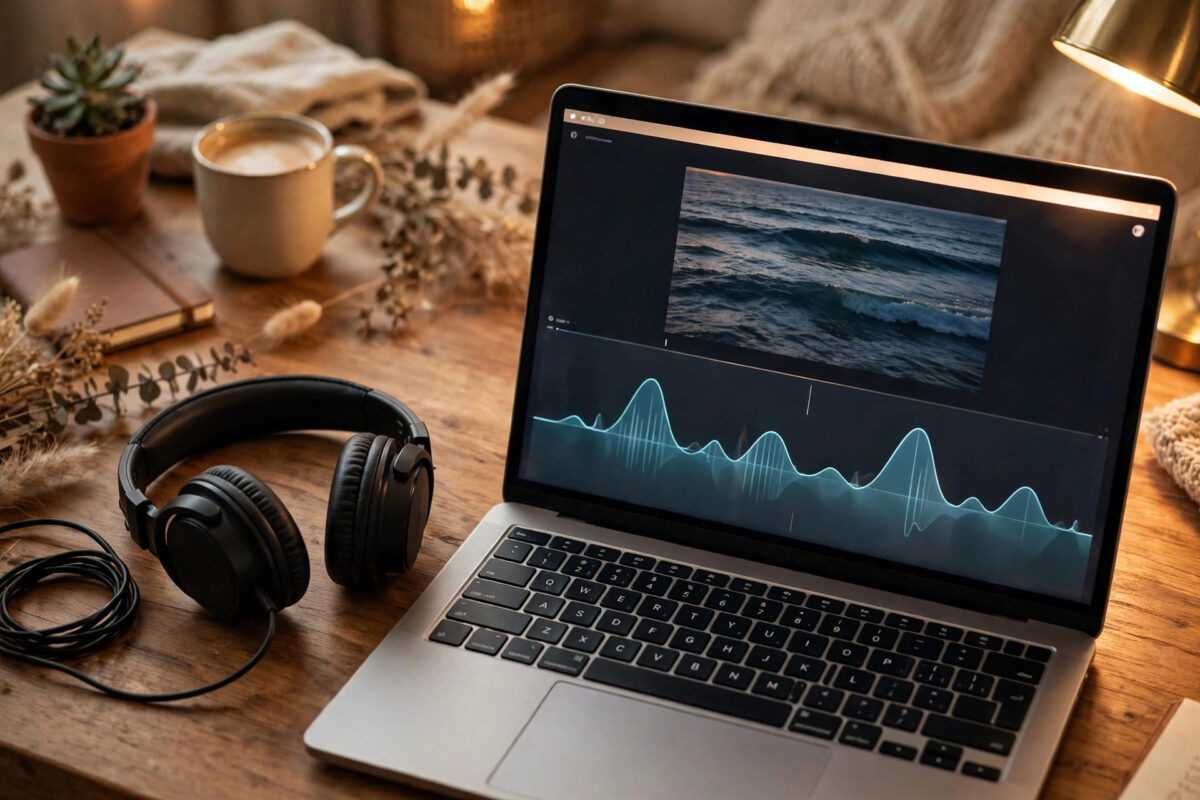
You have an MP4 video but you only need the sound: a podcast episode, a lecture, an interview, or a song from a live performance. Playing the video just to listen wastes battery, data, and screen space.
A free online video converter solves this by extracting the audio as an MP3 in minutes. No software install is needed, but quality settings and site safety make a real difference to the result.
Quick Answer
The best free option for most people is CloudConvert for clean quality and bitrate control, with FreeConvert as a strong alternative for larger files. Upload your MP4, choose MP3, pick 192 to 320 kbps for music, convert, and download — the process takes just a few minutes.
What Happens When You Convert MP4 to MP3?
An MP4 file contains both a video track and an audio track packaged together. Conversion simply extracts the audio and re-encodes it as a standalone MP3.
Because the video track is discarded, the MP3 is far smaller than the original. An hour of video can shrink to a fraction of its size as audio only.
Quality depends on two things: the audio quality inside the original MP4 and the bitrate you choose for the MP3 output.
If the original video had poor sound, no converter can fix it. Extraction preserves what is there; it does not improve weak source audio.
Most converters also let you trim the start and end. That is useful for removing long intros or silent sections before you download.
Remember to only convert videos you own or have permission to use. Lectures you recorded and your own content are fine; copyrighted material is governed by the rights holder’s terms.
Top Free Online Converters Compared
CloudConvert: best overall for quality control
CloudConvert is the most polished option for MP4 to MP3 work. It lets you set bitrate, sample rate, and channels before converting.
Its free tier works without aggressive advertising, and the interface is clean on desktop and mobile. It suits users who care about consistent results.
FreeConvert: best for larger files
FreeConvert is known for accepting larger uploads on its free tier than many rivals. It also offers audio settings and a simple, honest workflow.
It is a good pick for long lectures and presentations. Processing can take longer for big files, but the flexibility is worth it.
Online Audio Converter: best for quick jobs
This browser-based tool focuses purely on audio extraction and editing. It supports fade in, fade out, and basic metadata editing before download.
It is ideal for short clips when you want the result fast. For very long videos, a general converter is usually more reliable.
All three tools are free to start with usage limits. If you convert daily in bulk, a paid tier mainly buys higher limits and faster processing.
For more media utilities like this, see our Online Tools guides and tutorials on NetworkUstad for tested, beginner-friendly workflows.
How to Convert MP4 to MP3 Online: Step by Step
- Open your chosen converter website in your browser.
- Click Select File and choose the MP4 video from your device, or paste a supported file from cloud storage.
- Set the output format to MP3 if it is not already selected.
- Open audio settings and choose your bitrate — 192 kbps for speech, 256 to 320 kbps for music.
- Trim the start or end times if you only need part of the audio.
- Click Convert and wait while the file uploads and processes.
- Click Download to save the MP3 and play it once to check quality.
Upload time is usually the slowest part, especially for large videos on a weak connection. Keep the tab open until the download is offered.
If conversion fails, the file may be corrupted or in an unusual codec. Try a different converter before assuming the video itself is unusable.
Choosing the Right Bitrate and Settings
Bitrate controls the balance between quality and file size. Higher is not always better if your source audio was recorded at low quality.
For lectures, podcasts, and voice notes, 128 to 192 kbps is plenty. Speech stays clear, and files remain small enough to share easily.
For music, choose 256 to 320 kbps when you can. Instruments, bass, and quiet passages sound noticeably fuller at higher bitrates.
Keep the sample rate at 44.1 kHz for music and general use. That matches CD quality and plays correctly on every device and player.
Choose stereo for music and most video sound. Mono is only sensible for single-voice recordings where file size matters more than space.
If the converter offers variable bitrate, it can save space on speech. For predictable quality across a music library, constant bitrate is simpler.
The YouTube audio and video encoding guidance from Google gives helpful context on how bitrate affects perceived quality.
Safety, Privacy, and Copyright Notes
Only use converters with a clear privacy policy and automatic file deletion. Your videos may contain private conversations or unreleased work.
Beware of fake download buttons and pop-ups demanding software installs. A legitimate converter never needs you to install a player to get your MP3.
Close any tab that redirects you repeatedly or asks for payment details for a supposedly free conversion. Switch to a better-known tool instead.
On copyright, the safe rule is simple: convert your own recordings, licensed content, and material you have explicit permission to reuse.
Downloading audio from streaming platforms against their terms can breach those terms even for personal use. Check the source rules before converting.
When in doubt, keep conversions to content you created or paid to access for this purpose, and store the files for private listening only.
Fixing Common Conversion Problems
If your MP3 is silent, the original MP4 may have multiple audio tracks and the converter picked an empty one. Try another tool with track selection.
If the sound is out of sync in long files, splitting the video into shorter parts before converting often produces a clean result.
If the file will not upload, check the free-tier size limit first. Compressing the video or using a tool with a higher limit usually solves it.
If quality sounds harsh or watery, your bitrate was probably too low for the content. Reconvert from the original MP4 at a higher bitrate.
Never reconvert an MP3 to fix quality. Always go back to the original MP4 so each conversion starts from the best possible source.
Common Mistakes and Tips
The most common mistake is choosing the maximum bitrate for everything. It wastes space on speech recordings where lower settings sound identical.
Another mistake is deleting the original MP4 immediately. Keep it until you have listened to the full MP3 and confirmed nothing is missing.
Many users forget metadata. Adding the title, speaker, and date before download makes lectures and podcasts far easier to find later.
Name files clearly, such as lecture-week-3-biology.mp3. Vague names like audio-1.mp3 become confusing within a week.
Tip for students: trim silence and intros during conversion. A tighter file is easier to review at faster playback speeds before exams.
Tip for music fans: convert one track first and listen on headphones. If it sounds right, use the same settings for the rest of the set.
Conclusion
The best free online video converter for turning MP4 into MP3 is the one that matches your file size and quality needs. CloudConvert leads for control, while FreeConvert suits larger files and quick tools suit short clips.
Pick the right bitrate for your content, convert from the original video, and check the result before deleting anything. Those three habits guarantee clean audio every time.
With no software to install, you can extract audio anywhere in minutes. Keep your sources legal, your settings sensible, and your files well named, and your MP3 library will stay useful for years.
Frequently Asked Questions
What is the best bitrate for MP4 to MP3 conversion?
Use 128 to 192 kbps for speech and lectures. Use 256 to 320 kbps for music where detail and bass matter more than file size.
Is it legal to convert MP4 videos to MP3?
It is fine for videos you own, recorded yourself, or have permission to convert. Copyrighted or streaming content depends on the rights and platform terms.
Why is my converted MP3 much smaller than the video?
The video track, which is most of an MP4 file’s size, is removed. Only the audio remains, so the MP3 is naturally far smaller.
Can I convert MP4 to MP3 on my phone for free?
Yes. The converters in this guide work in mobile browsers. Upload from your files or gallery, convert, and save the MP3 to your device.
How long does an online conversion take?
Short clips usually finish in under a minute after upload. Long or large videos can take several minutes depending on your connection and the service queue.
Leave a Reply